How to create a library of QR Codes in SharePoint
I recently had an interesting and somewhat fun request from a client. They were into QR codes and used them extensively within the company to draw users’ attention to important URLs, such as forms and templates. Since I helped that client build an Intranet, they also asked me to build a library of important QR codes so users could simply point their phones at the screen and submit a form. There are 3 ways to implement this, so let me show you all of the options, and I will then tell you which one I chose for the client.
Option 1: Document Library with a Gallery View
Since the QR code image is a file, it makes sense to add it to the document library as an image. So go ahead and upload the QR codes into the document library, just as you would with regular office files.
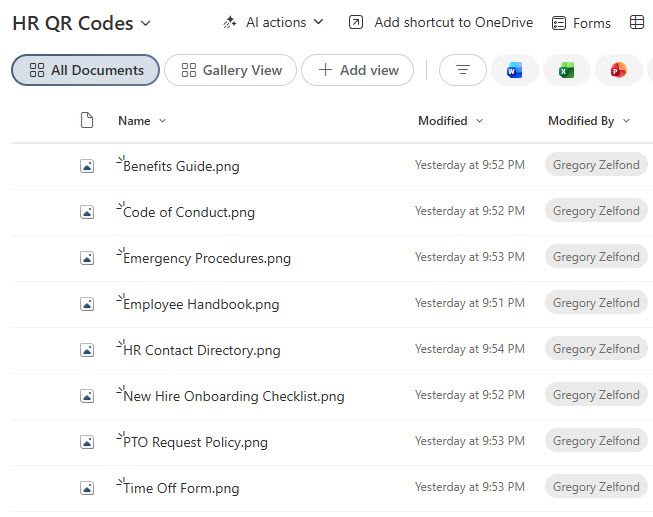
However, instead of a simple list of images and file names, we need to ensure the library is displayed in a Gallery View. I explained how to achieve it here.
Once all set and done, this is what the library looks like.
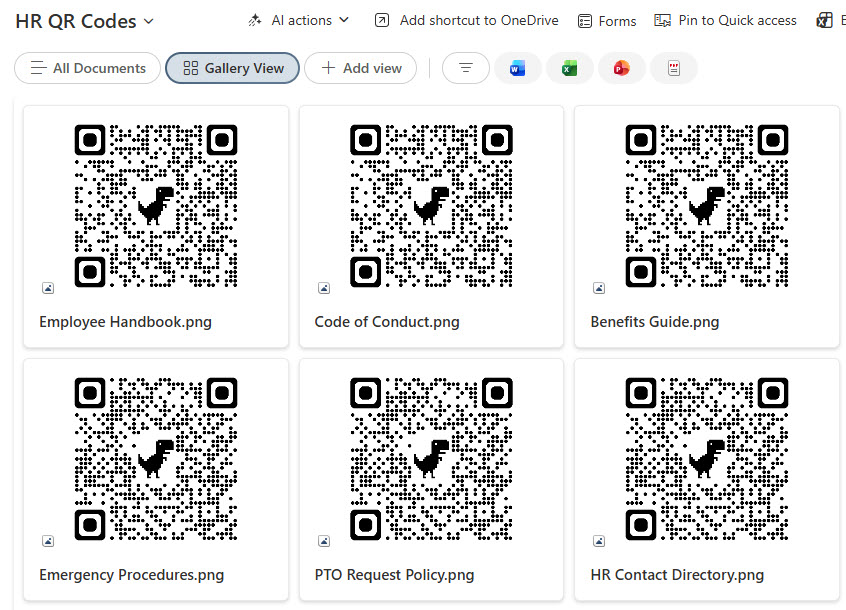
Example of QR Codes stored in a SharePoint Document Library (Gallery View)
One nuance about the above option is that you might need to add some padding to each QR code, as when you display it in the Gallery View, it resizes/crops it a bit, making it impossible to scan.
Option 2: Document Library with Tiles View
The second option also relies on the same document library but offers a slightly smaller QR code footprint. You might want to simply switch to the Tiles View available in the document library.
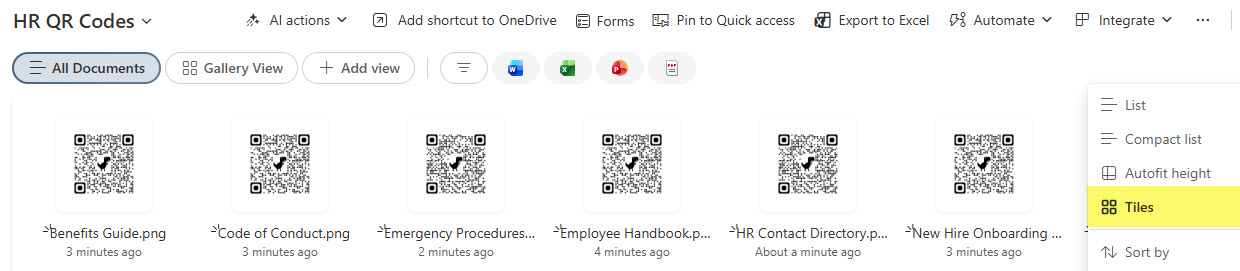
Example of QR Codes stored in a SharePoint Document Library (Tiles View)
Option 3: Microsoft List with an Image Column
Another possible option is to use a List and an Image column. This is the same trick I use when creating an employee directory list, when you need to display photos or images of employees. The beauty of this option is that you can use both the list view (which will display a small thumbnail of an image) and a Gallery View on a list. I explained that here.
There are 2 big advantages of this option:
- You can control the size of the QR Code by increasing/decreasing the Image Column width
- You can add custom metadata to provide additional context about each QR Code (Audience, Category, etc)

Example of a QR Code List with Custom Metadata (List View)

Example of a QR Code List with Custom Metadata (Gallery View)
Of these 3 options, I like the Library with Gallery View, and that’s the one I implemented. In my opinion, that was a perfect fit as QR codes are files themselves, and it was a natural fit, with the ease of dropping new QR codes and requiring less upfront setup than a list. Ultimately, it comes down to your preference and the number of QR codes to display.
Use Cases for QR Codes Library/Lists
- Forms created with Microsoft Forms (which actually allow you to create a QR Code for each and every form)
- Important pages on SharePoint Intranet (i.e., Homepage or Human Resources page)
- Links to document acknowledgment forms
- Employee Handbook
- Training Videos/Playlists
By the way, if you are curious how to generate a QR Code for a SharePoint page, I explained it in this article.

Share Article