How to add Quick Steps Column to Lists and Libraries
There are times when the simplest change or adjustment within a process or an application has the most impact on productivity. The feature I am about to describe is exactly that. I was secretly dreaming about this for years (yep, I don’t have a life outside of SharePoint). The feature I am talking about is the Quick Steps Column we can now add to Lists and Libraries.

This previously required custom development or JSON code. Not anymore. In this article, I will explain what makes this feature so simple yet effective, and how it will significantly increase your staff’s productivity.
We could create Quick Steps for some time on a list or library. However, it was hidden and not obvious to the user. You had to click on 3 dots next to a file, navigate through menus, and choose it among many other choices.

That made Quick Steps far less intuitive and significantly hurt its adoption. Until now. We now have the ability to add the Quick Steps column to lists and Libraries, which makes the action (button) available front and center, next to the actual file and related metadata. Let me show you how to make this happen.
Step 1: Create the Quick Step first
Reference this article to create a Quick Step. I am using an example where I have a Quick Step defined for Finance Policies that drafts an email to a CFO for Policy review.

Step 2: Add the Quick Steps column to the library
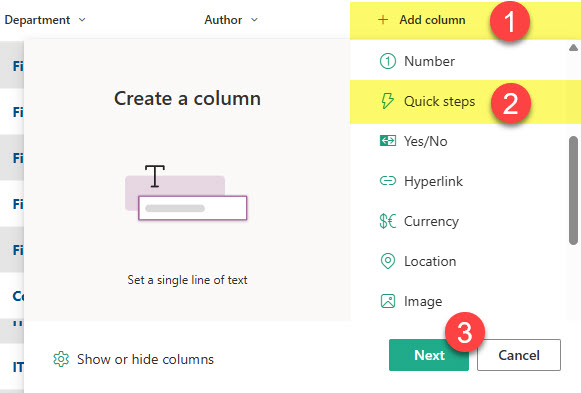
- Click + Add column, then choose Quick steps column type, then click Next.
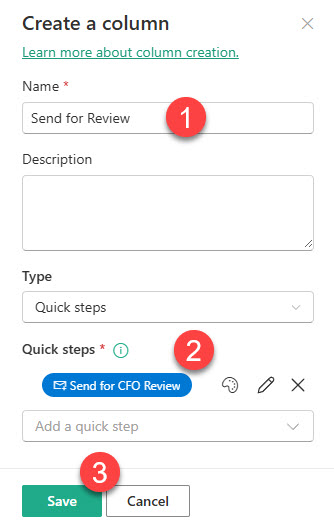
- Give the column a name, choose the Quick Step you would like to display, and click Save.
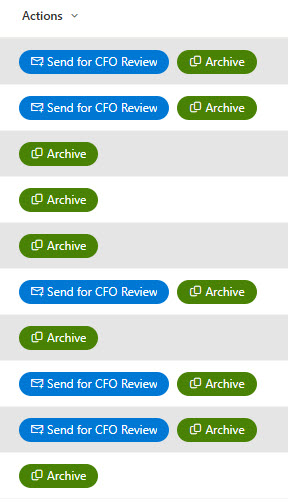
- You will then see the Quick Step button appear in the Column
Nuances about the Quick Steps Column
- A Quick Step column is available with both lists and libraries
- You can add multiple quick steps per 1 column
- Quick Step Column only exists as a local (list or library) column, not a site-level column
- Quick Step Columns can not be added to Content Types
- Quick Steps Columns honor conditional Quick Steps. As explained in an earlier article, if you create a Quick Step based on a condition, it will only display when that condition is met! The button (Quick Step) will also be displayed based on a condition, as shown in the above images.
- There are some formatting options available for the action button (fill color)

Share Article