< All Articles
How to create a Gallery View on a Document Library
Many users probably do not realize this, but you can create a Gallery view on a Document Library. You might wonder why you would need to do so, as you are used to seeing a document library in a typical folder view. In this article, I will explain how to create a Gallery View on a document library and then provide a few use cases for you as well.
Step 1: Create a Gallery View
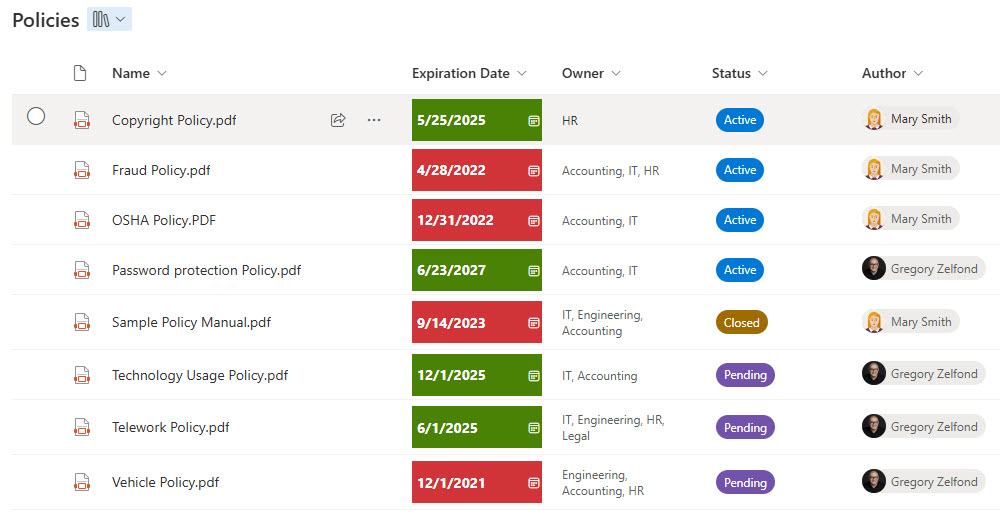
- For me to demonstrate this example, I will use an existing Policies document library with metadata tags
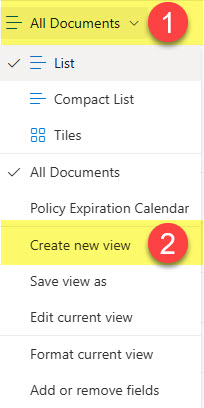
- In the upper-right-hand corner, click on the Views drop-down and click on Create new view
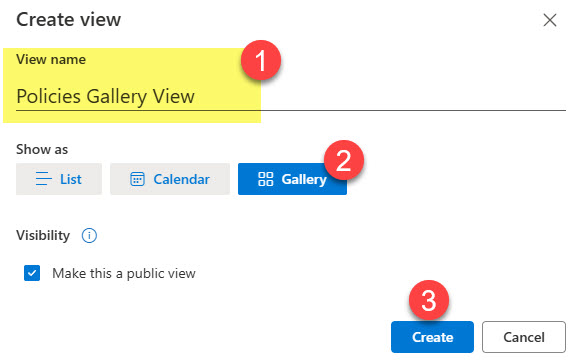
- Give your view a name, and make sure to select the Gallery button. Click Create.
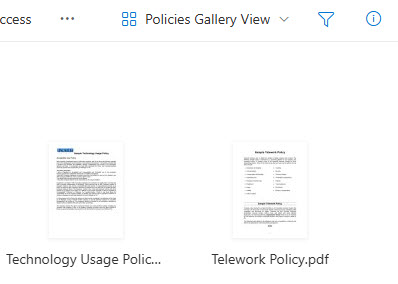
- The view is created at this point. However, it needs further configuration
Step 2: Configure the Gallery Card
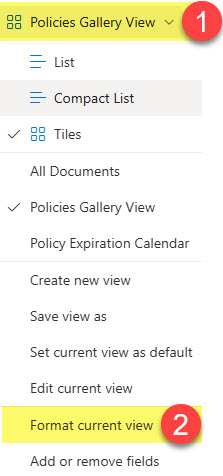
- Click on the Views drop-down again and choose Format current view
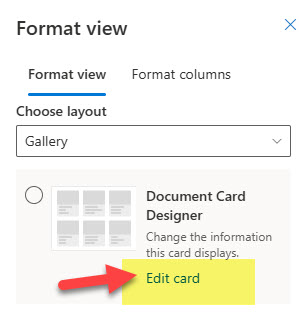
- Next, click on the Edit card link
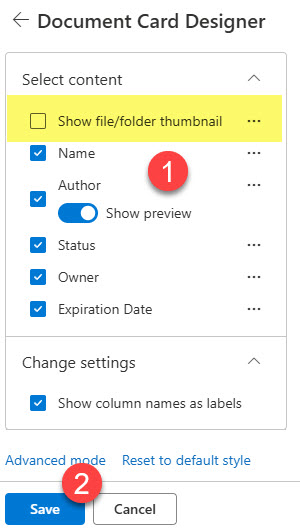
- You can then choose the fields you want to display and their order on the card.

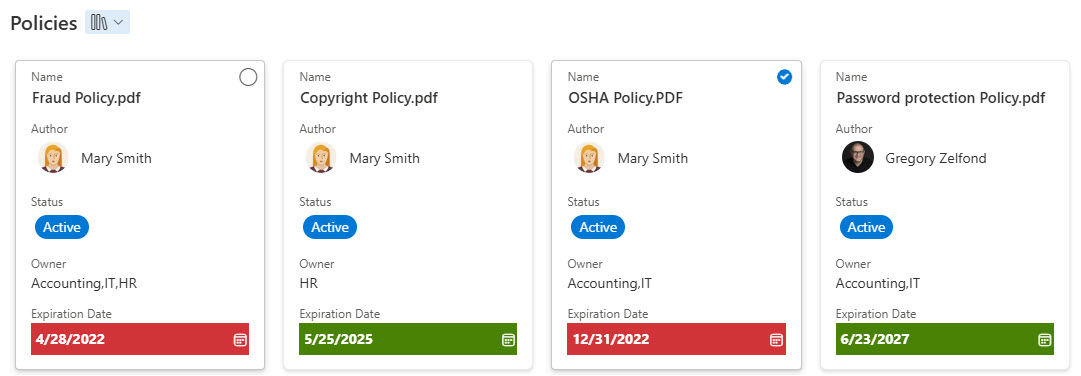
- In my case, I hid the thumbnail and changed the order of the fields. Once you make the changes, click Save.
- At this point, the Gallery view is created and ready for you to use.
Use Cases for creating a Gallery View on a document library
If you use a document library for collaboration, I believe you will be using the default list view (folders or metadata) on a day-to-day basis, so switching to Gallery View on a document library will be a pretty rare occurrence. However, there might be a few unique cases for you to consider.
- Provide an alternate view for documents when using metadata
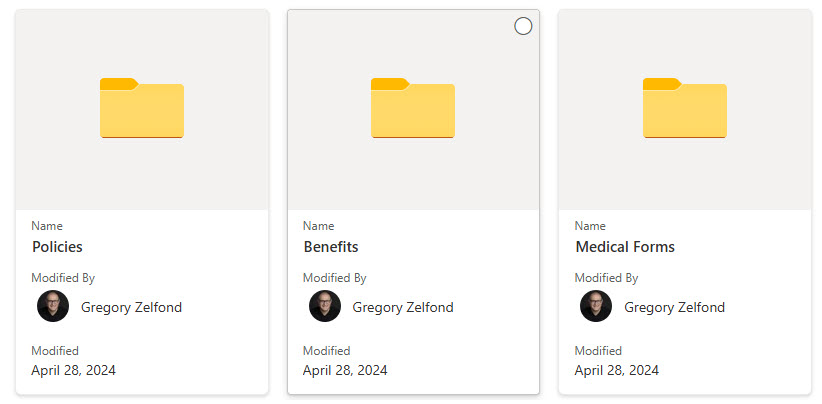
- Provide a visually-appealing way to view folders
- Embed a few important documents from a given document library on a SharePoint page
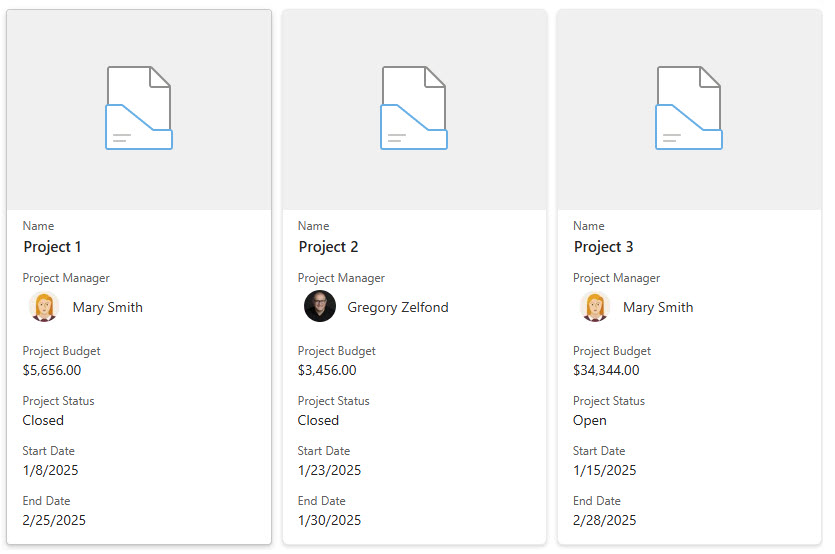
- Display document sets in a visually appealing format

Share Article