7 Ways to Organize Project Documents in SharePoint
It is probably impossible to find a company that never does any projects. So it is no surprise that one of the most common questions I get from clients looking to migrate documents to SharePoint is how best to organize project documents. Project files, unlike department documents, for example, have the following traits/characteristics that make them unique:
- Document collaboration occurs on a temporary basis (from a few days to several years, depending on the length of the project)
- You usually have a diverse team from multiple departments with varying levels of access to project documents
- After the project is completed, the information needs to be retained/archived for historical reasons
- In addition to storing files, project teams may also need to access other project tools and apps necessary to complete the project (i.e., Planner for task management, Teams for Communications, etc.).
- In some cases, collaboration with external parties like clients or vendors is also required
Given these traits, how can project documents be organized? I actually have 7 options for you to choose from.
Option 1: Document Library with folders
The first option is to organize the project folders the same way you probably had them organized on a network drive – by using folders. The idea is to create a folder for each project, with subfolders and files inside.
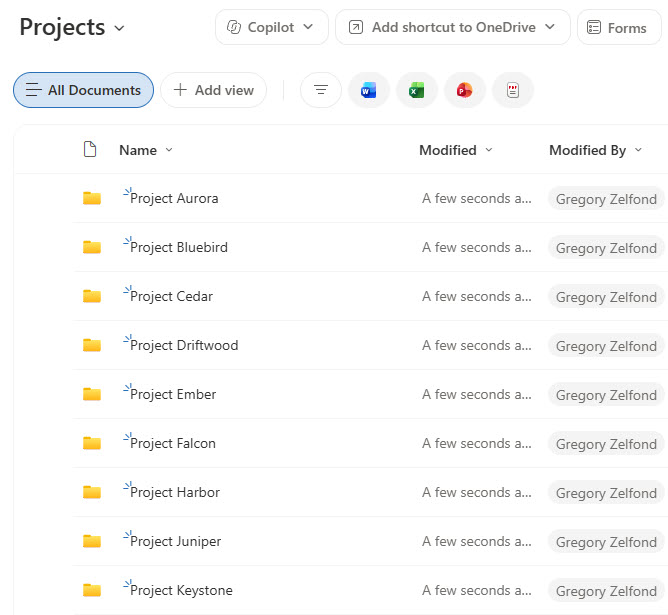
An Example of a Document Library with a folder for each project
Pros
- Does not require any setup
- Easy for users to understand, as it is similar to how they managed project files on a network drive
Cons
- Might become an issue if you have lots of projects and lots of files in each project (which can be mitigated by creating additional document libraries (i.e., Active Projects, Inactive Projects)).
- Becomes challenging if you need to share externally (with possible oversharing and lots of unique permissions)
- This option is best if you just want to store files and don’t need other apps connected (Teams, Planner)
Option 2: Document Library with metadata
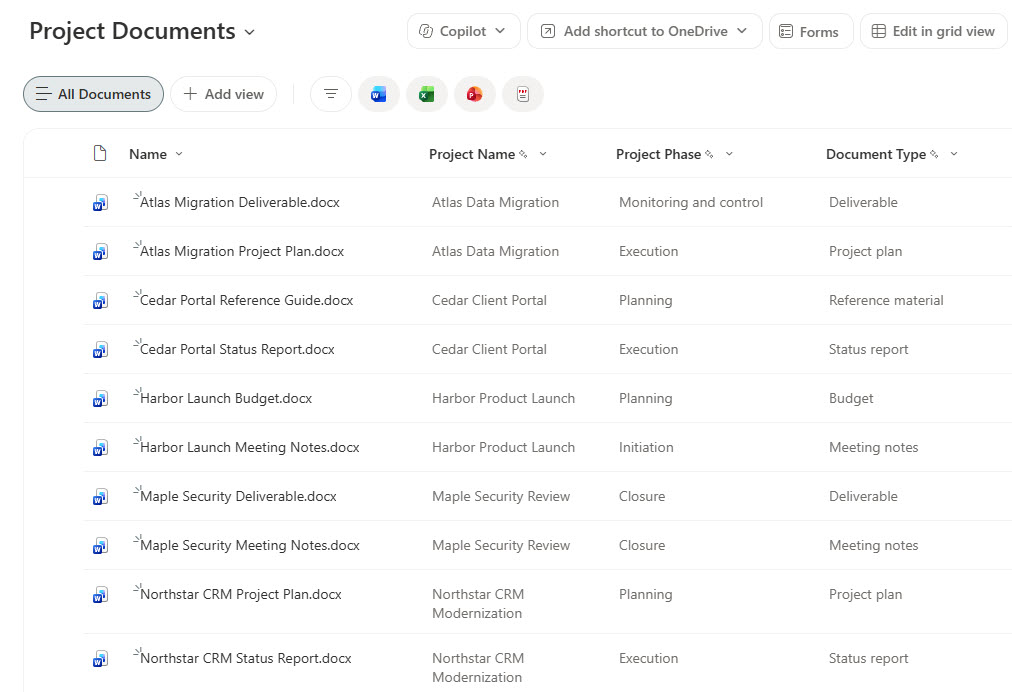
This option isn’t often used to organize project documents, but it might work in very rare cases, so I wanted to outline it here as well. The idea is to store all documents in a single library, but instead of folders, tag them with metadata. In other words, you might upload a document and tag it with Project Name, Document Type, Status, etc.
Pros
- This option is perfect for a small number of projects and a small number of files in each project.
- Improves search and filtering across projects
Cons
- Requires a bit of setup (though now you can drastically cut down the time by asking Copilot to help create the columns for you)
- Unlike Option 1, where you can set up security for individual project folders, you can’t set up permissions for files based on metadata. So this option only works if everyone needs the same access to all projects/documents.
Option 3: Document Sets
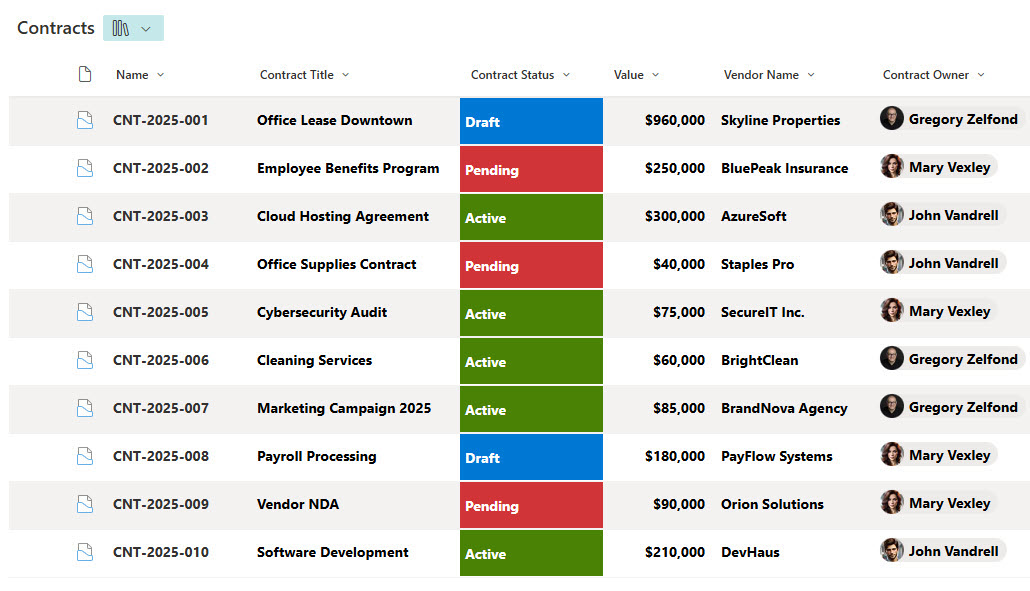
If you want a bit of each of the previous options, Option 3 is a perfect match. The idea here is to use the Document Sets functionality. If you are not familiar with it, I suggest you check out this article. You would create a document set for each project, tag it with project-level metadata (i.e., Status, Project Manager, etc.), and store files inside it, tagging them with file-level metadata (i.e., Document Type).
Pros
- Combines the practicality of folders with the flexibility of metadata
- Allows both unique permissions for projects and filtering/search across projects
Cons
- Requires a lot of upfront setup
- Requires a bit of discipline on the users’ behalf
- Library limits still apply (since all document sets reside in the same library). Only works for small projects with an insignificant number of documents in each.
Option 4: Separate SharePoint site for each project
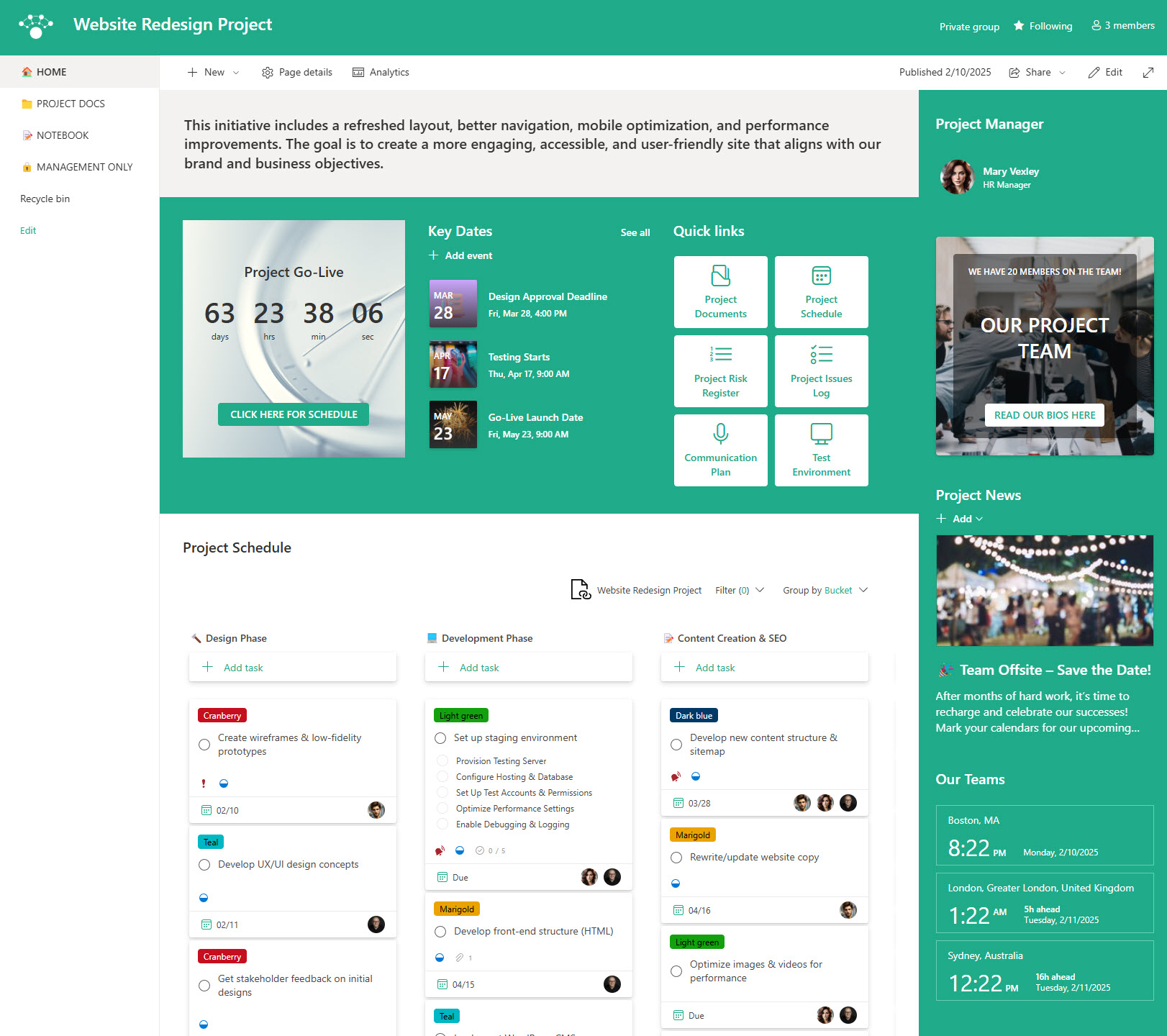
This option avoids the dreaded SharePoint library limits. The idea is to create a separate site for each project (which creates a separate library on each site). Since each project gets its own site, you can also use it for other content and web parts (i.e., Project Calendar, Project News, etc.).
Since each project gets a site, each project will have a separate URL. To organize these separate URLs, you can create a Project List with a Hyperlink column to link all project sites and tag them with other project characteristics.
Pros
- Very scalable option
- Easy to set security at the site level
- Resolves/mitigates the technical limits mentioned in the previous options
- Allows project managers to use other aspects of a site, like SharePoint Pages and Web Parts
- Simplifies external sharing as it can be controlled at the site level.
Cons
- It might be a bit overwhelming for users since there is now a whole site for each project
- Might be challenging for those who need to sync project folders locally via OneDrive Sync, as each synced library will now be a separate entry in Windows Explorer
- Becomes harder to create a common project template (since there is no way out of the box to create a template project site)
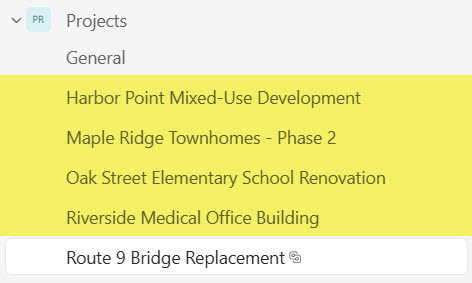
Option 5: Single Team with Standard Channels for each project
Sometimes you need not only to store files but also to tie communications (chat) to each project. This is where we move beyond just a SharePoint site and start using Teams. This and the next 2 options rely on the Teams application. However, you can organize project documents in different ways within Teams. This particular option relies on a single Team in Teams and a standard channel for each project. To learn more about Standard and other channel types, click here.
Pros
- Allows for having files and chats related to a project all in one place
- Does not lead to Team Sprawl, as all projects reside in a single Team/SharePoint Site/Document Library.
Cons
- Library limits still apply since Standard Channel creates a folder within a document library
- Assumes permissions are the same among all projects
- Due to the 1,000-channel Team limit, it only works if you don’t have that many projects (unless you create an additional Team)
- If you need Planner or a Group Calendar for projects, you must share them across all projects (since Planner relies on Microsoft 365 Groups for access). In other words, all project plans would be available to all Team Members.
Option 6: Single Team with Shared Channels for each project
This is just like the previous option, but instead of creating a Standard Channel for each Project, you would create a Shared Channel for each project. This resolves some of the tech limitations mentioned above, as each Shared Channel creates a separate SharePoint site/document library.

Pros
- Resolves the Library limit issue, as each project would have its own site/library
- Allows unique permissions for each project (channel)
- Allows for having files and chats related to a project all in one place
- Does not lead to Team Sprawl, as all projects reside in a single Team.
Cons
- External sharing is a bit of a pickle, as IT needs to set up B2B Direct in Entra ID beforehand.
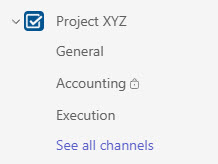
Option 7: Separate Team for each project
And this brings us to the last Option – a separate Team for each project. Believe it or not, this is the one I recommend the most. While this is the Cadillac of all the options, it also resolves pretty much all the limitations of the six options mentioned above. The idea is that every new project gets its own Team/Team Site/Microsoft 365 Group. And each Team also gets its own Outlook Group, Plan(s), and other Microsoft 365 Group resources.
Pros
- The most scalable option
- Flexible for both small and large projects
- Allows for unique access to other Microsoft 365 Group Assets like Planner, Loop, and Group Calendar
- Allows for varying levels of access
- Allows for easy external sharing and collaboration on a file/folder/site or whole team level
Cons
- The main downside I often hear is lifecycle management for those Teams. Since you might have hundreds or even thousands of projects, you will end up with that many teams. So instituting some process and governance goes a long way.

Share Article