How to Make Email Addresses Clickable in SharePoint Lists and Web Parts
I recently built a simple contact list/employee directory for an organization – somewhat of a common requirement. However, that client wanted the email address to be clickable. In other words, they wanted to click the email field in a list/table and send an email using an email client, without copying and pasting.
Here is a nice little trick I want to show you.
Step 1: Create a Hyperlink Column
The text column for an email won’t work here. What you need to do is add a Hyperlink column, the one that is used to add a clickable URL.

Hyperlink Type Column on a SharePoint List
Step 2: Add the mailto: prefix to the email
While the Hyperlink column is meant for URLs, you can add the following prefix to any email text to force an email client to open. For example, if you are adding , type mailto:greg@sharepointmaven.com in the URL field. In the Text to display field, type just the email address.
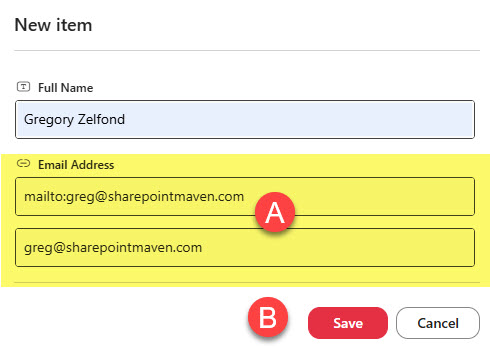
New Item Screen in a SharePoint List
Step 3: Test it out
That’s all. Once you click on the email, it will now open your default email client and paste that email into the To field.
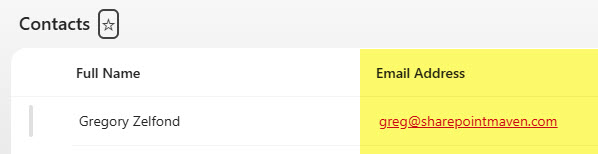
Clickable email address in a SharePoint list
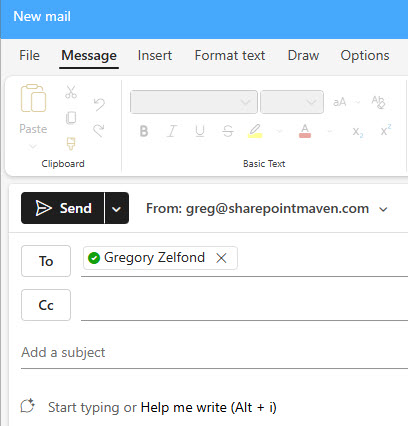
Use Cases for using clickable Email Links.
There are plenty of use cases for using mailto: links in SharePoint.
- Project Lists
- Client Lists
- Vendor Contact Lists
- Any list that needs to store external email addresses (for internal, People Column would be a better fit)
Other locations that support mailto: links
Though I described how to implement this technique on a SharePoint list, you can also use it on other web parts that have a URL field. Specifically:
- Hero
- Editorial
- Call to Action
- Quick Links
- In Line Text URL

Share Article