Top 20 Features of Microsoft Lists
Microsoft Lists, in my opinion, is one of the hidden gems of SharePoint and Microsoft 365. The first thing that comes to mind is usually document management. However, another very powerful tool is available: a Microsoft List. Lists are getting more attention now, since there is also a standalone app in Microsoft 365. With its relatively recent revamp, lists are more intuitive for end users, easier to understand, and easier to manage. In this article, I would like to highlight the top features of Microsoft Lists.
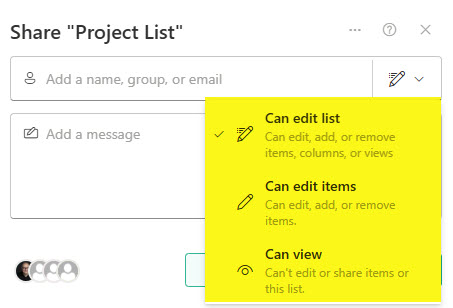
Feature # 1: Share a List
Lists reside on SharePoint sites. That means that they inherit permissions from the site itself. However, there are situations when you want to share a list with others outside of the team (site) without inviting them into the site itself. Luckily, we have a way to do so. I documented the process in this article and explained various levels of sharing there as well.
Feature # 2: Share an item
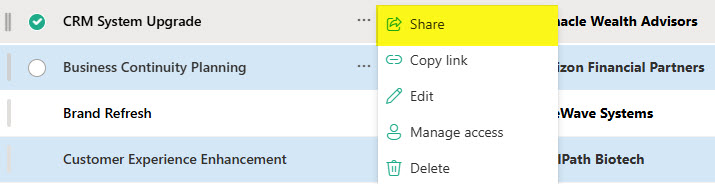
Sometimes you need to be a bit more granular and share a specific item (row) in a list without letting the user access other rows in the list (in other words, the entire list). No sweat either! There is a way to share an individual item/row as well (just like sharing a file/folder from a document library). Here are instructions on how to achieve this as well
Feature # 3: Color code/Formatting
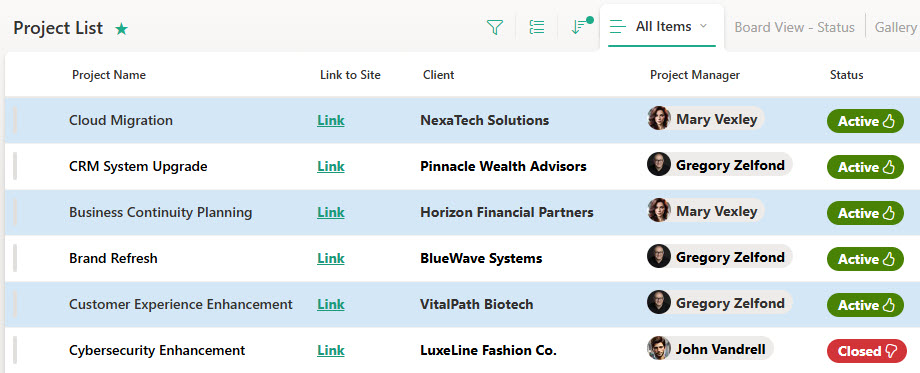
When you have hundreds of rows of data, it becomes impossible to evaluate it, make sense of it. That is why the weatherman on your local newscast shows you 2nd-grade level color charts when they explain the weather for the day. With lists, we can now color-code cells, rows, columns, and views based on specific conditions/values within a list. Once again, feel free to reference this post for instructions.
Feature # 4: Alternate Views
Another cool feature of lists is the ability to create an alternate view. But not just another view that filters out data based on columns. But different views altogether. I am talking about the Calendar View, Gallery View, and the Board View, which give you a new perspective on your data.
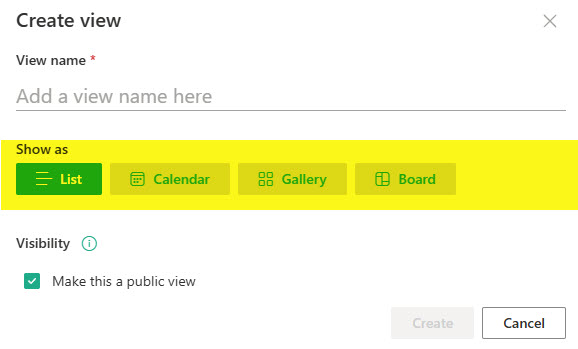
Check out this post to learn more about all of the available views.
Feature # 5: Version History
The next feature I want to highlight is the ability to track changes via Version History. Version History is like a microwave. You don’t know you need it until you start using it. This is one of the features that makes a huge difference when you compare a list to Excel.
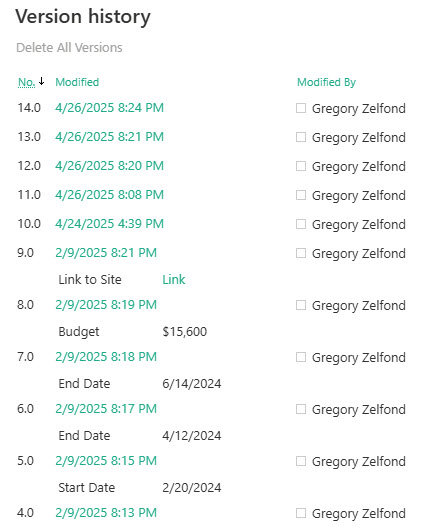
Just like with documents, you can restore a previous version of the row in a list by using version history. I described how to use one of these features of Microsoft Lists in this article.
Feature # 6: Co-Authoring
The ability to collaborate in real time is no longer just for Word and Excel documents. Lists support this, too, now! This is absolutely amazing, since lists are tables with many rows and columns, and multiple people can now edit different portions of the list.
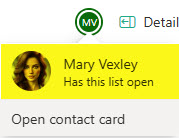
If multiple users try to edit the list via Edit Grid View, they will be warned that others are also editing the list. And if one user clicks a row to edit it, the row/item will become read-only for the other user.
Feature # 7: Manually change the order of rows
This is another big change that occurred in Lists and probably would not have been possible had Lists not been modernized a few years ago. We can now manually reorder the rows. In the past, sorting rows in a specific order required a custom sort column. Now it is just a matter of simple drag-and-drop. I explained the mechanism and its nuances here.
 Feature # 8: Multiple ways to create lists
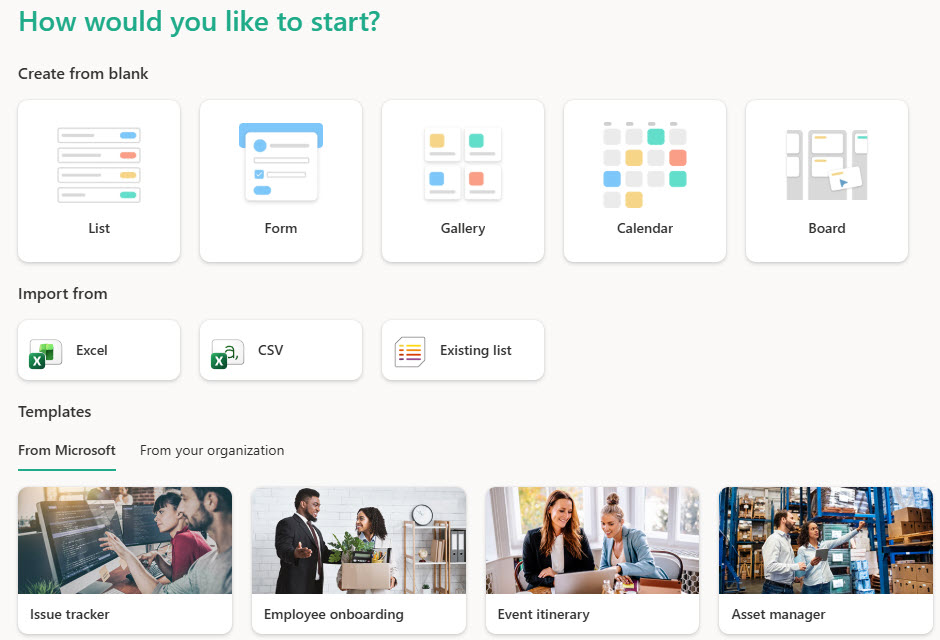
We also now have at least 9 ways to create lists. We used to have just one in the past. Now we can import a list from Excel, create one from a template, and even copy an existing list from another site. I documented all the ways we currently have in this article.
Feature # 9: Multiple ways to export lists
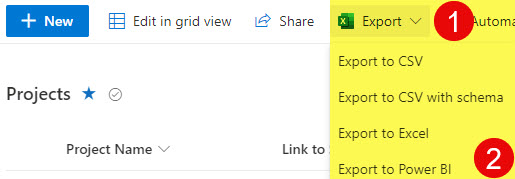
Likewise, we also have multiple ways to export lists. Sometimes, you might want to do additional data analysis in Excel or even Power BI. And it is now possible, thanks to all these options. I documented them here as well.
Feature # 10: Rules
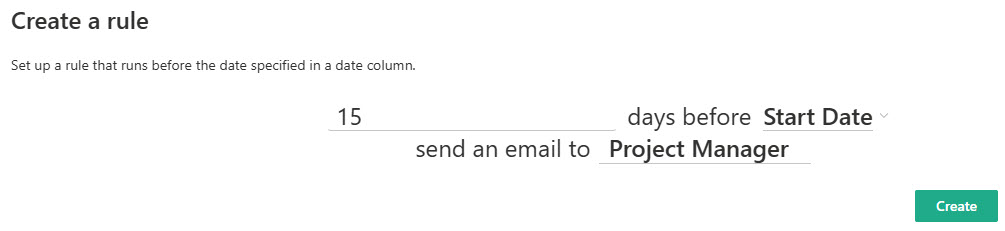
If you need to receive email notification when certain changes occur in a list, then you might want to consider Rules. We had them for some time already, but they recently added a few more conditions and rules to the logic. This allows users to create custom alerts when, say, the status of an item changes. Click here to learn more about this feature.
Feature # 11: Rating column
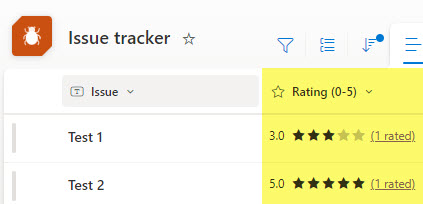
One underrated feature we also have on lists is the Rating column. This is a legacy feature that was recently modernized, but it allows for a quick way to add a rating column where users can either provide a star rating or like a certain item (row). I explained the feature and possible use cases here.
Feature # 12: Video Playlist Template
I already mentioned the ability to create lists using several methods. One method involves built-in templates. One such template available is called Playlist. It allows organizing various videos, not YouTube-style playlists. I blogged about this feature previously. It is a great companion for your Human Resources and Training departments.

Feature # 13: Forms integration
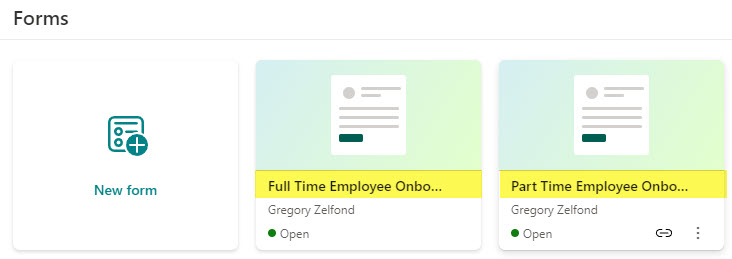
If I were to organize all these features I am describing in this article in the order of my favorites, this would be number one. The ability to easily build a form from the list was a total breakthrough, as it provided an out-of-the-box way to do something that used to require Power Automate and lots of alcohol. Many business use cases that were once difficult are now easy with just a few clicks. Here is an article that explains this wonderful feature in greater detail.
Feature # 14: Comments on a list
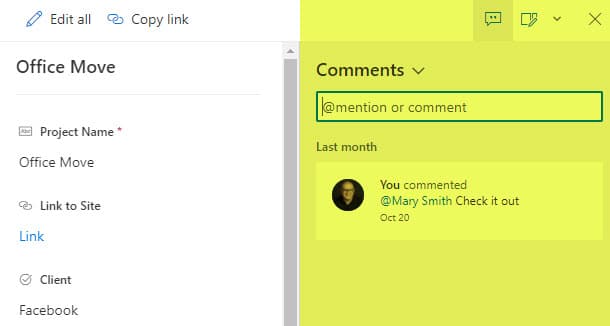
This is often overlooked, but quite handy when multiple users collaborate on a list. Just like we can leave comments in Word and Excel docs, we can also comment now on rows in a list. Here is where you can learn more about the feature.
Feature # 15: Row-level security
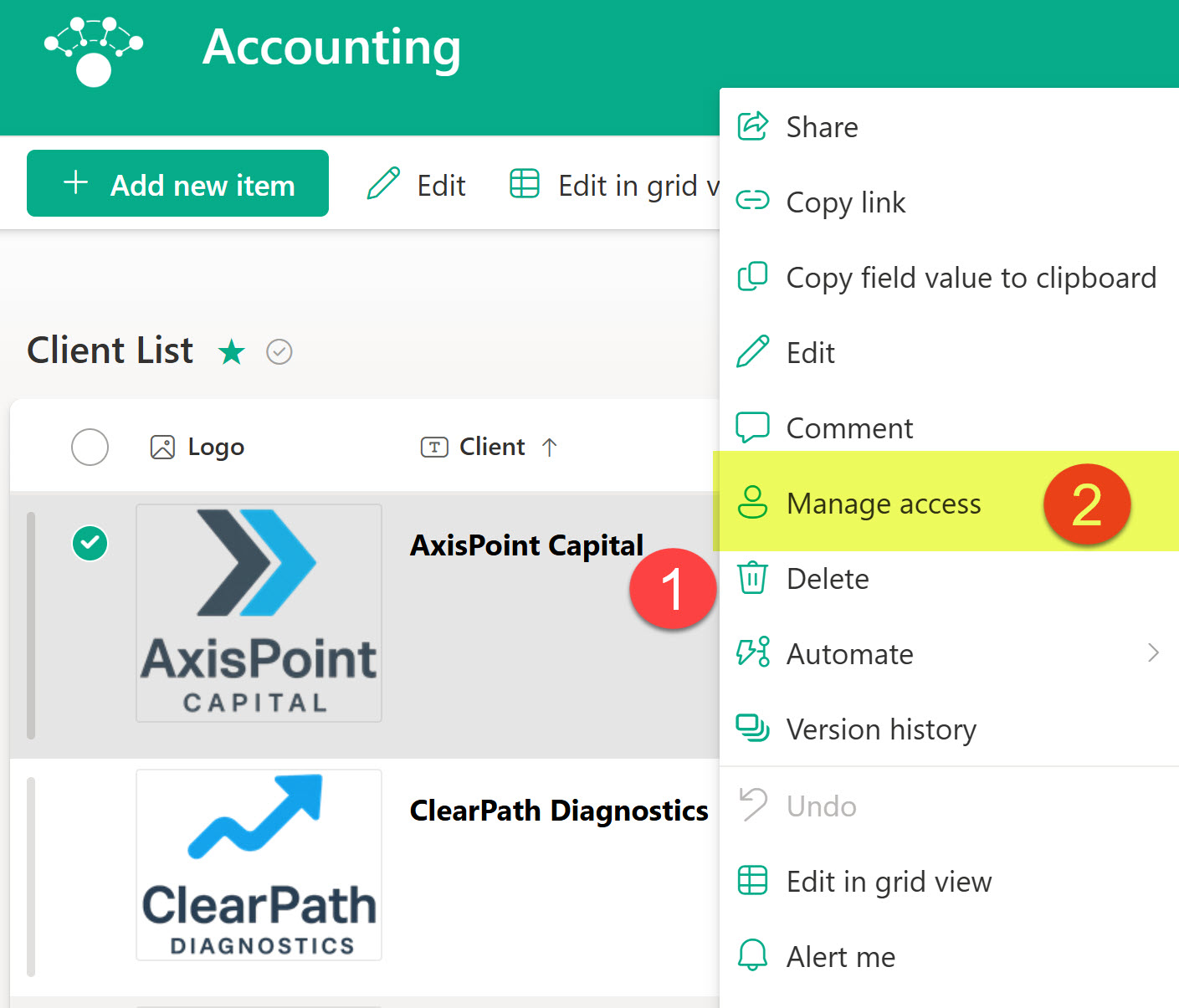
Just as we can hide certain files and folders in a document library, we can also hide rows in a list. This might be a less frequent occurrence; however, when necessary, the functionality is there. I explained how to achieve it here.
Feature # 16: Item Level permissions
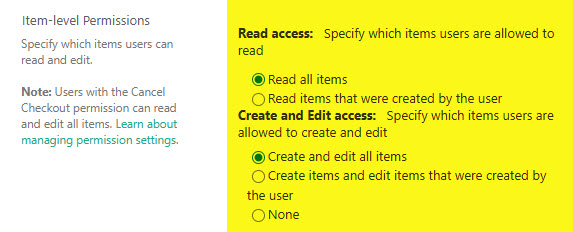
As I was preparing this article, I was initially thinking not to include this capability. It is a legacy feature and pretty outdated in a modern list. However, to my surprise, it is still widely used with many interesting use cases. I am talking about the ability to set up item-level permissions for the rows in a list. The idea is that users can only see and edit the entries they create in a list. I explained how this works in this post.
Feature # 17: Configure Approvals
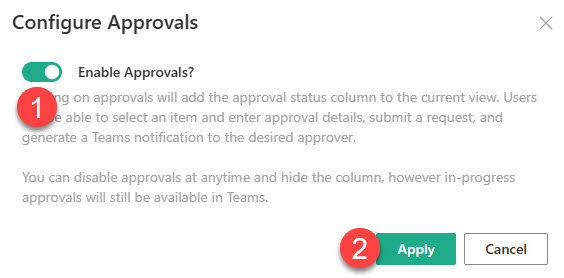
Another cool feature that was only possible in the past with the custom workflow is the ability to request approvals. This is available on both lists and libraries, and I explained this cool capability here.
Feature # 18: Hide Columns based on a condition
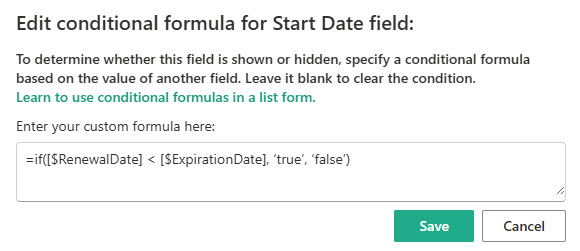
Not all fields are created equal. Sometimes you might want to hide a field from the entry form based on the previous selection. Believe it or not, it is possible in a list, and I described it here.
Feature # 19: Dynamic Filtering
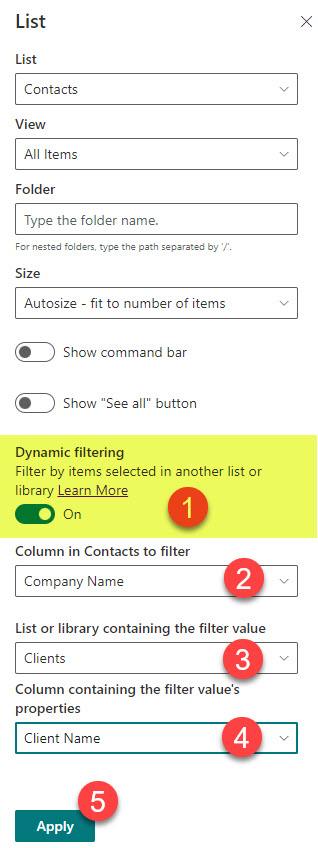
Another feature available on a list (or related to a list, to be exact) is dynamic filtering. This is when you want to filter data from another list based on the selection in the original list. This only works when lists are embedded on a SharePoint page. I explained the functionality here.
Feature # 20: Connect 2 lists via Lookup column
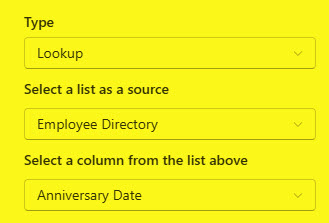
This one is also related to multiple lists. When you have 2 lists and want to access additional information on an item stored in a second list, you can do so via the Lookup column. An example would be a list of companies and a list of contacts, where clicking a contact name in the company list displays the contact’s information from the contact list. I explained the setup here.
Want to see examples of some of these features in real life? Check out my portfolio on LookBook365.com.

Share Article