Lists vs. Excel
I first wrote this post back in 2018, when we just got the modern version of Lists, and even then, I was in favor of using Lists rather than Excel if you needed basic list or tracking capabilities. Over the years, Lists have undergone many improvements, and they have become my tool of choice for many business scenarios. Today, I want to refresh my earlier post, provide another comparison of Lists and Excel, and share the advantages of each.
What is Excel?
I don’t think Excel needs much introduction. For those who are Gen Z, Excel is the adult version of TikTok. (without dancing, but with more stress) 🤓
What are Lists?
Lists is an application within Microsoft 365 that allows users to store rows and columns of information in a web-based format. Lists are stored in SharePoint and, unlike Excel, provide a lightweight table that users can filter, group, and sort. I’ve already described List’s functionalities quite a bit on my blog.
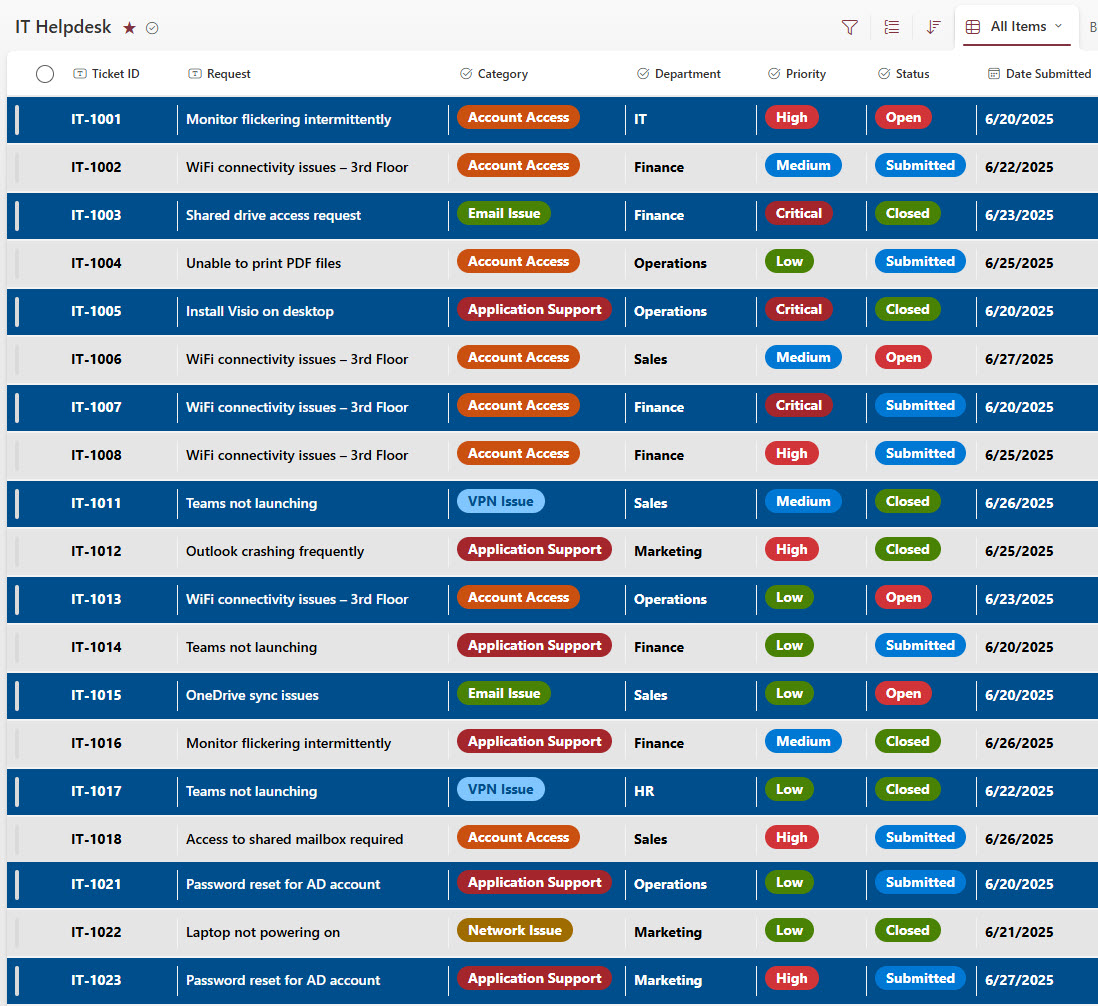
An example of a formatted SharePoint List
Advantages of SharePoint Lists
Different views
One huge advantage of Lists is that you can create many different views of the list and switch between them easily. Sometimes your table might have way too many columns, so you might want to hide some of them on certain views. Likewise, you can group and filter data and save those views.

Calendar, Gallery, and Board Views
Speaking about views, you can also create some cool ways to view the information. Specifically visualize data in Calendar, Gallery, or Board views. I explained all of those options here.

An example of a Gallery View on a SharePoint List
Filter Pane
Another cool thing Lists have is the Filters Pane. This allows users to filter lists, almost as if they were shopping online.

An example of a Filters Pane on a SharePoint List
Forms Integration
This is, by far, the biggest advantage of Lists – Data Collection. Sometimes you store data in Lists, and sometimes you want to collect data. Data collection was always possible in Lists, but the user experience was not great, and users had to access Lists themselves. That all changed when Forms integration was introduced. I explained it in this article. It allows you to build a form from the list and have users submit information via a cool form without giving them access to the list.

An example of a Form build-out on a SharePoint list
Unique permissions on list rows
Another huge advantage of lists and something that is not possible with Excel – we can create unique permissions for each row in Lists. Just as we can remove access to certain docs in a document library, we can also hide rows from specific users and groups. Check out this article to learn how to achieve this.
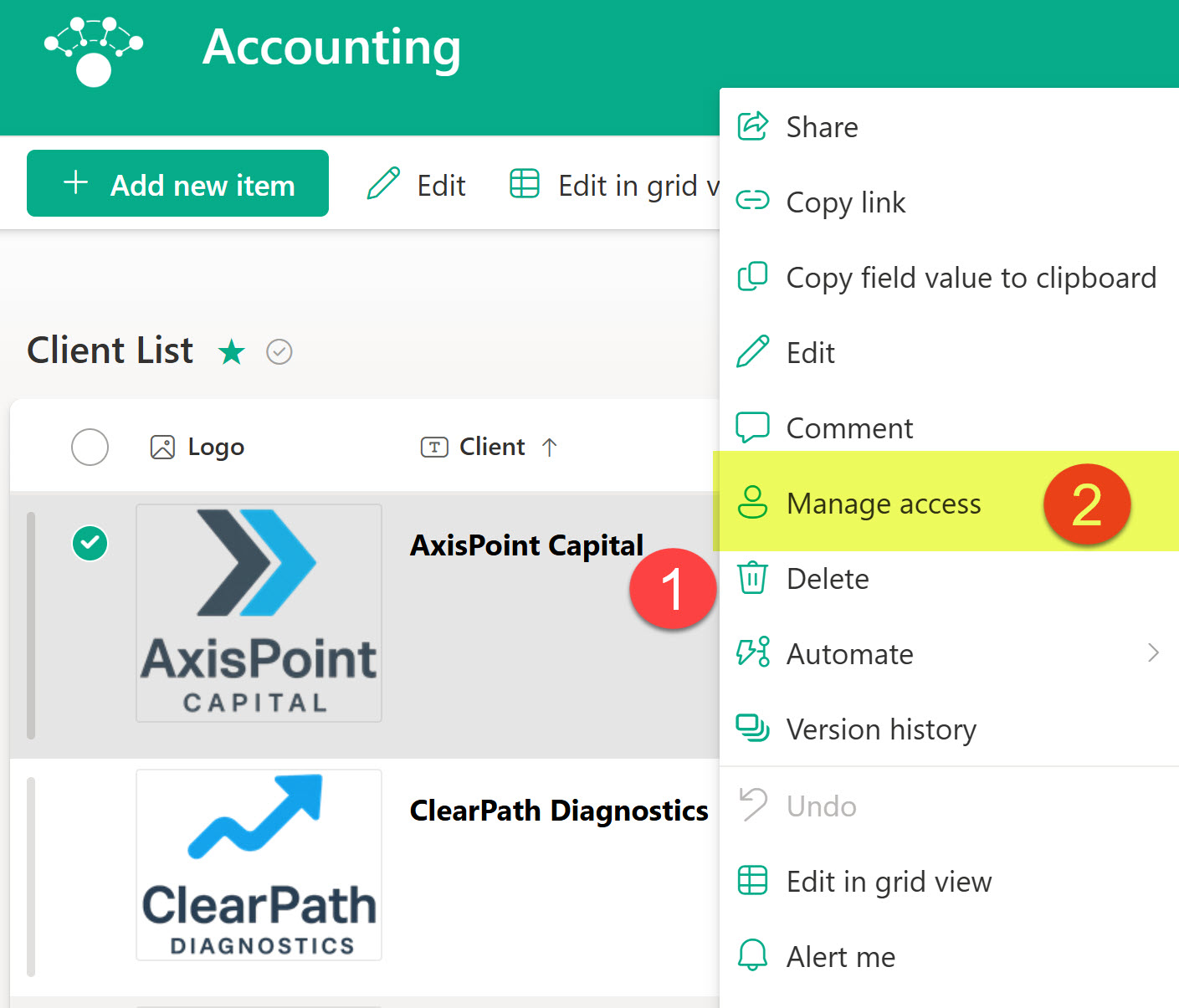
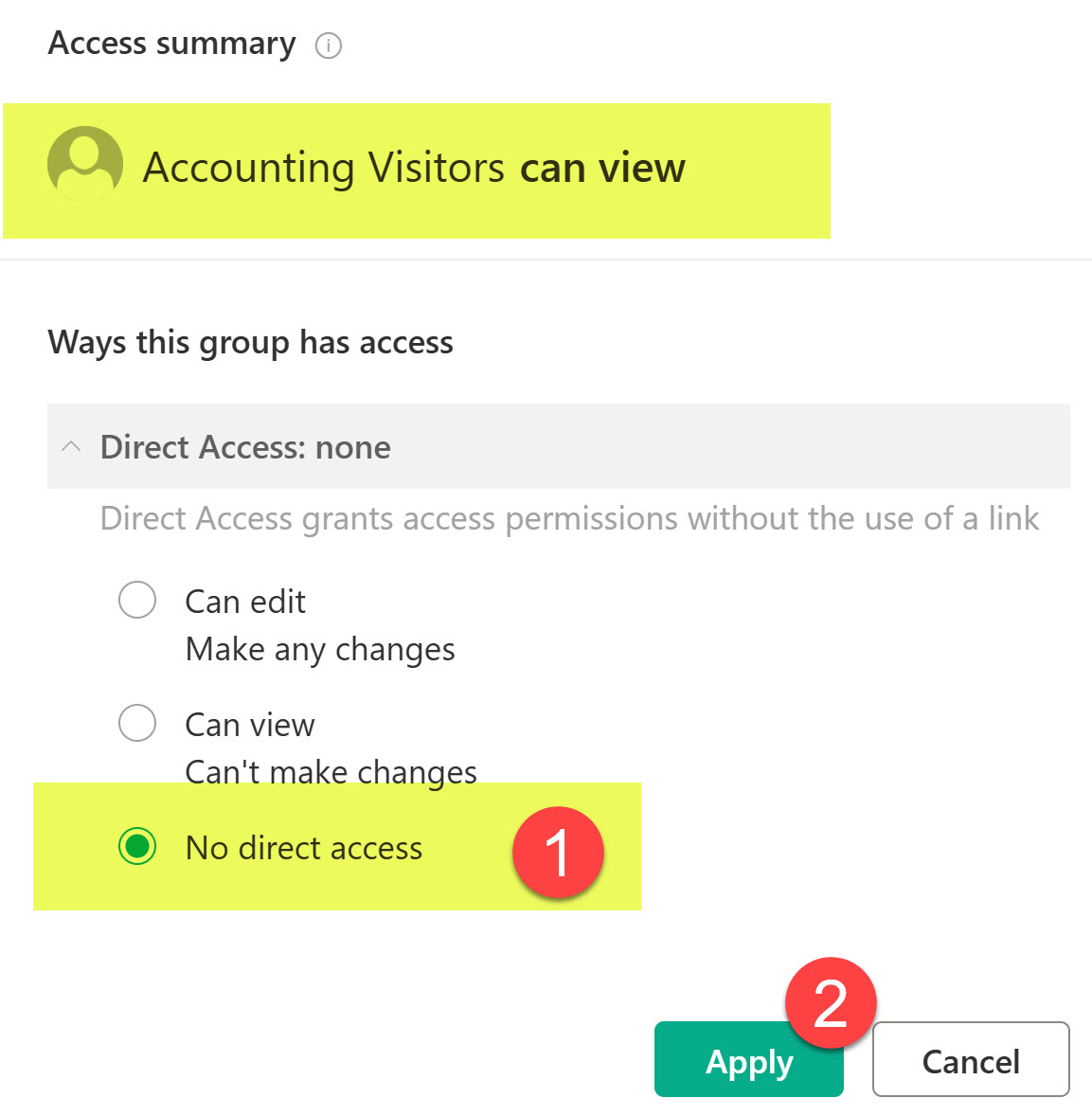
Examples of unique access for each row on a list
Item-Level Permissions
This is somewhat of a legacy feature, and might not be used often, but sometimes you just want the data in a list to be visible to those who entered it. To do this, enable the item-level permissions feature. I explained it here.

Rules
Another game-changer feature we recently got was the Rules feature. It is a replacement for the Alerts that we had for many years. Rules let you set up email notifications when specific events occur on a list. For example, if someone adds an entry or deletes it from a list. You can also set up pretty sophisticated rules, too. For instance, if someone changes the status from one value to another, you can send an email to the proper recipients or yourself.
Check out this article to learn more.

An example of a Rule being set up on a list of Projects
Integration with Power Automate and Power Apps
You can truly take Lists to the next level if you opt for Power Automate or Power Apps integration. While these two tools are not my forte, I highly recommend them if you are trying to automate your business processes.

Ability to export information to Excel and other formats
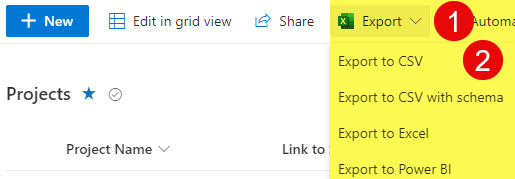
If you do need your Lists data in Excel format, you can export the data from a list quite easily. As a matter of fact, you can also export to CSV and Power BI. I explained those options here.
Versioning
Another one of my favorite features – Version History. It is predominantly used on documents, but you can also use it on Lists, too. It is great for tracing the history of a row, which is not possible in Excel.


Formatting
Now this is something that is, of course, widely available in Excel, but Lists have their own formatting capability. You can create conditional formatting and format and color-code views or columns.

List Templates
You can also create lists from templates, making it easy to kick off specific business processes. Check out this post to learn more.
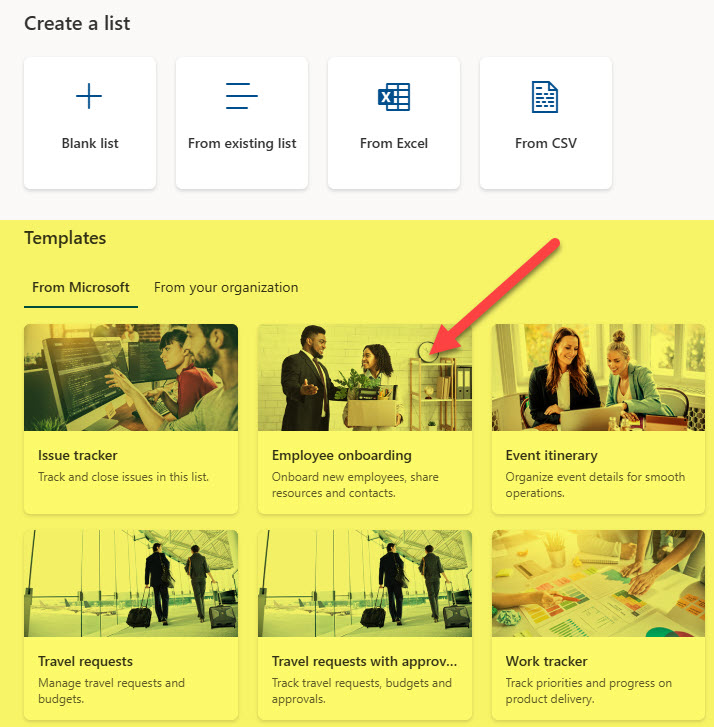
An example of List Templates available in SharePoint
Advantages of Excel
Excel, of course, has its own share of advantages. Lists are not meant to compete with Excel. For heavy data analysis, Excel is the tool of choice. Below are some use cases/advantages of Excel over Lists.
Complicated formulas/analysis
Lists are best for data presentation and entry, but if you are doing some final analysis and need to use Excel formulas, you would need to stay in Excel.
Pivot Tables/Pivot Charts
If you need to build charts off the data in Excel, Pivot Tables and Pivot Charts allow you to do that. With Lists, you would need to export data to Power BI.
Large Amounts of data
Another advantage of Excel is that it lets you handle large amounts of data. Lists have the infamous 5,000-item list view issue, which can cause errors and performance problems if you have way too much data. Excel, of course, can handle much more complicated spreadsheets and financial models without any issues.

Share Article