How to create a List in SharePoint using List Templates
One of the coolest features of the Microsoft Lists application is the ability to create a new list based on a built-in template. This might help you save some time creating and configuring a new list and see the possibilities of the application. In this article, I will explain step by step how to create a custom list in SharePoint using Templates.
What are List Templates?
List templates are built-in templates that exist within the Microsoft Lists application that allow you to create a list based on a particular use case. For example, say you need to track issues on a project. You can obviously create a new list from scratch and define its columns, choices within those columns, views, etc, but this might take some time. And you are eager to just start using the tool and tracking project issues. Besides, you might not even know what attributes you need to track. However, you can also use the Issues Tracker Template that exists in SharePoint to create an Issues Log in a matter of seconds.
What you get when you create a custom list based on a list template
When you take advantage of one of the built-in list templates, you get the following:
- A list of all the pre-defined columns and column types
- All the pre-defined drop-down choices for Choice columns (i.e., Status Choice column with Approved, Pending, and Rejected choices)
- Pre-defined views for the list (i.e, Open issues only, grouped by Status, etc.)
- Color-coded formatting for cells, columns, and views
- Specific list settings (i.e, no attachments)
- Calculated Columns with established formulas (if applicable)
- Rules/Email notifications for any list metadata changes or item additions/deletions (if applicable)
- Approvals mechanism via Teams (if applicable)
- Power Automate workflows/automations associated with a list (if applicable)
How to create a custom list based on List Templates
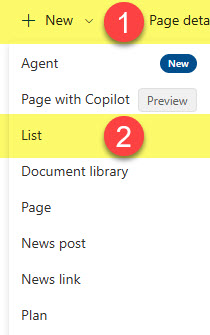
- From a given SharePoint Site or a Lists App, click New > List
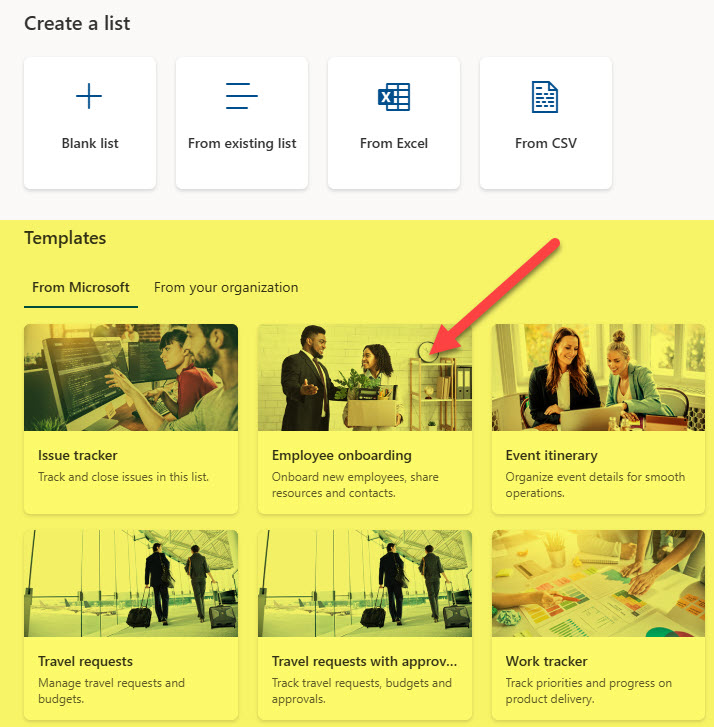
- You will see several options to create a new list, including the Templates section. Select one of the built-in templates.
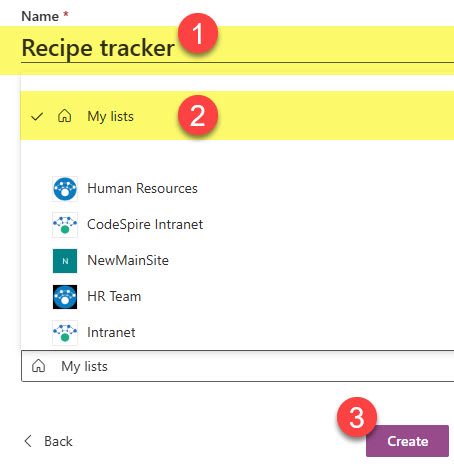
- In my case, I chose the Issue Tracker Template. Give it a name and click Create.

- On the next screen, you will see a preview of the list with sample data so you can visualize the list to be created. On the right side, you will see an explanation of the list’s core features and any additional settings or elements that will be installed with it (e.g., Rules, Approvals, Workflows, etc).

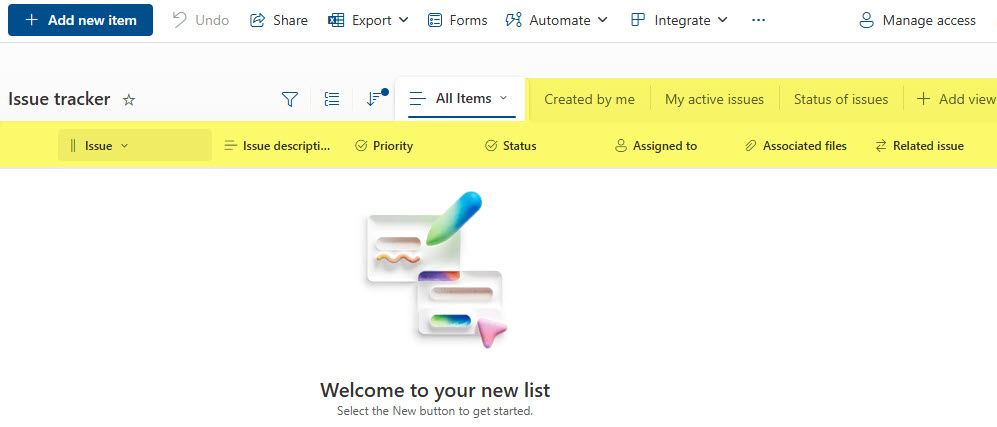
- Once you click the Use Template button above, the list will be created and appear on the screen. Note the built-in columns and views created with the list.
Nuances about List Templates
- I am personally not a huge fan of built-in templates, and let me tell you why. I believe they might be useful in some scenarios, but they are either too generic or too specific. Quite often, I find my clients having pretty unique requirements for, say, tracking issues, which prompt you to create very specific columns, fields, and colors. If you were to start with the template, you might end up spending more time adjusting it to your needs than if you were to start from scratch.
- If you wish to have your company-specific list templates available, this is possible. However, it requires your IT team to create and install them via Power Shell

- When you create a list from the template, the sample content is not downloaded and is not part of a template
- The list’s permissions are also not part of the template. By default, they are inherited from the SharePoint site where the list is located.
- Templates are available for both Personal and SharePoint-based list types
- In case a template includes built-in Rules, they will also be installed along with the list
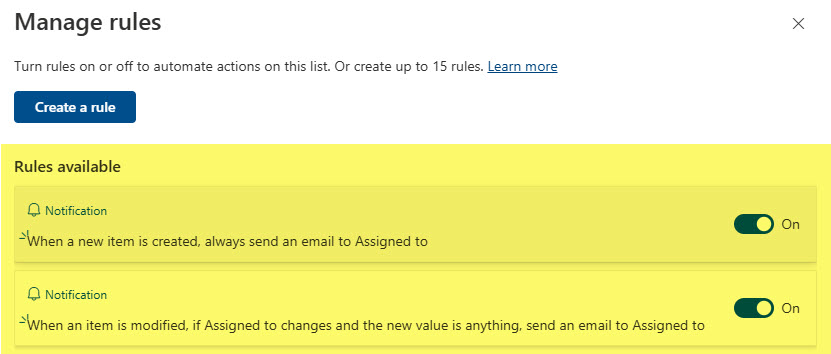
- In case a template includes Approvals, the Approval column and the corresponding Approvals feature will be enabled.

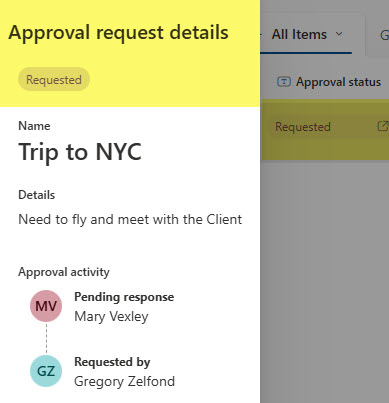
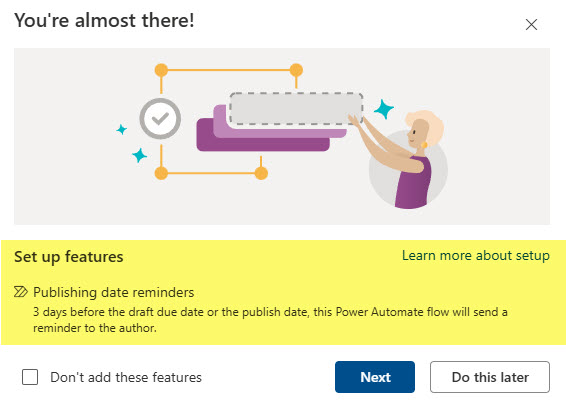
- In case a template includes Power Automate Workflow, you will be prompted to create and activate it right after the list is created
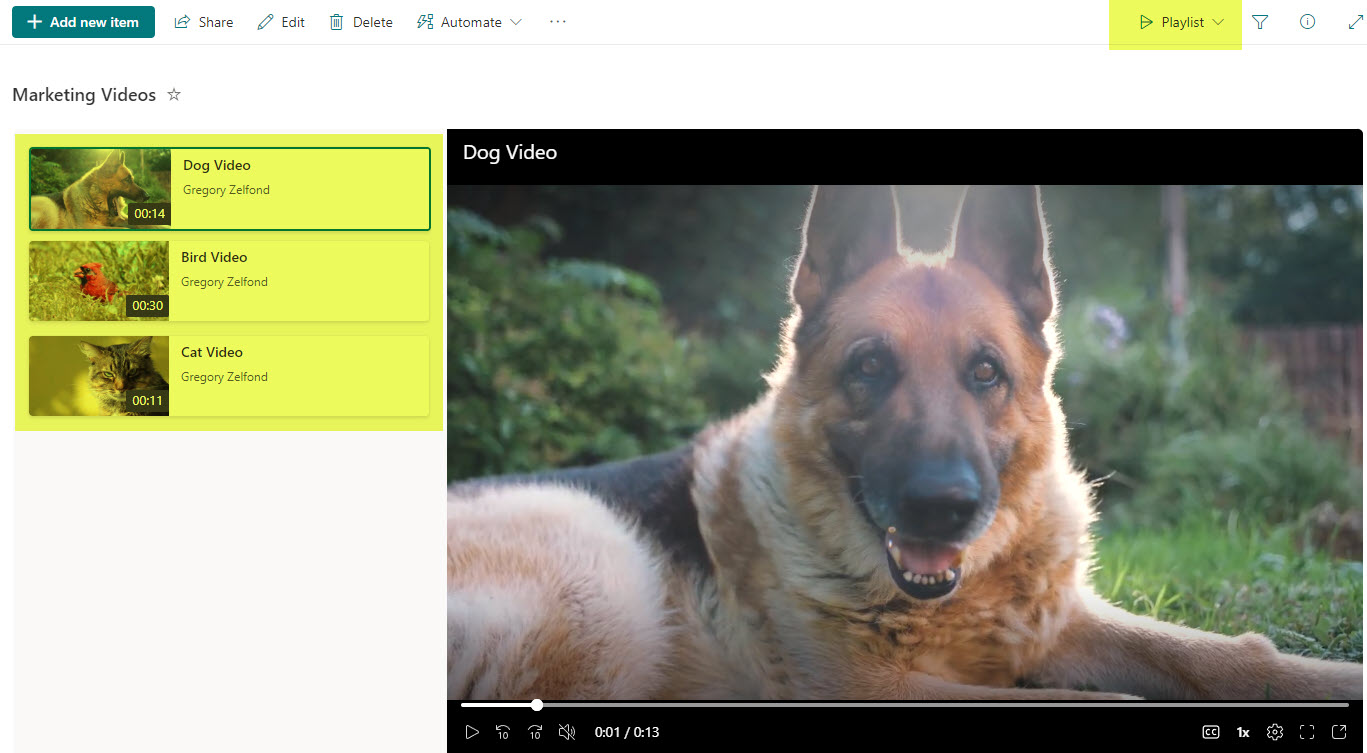
- One of the templates I personally would like to highlight is the Playlist template. I blogged about it previously. It allows you to create a list of videos for employees (i.e., training videos)
- I have yet to see a client utilize the Recipe Tracker. 😊 Have you used it?

Share Article