How to quickly reorganize rows within a SharePoint list
Recently, we got a feature that made working with lists an absolute pleasure. I’m talking about a quick and easy way to reorganize rows in a SharePoint list. Let me show you how easy it is now.
In the past, if we wanted rows to be organized in a particular order, we had to rely on sorting them by any of the columns (metadata). And if you wanted some specific sort order, the trick was to create a Number Column with the “enforce unique value” setting enabled. This workaround allowed users to assign a unique number to each row (i.e., 1, 2, 3, etc.) and then sort the list by that column. Luckily, we now have a more straightforward method.

Important Nuances about reorganizing rows within a List
1. Two Vertical Lines missing
Sometimes, you might encounter a situation where you select the row(s) you want to move, and the two vertical lines to the left of the checkbox will be missing.

SharePoint List row with 2 vertical lines

SharePoint List row with one vertical line instead of two
The lack of two vertical lines will prevent you from moving the row. This happens when you have already sorted the list by one column and saved that view. In this case, you need to navigate behind the scenes to List Settings (Gear Icon > List Settings), then click on the view you want to edit. Then switch the entry within the sort by column field to None. Save the view. At this point, two vertical lines should reappear.
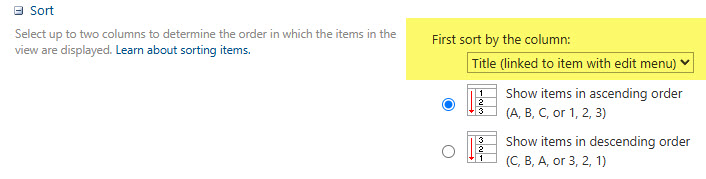

Change the Sort By Column to None
2. Custom Sort Order Choice
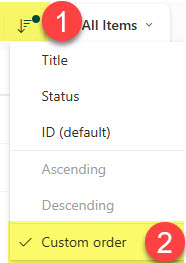
As soon as you start reorganizing the rows, you’ll get an extra option in the sort menu called Custom Sort Order. This will help you return to your custom sort order at any time, even if you sorted by a column within a list.
3. Edit Grid View
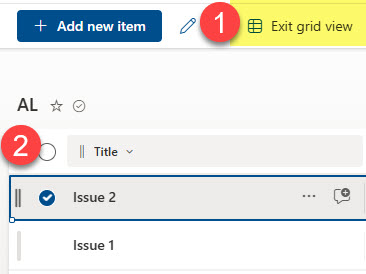
You can also reorganize the rows within the Edit in Grid view!
4. Moving Multiple Rows
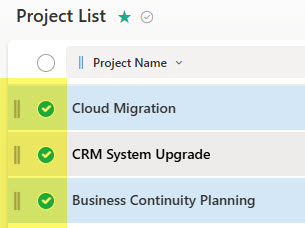
You can select and move multiple rows, too!

Share Article