< All Articles
How the SharePoint Online Recycle Bin Restore process works
While I have blogged extensively in the past about the Recycle Bin and its nuances, I have never explained in detail how the restore process works. If you think restoring files and folders is simple, think again. In this post, I want to explain the different scenarios possible with the Recycle Bin Restore process and the consequences that might arise.
Scenario 1: Restore a deleted file
The first scenario is quite simple and probably the most common.
- You deleted the file or folder
- You then try to restore a deleted file or folder
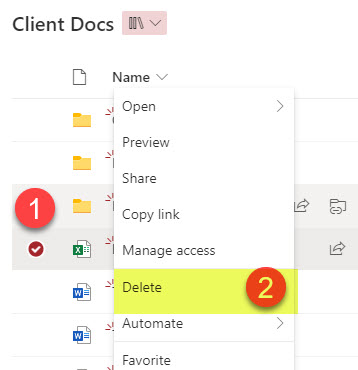
- Suppose you deleted a file located inside the document library or some folder and soon realized you need it back. In that case, you can just click the restore button next to the file, and it will go back to the same location it was deleted from (same library, same folder).
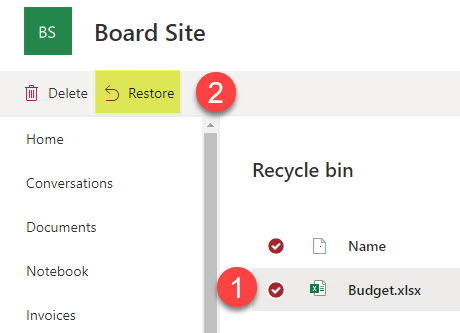
Scenario 2: Restore the deleted folder with files and folders inside
The second scenario is quite common, too.
- Instead of a file, you deleted a folder with contents inside (other files and folders)
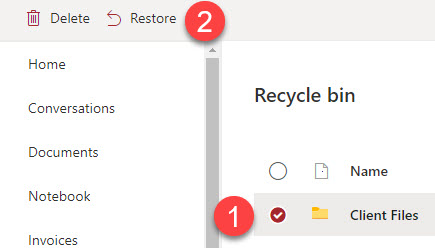
- You then try to restore the deleted folder and its contents
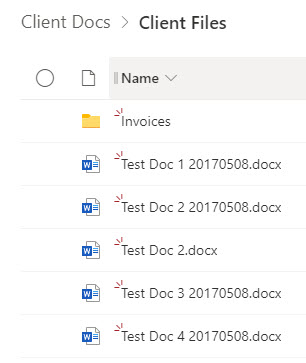
- The deleted folder + its contents will go intact to the Recycle Bin. If you decide to restore that folder later, just click the restore button next to the folder, and it will go back to the same exact spot (same document library, same top-level folder/folder path).
- So far, so good.
Scenario 3: Restore a deleted file or folder when the parent folder was also deleted
This is where it gets tricky.
- Say you deleted a file or folder with contents inside (other files and folders)
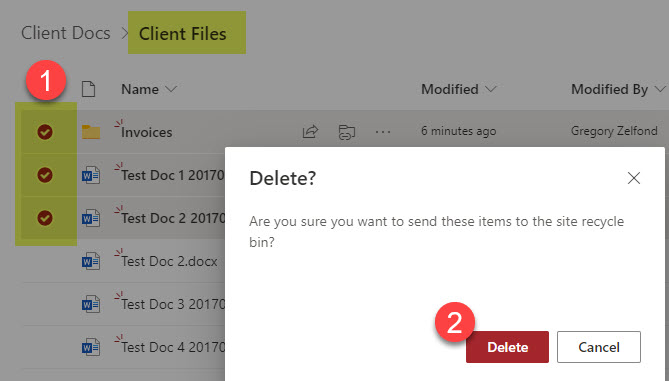
- You then delete the original parent folder where the deleted file or folder from above initially resided.
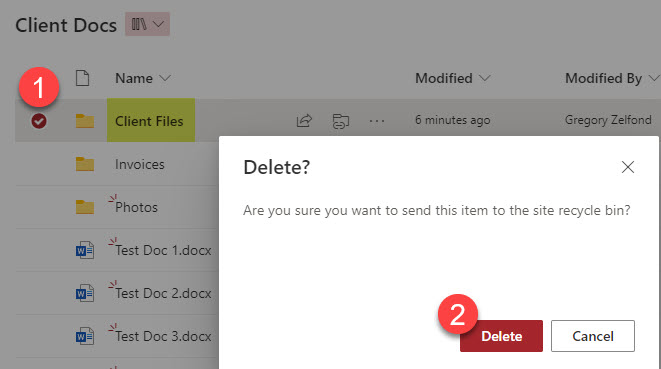
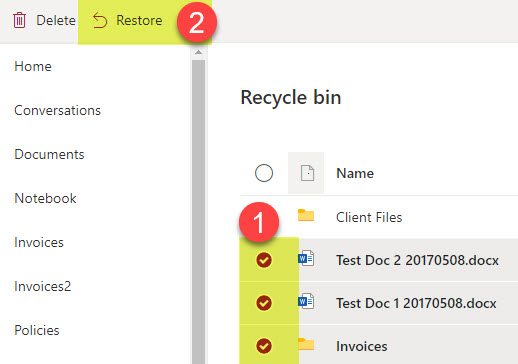
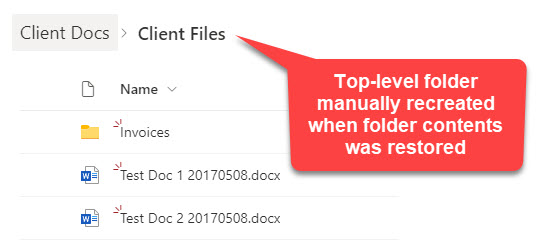
- In this case, when you restore a deleted file or folder, the original folder path will be recreated! So you will end up with all these parent folders and subfolders just to house the restored file or folder!
Scenario 4: Restore a deleted file or folder when the parent folder was also deleted, but then restored
The following scenario is somewhat of a derivative of Scenario 3. Here is a use case.
- Say you deleted a file or folder with contents inside (other files and folders)
- You then delete the original parent folder where the deleted file or folder from above initially resided.
- Just as in Scenario 3, when you restore a deleted file or folder, the original folder path will be recreated! So you will end up with all these parent folders and subfolders just to house the restored file or folder!
- You then decide to restore the deleted parent folder.
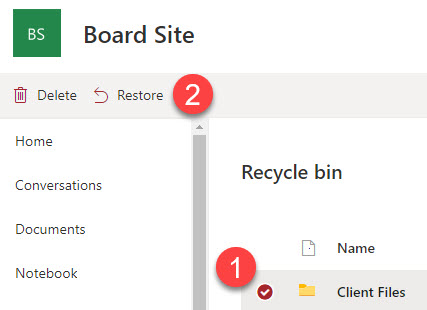
- Here is what will happen in this particular scenario. As mentioned in the previous scenario, when you restore the deleted file or folder (Step 3 above), the original parent folder path will also be restored. However, when you restore the deleted parent folder (Step 4 above), there will be a bit of a conflict. The parent folder path has already been recreated (restored).
- So what will happen is that you will end up with 2 folders with the same name, but one of them will have (1) next to it.
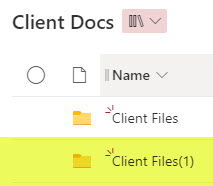
- But here is something really important: 📢🔔📢 The folder getting (1) designation will be the folder you restored in Step 3! In other words, the folder getting (1) will be the folder that was restored for the purposes of the path, not the restored parent folder. Let me rephrase it. If you restore the deleted parent folder in Step 4, the other folder will be renamed and get (1) designation next to it! Hopefully, that makes sense.
- So you would need to ensure everyone on your team understands this – otherwise, they will think the files are missing! So yeah, you might need to manually merge the folders to clean it up!
Scenario 5: Restore deleted files or folders when the Document Library was also deleted
The final scenario is probably less common, but still might occur if you have some advanced team members.
- You delete some files or folders from a document library
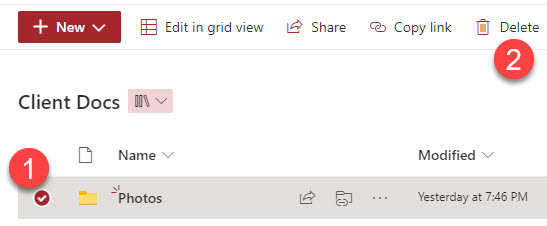
- You then delete the entire document library where the original files and folders resided
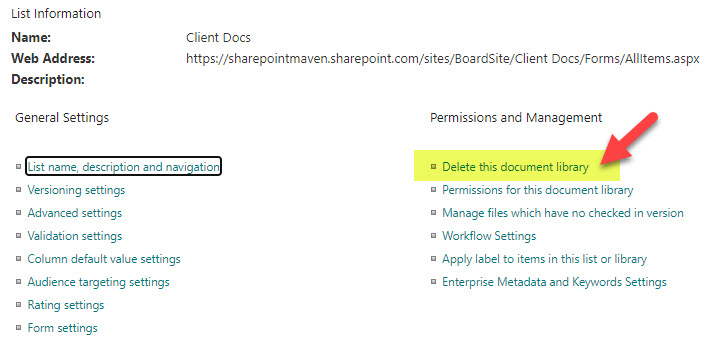
- You then decide to restore the deleted files or folders
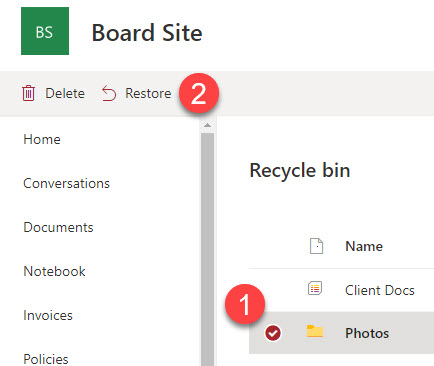
- You will then get this weird error: “Item cannot be modified because the site is on hold or retention policy.”
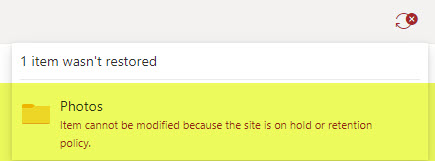
- There is no hold or retention policy in this case. It is essentially saying that you first need to restore the document library where deleted files and folders reside. Yeah, I know, the error message could be a bit more user-friendly.
- To address this issue, you would first need to restore the document library
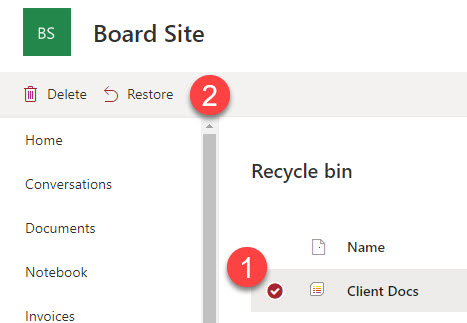
- Once that is completed, you can restore deleted files and folders from that library.

Share Article