Expose oversharing with Everyone except external users group
Some time ago, I wrote a blog post about the Everyone except external users group. It is a default group in every Microsoft 365 tenant that lets users quickly share a site with everyone in the organization. It’s a convenient option if your IT team doesn’t maintain a security group for all employees and you don’t want to type hundreds of names and emails when sharing. However, convenience also brings the risk of oversharing. Sometimes the site might be meant for a subset of users, yet some kind soul could add the Everyone except external users group and, with a click, expose sensitive content.
Luckily, we now have a report called Sites and files shared via special SharePoint groups in the SharePoint Advanced Management module that lets admins quickly identify sites with this group added. Let me demonstrate it for you.
- Navigate to the Microsoft 365 Admin Center
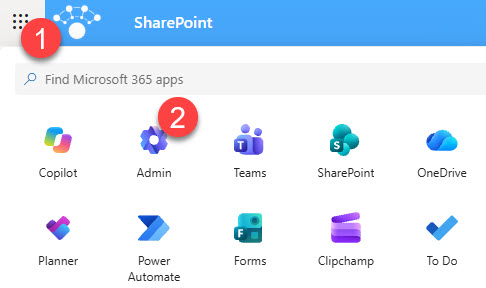
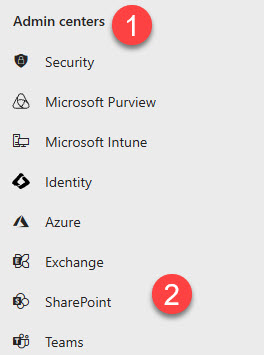
- From the Microsoft 365 admin center, click Admin centers > SharePoint
- Once in SharePoint Admin Center, in the left navigation, click Reports > Data access governance
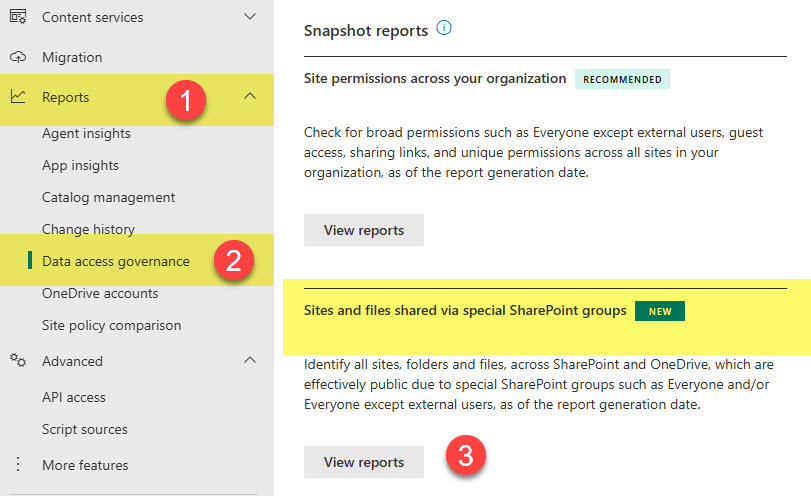
- Under Sites and files shared via special SharePoint groups, click View reports
- On the next page, you will see 2 types of reports. One is for the Everyone Group (which includes both internal and external users), and one is for the Everyone except external users group. The Everyone group was disabled by Microsoft in the SharePoint tenants many years ago, so it was likely never used in your organization. So I will focus on the Everyone except external users group.
- Click the Run Report button to generate a report. If it is grayed out, check the nuances section at the bottom of the post for the additional role you must assign to your account.

- Grab some coffee or, better yet, go to sleep and check back the next day. The report runs in the background and can take up to 24 hours or even days to generate. There is no progress bar; you will just see Generating report text appearing on the page.
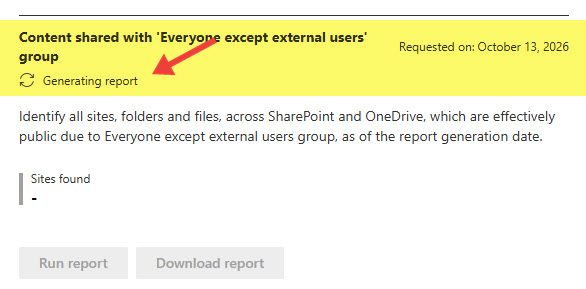
- Once the report is available, click the Download report button. This will download the CSV file locally on your PC.
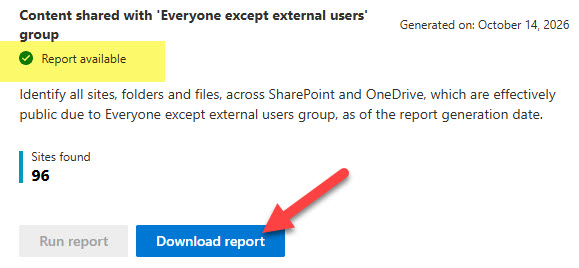
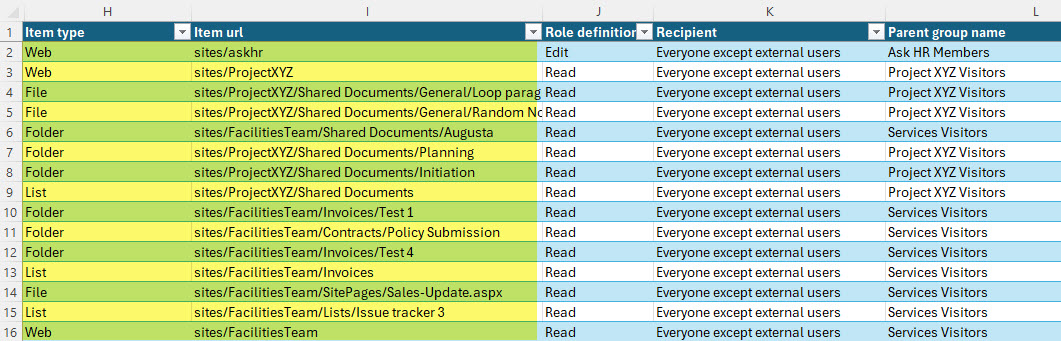
- Once you open it, you will see lots of data with one row for each type of content (site, folder, file, list) that has been shared with Everyone except external users group.
Nuances about Everyone except external users Report
- Global Admin Role is not enough! This might surprise you, but even if you are the Global Microsoft 365 Admin for your organization, you still won’t be able to access this report. To access it, you will need to assign the new SharePoint Advanced Administrator role in Entra ID. I believe Microsoft is trying to prevent a situation where an IT person managing all aspects of SharePoint can see the names of files and folders from private sites they don’t have access to (since this report exposes them!).

- Proper licensing is required. Both reports are part of SharePoint Advanced Management (SAM), so you also need this premium license assigned to your account.
- Public Microsoft 365 Groups exposed. The beauty of these reports is that they expose Teams and Microsoft 365 Groups that were set up as Public and not Private. That is because Public Groups add “Everyone except external users” to the Members group of that site (as I mentioned earlier in this article). So those sites will also show up in the snapshot report, even though nobody explicitly “shared” anything.
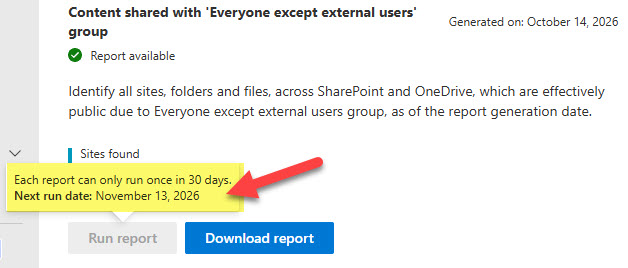
- You can only run this report once every 30 days. The snapshot report can be run about once every 30 days. In between, the Run report button stays grayed out. Pressing the button will display the corresponding message.
How to mitigate findings revealed by the Everyone except external users Report
- Remove the group where it does not belong. On the site, click the Gear Icon > Site permissions and remove Everyone except external users from the SharePoint group it sits in.
- Make public teams private. Public Microsoft 365 Groups and Teams get this group added automatically. If the team should not be open to everyone, switch it to private, then double-check the site permissions to make sure the group is gone.
- Lock down the sensitive sites. For HR, Finance, or Legal sites, apply Site-Level Access Restriction so only specific groups can get in.

Share Article