< All Articles
Lock and unlock pages in Loop
One of the features that was recently added to the Loop application is the ability to lock the pages. In this article, I would like to explain what this is all about.
Loop Pages, which I explained in one of the earlier articles, allow for easy editing. Unlike SharePoint pages, which you need to edit and republish intentionally, Loop Pages are easily editable by anyone who has edit access to that page, just by typing the text. However, sometimes you might want to prevent accidental editing by the team and, in fact, make them read-only. It is now possible. Here is how it works:
- On a given Loop Page, in the upper-right-hand-corner, click the three dots and switch the Lock page toggle on
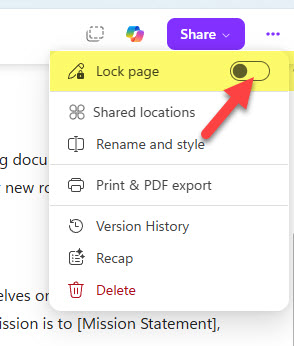
- The page will become locked now.
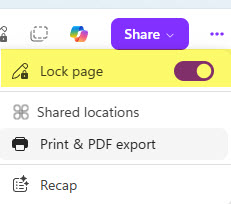
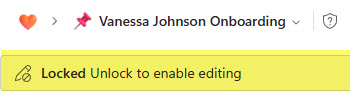
- At this point, users won’t be able to make any changes to the page. No text editing, no styling change, no ability to rename the page.
Nuances about the Loop Page Lock/Unlock feature
- Anyone with the Edit permission to the workspace where the page resides or the page itself can lock and unlock the Loop pages.
- Unlike a check-out feature in SharePoint, if one person locks the page, another can unlock it; it is simply there to prevent accidental editing.
- Once the Loop Page is locked, users will be unable to edit the page’s content, change its styling, rename the page, view its Version History, or delete the page.

Share Article