< All Articles
How to Give Read-Only Access to a Microsoft Loop Page or Component
By design, Loop is meant to be a collaborative space where users can easily create/edit/delete content and co-author it in real time. However, there are plenty of use cases where you just want to simply share a page or a component with someone in read-only mode. An example could be a project status report maintained on a Loop Page or an article from the knowledge base/troubleshooting guide. Let me explain how to share Loop content in read-only mode easily.
How to share a Loop page in read-only mode
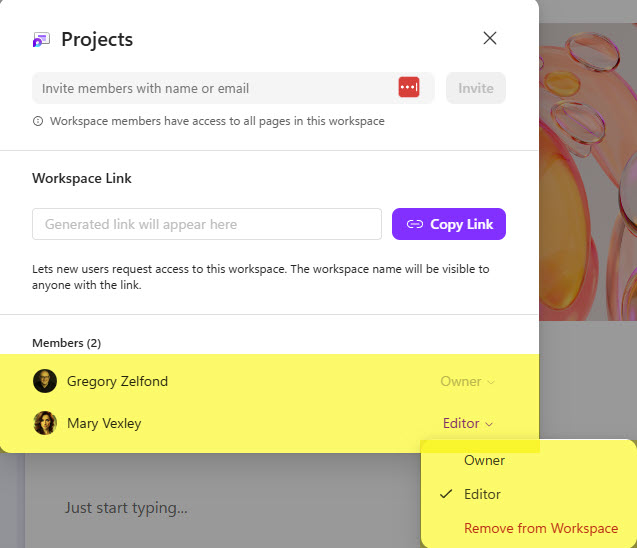
- As a starting point, Mary and I are members of the Loop Workspace. As such, both of us have Edit rights to all the pages within the workspace. I am trying to add John, who is not part of the workspace, to one of the Loop pages.
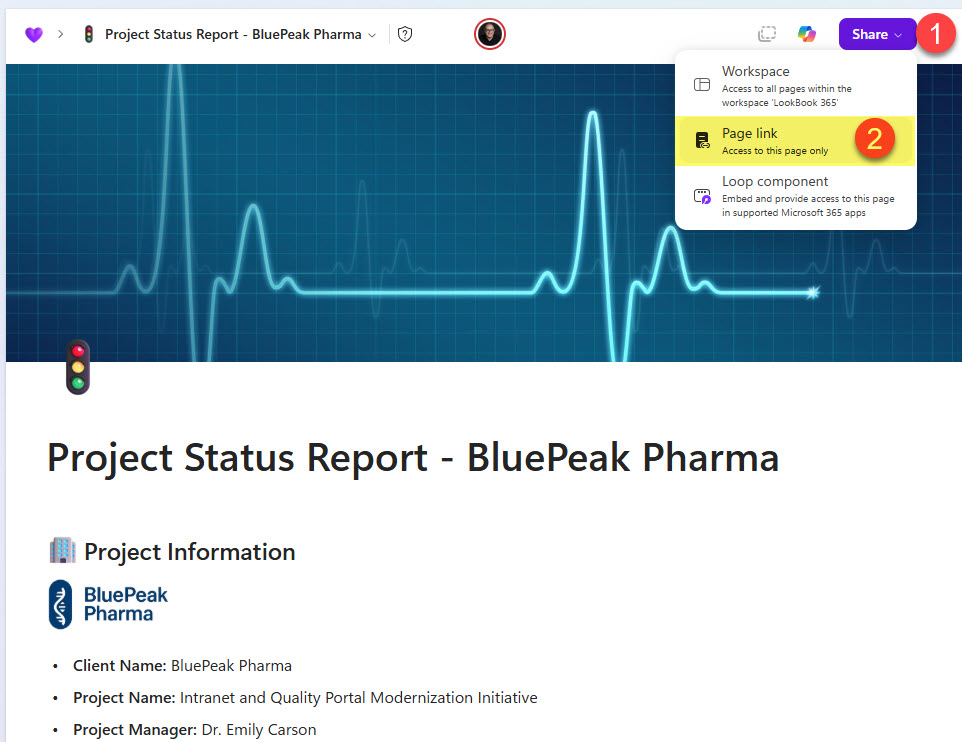
- To share a Loop Page in read-only mode, click on Share > Page Link in the upper-right-hand corner of the Loop Page.
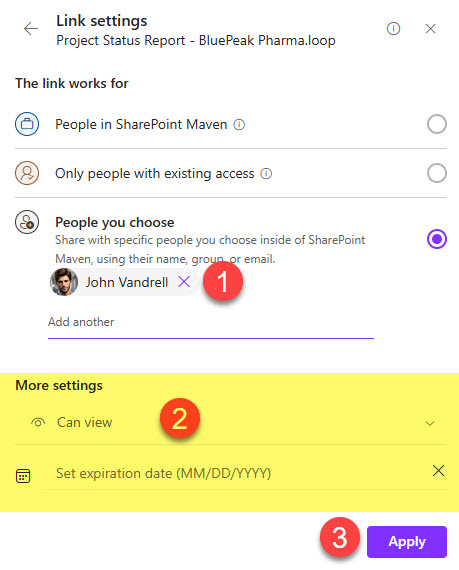
- By default, it will generate the Edit link. To adjust it further, click on Settings.

- Choose the people you want to share the Loop Page with, but most importantly, change Can edit to Can view down below. Click Apply.
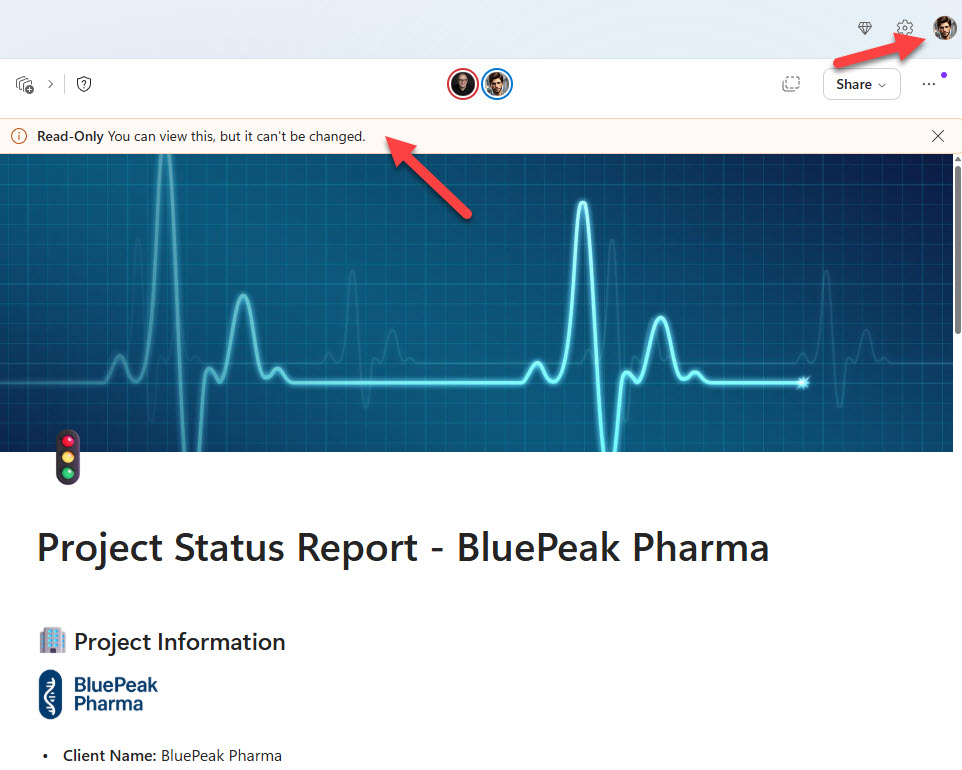
- Share the copied link with the recipient. When they access the Loop Page, they will receive the following warning.
How to share a Loop Component in read-only mode
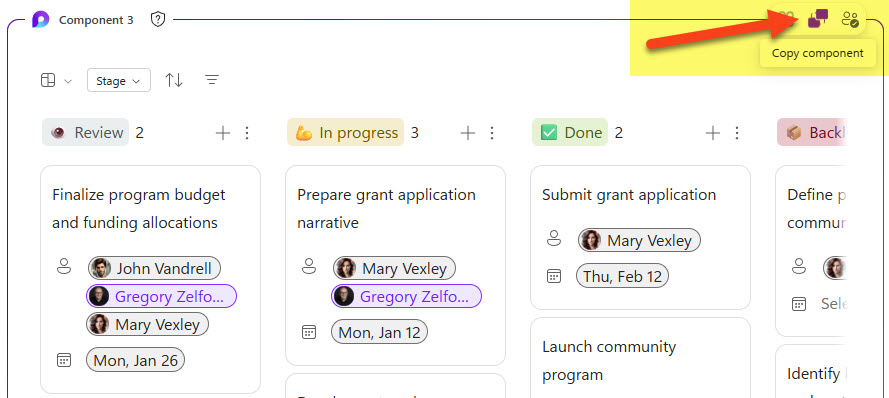
- If you decide to share a Loop Component rather than the entire page with others in read-only mode, that is possible as well. To do so, click on Copy component in the upper-right-hand corner of the Loop Component.
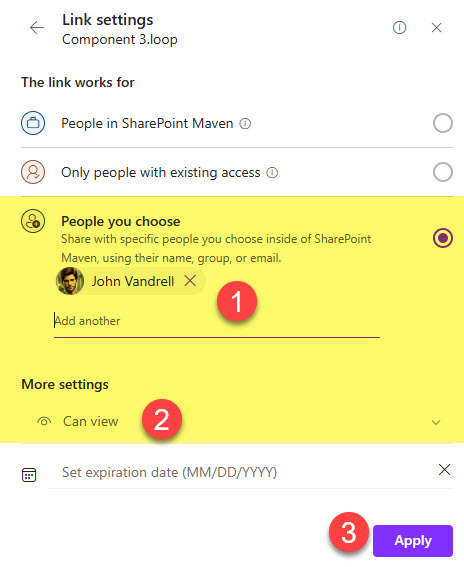
- Once again, you will get a generic Link copied interface. Click Settings.
- Specify the users you want to share the Loop Component with, and make sure to change Can edit to Can view. Click Apply.
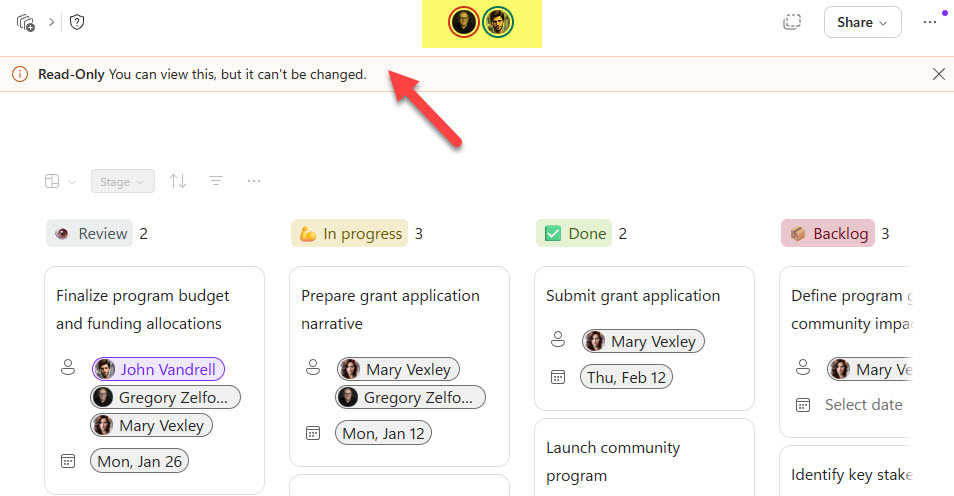
- When the recipient tries to access the link shared, he will receive a Read-Only warning message.
Nuances on Read-Only Access in Microsoft Loop
- While you can share Loop Pages and Loop Components in read-only mode, you cannot share the entire workspace in read-only mode, as it only has Editor or Owner permission levels.
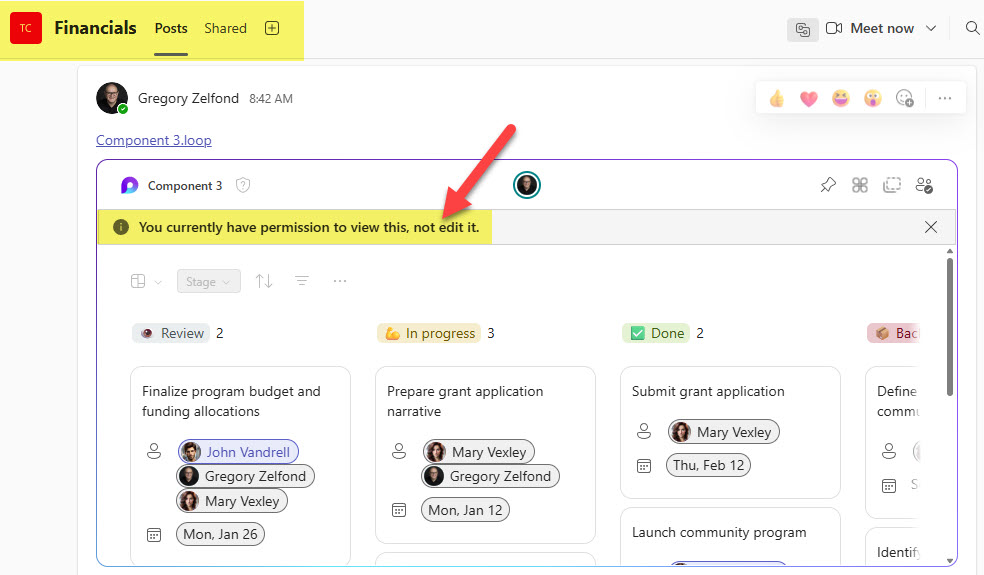
- If you paste the read-only link for a Loop Component in Teams or Outlook, the recipient will get the same read-only experience.
- Read-only recipients cannot share Loop pages or Loop components with others (i.e., invite others to the content they were invited to).
Use Cases for read-only mode in Microsoft Loop
There are plenty of use cases for read-only access in Microsoft Loop. Here are a few from my experience.
- Meeting Agenda automatically generated during the Teams meeting
- Project Status Report Loop Page
- Project Closure Report Loop Page
- Knowledge Base/Wiki maintained in Loop

Share Article