Public vs. Private Microsoft 365 Groups and Teams
I always joke that to understand how SharePoint permissions work, you either need a high IQ or be able to consume large amounts of alcohol. I am definitely in the second category. Understanding SharePoint permissions has been challenging ever since its inception in 2001. However, it became much more complicated in 2017 with the introduction of Microsoft 365 Groups (formerly called Office 365 Groups). So in this article, I would like to bring some clarity to this.
Managing SharePoint permissions
Before Microsoft 365 Groups (Office 365 Groups) were introduced, we managed permissions for SharePoint sites via SharePoint groups. Each site had 3 security groups (Visitors, Members, Owners).
- Visitors = read-only and download
- Members = add/edit/delete content
- Owners = Admin access to the entire site (full control)
By adding users to one of the groups, they would get corresponding permissions/access to the site. I explained it further in this article.

Microsoft 365 Groups
Around 2017, Microsoft introduced Office 365 Groups (later renamed to Microsoft 365 Groups). This was a new type of security group (membership group) that would be connected to a SharePoint site and other applications within the Microsoft 365 ecosystem. For example, the diagram below shows the typical setup of the Microsoft 365 Group, connected to various applications. When you create one element (i.e., Team), it creates the Microsoft 365 Group and all the other elements. It does not matter where you start – Teams, SharePoint, Planner – the result is the same – you get everything – it is all or nothing kind of deal.
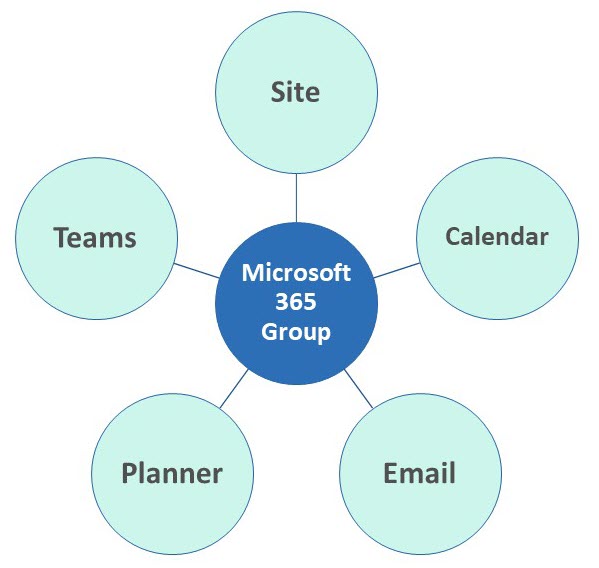
The idea here is that we now have a single security group to manage all the connected apps. It is a simple membership system. If a user is part of that group, they have access to all the apps (Teams, Planner, SharePoint site, etc.).
Microsoft 365 Group Members vs. Microsoft 365 Group Owners
While SharePoint site security relies on a minimum of 3 security groups, there are only 2 levels within Microsoft 365 Groups:
- Group Member = add/edit/delete rights to SharePoint and other connected apps (Teams, Planner, etc.)
- Group Owner = Admin of the Group, can do everything a Group Member can + manage group membership (more on this below) and the group’s various settings.
Private vs. Public
This is where it gets interesting. When you create a Microsoft 365 Group, whether from Teams or SharePoint, you get an extra question: you have to choose the privacy level for your group. You have 2 choices:
- Private
- Public

Private Group means you have to specifically invite members to join. In other words, it is an invitation-only group – the group owner has to let you in.
Public Group means users can join and leave the group themselves without the Group owner’s permission.
While the selection must be made during Group creation, it can be changed later as needed.
Use Cases for Private Microsoft 365 Groups/Teams
- Private Sites/Teams for the Departments
- Project Sites
- Any time a collaboration is necessary with restricted access
Use cases for Public Groups/Teams
- Project Sites for smaller orgs where everyone needs access
- Department sites for smaller orgs where the whole team needs access
What happens to a SharePoint site with Microsoft 365 Groups added?
Unlike SharePoint sites, which have had their own security groups for years, modern apps like Teams, Planner, etc., rely on Microsoft 365 Group membership to manage permissions. But what about SharePoint sites? How does Microsoft 365 Group membership impact SharePoint site security? Let me explain.
Private Microsoft 365 Group
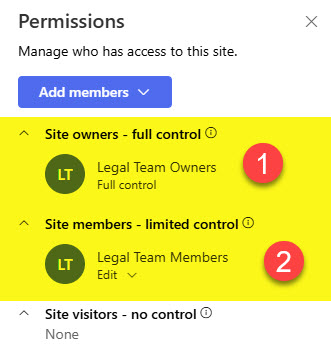
When you choose Private during group creation and then go to check SharePoint Site security settings (Gear Icon > Site Permissions), you will notice the following:
- Microsoft 365 Group Members nested inside the SharePoint Site members Group
- Microsoft 365 Group Owners nested inside the SharePoint Site owners Group
- The SharePoint Site visitors group is empty since users have all or nothing kind of access (no read-only)
Public Microsoft 365 Group
When you choose Public during group creation and check the SharePoint Site security settings, you will notice something interesting: the same setup as above, but also an Everyone except external group added to the Site Members SharePoint security group. If you want to learn more about this group, check out this article. This group is automatically added to the Site Members Group once you make the Microsoft 365 Group public. It is also removed when you switch it back to private.
- Microsoft 365 Group Members nested inside the SharePoint Site members Group
- Microsoft 365 Group Owners nested inside the SharePoint Site owners Group
- Everyone except external users group nested inside the SharePoint Site members Group
- The SharePoint Site visitors group is empty since users have all or nothing kind of access (no read-only)

The difference here is that Everyone within the organization has Edit access to the SharePoint site since it is part of a public Microsoft 365 Group. The image below shows the relationship between Microsoft 365 Groups and SharePoint sites.

Org Wide Team
There is also a third type of Microsoft 365 Group, but regular users do not see it. It is something called an Org-Wide Team. It is available under the following conditions:
- Only available during Team Creation (not SharePoint site or any other app like Planner, etc.)
- This type of Team is only available to Teams Admins
The org-wide team is a special type of team that automatically includes everyone within the organization. So think of it as a Public Team that automatically includes everyone within the organization. You can’t join or leave it – everyone within the org is automatically added to it. As employees come and go and IT creates their Microsoft Entra ID accounts, they are automatically added to the team.

Use Cases for an Org-Wide Team
- Company-wide communications
- Alternative to Viva Engage for smaller organizations
- A team for HR to answer employees’ questions
Nuances and Best Practices on Private, Public, and Org-Wide Teams
- An org can only create a max of 5 Org Wide Teams
- The majority of Teams/Groups within an org are usually Private Sites, with a few exceptions for Public Sites
- Just like with regular SharePoint site security, always set up the teams/groups with minimum security required (i.e., Private)
- Though SharePoint Site security for Team sites is managed by the membership of a Microsoft 365 Group, you can create unique permissions for the SharePoint site itself. I documented it in this article.

Share Article