3 Views of a SharePoint Document Library
I published a similar article about the views on a list, however, we have the same capability on document libraries as well. When we work with Microsoft Lists, we tend to display the information in different views (List, Gallery, Board, and Calendar). On the other hand, when we work with documents, we don’t think of alternate views at all – we just use the default view of files and folders. Surprisingly, you can create alternate views on a document library as well, and they might be lifesavers in specific use cases – let me explain.
List View
The first view is the default view of a Document Library – the List View – you get it by default, so it does not need to be created.

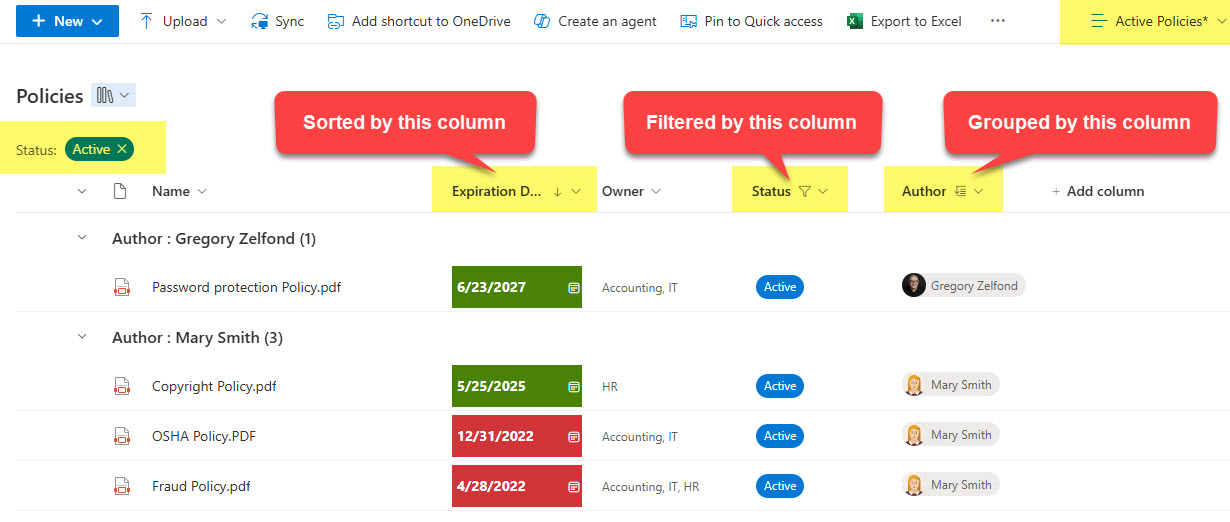
That said, if you use metadata to organize your documents, then you might want another list view to group/sort/filter/hide certain columns. Here is how to do this:
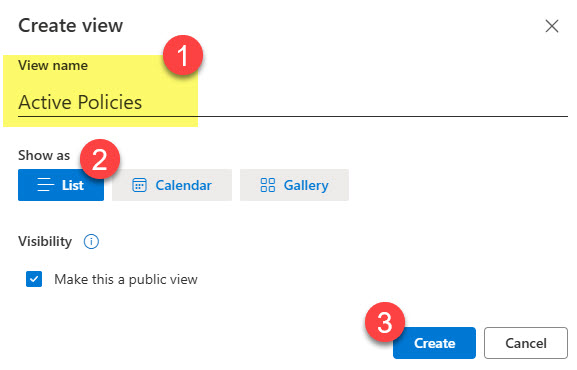
- From the Views drop-down, click on Create new view

- Give your view a name and choose List for the view type. Click Create.
- Once the view is created, you can filter it, group it, and sort it as necessary.
Use Cases
- Default view for the document library, whether you use folders or metadata
- If you use metadata, list view allows you to create a table-style view of your documents
Calendar View
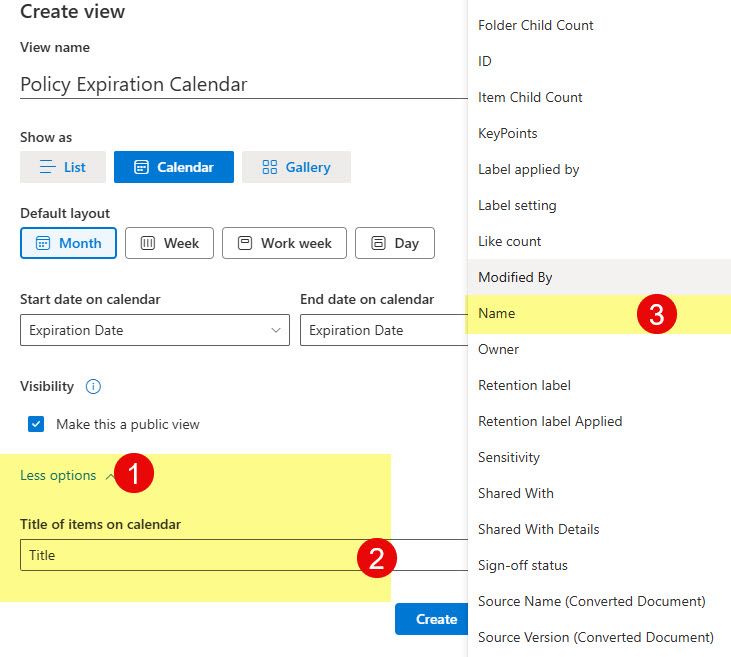
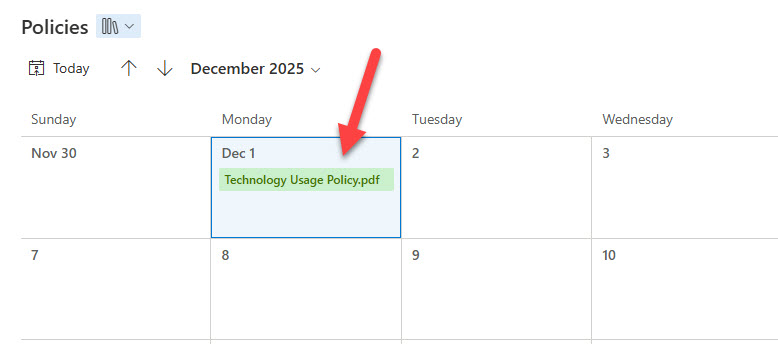
This view only makes sense if you use metadata instead of folders and also happen to use date column types as well. The view allows you to view a document library in a calendar format. I provided step-by-step instructions on the Calendar View here.
Use Cases
- Display the Review date for company policies in a calendar format
- Display contract start and end dates in a calendar format
Gallery View
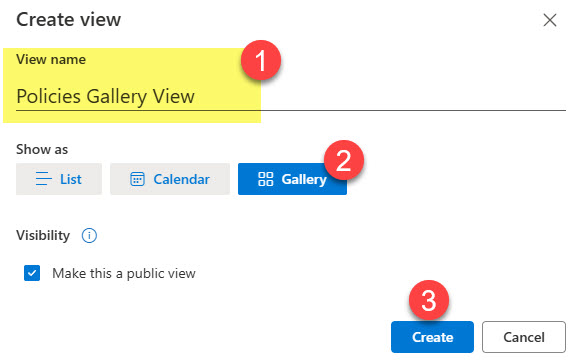
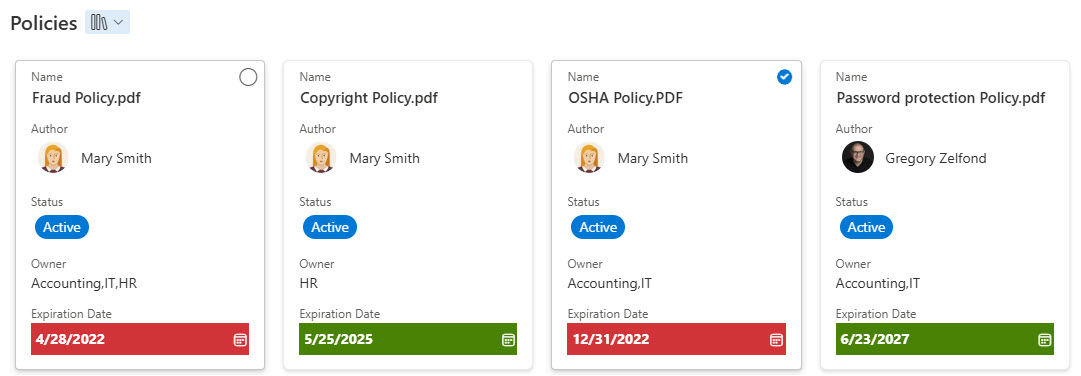
Finally, we have the Gallery View. This is the view you might only use occasionally, if at all. It allows you to create a board-style/card-style format for the document library. Again, I have instructions for you on how to create and configure one here.
Use Cases
- Provide an alternate view for documents when using metadata
- Provide a visually appealing way to view folders

Share Article