< All Articles
Viva Connections News Card
I usually devote my blogs to SharePoint Web Parts and features, most of which have been around for a while in SharePoint. However, Microsoft added some new Viva Connections cards recently that make the Viva Connections Dashboard more practical and valuable. This time, I want to explain one of the new cards we now have, called News. I will show you how it works and how it can spice up the users’ Intranet experience.
- You can only configure the Viva Connections dashboard from the Home Site. If you are not familiar with this concept, please check out this article.
- Once on the Home Site, click the Gear Icon > Manage Viva Connections

- On the side panel that pops up, click View Dashboard

- Click Edit to edit the Dashboard

- Click Desktop, then + Add a Card. From there, choose the News Card
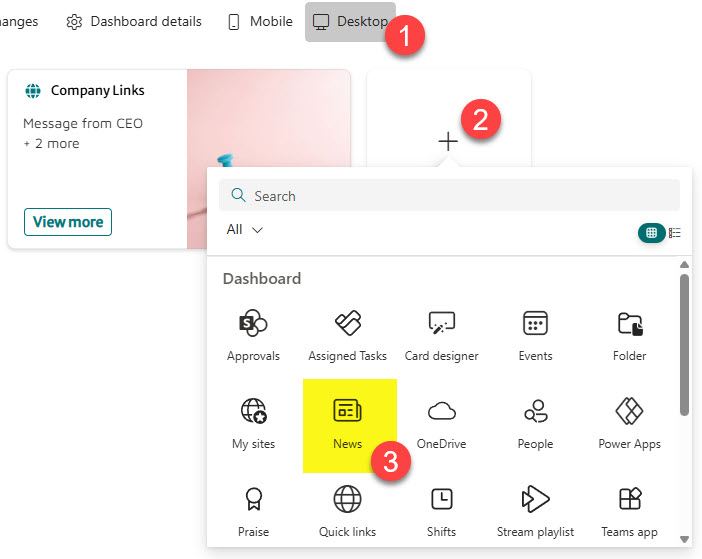
- It will then add the Card to the page. Click the Pencil icon to adjust some settings further

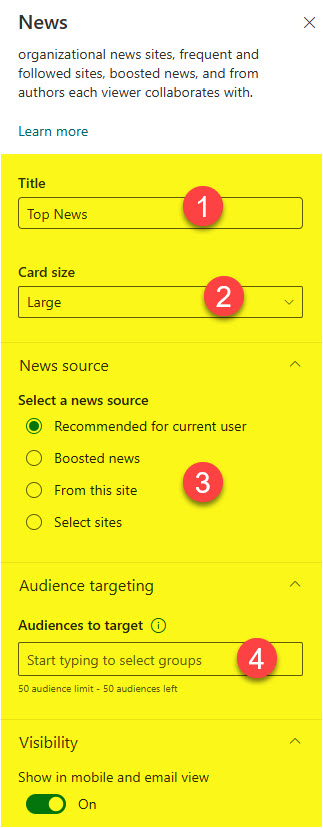
- In terms of the additional settings, you will be able to adjust the Title, Card size, and choose the News Source (Recommended for current user, Boosted News, From this site, Select sites). Finally, you would be able to set Audience Targeting as well.
- This is how the Card will render on the Home Site. It will display one news post and then allow users to see the other ones by clicking See all.


Share Article