Dashboard Stream Playlist Card
There have been quite a few improvements lately in the Viva Connections “universe”. With the addition of new Viva Connections cards and the availability of the Dashboard Web Part on all SharePoint sites, there is a clear push to make Dashboard cards more prominent and practical. In this article, I would like to explain the Stream Playlist card to you. I will describe what it is, how it works, and how it can become a valuable addition to your Intranet Homepage or department site.
What is Stream Playlist?
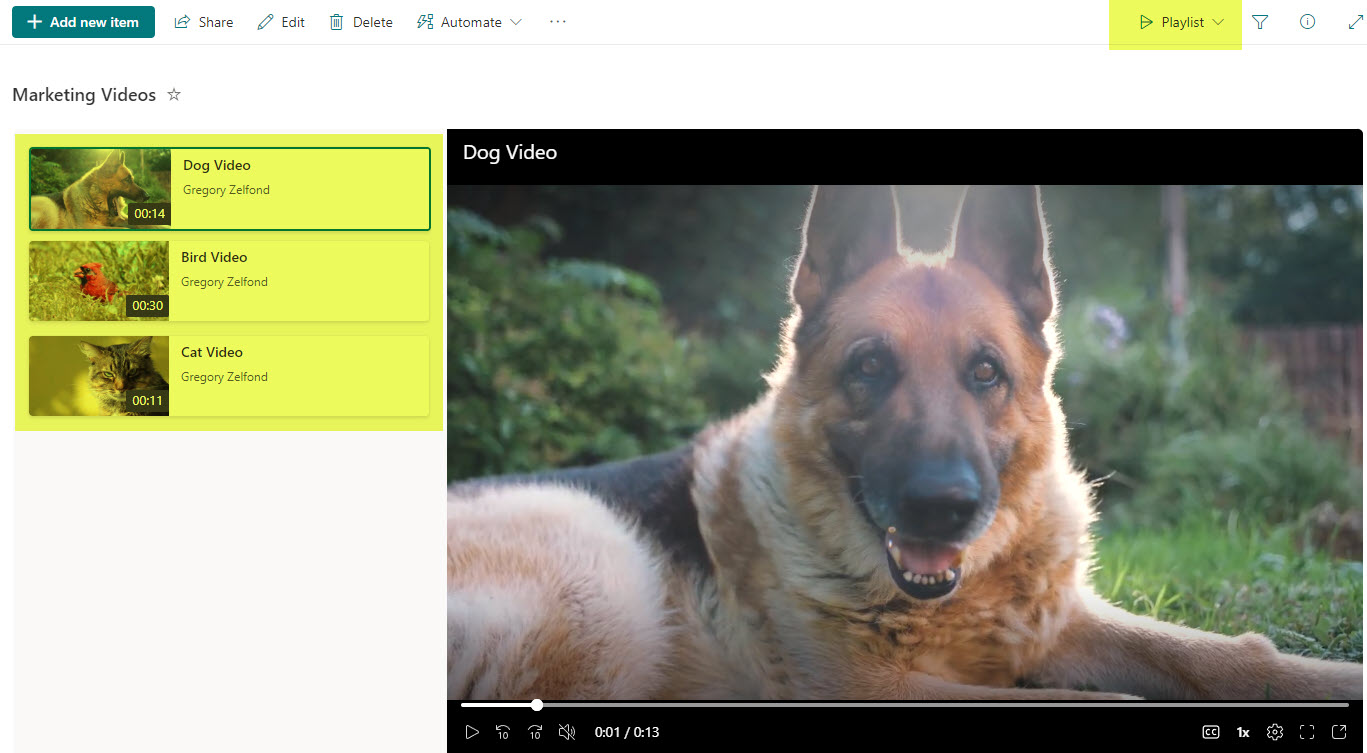
Before I introduce you to the Playlist Card within the Dashboard, it’s probably a good idea to first understand what a playlist is all about. I actually wrote a separate article on this topic, which you can find here. Essentially, it is a custom list template available that allows you to organize video files into a playlist (similar to the playlist functionality on YouTube) and play them within the Stream video player.
How to add and configure Stream Playlist Card
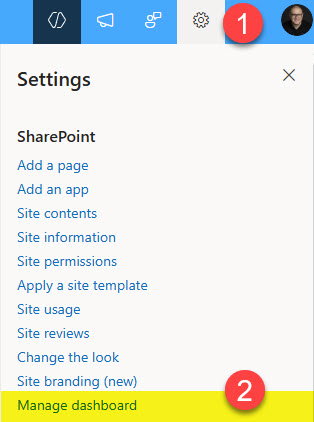
- If you are the Site Owner, click on the Gear Icon > Manage dashboard
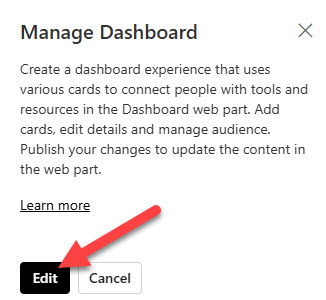
- Under Manage Dashboard, click the Edit button.
- Click Edit (to edit the page)

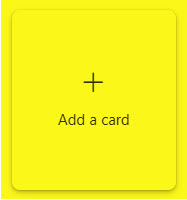
- To customize the Dashboard, click +Add a card
- From the list of all available cards, choose Stream playlist

- By default, it will be blank. To customize it, click the Pencil icon
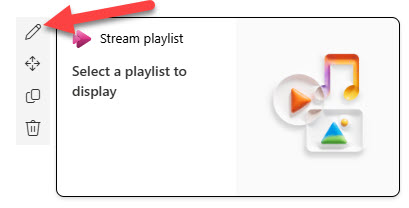
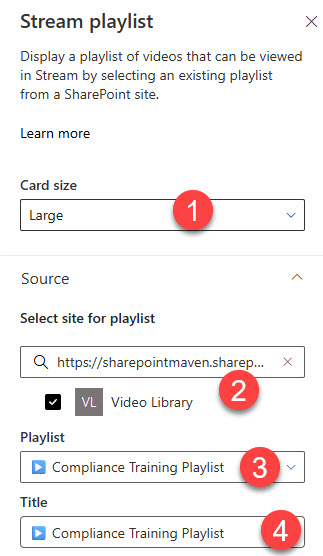
- There are a few things you will be able to customize. Card size (Medium or Large). Next, it will prompt you to select an existing playlist. For that, you will first need to specify a SharePoint site URL where the playlist resides and then choose the Playlist itself.
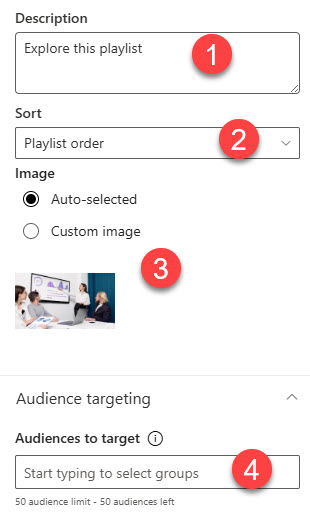
- Next, you can provide a brief description, specify a sort order, and even select a thumbnail image (auto-selected by default). At the bottom of the pane, you can even set Audience Targeting.
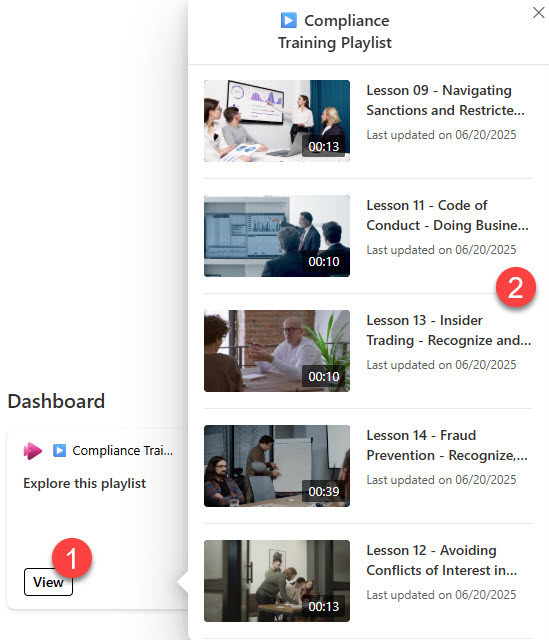
- Once published, this is what the user experience will be. Once the user clicks on the card, it will display all the videos from the playlist in the pop-up. Clicking on a video will play the video within the Stream video player.

Share Article