< All Articles
How to Create a New Video in Clipchamp Using Copilot
One of the latest features in the Copilot space is the ability to create videos from text descriptions. While the whole thing is super easy to achieve, I want to explain how it works, where the videos are stored, and so on.
How to Create a New Video in Clipchamp Using Copilot
- If you plan to create and then immediately edit the video, you are better off going directly to the Clipchamp splash page and clicking on Video Project

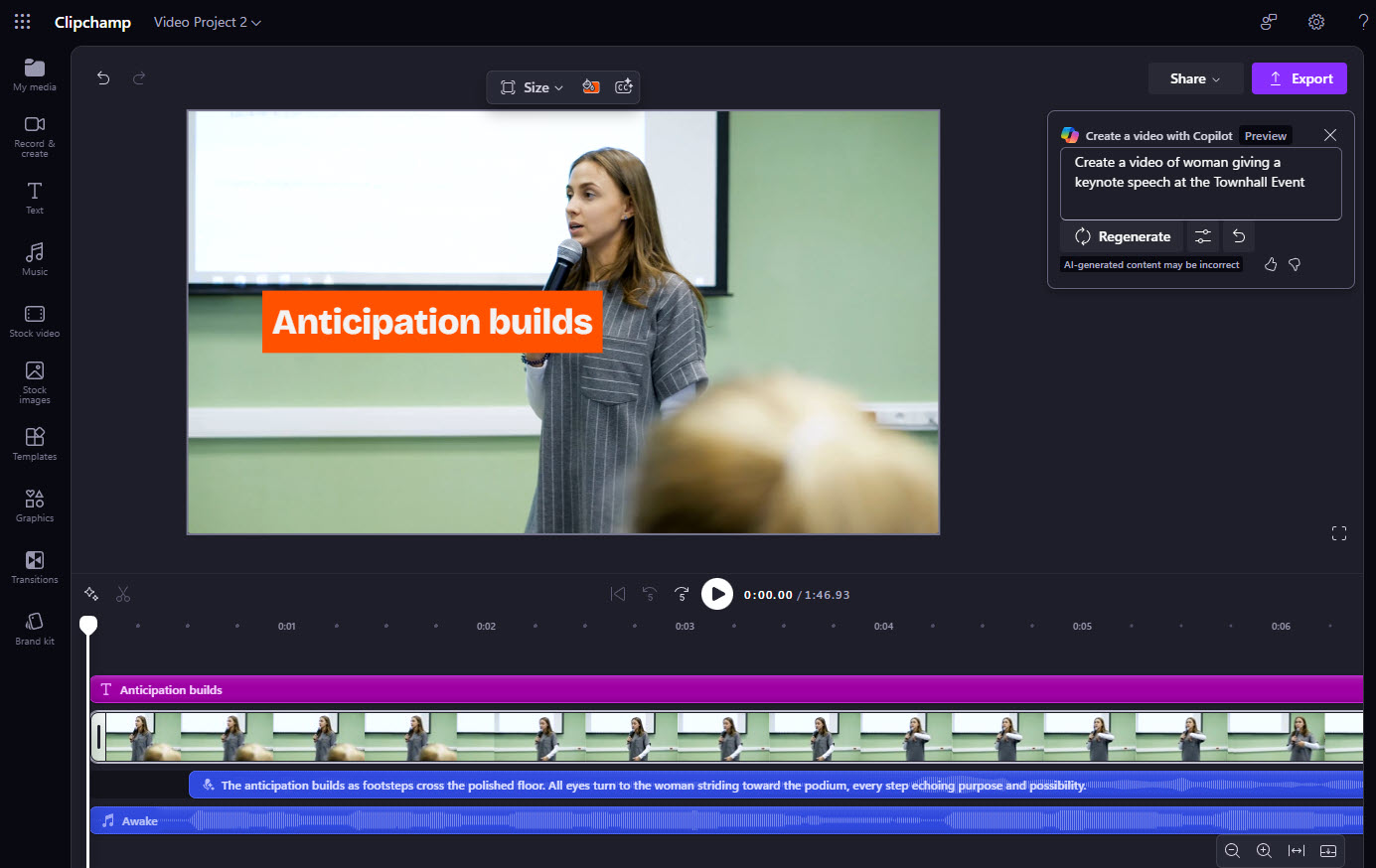
- Provide a description of the video you would like to create, then click the arrow.

- It will start creating the video for you
- Once the video is created, it will immediately be embedded inside the Clipchamp video editor for further editing
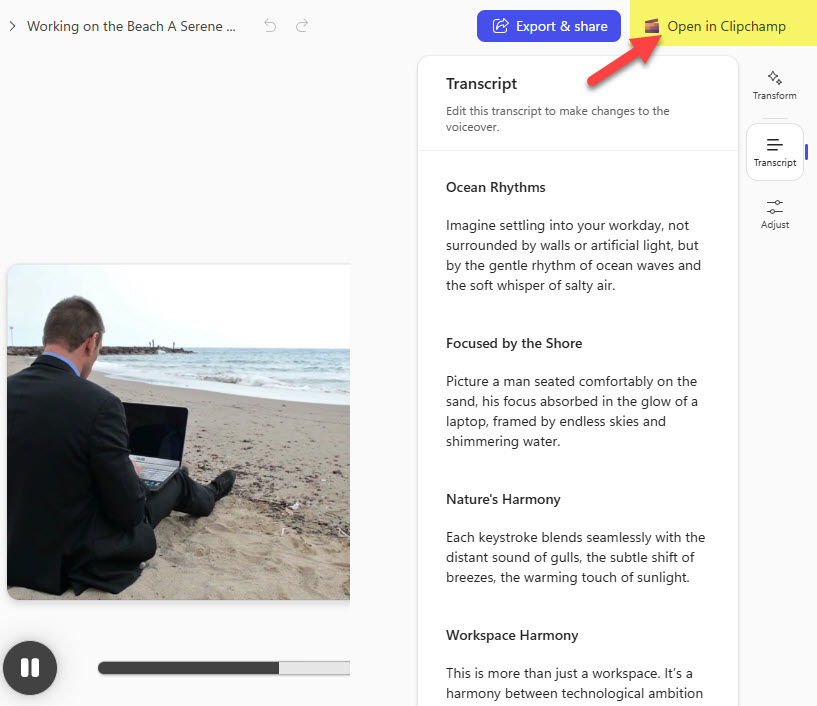
You can also use the “general” Copilot prompt to create a video as well. In that case, once the video is produced, you will need to then Open it with Clipchamp for further editing.
Where are the videos and Clipchamp asset files stored?
It is probably no surprise that all the video assets related to Clipchamp are stored in the user’s OneDrive. You will find all the videos created with Clipchamp inside My Files > Videos > Clipchamp folder.
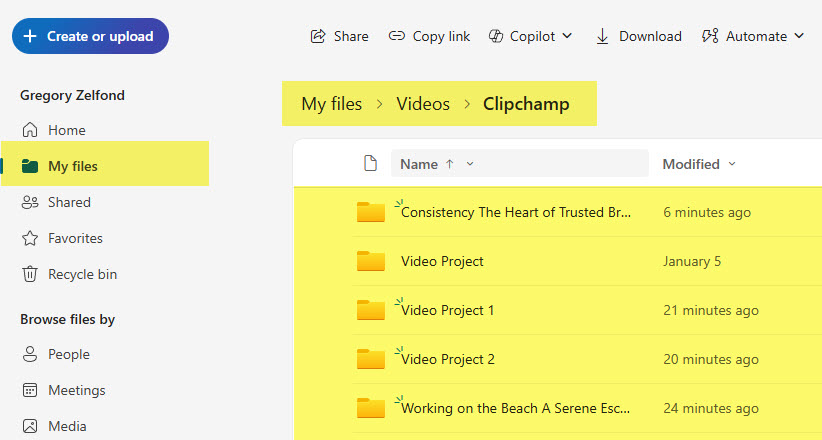
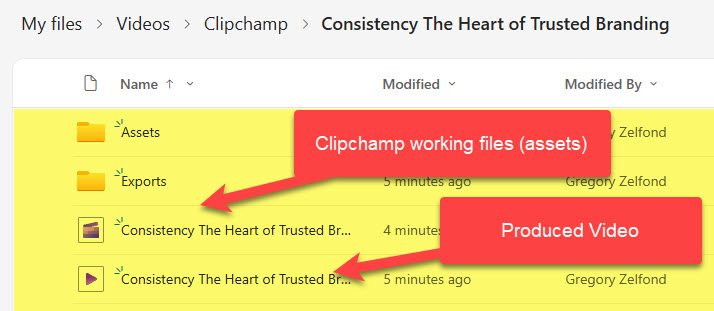
Example of a Clipchamp Video Project Folder with Clipchamp assets and a video file

Share Article