How to build a SharePoint Page using SharePoint Page Agent
It seems like Copilot agents are everywhere! You can’t escape them, so we might as well embrace them. One agent that has strong potential is the SharePoint page agent. Creating and maintaining SharePoint page content has always been an issue. We are good at creating documents in Word, tables in Excel, and bullet summaries in PowerPoint. But when it comes to creating visually appealing pages, not so much. God blessed me with superpowers in SharePoint, but he decided my drawing ability should stay frozen at age 5. 🤣 SharePoint Page Agent might help change this trend. Let me explain.
What is a SharePoint Page Agent?
The SharePoint Page agent is an out-of-the-box agent in Microsoft 365 that builds a SharePoint page for you based on your content requirements. It is a wizard-type agent that walks you through the steps from requirement definition to eventual page build.
How to access the SharePoint Page Agent
It is very important to note that you must have a Copilot license to take advantage of this agent. To access it:
- Navigate to the Microsoft 365 Homepage and from there, click on the Copilot Icon > All Agents
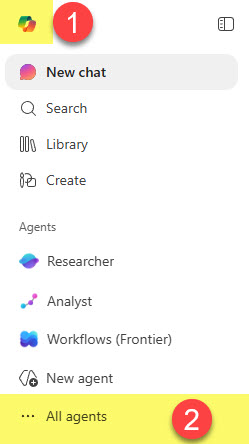
- You might be lucky, and the SharePoint page agent might appear in the list. If not, use the search box to find it.

Create a Page using SharePoint Page Agent
- Enter your requirements into the chat box and click the arrow. The more instructions you provide and the more precise your instructions, the better!
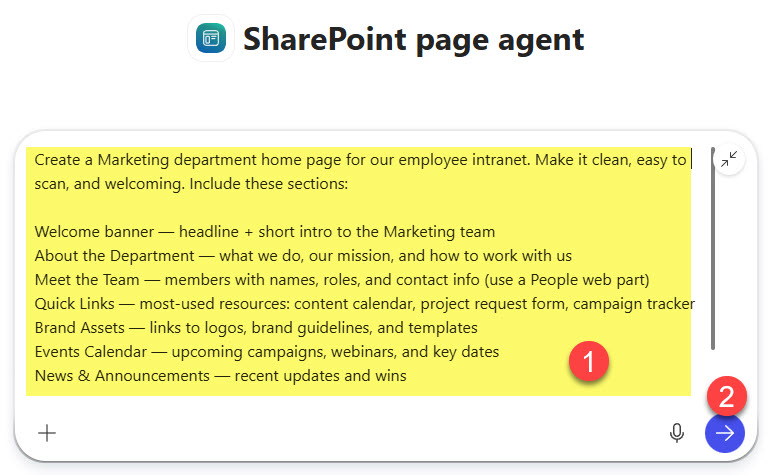
- Next, the SharePoint Page Agent will provide a tentative draft based on the requirements provided. You can always tweak them via further chatting prompts. Once ready, choose Select a SharePoint site to draft the page step.

- Confirm again
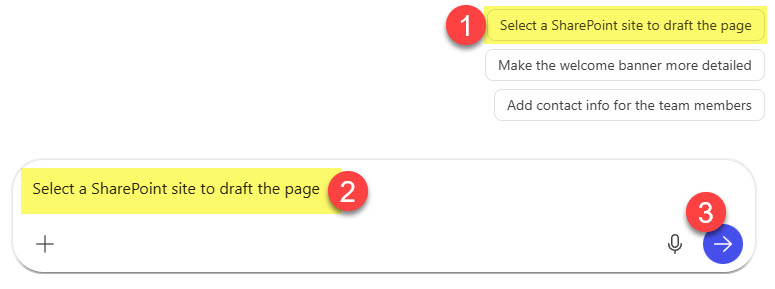
- Choose a site where the draft page will be created. Click Confirm.
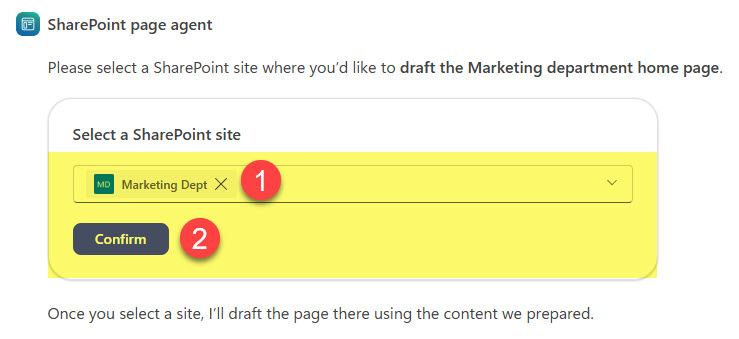
- It will ask you to confirm again before the actual page is created

- And then you will get to see the page created on the chosen SharePoint site!
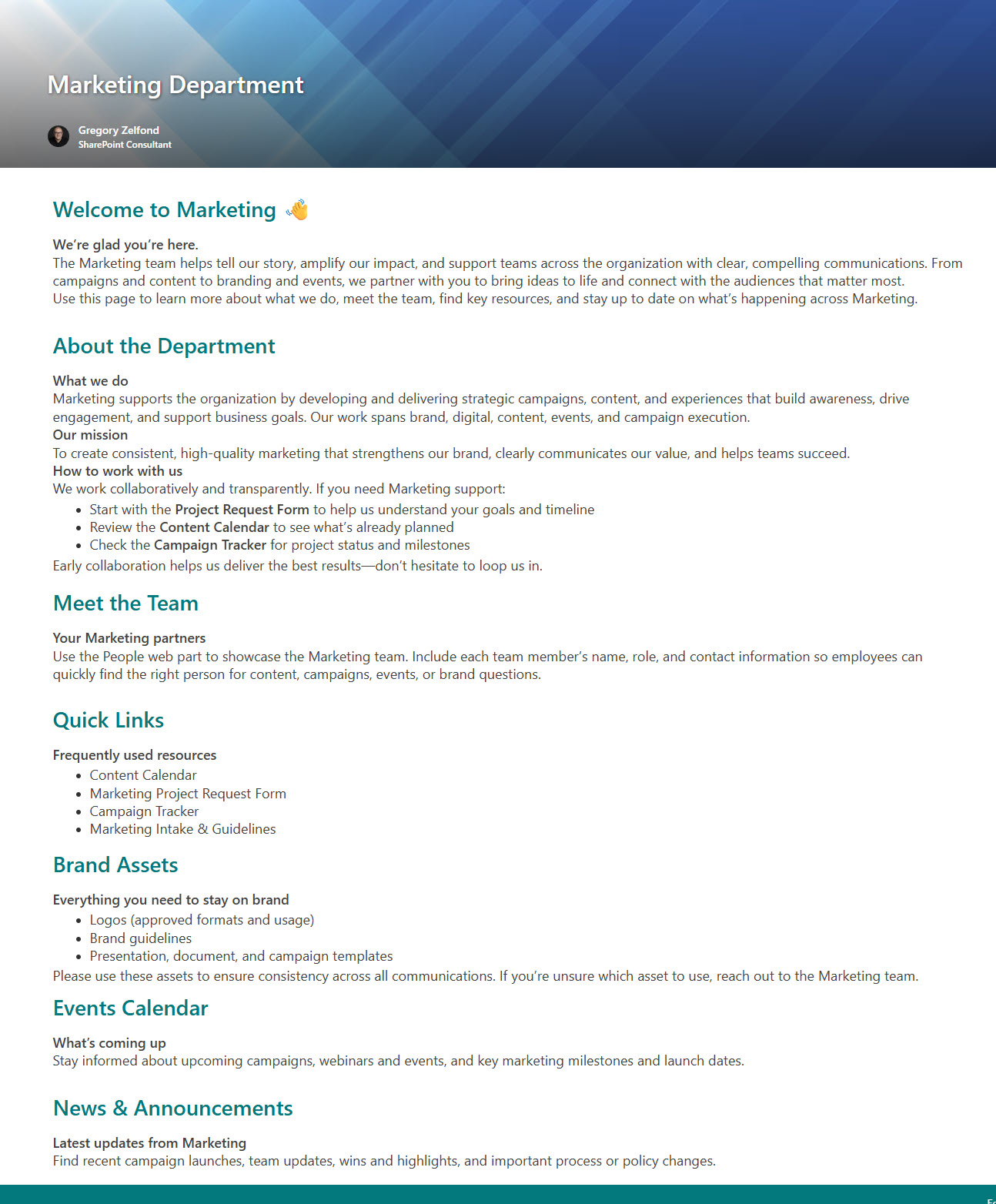
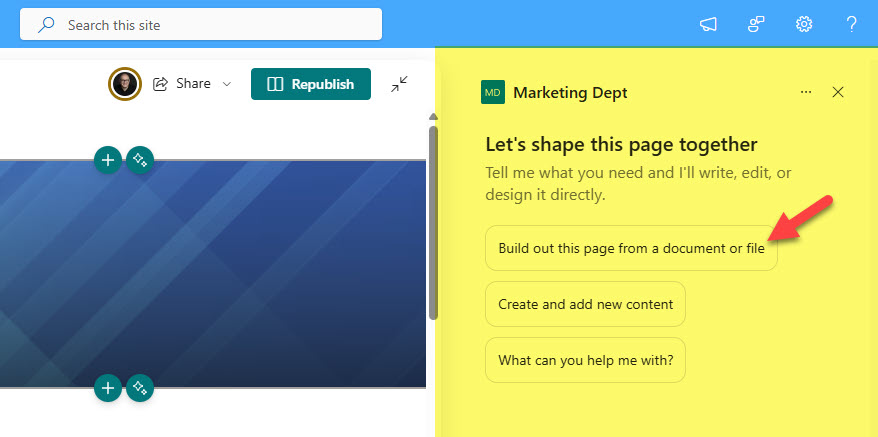
- You can then tweak it further using the SharePoint Site’s out-of-the-box agent
Nuances and Important Notes
- As stated above, you must have a Copilot license assigned to take advantage of this capability.
- You must already have a SharePoint site created to take advantage of the SharePoint Page Agent. As of the writing of this post, SharePoint Page Agent will not create a new site for you on the fly.
- Once the SharePoint Page Agent creates a page for the first time, it will be created in Private Draft mode and will remain like that until you publish it for the first time.
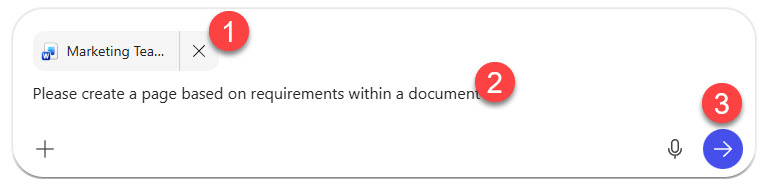
- I found the best outcome when I created a separate document with detailed instructions and uploaded it to the prompt, rather than typing a lot of text in the chat window.
- As of the writing of this post, the pages created by the SharePoint Page Agent are mostly primitive. Specifically, it will copy and paste the text; however, it fails to create any other web parts for you (i.e., News Web Part for news, Events Web Parts for events, and Quick Links for links). I have had some mixed luck with secondary prompts once the page is built, but it is trial and error at the moment.
- I also personally find that, from the workflow standpoint, it makes most sense to just go to the site where the page is to be created and create it there using the built-in Copilot Agent
- As of the writing of this post, do not expect any fancy designs on your SharePoint pages. However, I believe it is a matter of time before we see those in SharePoint (having seen Claude Design capabilities).
- I definitely see lots of potential with the SharePoint Page Agent, especially for us, who are drawing like 5-year-olds 😀

Share Article