How to restrict Content Discovery by Copilot in SharePoint
Since Microsoft launched Copilot in 2023, users and companies have been all over the governance implications. And honestly, I get it. The concern that Copilot might find more than it should keeps growing. There are already a few ways to keep Copilot focused on the right content. But Microsoft recently released a new feature that gives organizations one more way to “point Copilot in the right direction.” Let me explain.
The feature is called Restricted Content Discovery (RCD). In plain English, it lets you keep a SharePoint site exactly as it is, permissions and all, but hide its content from Copilot and from organization-wide search. In this article, I will show you how to restrict Content Discovery on a site, what happens to users, and a few nuances to watch for.
How to restrict Content Discovery by Copilot in SharePoint
- First things first: this feature is not free (hey, I am Jewish, and I love a good bargain, but even I had to pay for it) 😀
- Navigate to the Microsoft 365 Admin Center
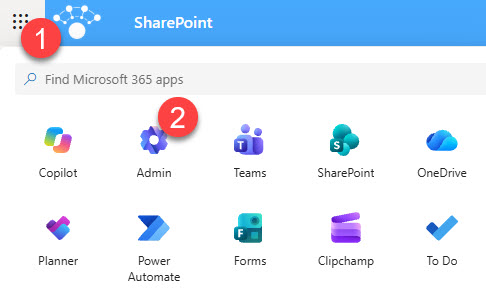
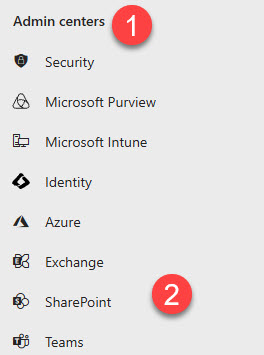
- Under Admin centers, click on SharePoint Admin Center
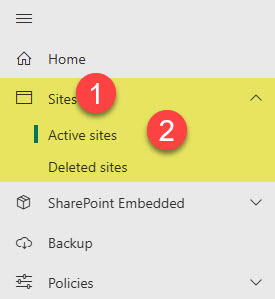
- Expand Sites and click on Active sites
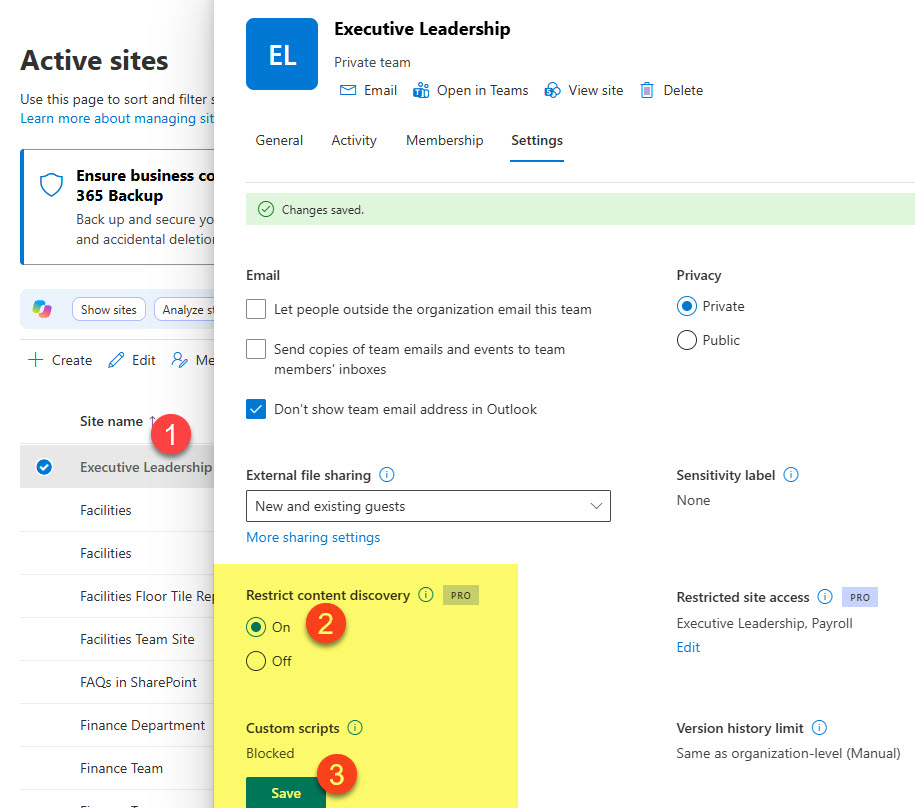
- Click on the name of the site you want to restrict, then click on the Settings tab and select the On radio button under Restrict content discovery. Click Save.
What happens when you restrict Content Discovery
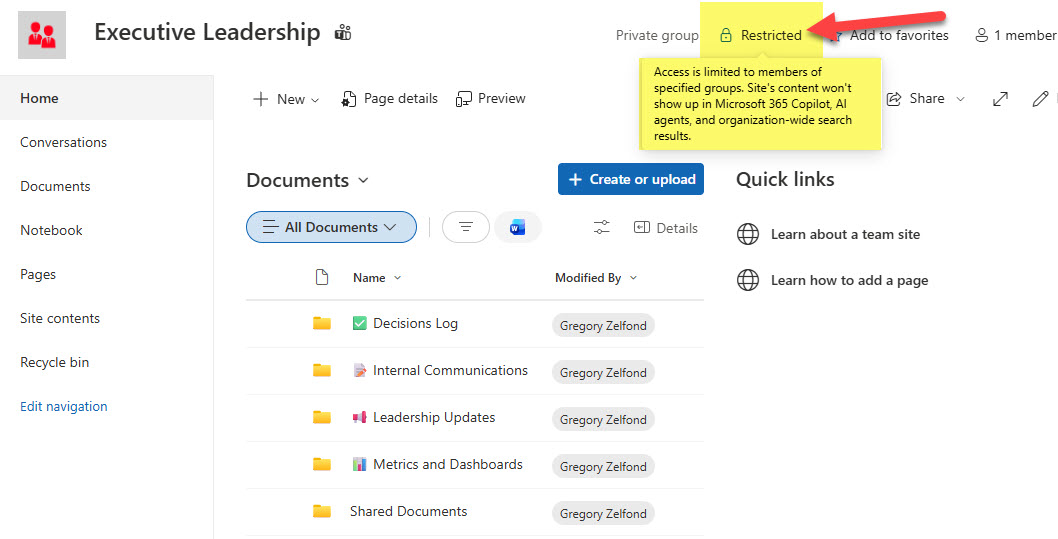
- The Copilot button and related Copilot functionalities (e.g., agent creation) will disappear from the site
- Copilot and organization-wide search, including Hub-Level Search, search from SharePoint Start Page or Office.com will no longer surface content from the site
- The site will display the word “Restricted” on the page
Nuances about Restricted Content Discovery
- Site permissions do not change. Anyone with access can still access and open the site and its files directly.
- Site search still works! Searching within the SharePoint site (library-level or site-level) still works.
- No OneDrive restriction. You can only restrict content discovery on a SharePoint site, not OneDrive.
- No tenant-level restriction. For obvious reasons, you can only restrict content discovery on a site-by-site basis – you cannot do so at the tenant level.
- Delegation. As with Site Access Restriction, you can delegate decision-making to site owners. However, that requires PowerShell.
- RCD is not a security feature. It does not lock anything. Instead, it just tells Copilot to look elsewhere. If you actually need to keep people out, fix the site permissions instead.

Share Article