< All Articles
How to check what the User has access to in SharePoint and OneDrive
This is one of the most frequent questions I hear from IT teams and managers. Too often, you want to know what a given user/employee has access to. In the past, the only way to get credible information was to see which Microsoft 365 Groups the user belonged to. But that only covered the Team Sites connected to the group and didn’t cover regular SharePoint sites (those without a group) or private/shared channel sites.
Luckily, we now have a way to get a bit more information: the Site Permissions for Users report. Let me run you through it.
How to access the Site Permissions for Users report
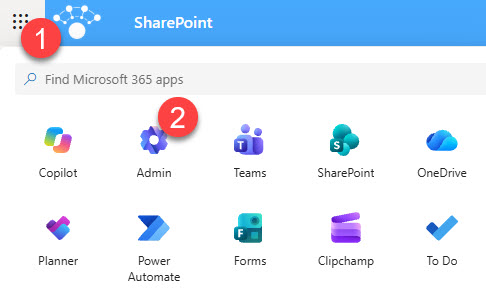
- Click the Microsoft 365 App Launcher and click on Admin to access the Microsoft 365 Admin Center
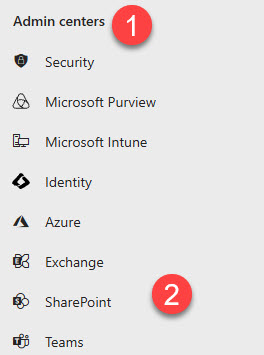
- Under Admin centers, choose SharePoint (Admin Center)
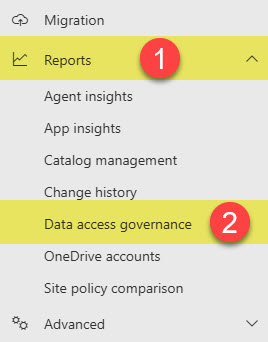
- Once inside the SharePoint Admin Center, expand Reports and choose Data access governance
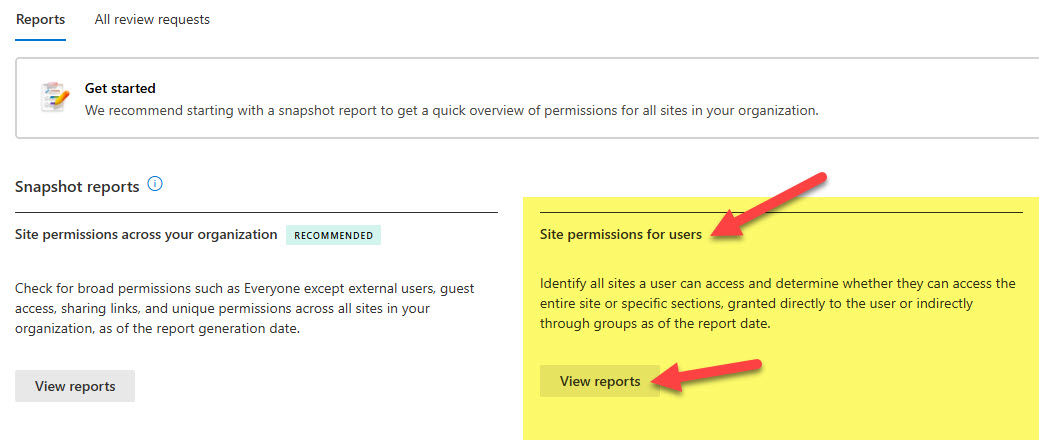
- Under the Reports main area, click on View Reports under Site permissions for users
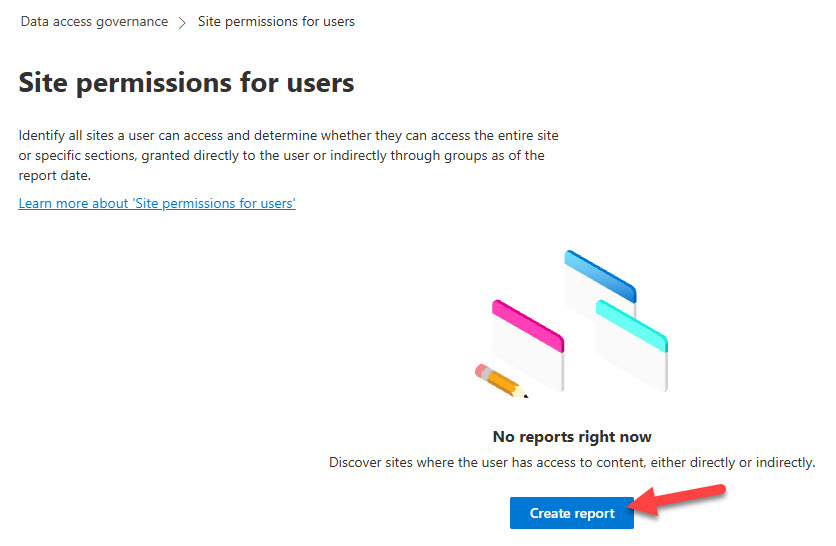
- Click Create report
- Click Add users to report, pick the user(s) you want to check on, and click Save
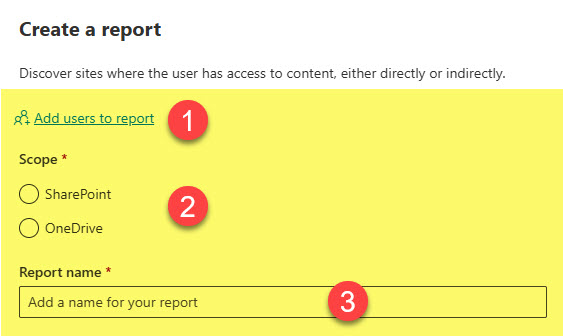

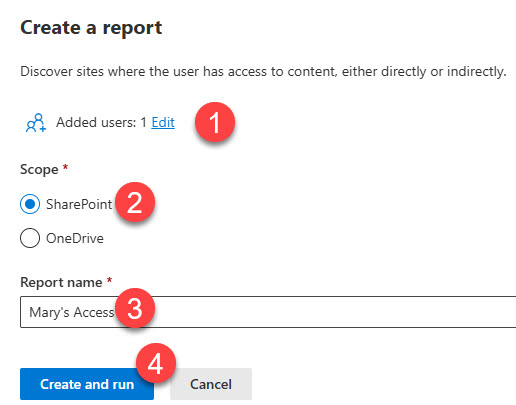
- Next, choose the Scope: SharePoint or OneDrive. This is essentially what you are checking their access to. You can only pick one at a time. In my case, I chose SharePoint. Finally, give the report a unique name and click Create and run.
- It will then start generating the report. It might take anywhere from a few hours to a few days (in my case, it took 24 hours).

- Once the report is generated, it will advise you of the status update as shown below.
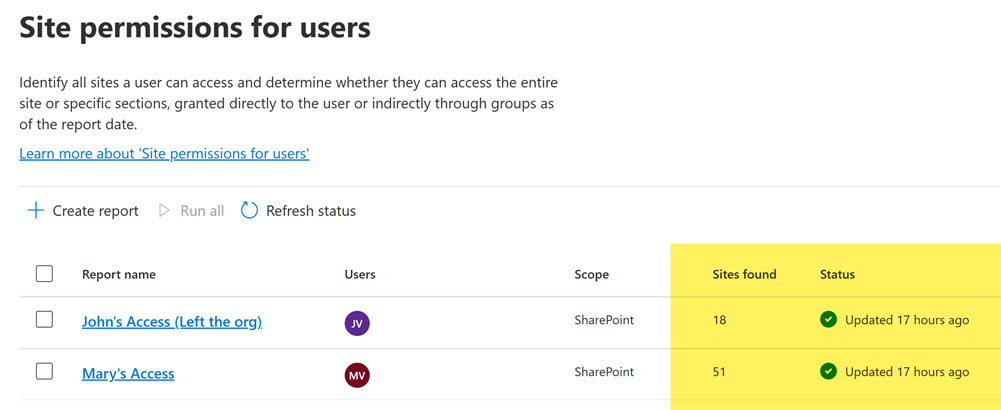
- After you click the report, you can filter by users (if you added multiple ones in the steps above). To download the extended data for all the users within the report, click on the Download detailed report button.

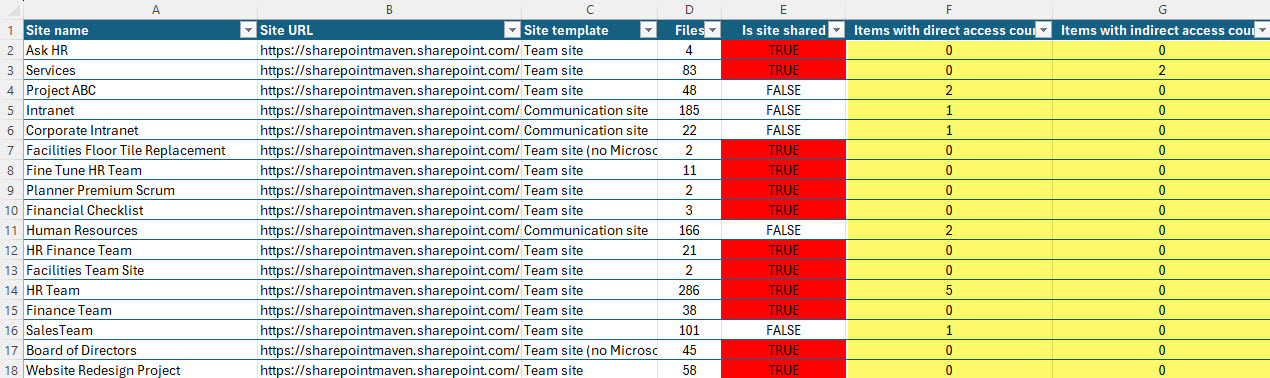
- When you open the report, you will see the sites and site URLs that the user(s) can access. More importantly, it shows how they got that access: to the entire site or only to specific files and folders!
Use Cases for the Site Permissions for Users report
I am sure there are plenty of use cases for wanting to know a specific user’s access. Here are a few I encountered with my clients:
- An employee is leaving the company, and you want to know which sites he or she had access to
- An employee is changing departments, and you want to make sure their old HR or Finance access doesn’t carry over
- You are about to assign a Microsoft 365 Copilot license to an employee and want to confirm the user does not have access to confidential information they are not supposed to.
Nuances about Site Permissions for Users Report
- You must be a SharePoint Administrator
- You must have proper SAM (SharePoint Advanced Management) licensing
- You can add up to 100 users to each report
- The report you generate is a snapshot at a point in time, not live data
- You can only run the report every 24 hours
- As mentioned above, SharePoint and OneDrive are separate scopes, so if you need both, you will need to create 2 separate reports.
- When you run the Site permissions for users report with the scope set to OneDrive, it will show you if the target user has access to files and folders in other users’ OneDrive accounts.
How to mitigate findings revealed by the Site Permissions for Users Report
- The employee left the company. Block sign-in and remove the license in the Microsoft 365 admin center first, then decide what happens with their files. I explain the options in this post. Their OneDrive will also turn into an unlicensed OneDrive account, so do not forget about it.
- The employee changed departments. Remove them from the old department’s Microsoft 365 Group or SharePoint group. One group removal usually takes care of several sites at once.

Share Article