How to create SharePoint Skills using Copilot
As the Copilot button becomes a prominent fixture in SharePoint and other Microsoft 365 apps, you’ve probably heard a lot about something called Skills. In this post, I’ll explain what Skills are and how they work in SharePoint.
1. What are Skills?
In short, skills are reusable instructions that document a certain business process. Most of us started using tools like ChatGPT, Claude, and Copilot through the chat function. That’s fine until you have to type the same command over and over again, especially when you have numerous nuances you want to communicate and explain to the AI.
Let me give you an example. Say you received a legal document from a client or a vendor (i.e., NDA, SOW, etc.) and want to compare it against your company’s standard clauses. Not only that, but you also want to redline the changes and prepare a document with suggested changes for the client to review. Typing these conditions in a chat every time would be exhausting and repetitive. This is where Skills come in – you just document all the processes and nuances once and request that skill every time you need to execute it.
2. How to create a Skill
Enable Agent Assets Library
The skills you create on a SharePoint site will reside in a special Document Library called Agent Assets. It does not appear on a site automatically – you have to enable it. It is just a one-time deal. Here are the steps:
- From the SharePoint site, click the Gear Icon > Site Information
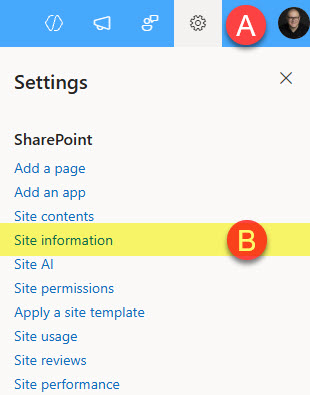
- Click on View all site settings

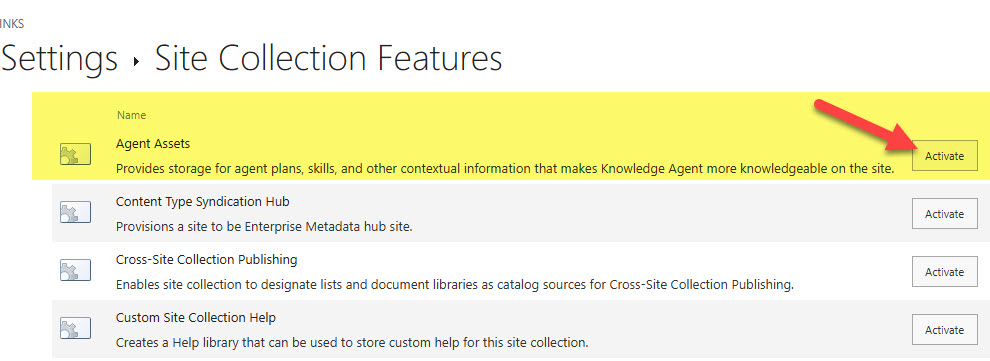
- Under the Site Collection Administration section, click Site collection features

- Click Activate next to Agent Assets
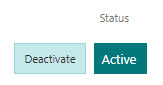
- Once activated, you will see the Active button displayed.
Decide on the prompt.
Next, decide what the skill will do and provide specific instructions. In my case, this is the prompt I will be using:
Create a skill called New Project Setup. When I run it, ask me for the project name and client, then create a folder in the Projects library named “Client – Project Name”, and inside it create three subfolders: Contracts, Deliverables, Meeting Notes.
Create SharePoint Skill
Once the Agent Assets library is activated, we can create the skill. You can create a skill in two ways. You can create a skill by uploading a special .md file (more on this later) or by simply entering instructions in a chat. I personally use and recommend the chat approach, as it is more natural and simpler.
- Open the Copilot Chat window first

- Type or paste the prompt inside the chat window.
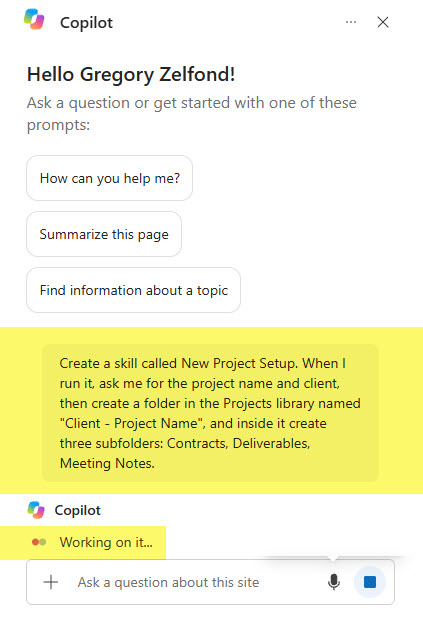
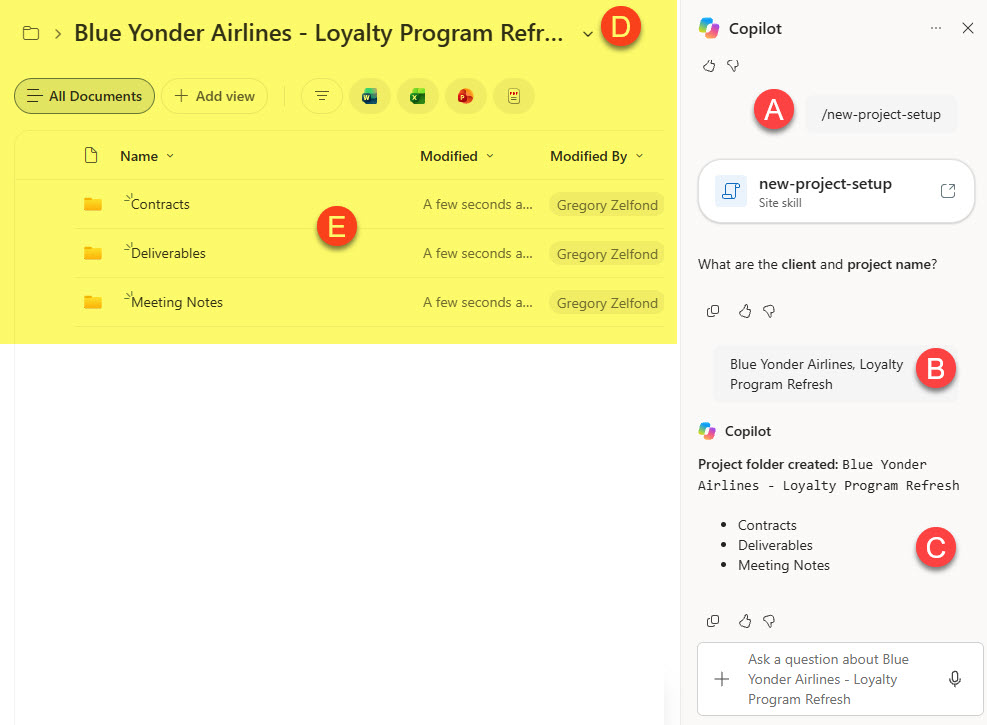
- Copilot might ask you some clarification questions.

- Once all is set and done, you will be notified that the skill has been created

- In case you give this a try, it will produce a result based on the skill instructions
3. Where are the Skills stored?
The skills you create are stored inside the Agent Assets Document library enabled in an earlier step. To access them:
- Click Site Contents > Agent Assets
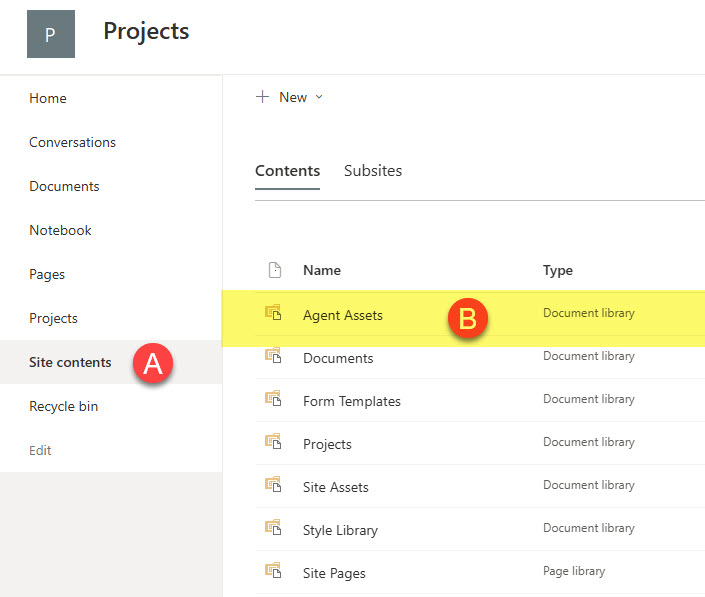
- You will see a few folders in there. Click on the Skills folder, then the folder name for the skill.

4. What does a Skill look like?
Every time you create a Skill, it creates a text file with an .md extension. .md stands for Markdown file, a text file that creates formatted text.
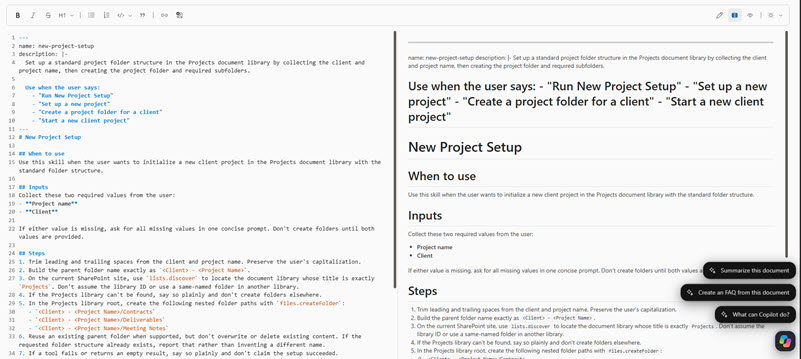
While you can always open and edit the .md file and add/edit instructions in there, my personal preference is always to do it via Copilot. If you want to add clarification or nuance, you can always ask Copilot to do it for you.
5. Using and Reusing the Skills
You can invoke a skill via chat by typing the request (i.e., set up a new project in my case). Copilot will automatically match the request against available skills.
Important Nuances about SharePoint Skills
- Site skills aren’t limited to one site. The SKILL.md file lives on a single site, but it can reference content on other sites.
- The Agent Assets library inherits permissions from the site. That means anyone with Member permissions can edit or delete SKILL.md files.
- You can’t delete the Agent Assets library, but you can deactivate it on the Manage Site Collection Features page.
- Skills run in the user’s context. A skill only evaluates content the user already has access to and won’t grant access to sites or libraries the user can’t already see. So the same skill can return different results depending on who runs it.

Share Article