SharePoint and Microsoft 365 External Sharing with Microsoft Accounts
I wrote a detailed post some time ago on how external sharing works with guests who do not have a Microsoft account. Today, I want to explain how external sharing works with external users with a Microsoft account.
Just to make sure we are on the same page when it comes to sharing externally, 3 types of external sharing can occur:
- Users with Microsoft 365 Accounts from their respective organizations
- Users with Microsoft Accounts (i.e., Outlook.com, Live.com, Hotmail.com, etc.)
- Users with Non-Microsoft Accounts (i.e., Gmail.com, Yahoo.com, etc.)
I explained how external sharing works with non-Microsoft accounts here. Today, I will explain the second option—sharing with Microsoft accounts.
What do I mean by Microsoft account?
By Microsoft Account, I mean the free domain accounts you might already have: Hotmail.com, Outlook.com, Live.com, Xbox.com. I also want to note that I am not talking about the Microsoft 365 account you might get from Work/Organization (this is something I will explain in a future post).
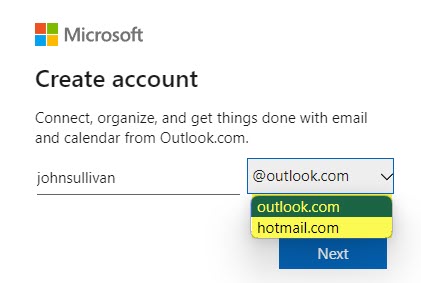
Scenario # 1: Inviting External Microsoft Account User to the Microsoft Team
Sharing a Team to Microsoft accounts is very similar to those of non-Microsoft accounts, except you do not receive the request to enter the temporary passcode.
- Once you invite an external user with one of the Microsoft accounts (i.e., outlook.com), the recipient receives an email like the one below.
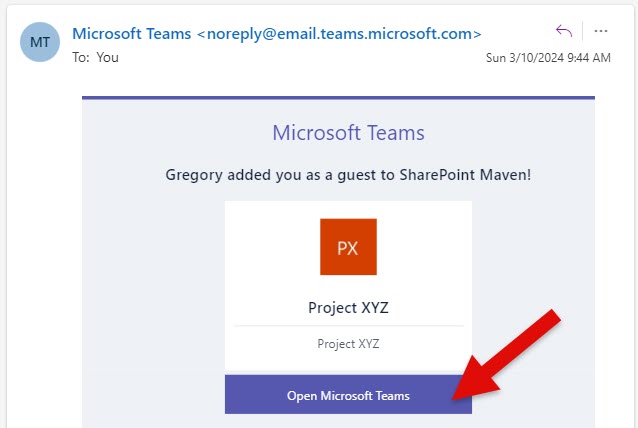
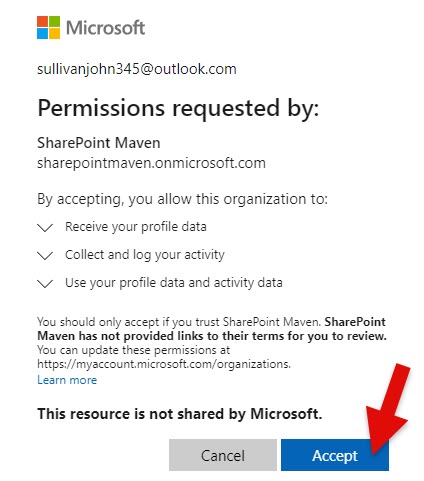
- Once the user clicks on Open Microsoft Teams, he has to Accept legal terms.
- Once accepted, the external user has instant access to a shared Microsoft Team
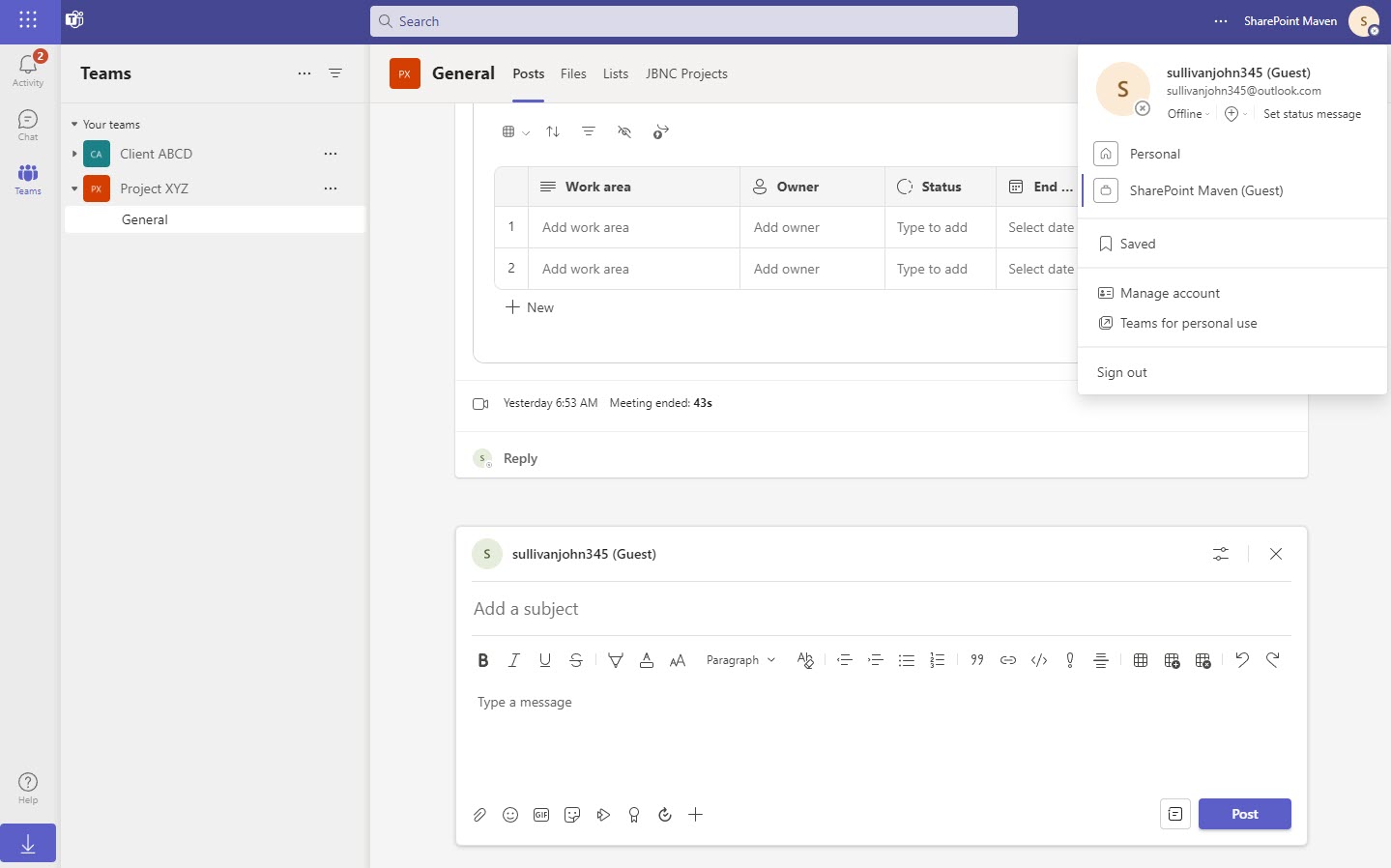
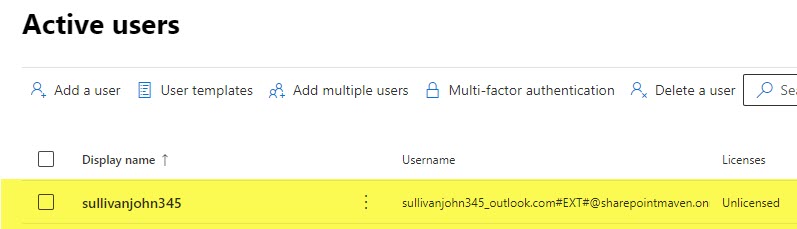
- Behind the scenes, the user is added to the User Directory.
Scenario # 2: Inviting External Microsoft Account User to the SharePoint Site
Sharing a SharePoint Site to Microsoft accounts is very similar to those of non-Microsoft accounts, except you do not receive the request to enter the temporary passcode.
-
- To share a site, click on Gear Icon > Site Permissions, then Add members > Share site only
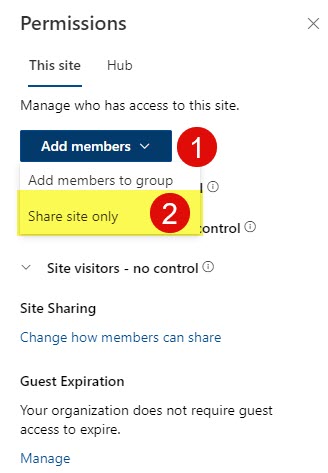
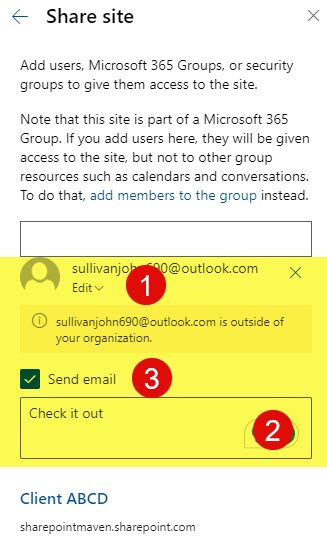
- Type in the external user’s email address
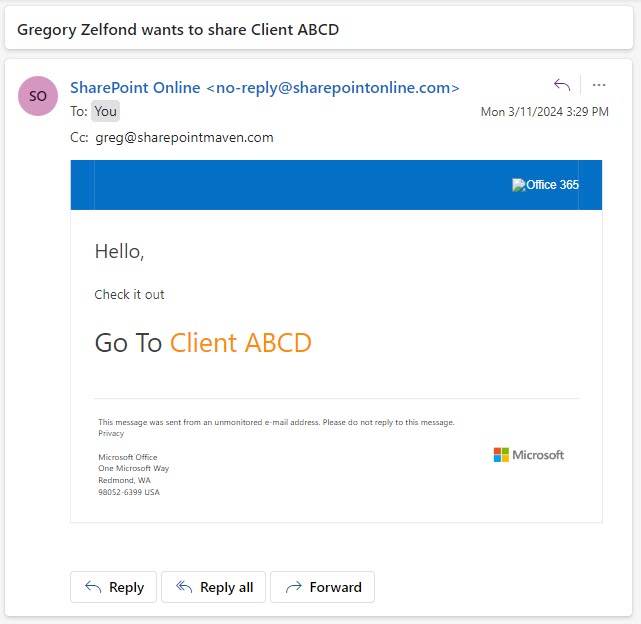
- The recipient then receives an email that looks like this
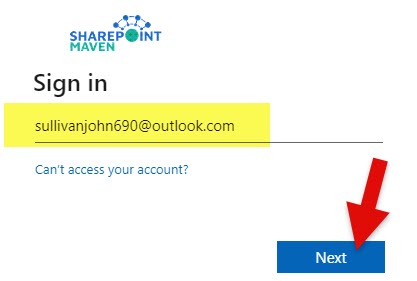
- Once they click on a Site link from the email above, they have to enter their email address (Outlook.com address in our case)
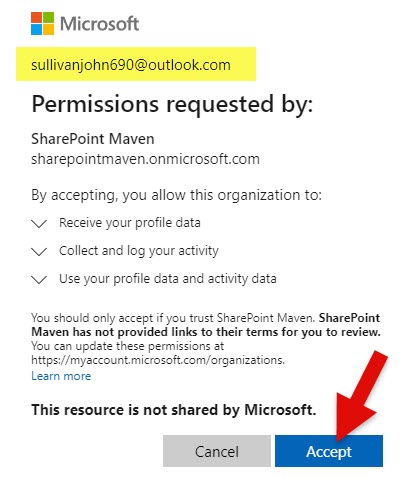
- Then, accept some legal terms
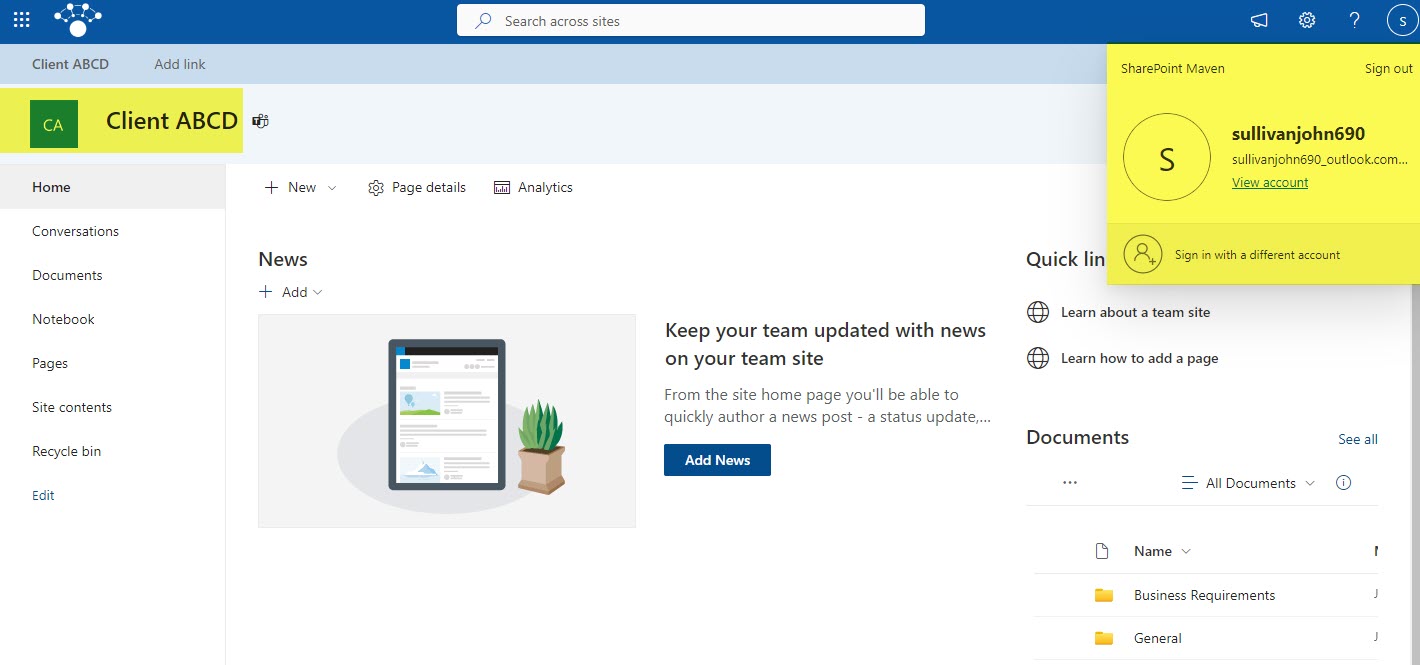
- After the legal terms are accepted, the recipient will have access to the site.
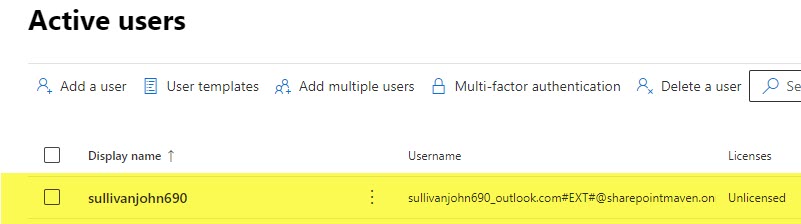
- Just like with the Team external sharing, the user will end up in the User Directory
- To share a site, click on Gear Icon > Site Permissions, then Add members > Share site only
Scenario # 3: Inviting External Microsoft Account User to a File or Folder
Sharing a file or folder externally to a Microsoft account like Outlook.com is no different than sharing a file or folder to a non-Microsoft account like gmail.com.
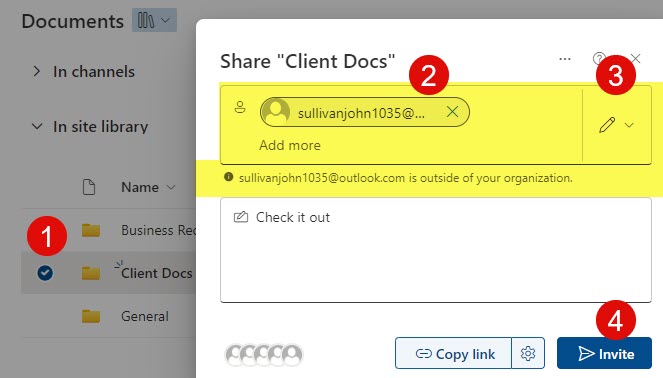
- Right-click on a file or folder and click Share. Then, enter the external user’s email address and click Invite.
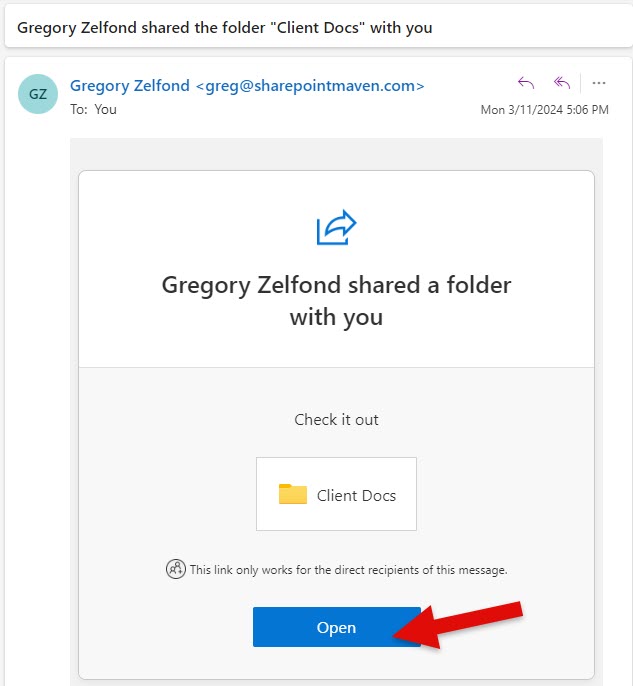
- The recipient then receives an email below and clicks Open.
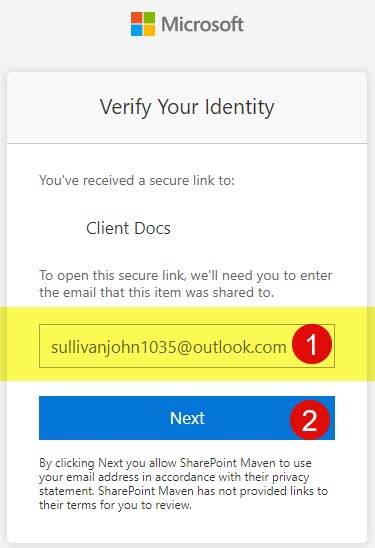
- On the next screen, the user will need to type in the email address. Click Next.
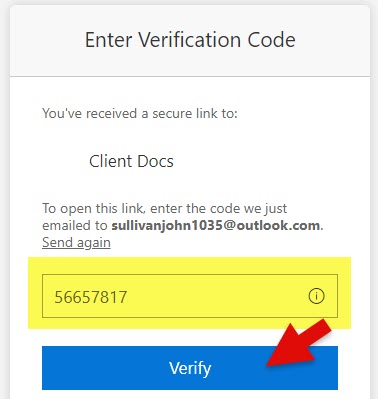
- Microsoft will then need to send another email with a temporary passcode
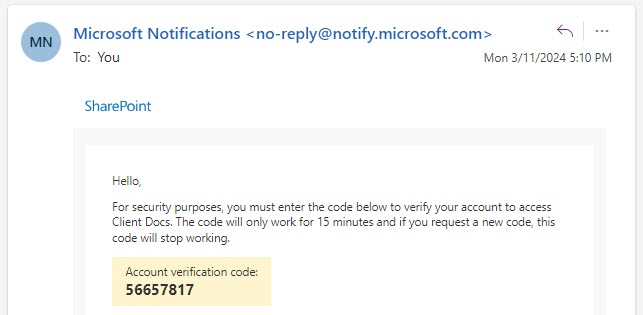
- Then, the user will paste the verification code and click Verify.
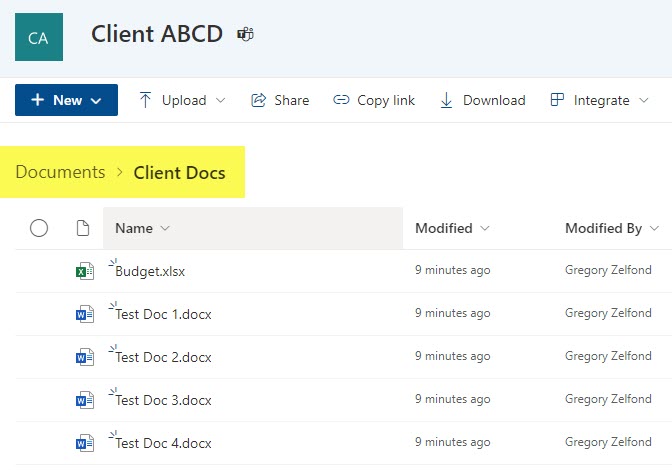
- After that, the external user will have access to the shared folder!
- As with a non-Microsoft account, when files and folders are shared externally, those external recipients are not added to the User Directory!

Share Article