How to create an FAQ using the FAQ Web Part and Copilot
We don’t often get spoiled with new web parts in SharePoint. But once we do, it is a pretty significant occurrence. One such Web Part that was recently added to the roster was the FAQ Web Part. The most important aspect of this is that it is the first web part that not only helps you display content (like most other web parts do), but also generates content with the help of Copilot. In this article, I want to explain how the FAQ Web Part works and how to create an FAQ using it.
Step 1: Add the FAQ Web Part to the Page
For this article, I would like to create an FAQ based on a few company policies stored in the Policies document library below.

- Edit the Page
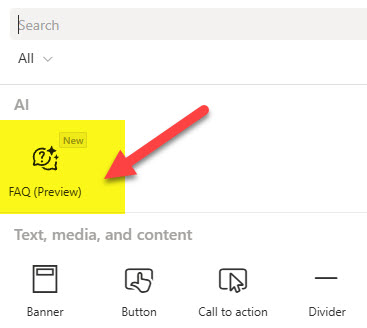
- Add the FAQ Web Part to the Page
Step 2: Select Source Files
- The next step in the process is to select the files you would like to base the FAQ on. To do so, click the Add button.

- You can then select the file(s) from the suggested list or just type the name and let the file be found for you.

- Once you have chosen the file(s), you can specify their purpose. This will help AI generate more accurate content. You can select from Event, Product, Policy, or General.

- Finally, you can type any additional details for AI in the textbox. Then click Start to generate content.

Step 3: Add/Edit/Delete Categories
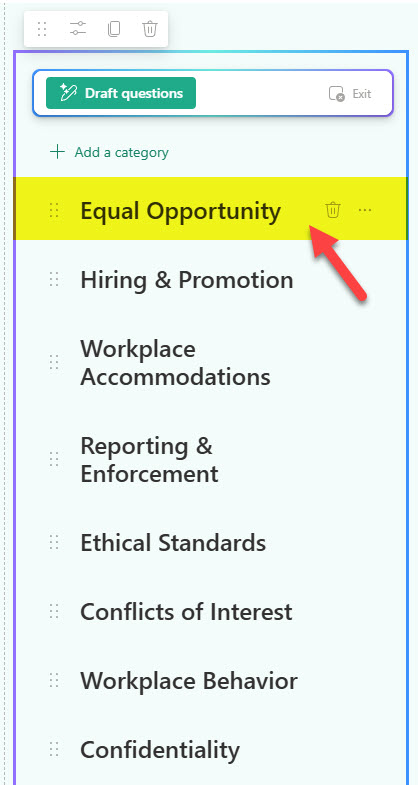
Once you click the Start button in the previous step, it will generate the FAQ Categories. Before you proceed with generating questions for those categories, you can add, edit, or delete them as necessary. You can also change the order by moving them up or down.
Step 4: Draft Questions
Once satisfied with the list of categories, click Draft questions to generate questions for each category.

Step 5: Add/Edit/Delete Questions
Just like with categories, you can add, edit, or delete questions. You can also reorganize them by moving questions to a different FAQ category.

Step 5: Draft Answers
Once the questions have been finalized, you can click the Draft answers button to generate answers for each of the questions above.

Step 6: Add/Edit/Delete Answers
- Before you can edit the answers, click the Keep it button first

- Then, you can edit answers as necessary

Step 7: Adjust Look and Feel
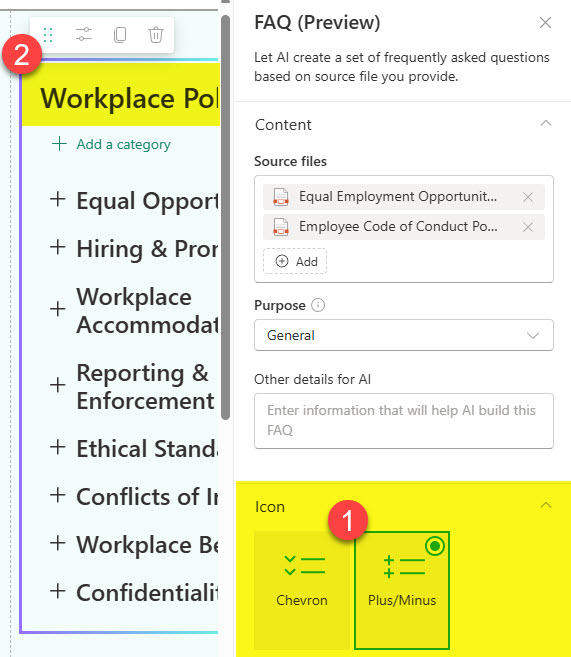
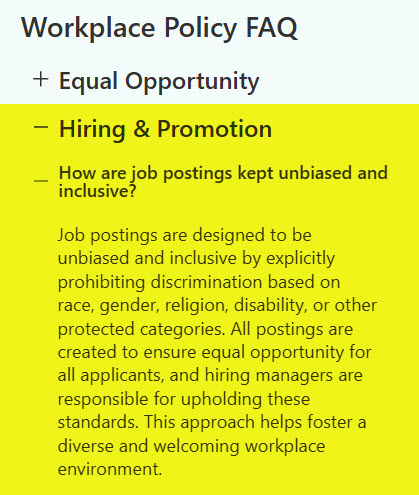
- Finally, you can configure the style of the FAQ by either selecting the Chevron or the Plus/Minus icon. You can also change the Title of the Web Part for display purposes (the default one generated by AI).
- Publish the page to make the changes available to everyone
- Below is the screenshot of what the FAQ looks like once completed.
Nuances on the FAQ Web Part
- To create an FAQ with this Web Part, a user must have a Copilot license. Users without a license will be able to read the FAQ section created by others, but they will not be able to create their own FAQ or edit the FAQ. Those without the Copilot license will not see the FAQ Web Part in the list of available web parts.
- A significant advantage of the FAQ Web Part is that it allows for a drop-down within a column or a vertical section – something that is not possible when using collapsible sections, for example
- If you go back a step or change purpose, it will regenerate everything, erasing previously created content
- Likewise, if you decide to delete or add new files, it will recreate the FAQ
- When you select files, type the names of the files you want to generate content from into the search box – they can reside on other sites as well. Currently, there is no way to navigate to the files via sites/libraries or by uploading new files.

Share Article