5 Locations where you can set security in SharePoint
I have already devoted many articles on my blog to permissions. After all, this is an extremely important topic, especially now in the age of Copilot. Understanding how SharePoint permissions work requires a bit of patience and alcohol. While the best practice is to always set and manage security at the site level, there are many other levels and locations where you can set unique security in SharePoint. So in this article, I would like to explain what these are.
The concept of security inheritance in SharePoint
By default, permissions are inherited in SharePoint. That means that whatever permissions you set at the site level are propagated to the libraries, folders, and files within.

However, you can break the inheritance/set unique permissions at any level. Let me go over it for you.
Location # 1: Microsoft 365 Group
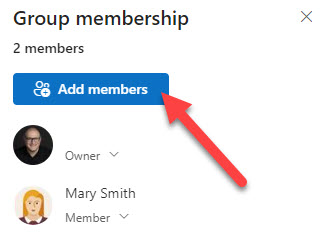
If your site is a SharePoint Team site connected to a Microsoft 365 Group, then the site’s permissions are controlled by the membership of that group. Managing permissions is easy – you can do so from the site itself or from any other Microsoft 365 group assets, such as Planner or Teams. I explain how to manage group membership in this article.
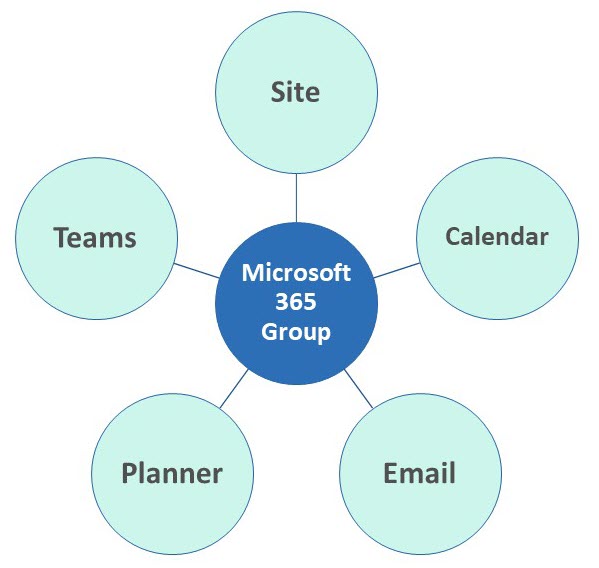
Relationship between Microsoft 365 Group and other assets like SharePoint Site and Teams
Location # 2: SharePoint Site
If your site is a Communication site or a Team site without a Microsoft 365 Group, you will manage permissions at the Site level. This would be done via the 3 SharePoint security groups (Visitors, Members, and Owners). Again, I have instructions for you here.
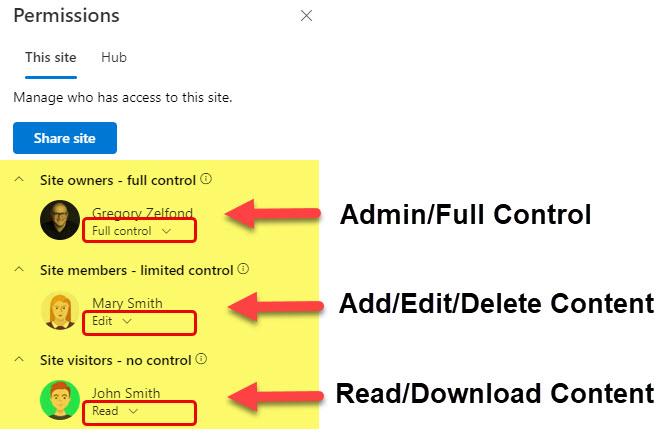
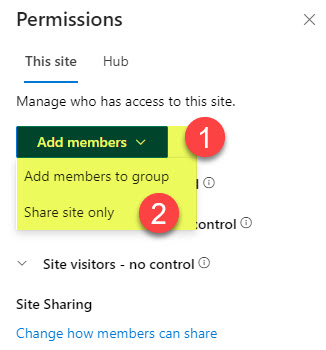
It is also worth noting that if your site is connected to a Microsoft 365 Group (Location #1), you can create unique permissions for your site by breaking inheritance from the group. This could be useful when you want to invite some users outside of the team (Microsoft 365 Group) into the site with documents, but do not want them to have access to the Team itself and its other assets like Planner, Teams channels, etc.). I explain how to create unique permissions for such scenario in this article.
Location # 3: Document Library, Site Pages Library, or Microsoft List
The next logical place to break inheritance and set unique permissions is the document library. This can be particularly useful when you have multiple libraries on a single site and want to assign unique permissions to each one. I explained how to do so in this article.
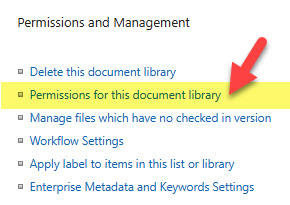

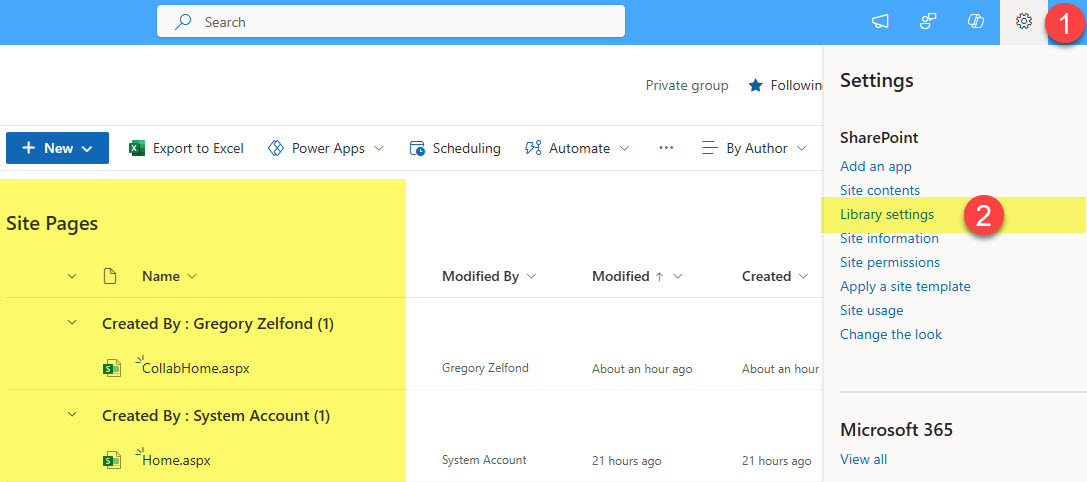
Now, it is essential to note that while I used the example of a document library (where you store files and folders), you can also break inheritance on the library siblings as well. 😊 By that, I mean the Site Pages Library (where you store Site Pages) and Microsoft Lists (where you store data you would normally store in a table in Excel).
What would be the use case for unique permissions for the Site Pages library? Say, you have a site and you do not want users to access any of the pages or posts, but are OK with them accessing the document libraries. To set unique permissions for the Site Pages Library, you would pretty much follow the same steps as for the document library.
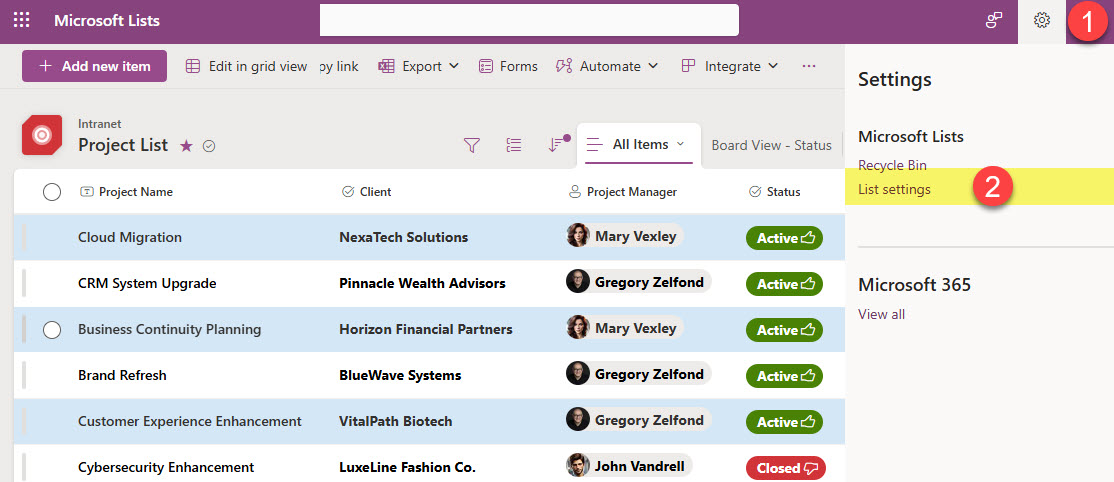
Lists might also require unique permissions. Say you have a list of confidential projects or contacts residing on the site. You want to hide it from the site members or visitors. Once again, the instructions are identical.
Location # 4: Folder
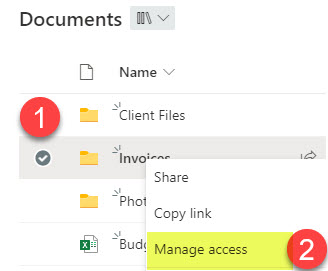
There might be situations when you need to hide a folder or two from a wider audience. In this case, you can create unique permissions for a folder. I provided step-by-step instructions here.
Location # 5: File or List Item
Finally, you might also hide a certain file. In such a case, you once again set up unique permissions for a file. I have instructions in the same article as well.

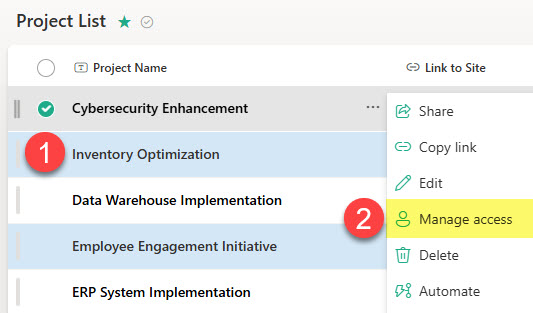
It is important to note that, just like you can create unique permissions for a file in a document library, you can also create unique permissions for a list item in a list. The use case might be a list of confidential projects that you need to hide from a wider audience. The steps to achieve this are identical to those of a file. Click on a list item and choose Manage Access.
Important notes about unique permissions
- While I documented all the locations where you can set unique permissions, it is always the best practice to set it at the highest level possible (group or site)
- Regardless of where you decide to break inheritance, you can always check the type of access a given individual or group has by viewing who has access – I explained this in an earlier post.
- You can’t break security or permissions inheritance based on metadata.
- Likewise, you can’t have unique permissions on a library or list view.

Share Article