How to create unique permissions for the library or list in SharePoint
Although it is considered best practice to manage security at the site level in SharePoint, there are situations where you need to hide certain content from specific employees. Or perhaps change it from being able to edit to read only. I wrote a post some time ago explaining how to do this at a file or folder level. Today, I want to show you the way to manage permissions at the library or list level.
The use case for this could be a site with multiple document libraries, where one of the libraries can only be viewed by Management/executives. This method deviates from the best practice of site-level permissions management. However, it is better than managing permissions at the file or folder level, which is more granular. Below, please find instructions on how to achieve this.
How to create unique permissions for the document library in SharePoint
By default, security is inherited in SharePoint. That means that whoever has access to the site has access to all the content on the site. For this article, I have a SharePoint site for the Finance Team with 2 document libraries. A total of 3 people (Greg, John, and Mary) have access to the site:

One of the libraries, called Management, needs to be accessible only to the Management employees (Greg and Mary, not John).
- To create unique permissions on a document library, navigate to the library itself, then click on the Gear Icon > Library Settings

- Click on More library settings

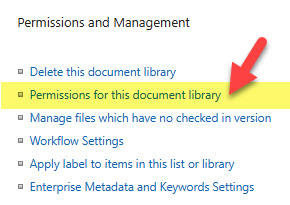
- In the middle of the page, under Permissions and Management, click on Permissions for this document library
- You will see the permissions for this document library with the expected message that the “library inherits permissions from its parent” (SharePoint Site)

- To break the inheritance, click on Stop Inheriting Permissions

- It will give you a warning; click OK.

- You will now get to see a message that the library has unique permissions (not quite yet, but we can now adjust it independently of the site)

- To address the requirement that John should not see the Management Library, we need to remove the Members Group from the library (since John and Mary are part of it). To do so, click the checkbox next to the group and click Remove User Permissions.

- Once again, you will get a warning message; click OK.

- You will now get the group removed from the library

- The above steps removed not only John, but Mary as well (since both of them are part of the Members Group). Since Mary is part of Management too, she needs to be added back. To do so, click on Grant User Permissions in the upper-left-hand corner and type the name. Select the proper permission level (in this case, Edit) and click Share.

- You will now see the revised permissions for the document library.

Nuances about creating unique permissions for a document library
- Although the instructions above use a document library as an example, you can also set the same unique permissions for the library siblings – Site Pages Library (where Site Pages are stored) and Microsoft Lists. Instructions are identical. The only difference is that with Lists, you will click the Gear Icon > List Settings

- If you have set up unique permissions for the library or list and later change your mind, you will need to re-inherit permissions by clicking the Delete Unique Permissions button.

- Be careful with setting unique permissions for the Site Pages Library – if you remove users from that library, they will not be able to access any pages there and might be locked out of the site/homepage.
- I always advise against modifying unique permissions for the default document library, called Documents. If your site is connected to a Microsoft 365 Group/Teams, this library is used to store standard channel folders. So, messing around with permissions for this library might lock out users from using Teams/channels. If need be, create unique permissions only for new libraries you create.
- Likewise, never mess with custom permissions on a Site Assets Library. This is where the site logo and other site and page assets are stored. Removing users from this library will essentially render the site useless for those users.
- It is important to note that while you can remove or edit permissions for the site members and visitors, nothing can be hidden from site owners. So, if you have multiple site owners and would like to hide a library form from one of them, you won’t be able to. Owners always have access to everything on the site!
- Sometimes you don’t want to remove users from the document library, but just change their permissions from edit to view only. In this case, you would follow the same instructions above, but instead of removing users, you will edit their permissions.

- If you changed the permissions of the document library and are wondering who does and who does not have access to it, you can always check access/permissions by clicking the Check Permissions button. I explained this trick in this article.


Share Article