7 ways to create a Form in Forms application
In this article, I would like to summarize 7 ways to create a form or survey in the Forms app. For years, we could only create a form manually, from scratch, but now we have so many other cool options. Let me summarize them all for you – pick the one that works best for your use case.
What are Microsoft Forms?
Microsoft Forms is an application in Microsoft 365 that allows users to create simple forms and surveys and share them internally and externally. To learn more about the application and its use cases, check out this article.
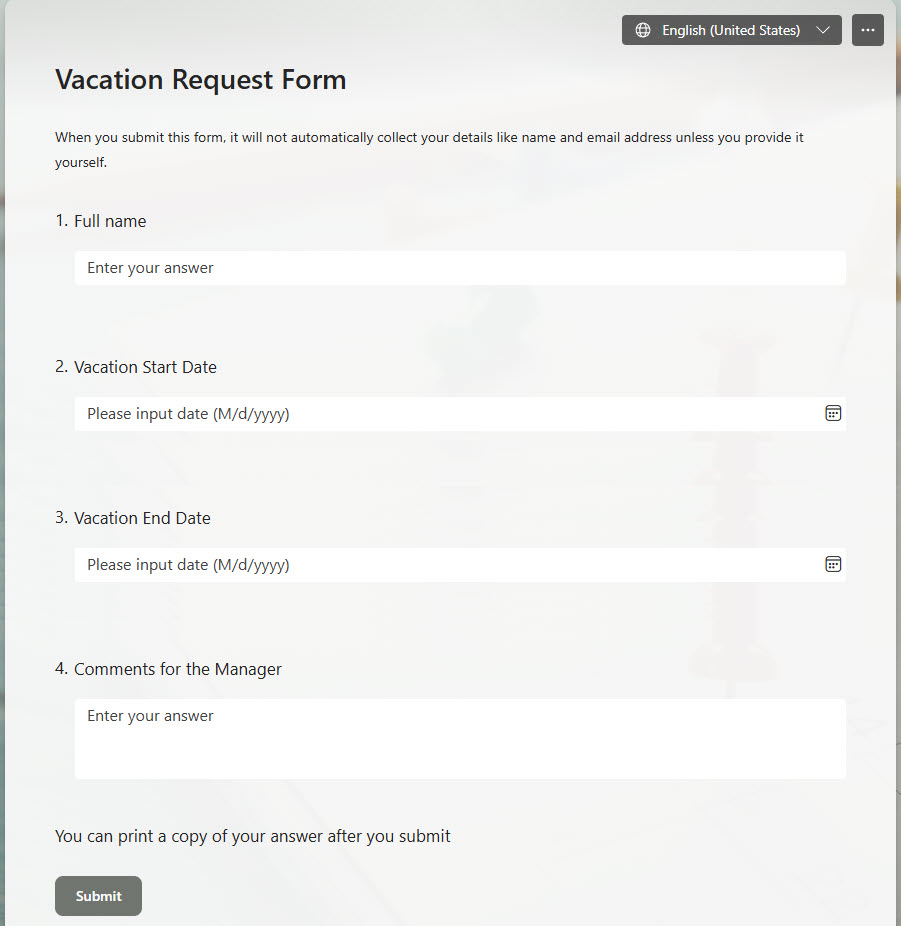
Option 1: Create a Form from scratch
This is the option we had since Day 1. Essentially, you create your form from scratch by typing the questions, choosing field types, options, and so on (I know, this sounds so old!).
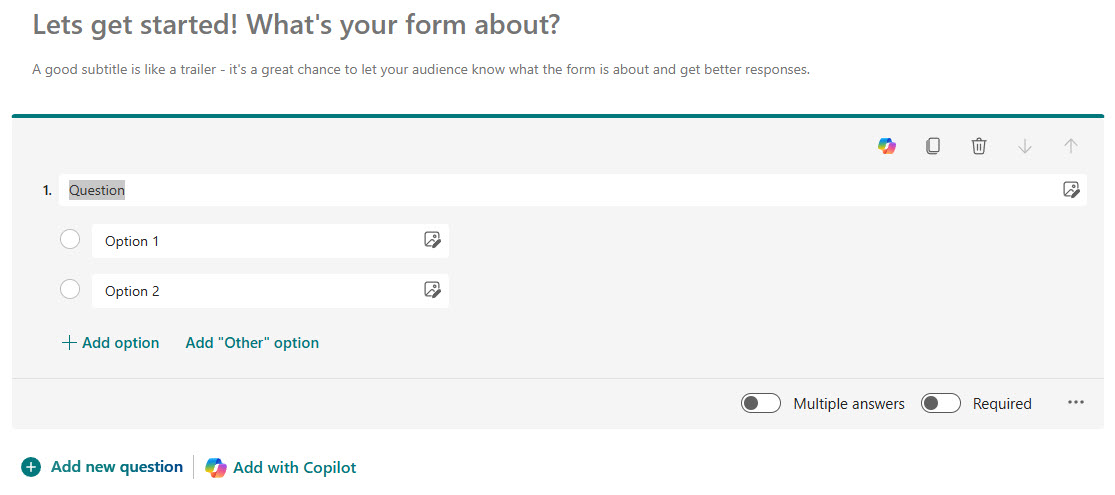
Option 2: Create a Form from a Template
The other option is to create a Form from a built-in template. Microsoft maintains a Form/Survey template directory for the most common scenarios. I explained this functionality here.

Option 3: Create a Form by uploading a Word or PDF
Another option is to create a Form by uploading an existing Word or PDF file. This option is great when you already have an existing survey in that format. I explained how this works in this article.

Option 4: Create a Form using Copilot
Another way to create a new Form is by using Copilot AI. If your organization has opted for Copilot Licensing, it will be the default option when you create a Form. You just describe the form you would like to create, and it’s created for you. You can, of course, remove or edit questions as necessary.

Form Copilot Creation Prompt within the MS Forms app
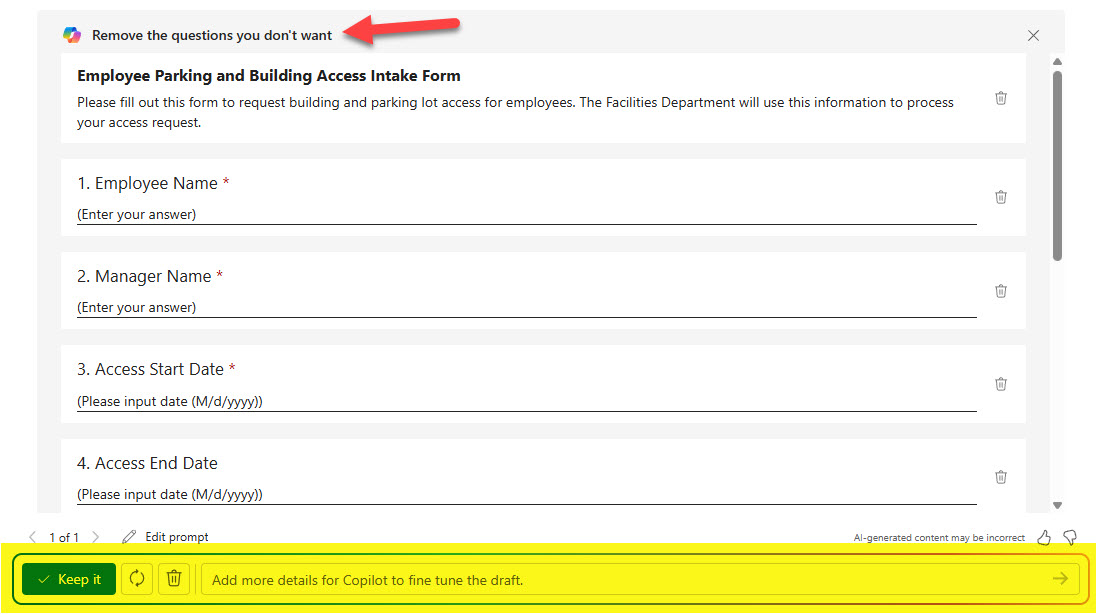
Form created by Copilot AI
Option 5: Create a Form from an Existing List
If you would like the form entries to be populated in a list, then you can create a Form from an existing list using the Forms integration. I explained this here.
The beauty of this method is that if you already have an established list, creating a form from it takes very little time, since all the fields are already defined in the list.
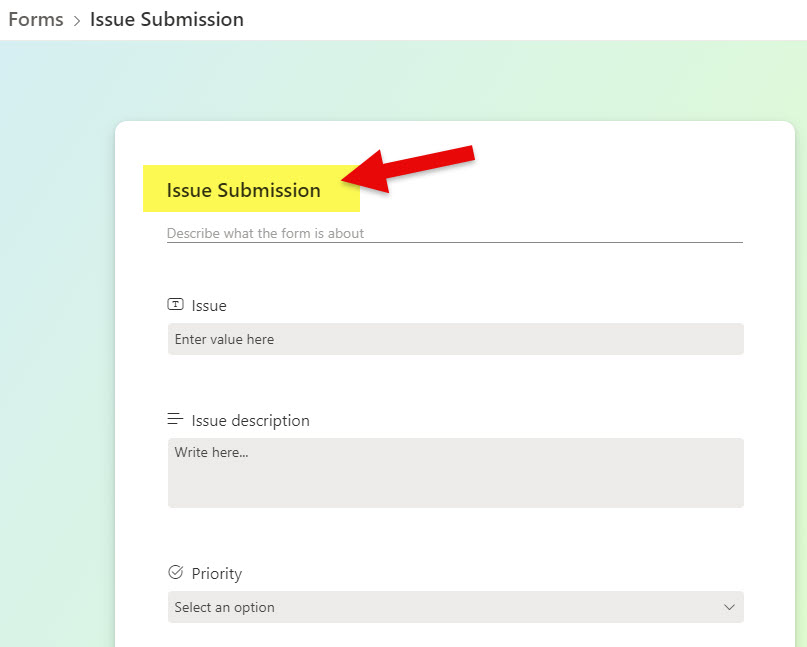
Option 6: Create a Form in a New List
This option is similar to the previous one; however, this assumes you are starting from scratch. If you want the new form to populate entries into a list, choose the List Form option. It is the same as creating the list and selecting the Form option. This will generate Form fields and a list at the same time. I explained how to do so in this article.

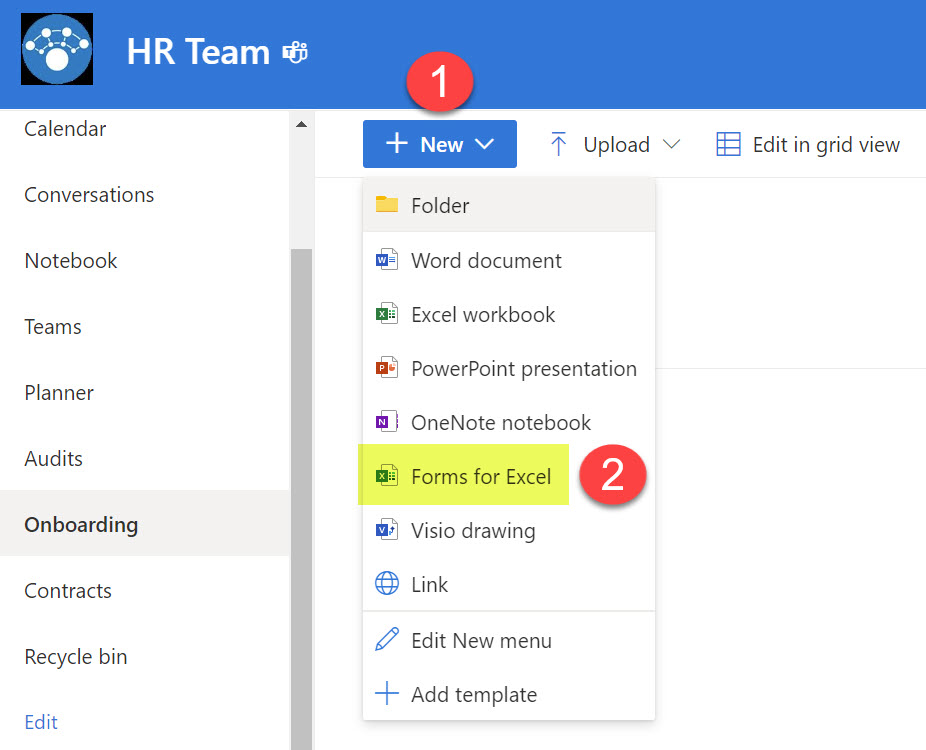
Option 7: Create a Form using Forms for Excel
Another option for creating a Form is to use the Forms for Excel functionality. When you create a Form using all the other options above, the data can be exported to Excel, but by default, that Excel document will reside in the root of your OneDrive. If you want to save responses in Excel to a specific location (e.g., a SharePoint site and subfolder), you would need to create a Form using the Forms for Excel option. Please check out this article to learn more about this method.
By the way, if you want to see various examples of Forms and Surveys you can create, check out my portfolio here.

Share Article