Create a new Microsoft Form by uploading Word or PDF document
I love the new and improved Microsoft Forms! It really evolved over the years. I remember when I started using them, they were pretty primitive in their capabilities, look, and feel, and in their advanced features. But that was several years ago. I recently used MS Forms to create a few forms for my clients and was amazed by their versatility. One improvement that really excited me and saved me a ton of time was the ability to create a form by uploading an existing file.
Organizations often already have established processes and forms that users fill out. So, when it is time to make the form web-based, the content/questions are already in place. In most cases, you would just go ahead and start building the form in the MS Forms app, adding the questions and choices. However, you can also just import an existing file and automatically create the form for you. Let me show you.
How to create a new Microsoft Form by uploading an existing document
For the purpose of this post, I will use the following quiz that the human resources department typically uses to test employees being onboarded. I have it in the Word format:

Here is how to import it into Microsoft Forms and save some time:
- Navigate to a Microsoft Forms application
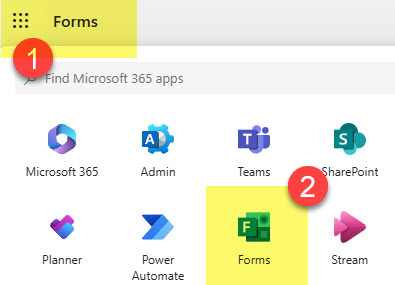
- Once in Forms, choose the Quick import button

- Next, select the file you would like to upload (either Word or PDF)
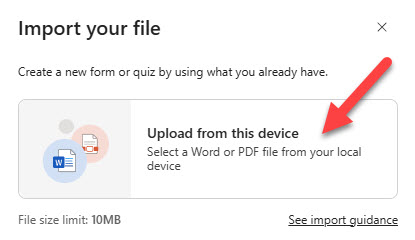
- You can then import either a form or a quiz. By the way, I explained the difference between the two in this post.

- You will briefly see the form being uploaded and converted

- Once you receive the confirmation message, click Start review to see the converted form

- You will now see your form converted into a Microsoft Form. From there, you can adjust it accordingly, add a theme, add questions, do branching, etc.

Limitations and Nuances of Imported Forms
- At the moment, you can only upload Word or PDF file formats

- The maximum file size is limited to 10MB

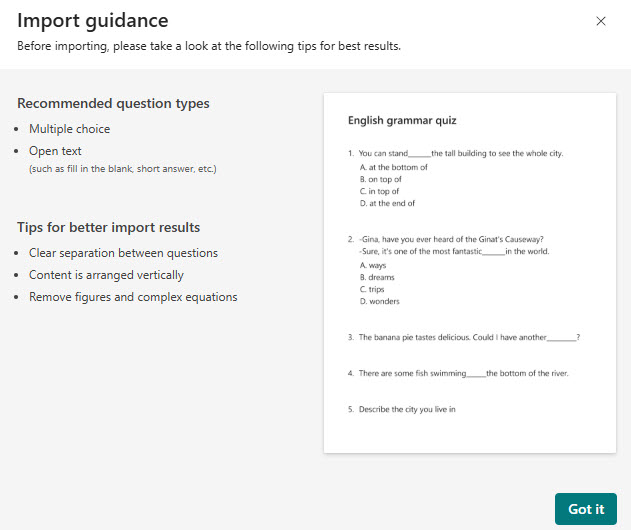
- In order for the form to import correctly, you have to follow a pretty simple format. Below is suggested guidance from Microsoft.

Share Article