How to create Quizzes in Microsoft Forms
Most of the blog posts I have written about Microsoft Forms capabilities have been related to surveys or intake forms. However, another strong capability of Microsoft Forms is to create quizzes. In this article, I will explain how it differs from a regular form and provide a few use cases for your reference.
Below is an example of a quiz built out using Microsoft Forms.
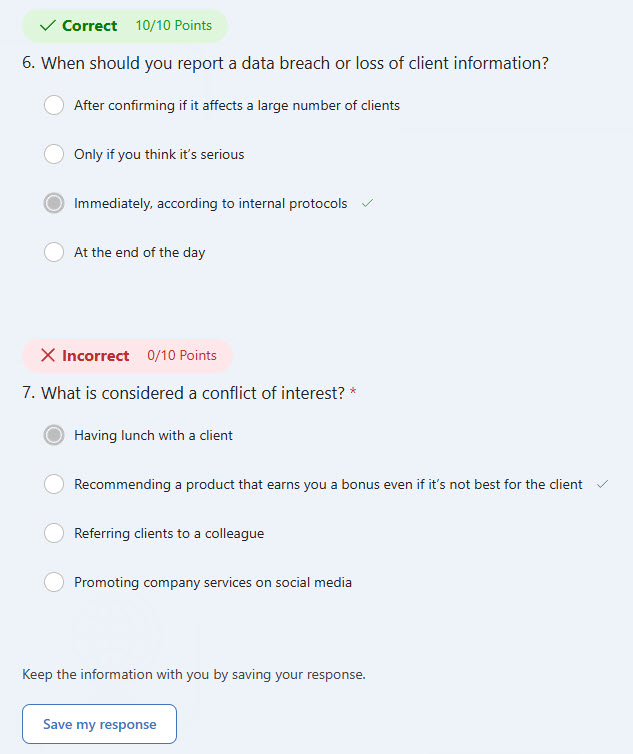
Example of a Quiz built using Microsoft Forms
How to create a Quiz using Microsoft Forms
Creating a quiz using Microsoft Forms is no different than creating a regular form/survey. However, there are a few nuances/extra options available that I outline below.
- From the Microsoft 365 App Launcher, choose Forms

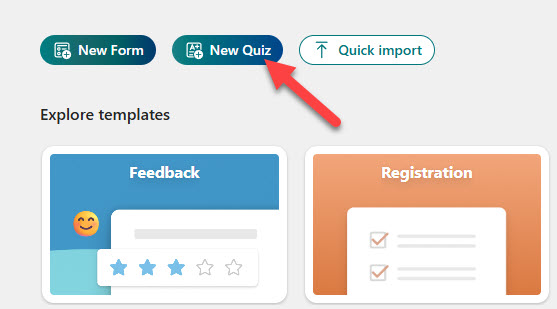
- On the Forms splash page, click on New Quiz
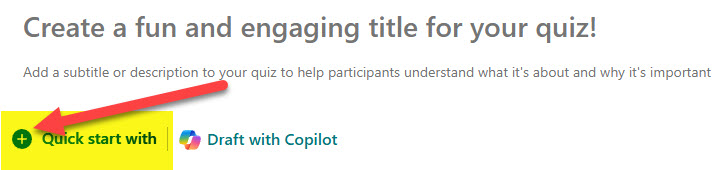
- You can start creating the quiz using Copilot prompts, but in our case, click “X” in the upper right-hand corner so we can create one manually

- Click the Plus sign to add a question manually
- Select the type of question you would like to add (Choice, for example)

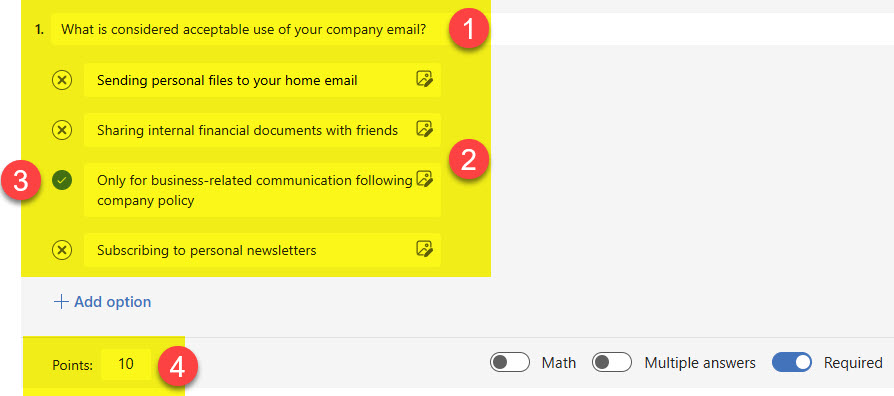
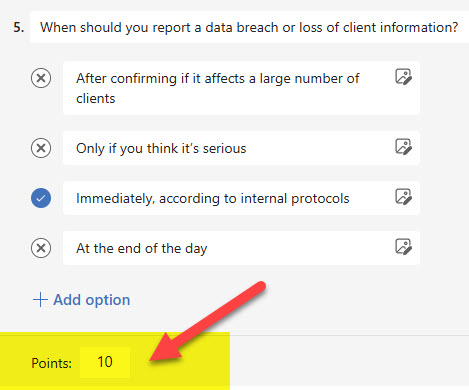
- Type the Question and then the possible answers. One key difference you will notice is that you can designate the correct answer with a checkbox (optional). In addition, you can also assign points to the question in case you decide to grade the quizzes (optional as well).
- Add other questions as necessary using the same steps
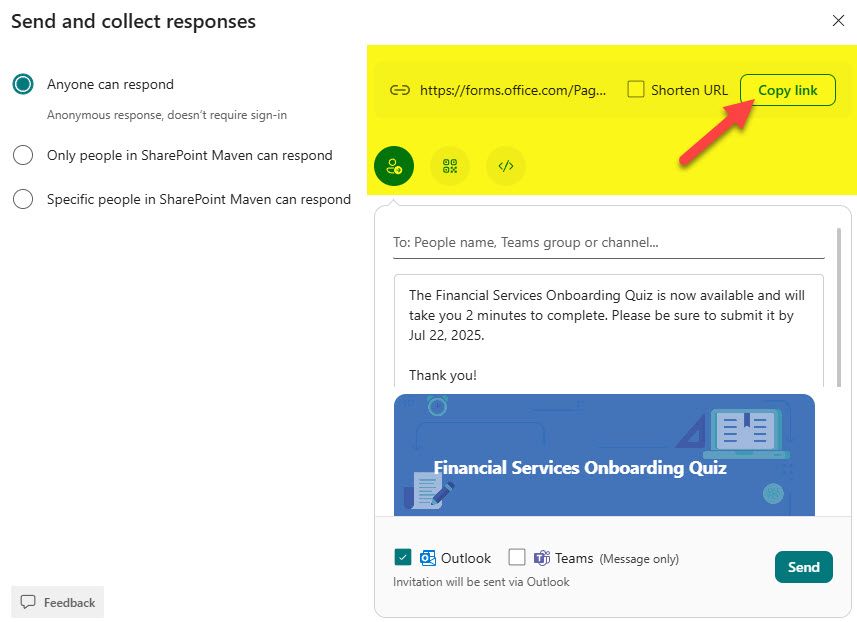
- Once completed, you can share the quiz by clicking the Collect responses button and either copying the link or emailing the quiz.

Key Differences between Surveys and Quizzes
As stated above, creating Quizzes is a very similar experience to creating regular intake forms/surveys. However, there are some interesting differences I summarize for you below:
- You have the opportunity to assign points for each question (in case you would like to grade the quizzes)
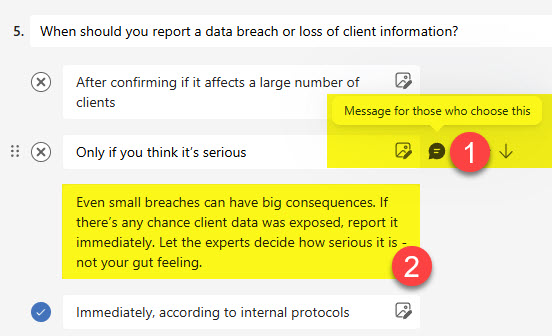
- You have the opportunity to provide a custom message when the user selects a certain answer (i.e., explanation why this is a wrong answer). NOTE: The custom message/feedback is only displayed once the whole quiz is submitted, when the user sees their own results.

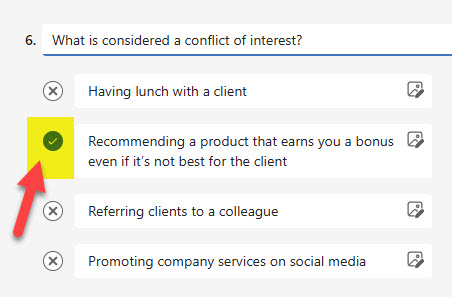
- You have the opportunity to designate the correct answer when creating a question
- When you add questions to the quiz, they are required by default, but can be changed if needed
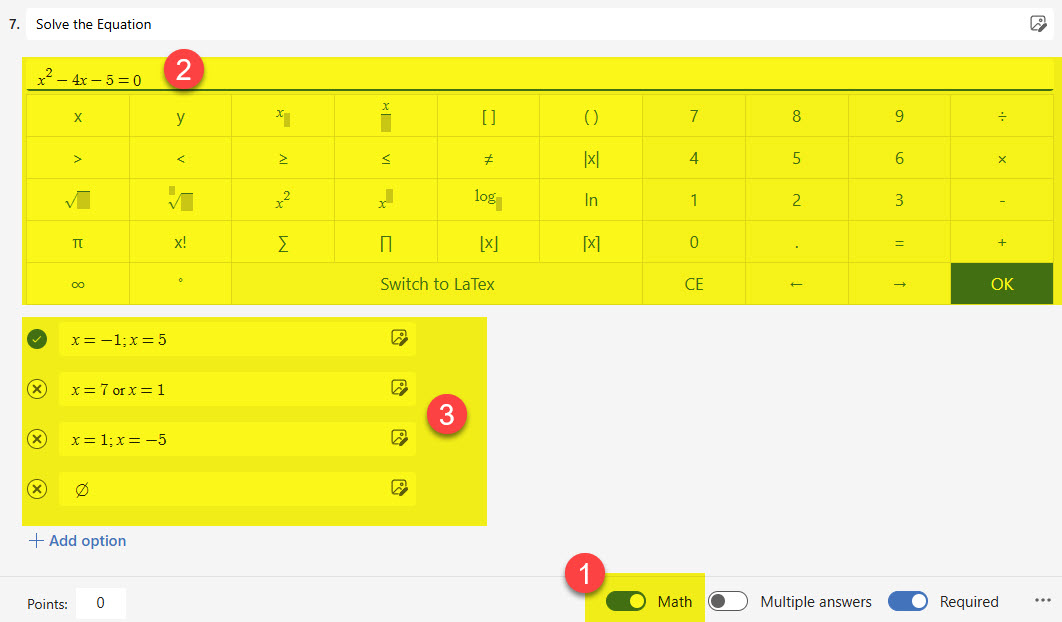
- You have the option to switch a question to Math mode, which would allow you to enter formulas/equations into the questions and answers fields
Use Cases for Quizzes Built with Microsoft Forms
I am sure you can think of specific use cases for quizzes in your organization, but here are a few from my experience.
- Employee Onboarding Quiz
- Employee Training Assessments
- Compliance Training Quiz
- Workshop or lunch and learn quizzes
- Quick quizzes you can embed inside the Training Videos in Stream (to test the knowledge while employees watch the training video)
- Team Building trivia/exercises
I have some additional examples of Quizzes and Forms on my LookBook 365 portfolio site.

Share Article