How to create a new List by creating a Form
There are many ways to create a list in SharePoint. I’ve already covered a few options on my blog. We can create one from scratch, import it from Excel, or even copy an existing one from another site. However, one relatively new method is the ability to create a list from the Form. Let me explain this method, which you will likely use most of the time going forward.
Lists and Forms Integration
Not all lists are created equal. Sometimes, you might have a list that you might use for storing and displaying information. For example, a list of employee contacts, a vendor list, etc. However, you may often rely on a list populated by users themselves. For example, a Help Desk Issues Log, Room Reservation Request Form, and so on. While the data itself resides in the lists, it is populated in the list by the Form users submit, where entry fields in a form match the metadata columns on a list. In the past, such functionality required the use of Power Automate and an ability to consume large amounts of alcohol. However, we have recently gained the ability to integrate both via the Out-of-the-Box functionality. I documented such functionality in this article.
Form & List Creation
While we could have Forms automatically populate the data inside the list, creating a Form required a list to be present first. So, if you wanted to create an intake form, you had to first create a list with all the metadata columns, then create a Form by clicking the Forms button on the list.

Once again, I documented the above in this article.
While it worked flawlessly, it was double the work. You had to create a list, then match it with the Form – too many clicks and not very intuitive workflow… Luckily, this has changed now.
How to create a new list by creating a Form
We now have a new option to create a list, and that is by creating a Form! Once completed, the list columns are created automatically. This option is much more user-friendly and natural. Let me describe it for you below and then list some nuances. For this example, I will create a list using the Employee Suggestion Form.
- From the SharePoint site where you want to create the Form from, click New > List

- From all the available ways to create a list, choose Form

- Give your Form (List) the name and click Create

- You will now be presented with the regular form, where you can add new fields

- By default, the Form has a Title column, which I will reuse for the actual column in my form (Brief Employee Suggestion)

- Next, add the additional fields as necessary. All the column types available from the list, are available here as well.

- This is what the Form will look like once all the fields are created

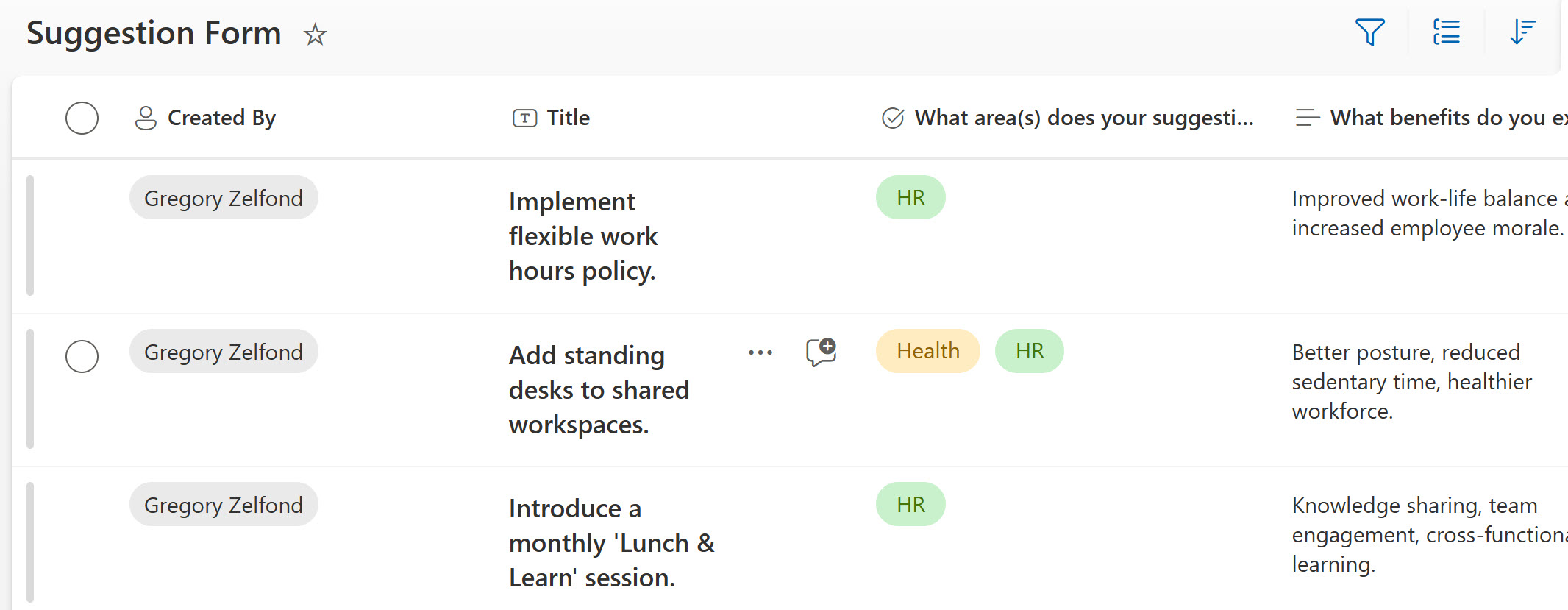
- At the same time, the list got created on the site, which you can access via Gear Icon > Site Contents
Nuances
- The Title column on a list does not change even if you change it in the Form itself, so you would need to rename it manually on the list itself

- Sometimes, you may want to include additional columns on a list that are not necessary for the form itself (e.g., post-submission Status or Action taken). In this case, you can still create the field from the Form itself, but uncheck the box next to the column on a form. Alternatively, you can create a column directly from the list interface.
- All column types that can be created from the list interface are also supported and available from the Form interface.

Share Article