Dashboard Quick Links Card
I don’t often blog about Viva Dashboard cards, as I usually prefer to write about SharePoint web parts instead. However, there is one element/card that caught my attention the other day that I want to explain in greater detail. I am talking about the Dashboard Quick Links Card.
What is Viva Dashboard?
Viva Dashboard is a module that is available within SharePoint Online that allows for the personalization of content/resources based on the user logged in. The Viva Dashboard module can be configured on the SharePoint Home Site, as part of the Viva Connections experience, or any “regular” SharePoint site, by its Site Owner. If all this terminology is confusing, I suggest checking out this article, where I explain it in greater detail.
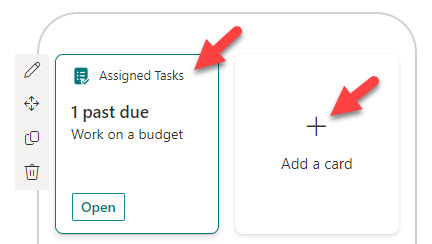
Viva Dashboard is available as a Web Part that can be added to any SharePoint site.

Dashboard Quick Links
One card in the Viva Dashboard module is called Quick Links (the same name as the SharePoint Web Part). Although it bears the same name as the Web Part in SharePoint, it displays the links a bit differently. Let me show you.
- To access the Viva Dashboard, navigate to the Home Site, click the Gear Icon > Manage Viva Connections

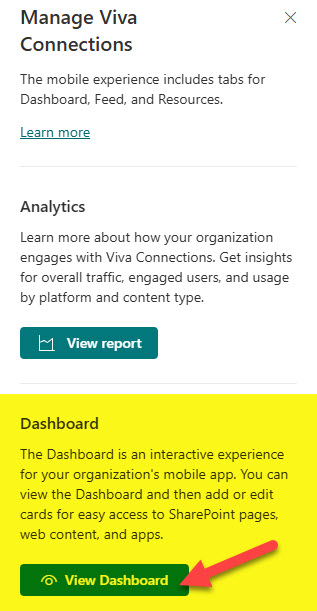
- Click on View Dashboard
- Click the Edit button to edit the page/dashboard

- Click on Desktop experience and then Add a card

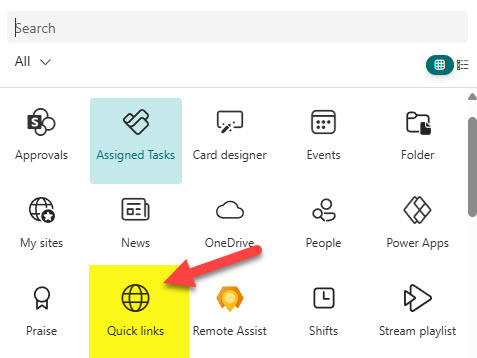
- You will then see a list of all the available Viva Dashboard cards you can add. The interface is very similar when you try to add Web Parts to a SharePoint page. Choose Quick links.
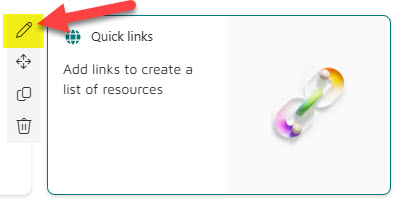
- This will add the Quick links card to the page. Click on the Pencil icon to configure it.
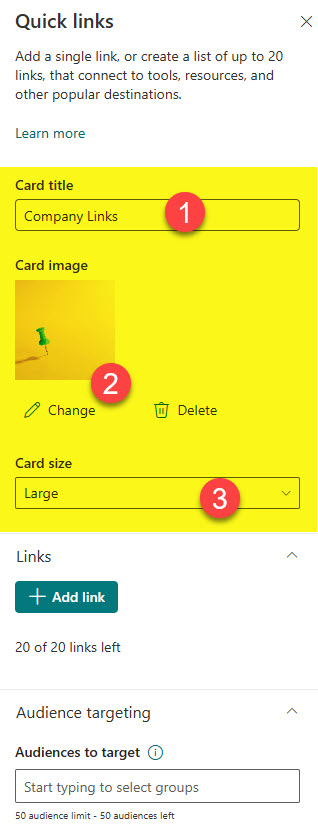
- You will be able to change the title, card image, and size.
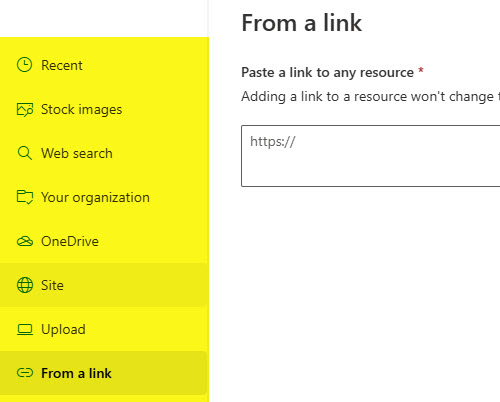
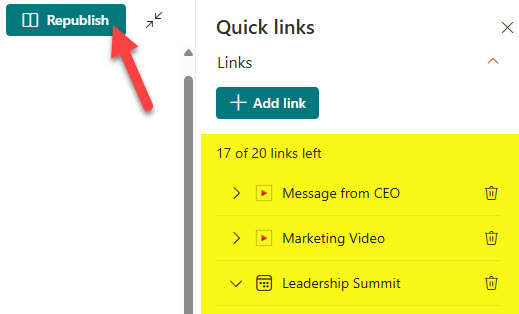
- To add links, click the +Add link button. You will be able to create a link to anything you wish, including internal pages, documents on your site, or even external URLs.
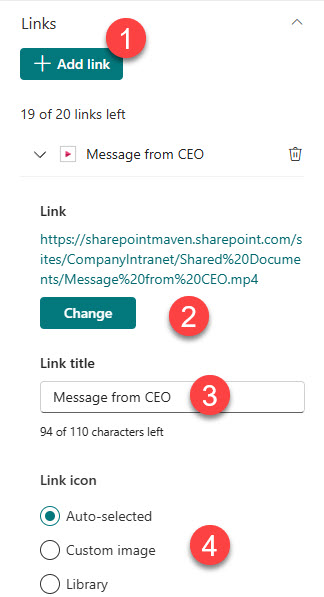
- Just like with the Quick Links Web Part, you will be able to configure the link title and link icon.
- Add other links as necessary, then click the Republish button to publish the changes.
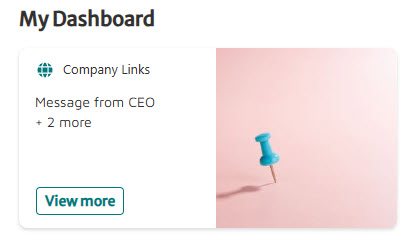
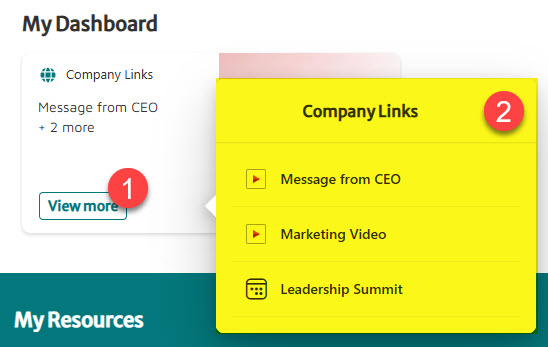
- This is how the card will render on a screen. It will display the top link only. To access additional links, user would need to click View more.
- This is the display of the card with multiple links.
Important Notes about the Dashboard Quick Links Card
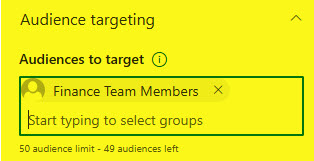
- Audience Targeting is available on the links. That means you can target links to different audiences based on their role.
- Up to 20 links can be created on a single Quick links card
- You can add multiple Quick links cards to the dashboard
- To see additional examples of this and other cards available within the Dashboard web part, check out this portfolio of mine.

Share Article