Sharing Links Report: How to Find Oversharing Before Copilot Does
Until recently, we had little oversight of users sharing content in SharePoint. If you wanted any visibility, you had to rely on third-party governance solutions. And trust me, this is a real problem. I cannot tell you how many times I have seen a confidential file shared years ago with an Anyone link, and that link is still alive and well today. Luckily, with the SharePoint Advanced Management module, we now have an out-of-the-box way to get more information about users’ SharePoint activity. The specific report that provides valuable insights into oversharing is called the Sharing Links Report.
How to access the Sharing Links Report
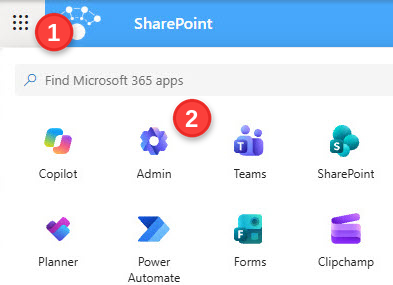
- First, navigate to the Microsoft 365 Admin Center
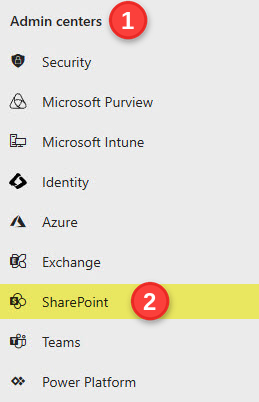
- Under Admin centers, click on SharePoint
- Under Reports, click on Data access governance, then View reports under Sharing links

- The first time you access these reports, you will need to enable data collection so that data can be recorded going forward. Click the Enable data collection button.

- You will then need to wait at least 24 hours before generating the report.

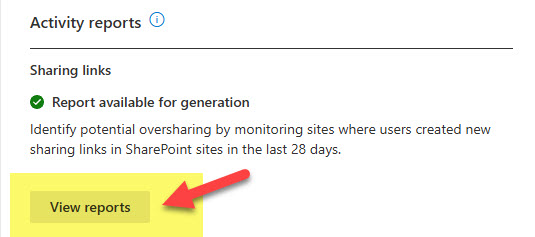
- After about 24 hours, you can generate the reports. Click View reports.
- You will see 3 available reports: ‘Anyone’ links, ‘People in your organization’ links, and ‘Specific people’ links shared externally. You can select one at a time or all 3 to run all at once.

- Once again, you will need to wait as those reports are generated. Though it says “it might take a few hours”, in my case it took 24-48 hours.

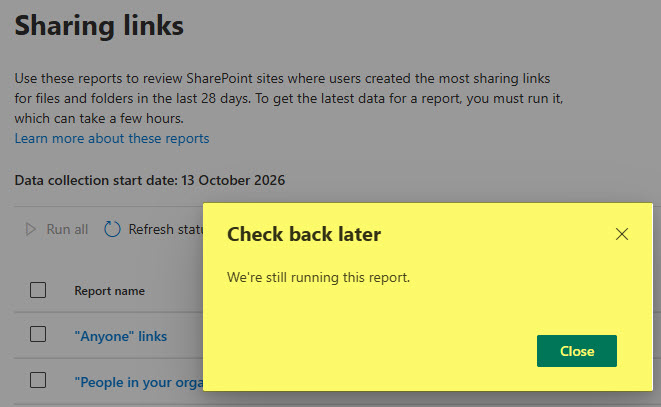
- Once completed, when it says the report is ready, click the report name to open it.

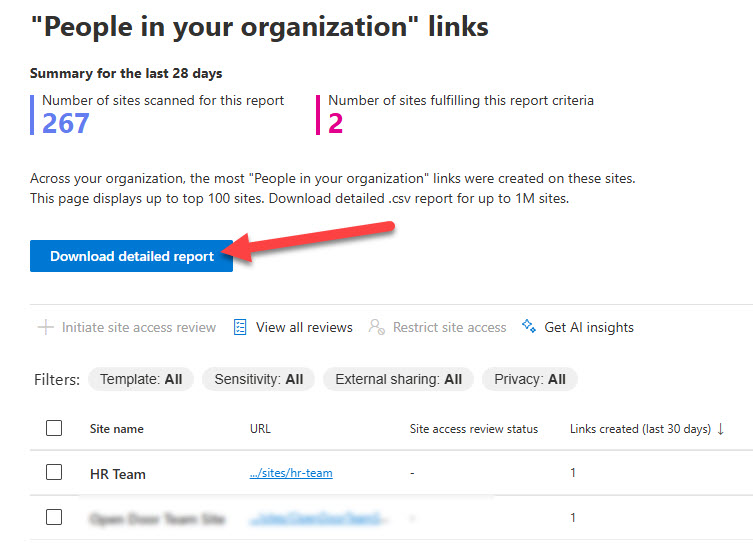
- You will then see a list of the top 100 sites that have this type of link. To download the detailed report in CSV format, click on Download detailed report.
How to mitigate oversharing found with the Sharing Links Report
You have 3 options for mitigating the findings of the Sharing Links Report.
Option 1: Initiate site access review with site owners
One option I really like, and that is built into this report’s workflow, is to initiate a site access review with the site owners. Once initiated, formal emails go out to the site owners asking them to review sharing settings and make changes. Here is how it works:
- Pick the site and click Initiate site access review
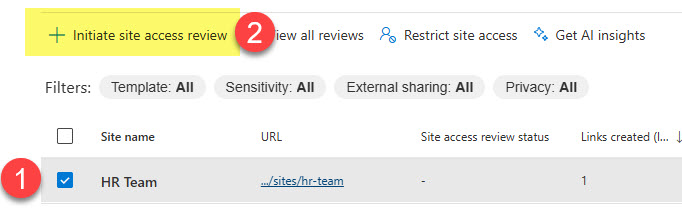
- Provide context for the review by typing in additional comments for the site owners, then clicking Send

- The Site Owner will then receive an email similar to what you see below.
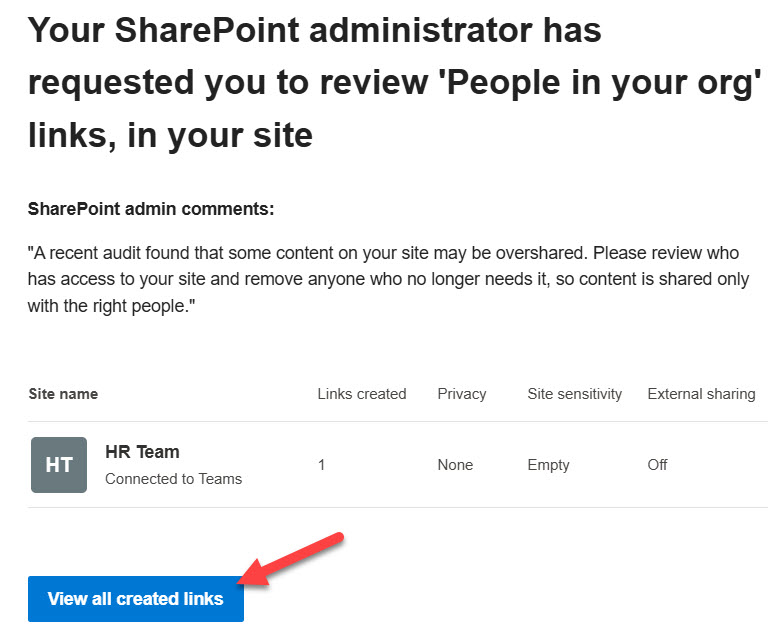
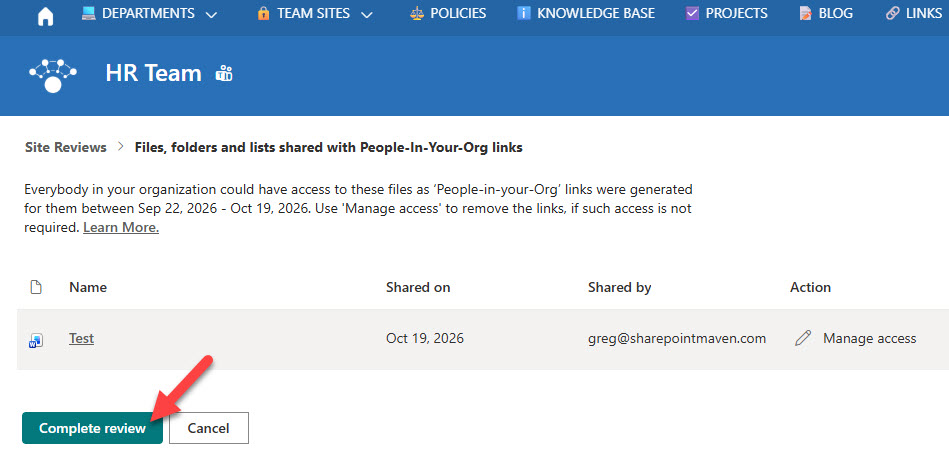
- Once they click View all created links from the body of the email, they will see the links they can manage and remove
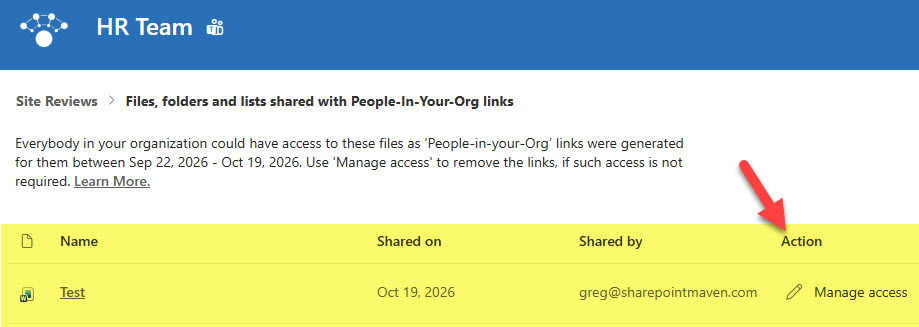
- Once changes are made, the site owner can click on the Complete review button
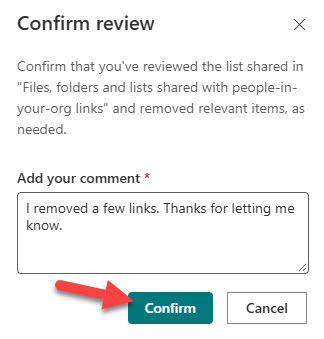
- They will be asked to provide resolution comments as well
Option 2: Restrict site access
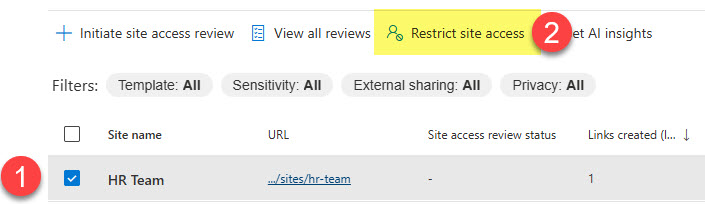
The second option is for when you want to act quickly and not be at the mercy of the site owner. You can restrict site access. I actually wrote a separate article on this feature some time ago. As mentioned in the article above, you can do this from the Active Sites list, but you can also do it from this report interface.
- Simply check the box next to the site and click Restrict site access
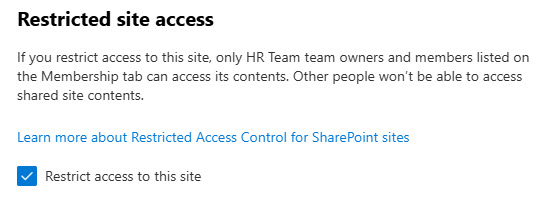
- You will then get a confirmation message
Option 3: Tighten sharing settings to prevent future oversharing
Options 1 and 2 clean up what already happened. To keep the same thing from happening next month, adjust the sharing settings on the sites the report flagged.
- Set an expiration on Anyone links. I explain how in this post.
- Change the default sharing link. You can do so at the tenant or site level – change the default link type to Specific people.
- Disable external sharing for the site. If a site should not share externally, limit or turn off external sharing for that site only.
Nuances about the Sharing Links Report
- You must be a SharePoint Administrator and have a proper SharePoint Advanced Management (SAM) license assigned to your account.
- As mentioned above, data collection must start before the report can be created. Up until then, no data will be presented in the report.
- Site owners cannot see the Sharing Links Report. They can only check sharing on their own site.
- The Sharing Links Report is a snapshot in time and goes back 28 days max.
- Because of the 28-day threshold, it counts only new links created in the last 28 days, not every link that exists. For example, an Anyone link created 3 years ago will not show up. For the full picture, consider using the Site permissions across your organization report, which I explained in this post.

Share Article