How to Force a File Link in SharePoint to Download Instead of Opening in the Browser
I recently had an interesting requirement from a client. I helped them build an Intranet portal and created a page with links to various forms and templates they used within the organization. However, when clicking on a link, they wanted files to download directly to the user’s computer instead of opening in the browser, which is the default behavior of any document link in SharePoint. Luckily, there are a few ways to achieve this in SharePoint, which I am happy to share with you below. I will first explain each option and then explain the nuances/pros, and cons of each.
Option 1: Add a Prefix to the Static URL
The first option relies on the specific prefix/string you would add to the static URL/file path. Here are the instructions:
- Obtain the true file path of the file – this option only works with links generated via the file path method and not by “Copy Link” functionality. Besides, it is always a preferred method of getting the file URL without oversharing. I explained how to do this here. In my case, the path is: https://sharepointmaven.sharepoint.com/sites/hr-team/Shared%20Documents/General/Forms/Safety/CAPA%20Form.docx

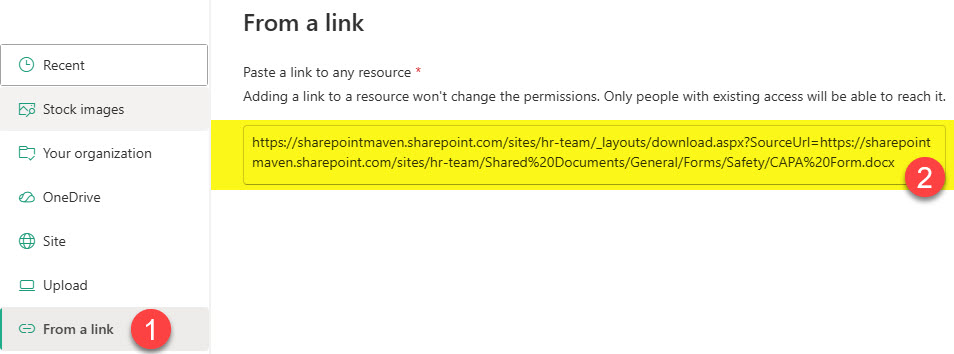
- Add the following prefix in front of the path above: https://domain.sharepoint.com/sites/site-name/_layouts/download.aspx?SourceUrl= where https://domain.sharepoint.com/sites/site-name represents the address of a site where the file resides. In my case, the resulting URL looks like this: https://sharepointmaven.sharepoint.com/sites/hr-team/_layouts/download.aspx?SourceUrl=https://sharepointmaven.sharepoint.com/sites/hr-team/Shared%20Documents/General/Forms/Safety/CAPA%20Form.docx
- Copy the entire URL from the previous step and use it from the Quick Links Web part, linked image, navigation link, or any place you want to link from.
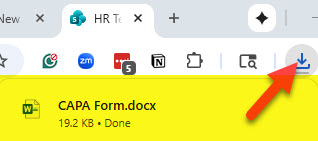
- When clicked, it will download the document to the user’s computer instead of opening it up in the browser.
Option 2: Add a Suffix to the Dynamic/Encoded URL
The second option relies on the suffix you would add at the end of a dynamic or encoded URL. Here are the steps:
- Copy link using the “Copy Link” functionality.

- In my case, the link I copied looks like this: https://sharepointmaven.sharepoint.com/:w:/s/hr-team/EVgMDyb6NYZGsoOVB_Ejwr8B1nhJehnp2oGg-8jILV2eqg?e=2tKTI6
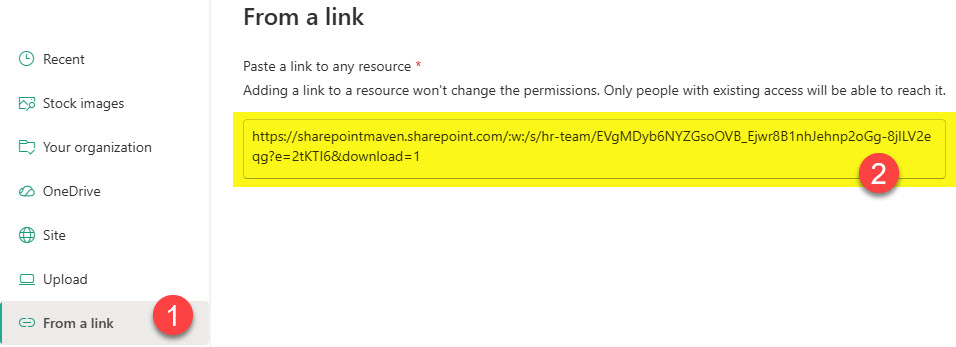
- Add suffix &download=1 at the end of the URL above. The resulting URL will look like this: https://sharepointmaven.sharepoint.com/:w:/s/hr-team/EVgMDyb6NYZGsoOVB_Ejwr8B1nhJehnp2oGg-8jILV2eqg?e=2tKTI6&download=1
- Copy the entire URL above and use it from Quick Link, linked image, navigation link – any place you want to link from
- When clicked, it will download the document to the user’s computer
Nuances about the two methods above
When testing both methods, I noticed the following interesting nuances to be aware of:
- The first option only works for Static links, not dynamic/encoded links generated via the “Copy Link“, so make sure to create the link via the file path method explained here.
- The second option only works for Dynamic/Encoded links generated via Copy Link functionality, so if you have a file path, it won’t work.
- Just like with any file path in SharePoint, make sure you do not go over 400 characters, especially with the suffixes and prefixes adding letters to the string
- In case you are wondering which option to choose, I prefer Option 1. The reason for this is the fact that the second option only works for dynamic links generated via the Copy Link feature. This always opens it up to oversharing, when all you need is a direct file path. So while you can use either option, Option 1 is my favorite.

Share Article