< All Articles
How to display the contents of a folder on a SharePoint page
The functionality I am about to describe in this article is quite a common requirement and request, especially on the Communication, employee-facing sites. The requirement is to display the contents of a folder on a SharePoint page. For example, you might have a Human Resources site that contains a document library with several folders. You might not want to display the entire library – just the content of one folder (i.e., Benefits) that would display various forms and policies related to Benefits. Sounds simple? Despite the supposedly simple nature of it, making it happen is not that obvious. As such, I have decided to explain this in the article.
How to display the contents of a folder on a SharePoint page
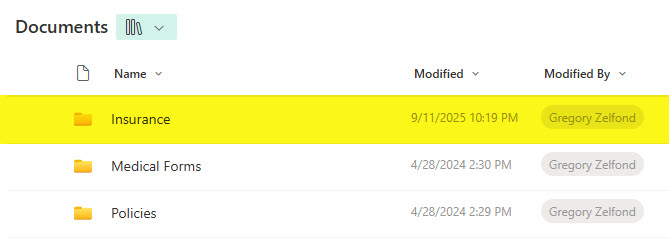
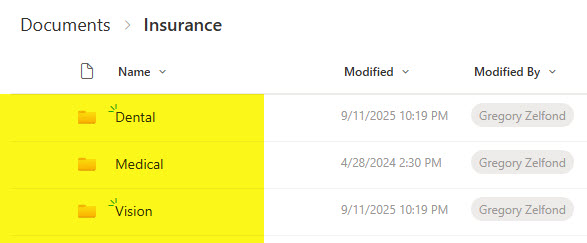
- For the purpose of this article, I have a Document Library with some folders and subfolders. I want to embed the contents of the Insurance Folder only (which contains 3 subfolders) on the SharePoint page.
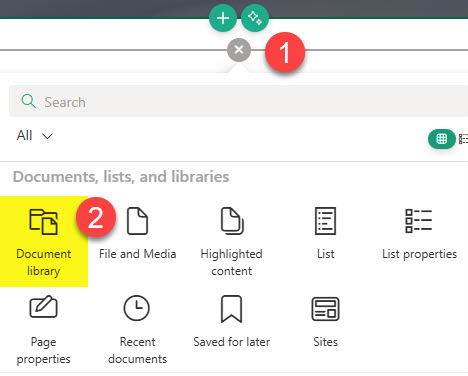
- Edit the SharePoint Page and click the “+” sign. Choose Document Library Web Part.
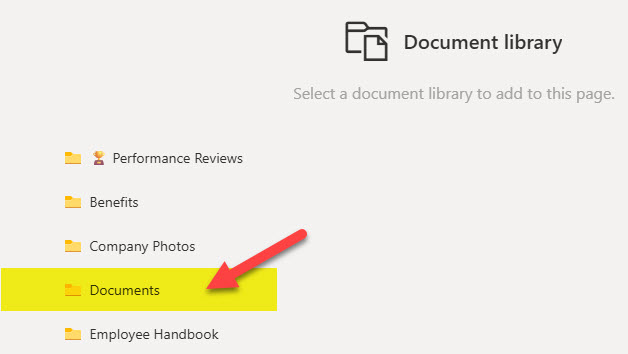
- Choose the library where the folders reside
- It will embed the document library on the page. However, we now need to click on the Properties icon to configure additional settings.

- Under the Folder field, specify the path of the folder you want to display. In my case, it is Insurance. Click the Apply button.

- After you republish the page, it will display the contents of the folder on the page.

Important Notes about embedding a folder on a SharePoint page
- In case you want to display content several folders deep, you would need to type in the folder path separated by “/” as shown in the screenshot below
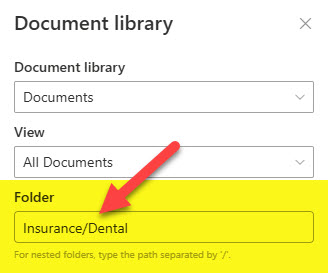
- One thing I always like to do when I embed document libraries or their folders on a SharePoint page is hide the Command Bar and the See all link. This way, it looks cleaner and more professional on a SharePoint page.


- The trick described above only works when the document library and the page where it will be embedded reside on the same site. You can embed a library from another site; however, you cannot embed a specific folder. I explained all of this in this earlier article.
- You should only embed libraries/folders on informational sites (employee-facing). If this is a collaboration site, I strongly discourage embedding document libraries on SharePoint pages. I explain the reason for this in this article.

Share Article