How to Automatically Move or Copy Files in SharePoint Using Metadata Rules
I blogged about the Rules feature in SharePoint previously. It is a replacement for the old alerts feature, which we had for years. Rules are powerful – you can create simple notifications when changes occur in a document library or a list. For example, when a file is added, deleted, or its metadata value changes, an email will be sent to the specified user. However, a recent update to the Rule extends it beyond email notifications, allowing us to move or copy files based on metadata changes. Let me show you this cool feature.
Scenario
I have a document library with company policies, all tagged with fields like Status, Expiration Date, etc., that resides on an Intranet site. The Status column tracks the policy’s status as updates are made (i.e., Active, Pending Update).
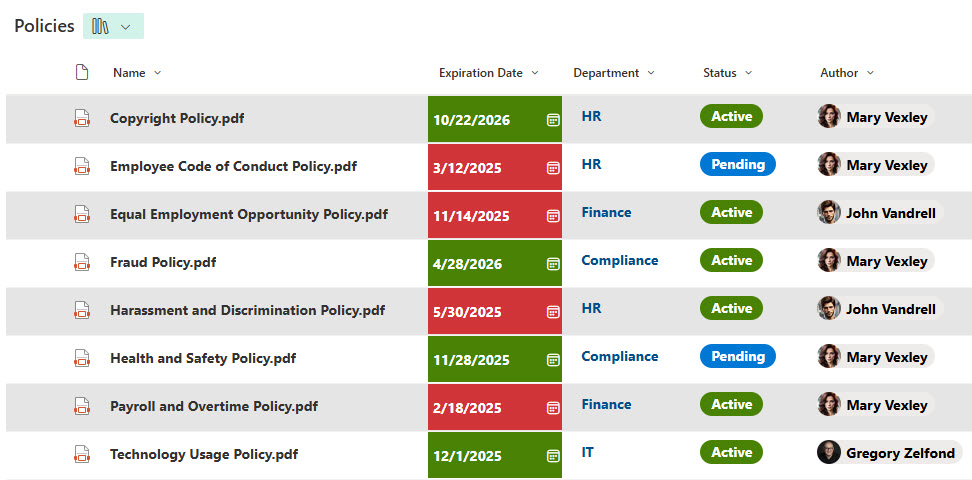
Once a user changes the status to Archived, I would like the document to be moved to an Archived Policies library on another SharePoint site.
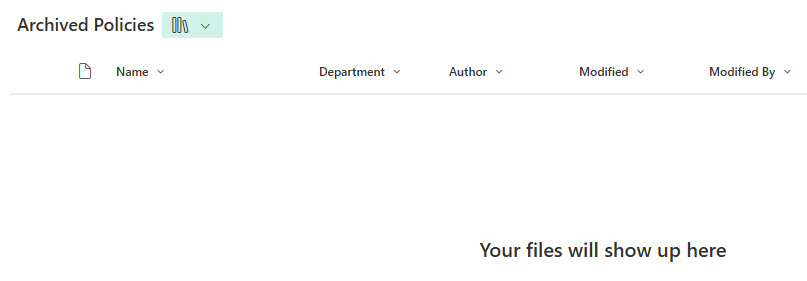
In the past, the above scenario would have required creating a custom Power Automate workflow. However, thanks to the new functionality in Rules, it can now be achieved with just a few clicks.
How to Move or Copy Files in SharePoint with Metadata Rules
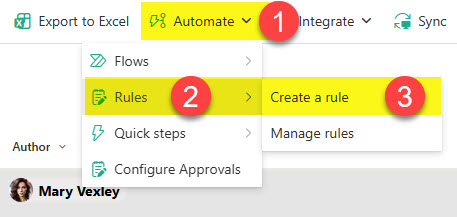
- On the Source Document Library, create a rule by clicking Automate > Rules > Create a rule
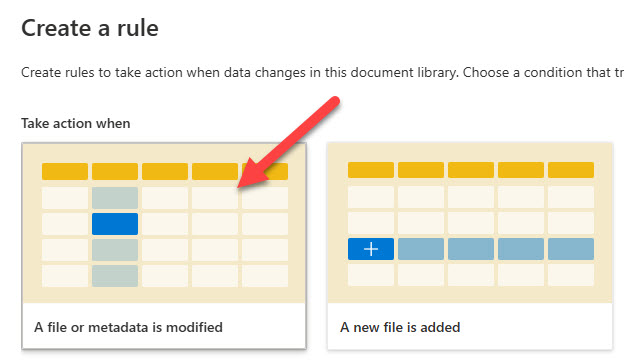
- On the next screen, choose the “A file or metadata is modified” scenario.
- Next is the most exciting part. This is where you set the rule. It is pretty straightforward; you just literally fill out the blanks/wizard. Make sure you choose the move file to for action and choose the site and library for the destination. Click Create to create a rule.
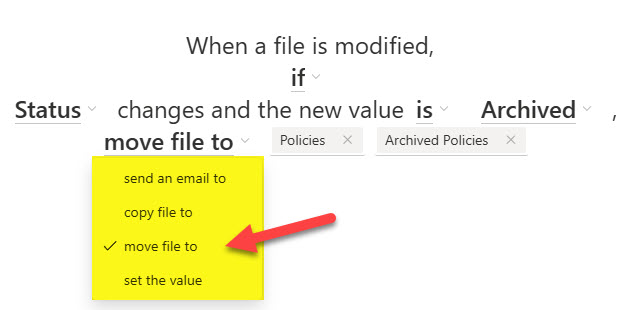
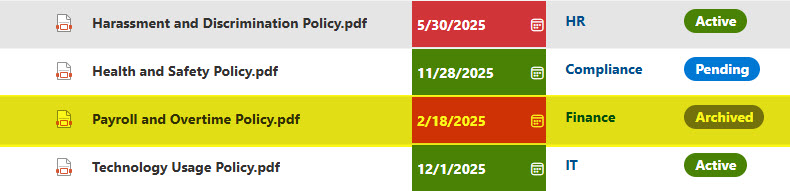
- Next, I am going to change the Status of one of the files to Archived.

- The image below shows the new Status of the policy.

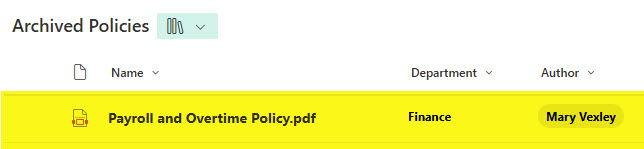
- The document will stay in the library for a few minutes and then disappear as the Rule moves it to another library…
- And just like that, the file is moved to the new library
Nuances about Move and Copy Using Metadata Rules
- The ability to move or copy files using Rules is only available on document libraries and not lists
- The ability to move or copy files using Rules only works on files, not folders
- You can use Rules to move and Copy files to other sites and libraries in your tenant
- Once copied or moved via Rules, the file will inherit the permissions of the new site
- It might take a few minutes for the Rule to “kick in” and move or copy the file. Be patient.
- This is super important. The user changing the metadata value in the source library does not need Edit permissions to the destination library!!! Even if the user has read-only access to the destination library, the rule will still work and move or copy the file to that destination library!
- With that said, the user who does not have Edit Permissions to the destination library will not be able to create a rule and select that read-only library as the destination. It will produce the error message below.

- When you move the file via the Rules feature, the metadata can be kept, as long as the columns and column values at both source and destination match. I explained this concept in this article.
- When you copy the file via the Rules feature, the metadata does not copy over to the destination. This is by design (only kept via Move feature)
- Unlike with Power Automate, there is no traceability to see if the workflow ran since there is no workflow!
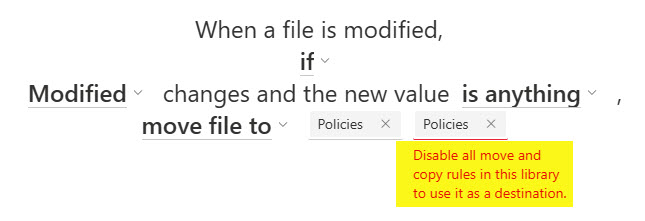
- If you set up a Move or Copy Rule in the library, you cannot use that same document library for the destination library for other rules set up elsewhere in SharePoint (other sites and other libraries). Otherwise, upon selecting the destination, you will see the error message below.

Share Article