5 Ways to Display Office Locations in SharePoint
One thing I admire about SharePoint is its ability to achieve a specific requirement using many different options. One requirement I always encounter from my clients is the ability to display office locations and contact information for a company on their SharePoint Intranet. Below, I would like to explain and show five (5) unique ways to display office location information in SharePoint.
Option 1: Bing Maps Web Part
The obvious choice for displaying office locations in SharePoint is to utilize a Maps Web Part. It allows you to type in an actual physical address, which will be rendered using the map on a SharePoint page. To do so:
- Edit the page by clicking the Edit button in the upper-right-hand corner

- Click the plus sign to add web parts and choose Bing Maps Web Part

- Enter the address of a location – it will render it on the screen

- If you want to change the label text that appears over the map from address to some other text (i.e., Our Office), you can do so within the Web Part Settings.

- You can also use the Title of the Web Part as well if need be

- This is what it looks like for a single address/location once configured

- And this is what it looks like for multiple locations on the same page.
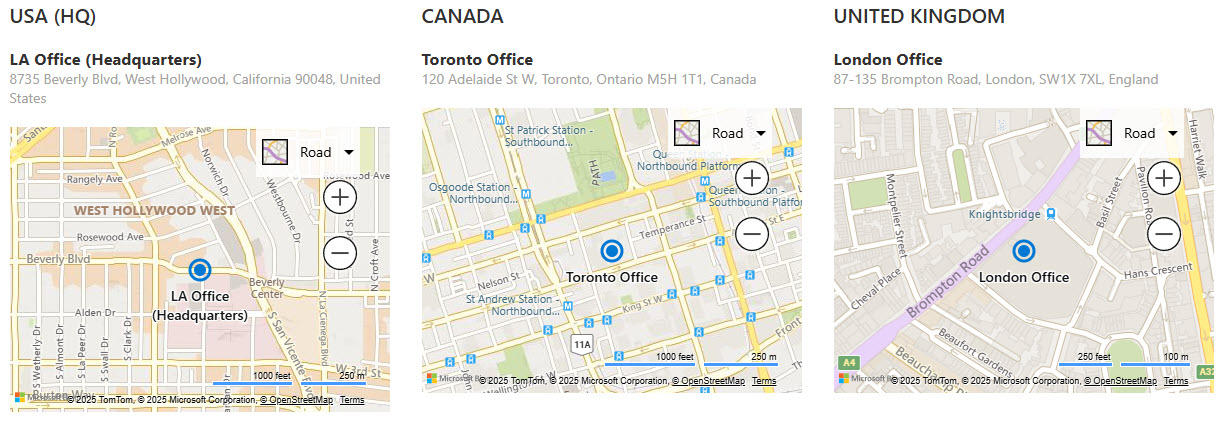
Pros
- A graphical and elegant way to display address/office locations
Cons
- Takes a bit of real estate on the screen, especially if you have multiple locations
- Some newer addresses might not be found (since it relies on Bing Maps)
- There is no way to customize/add custom information like business hours or additional information about the locations
Option 2: Gallery View with a custom list
The other option is to store Location/Address in a list and then use Gallery View to display it on the page. I explained the steps to build it in this article.
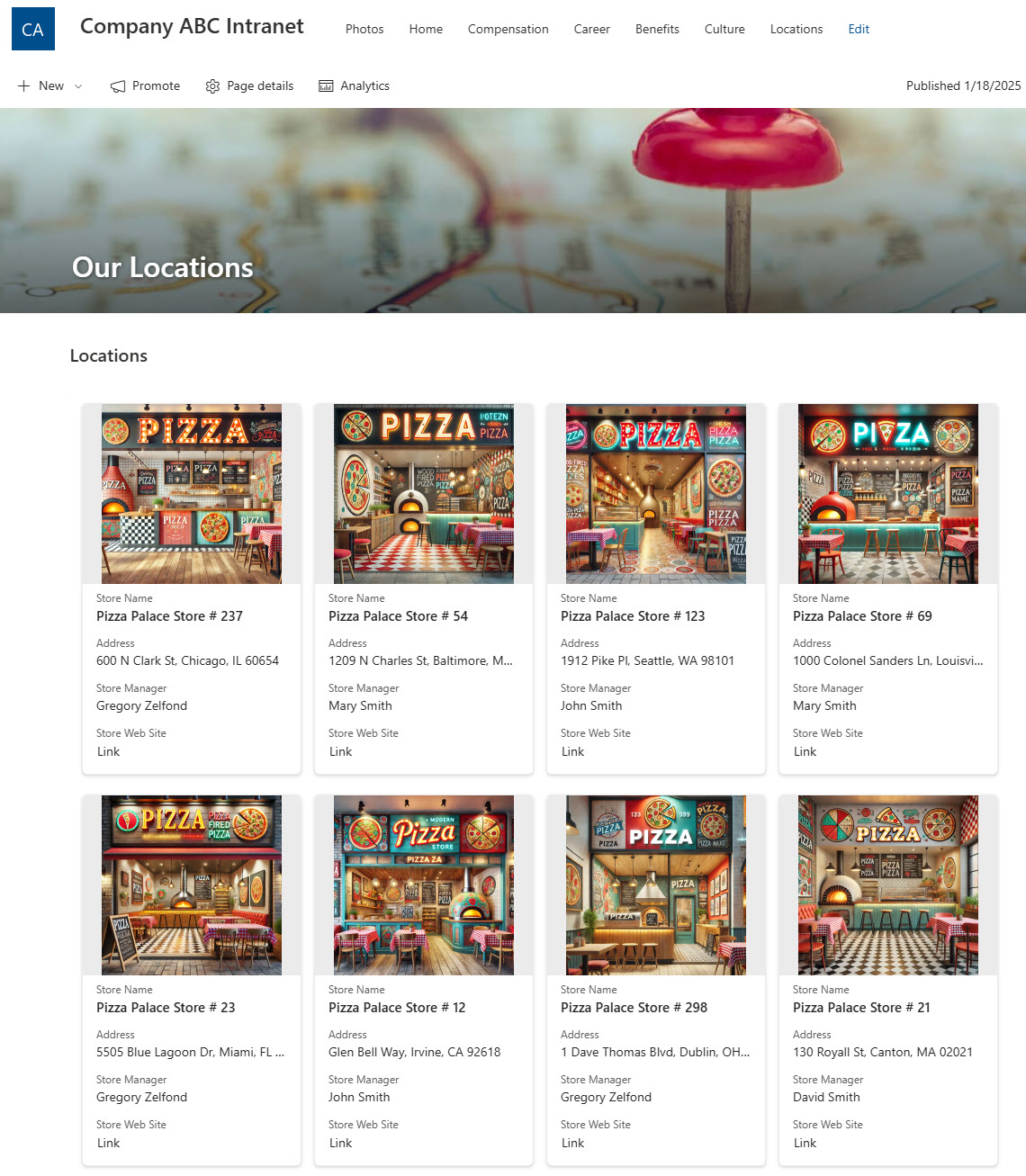
Pros
- An elegant and visually appealing way to display office locations in SharePoint
- Ability to add custom information like hours, links, etc.
- Allows for the addition of an image/photo of the locations
- It takes less real estate than the Bing Maps Web Part
Cons
- None I can think of
Option 3: SharePoint Site Footer
Another option is to populate the location information into the footer of your Intranet. This is consistent with what many companies already do on their public websites. The footer approach might work if you have a handful of locations (not too many). Check out this article for instructions.
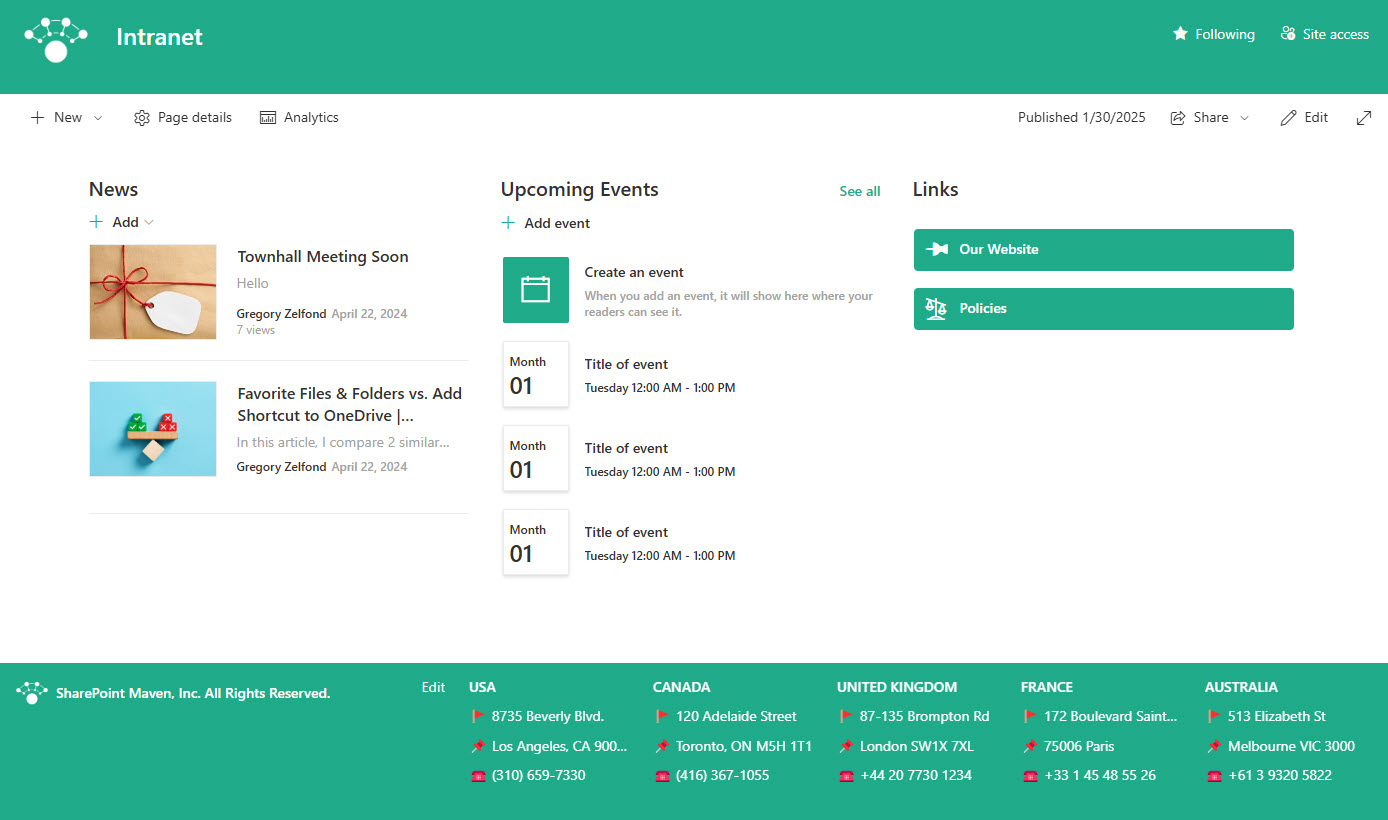
Pros
- Easy to maintain
- Saves valuable real estate on the Intranet Homepage
Cons
- Limited space for text
- Not as visually appealing as the other options
- It only makes sense if you have a few locations, not many (8 max due to the limit of labels you can add to the Footer Navigation)
Option 4: Text Web Part
If you lack creativity or are just plain lazy, you can use the Text Web Part, and just type the information on the page.

Pros
- Simple and easy to use, no additional setup is necessary
- Many different ways to style the format of your text (font color, font size, etc)
Cons
- Not as elegant as the other options
Option 5: SharePoint Pages (my favorite!)
This is the most scalable option and is a better choice if you want to list lots of information for each address/location in a visually appealing way. The idea here is that you would create a separate page for each and every location. This would allow you to add lots of content to each and every address. Since each location would have its own page with its own URL, you can then tie it all together with a custom list. I explained step by step how to set up this option here.



Share Article