5 Essential Naming Conventions to Know in SharePoint
You know when a doctor reviews your symptoms and vital signs to identify the underlying condition? Well, sometimes I feel like a doctor myself when working with SharePoint. Why? Looking behind the scenes can tell you a lot about what is going on. Many years ago, I published a similar article about the anatomy of a SharePoint URL, so you could understand where in SharePoint you are (site, subsite, page, library, etc.) This time, I want to focus on a few naming conventions that we have in SharePoint, which will also help you understand what it is that you see in front of you.
1. Synchronized Libraries or Folders
The first naming convention to understand is that of synchronized document libraries in Windows Explorer. The minute you sync a document library in SharePoint, you will see the library synchronized (appear) in your Windows Explorer under the building icon. You might notice they all follow the same convention: Site Name – Document Library or Folder Name. (depending on whether you synchronized the entire library or just a folder)
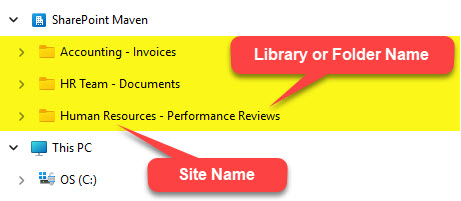
Example of Several Libraries/Folders synchronized to Windows Explorer
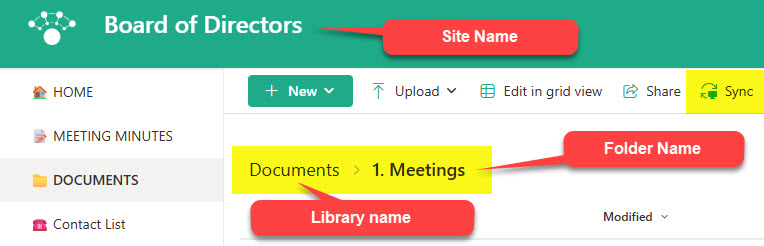
Explanation of where the names are derived from in Windows Explorer
While we are here, read this post on why you should never sync individual folders and should sync entire libraries instead.
2. Add shortcut to OneDrive
Kind of related to the above, you might see something similar in your OneDrive for Business account (both on the Web and in Windows Explorer) once you click Add shortcut to OneDrive for the entire library or a given folder.

Add shortcut to OneDrive button available from a SharePoint Document Library
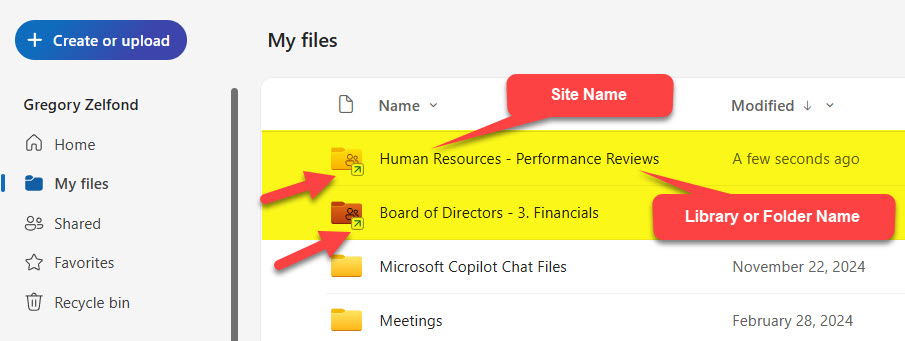
OneDrive for Business (Web version) showing libraries and folders added as a Shortcut in OneDrive for Business
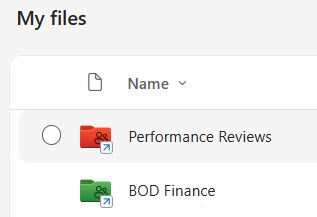
Unlike synchronized libraries, shortcuts can be renamed to a more friendly name. As an example, I renamed both shortcuts above to different names. You can also assign different colors to the folders.
3. Shared and Private Channel Site URLs
Another naming convention to note is that of the Private and Shared Channel SharePoint Site URLs. Every time you see a dash appear in the URL of a site, the chances are that the site is part of a Shared or Private Channel.
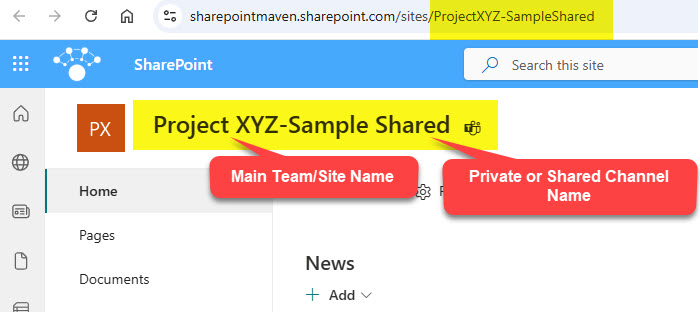
The naming convention for those URLs is: Main (Parent) Site Name – Private or Shared Channel Name.
4. Home.aspx in the Site Pages library
We used to have just one page created when you would create a brand new site, and that page was Home.aspx. However, since Microsoft introduced various types of templates that can be applied (as I explained in this article), we now have extra pages created within the Site Pages library. The names and number of those pages depend on the template chosen.
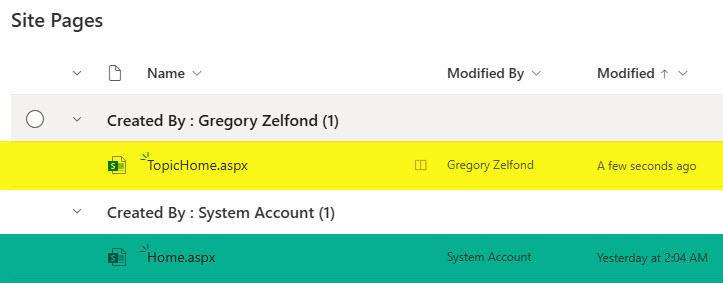
Site Pages Library within the Standard Communication Site Template
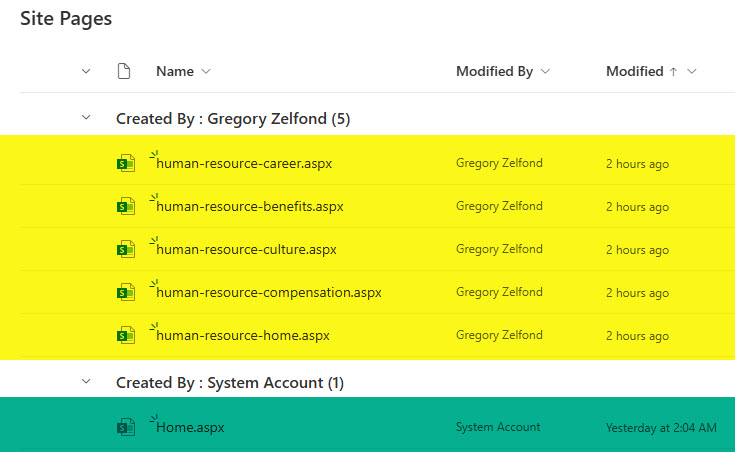
Site Pages Library within the Human Resources Communication Site Template
The Home.aspx page is always present, no matter what the template site is. However, it is no longer the Homepage (the page that is loaded by default when you visit the site). Instead, it would be one of the other pages created as part of the template.
Home.aspx page is just the basic/simple page we always had in SharePoint, with a few sample web parts and no custom branding (that comes with the other templates). So, if you want to revert to a clean and straightforward page, you can always use the Home.aspx page. By the way, if you would like that Home.aspx page to load by default, you would need to make it a Homepage. I explained how to do this here.
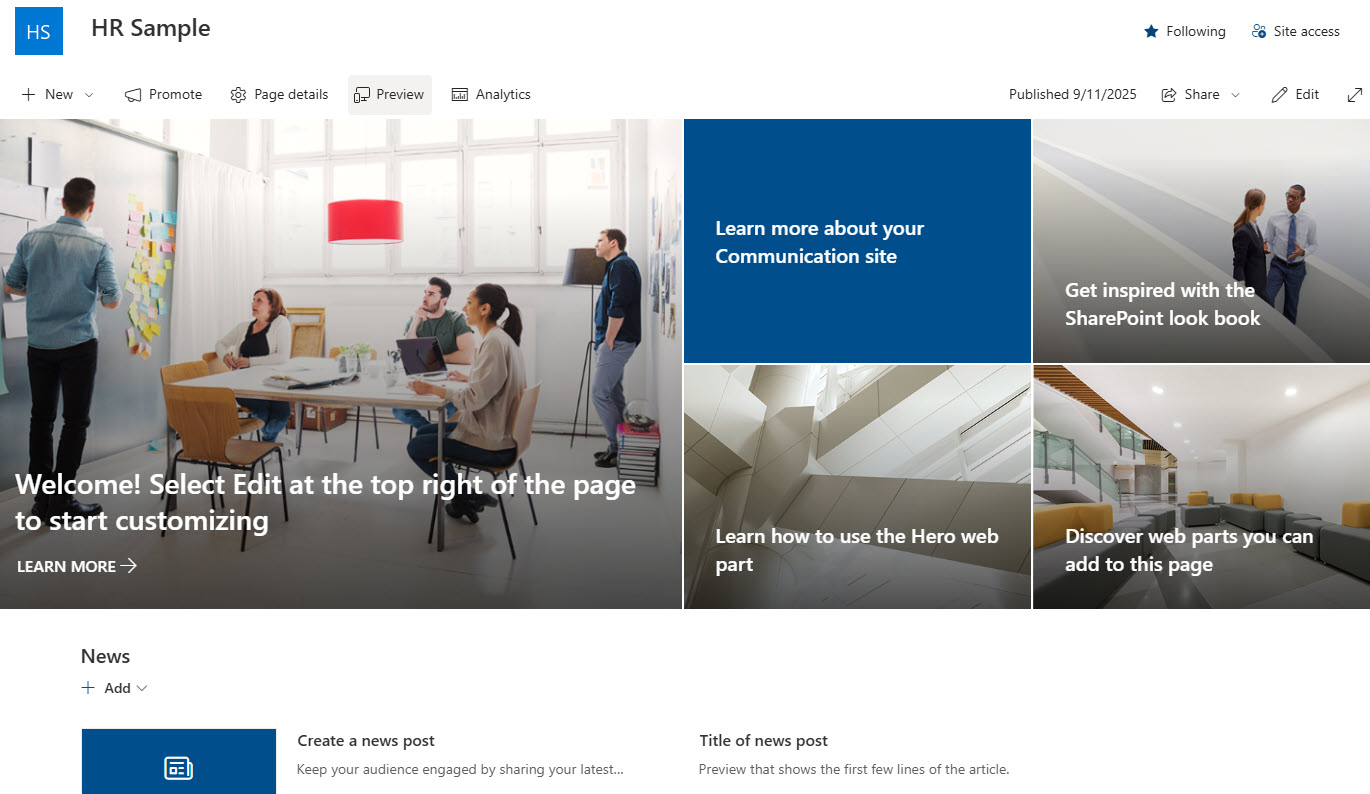
Default Look of the Home.aspx SharePoint Page
I also suggest you read this article, written by Marc Anderson, which discusses this page further.
5. Cannot create Forms folder in SharePoint
This one is not so much a naming convention, but a name that you will not be able to use. I am talking about the Forms folder in SharePoint. This may come as a surprise or something you’ve already encountered. Did you know that you cannot create a folder called Forms in a SharePoint document library? When you try to do so, you will receive an error message: A file or folder with the name Forms already exists.
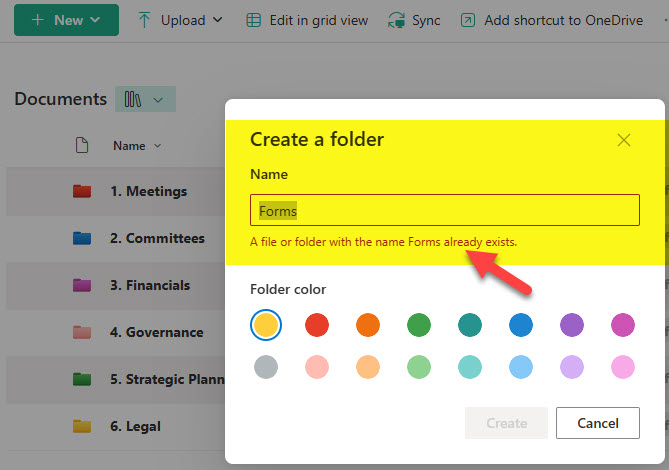
When I first saw this error message years ago, I started pulling out what little hair I had left in despair. I also promised myself to stop drinking wine for breakfast. 😊 But even with those improvements, I still couldn’t find the Forms folder that already exists.
The reason for this annoying issue is a leftover from the Classic days of SharePoint. Microsoft created a hidden folder within each document library that does exist but is hidden and not visible to the users. It is called Forms, and it is used to store various views and other templates that are necessary for the Document Library to work. You cannot delete it, so you are kind of stuck with this issue. The only way you can “see” it is when you look at the URL of the document library. The path/breadcrumb will contain the hidden Forms folder.

Here are locations where you will encounter this issue:
- SharePoint: Root of any SharePoint document library
- OneDrive for Business: Root of your OneDrive for Business repository (since this is essentially your own document library)
- Teams: When you create a new Teams Channel (since creating a standard channel creates a folder with the same name at the root of the library). Though Shared and Private Channels create separate sites, Forms is not allowed as a name of the Channel regardless of its type.
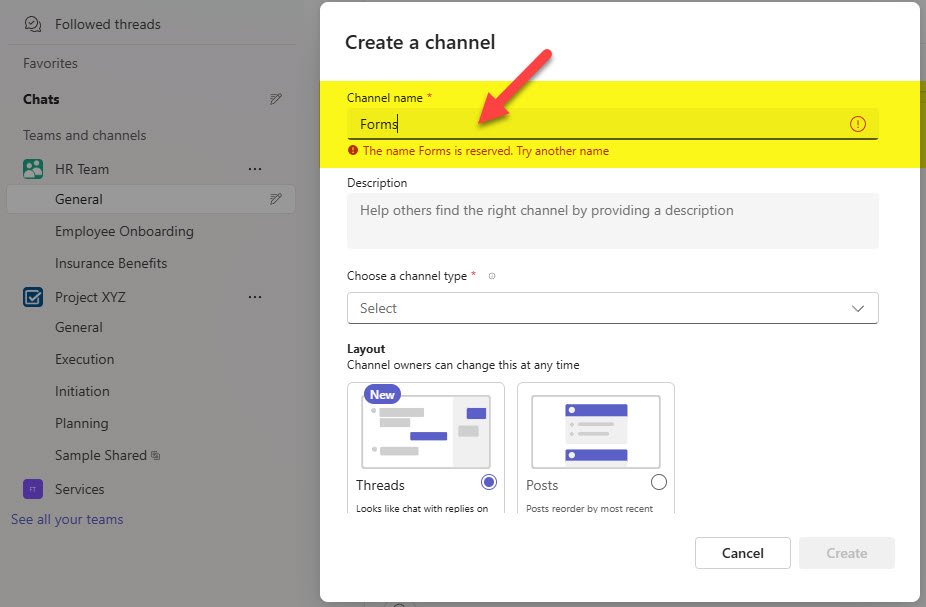
So if you need to create a Forms folder, here are your alternatives:
- Create Forms folder at a subfolder level (not at the root of the library)
- Create a slightly different name (i.e., Company Forms or Department Forms)

Share Article