Why do you need to pin a library to Quick Access?
One of the features that is somewhat easy to miss, but what I consider a silent hero, is the Pin to Quick access. It plays a vital role in the day-to-day use of SharePoint and Teams. When you pin a document library in SharePoint, you create a bookmark to that document library. Let me explain how to pin a document library and how it can be handy as you work with the files.
How to pin a document library to Quick access
- To pin a document library to Quick access, navigate to the document library, then click on Pin to Quick access (in case you do not see that option, it is probably hidden in the extended menu, which you can access via the ellipses).
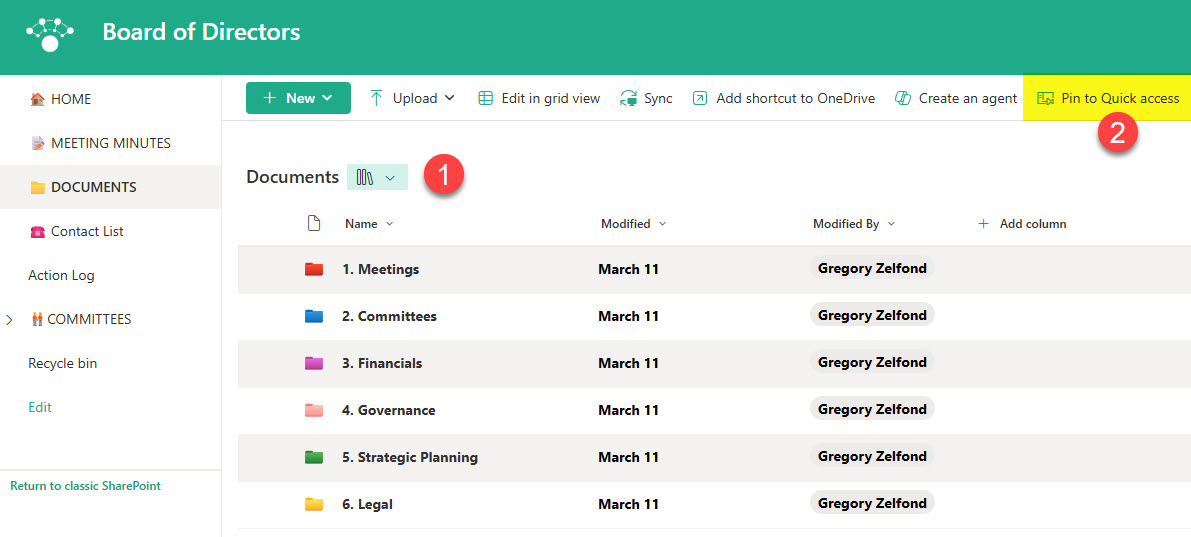
- You will then get a confirmation message at the bottom of the page

Why pin a Document Library to Quick access?
Now that I showed you how to pin a Document Library to Quick Access, you might be wondering why bother doing so in the first place. Let me demonstrate 3 business scenarios where Quick Access bookmarks become invaluable.
1. Quick Access to Libraries from OneDrive for Business
Once you pin a document library to Quick access, it shows up under the Quick access panel on the left-hand side. Clicking on a library will allow you to access the library from within your OneDrive!
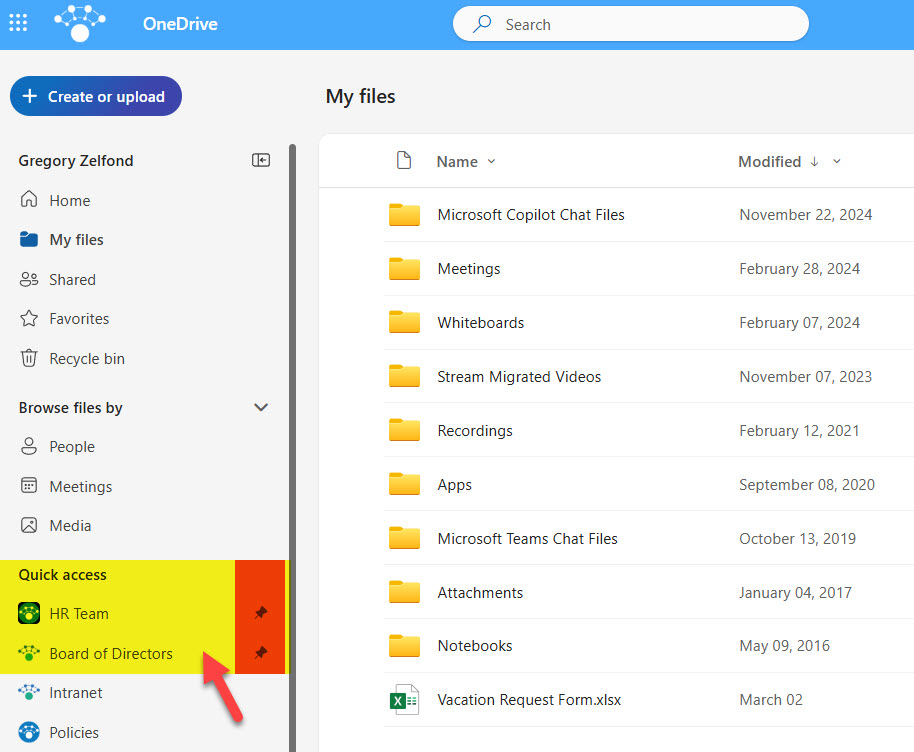
Quick access panel within OneDrive for Business
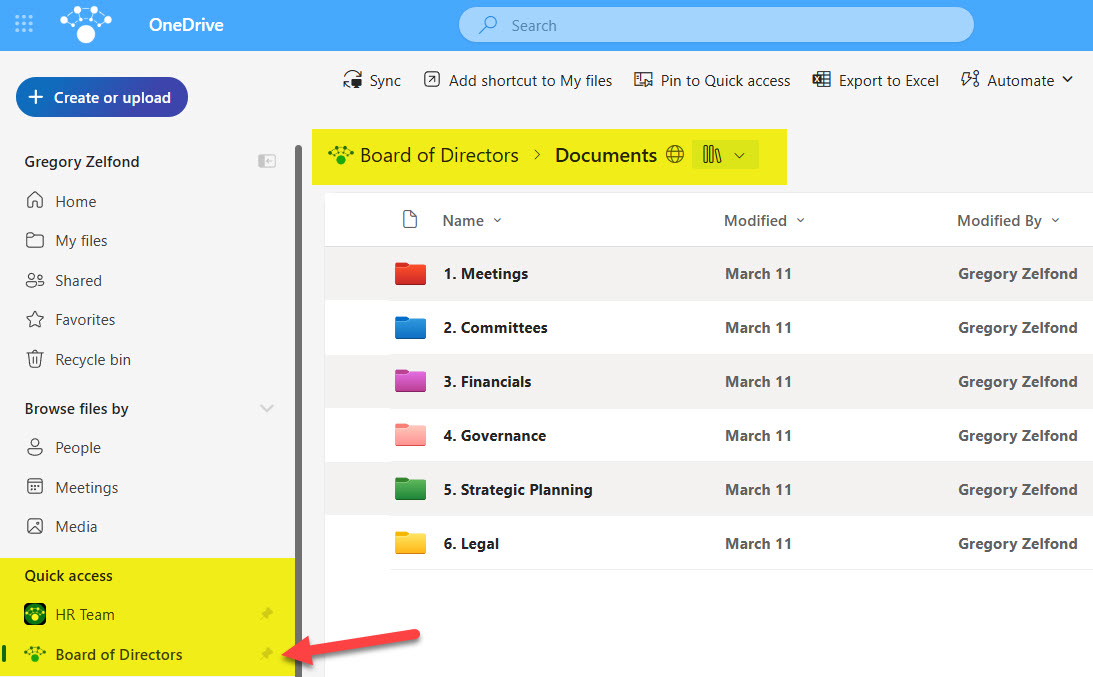
Document Library bookmarked within Quick access and displayed within OneDrive for Business
2. Moving and Copying content between sites
When you move or copy files and folders between sites, pinned document libraries show up under the Quick Access area on the left-hand side within the move/copy panel. So if you are moving documents across sites, this is a good way to bookmark your favorite destination libraries. Without those bookmarks, you would need to manually choose from a list of tens or possibly hundreds of sites and libraries available within your environment.
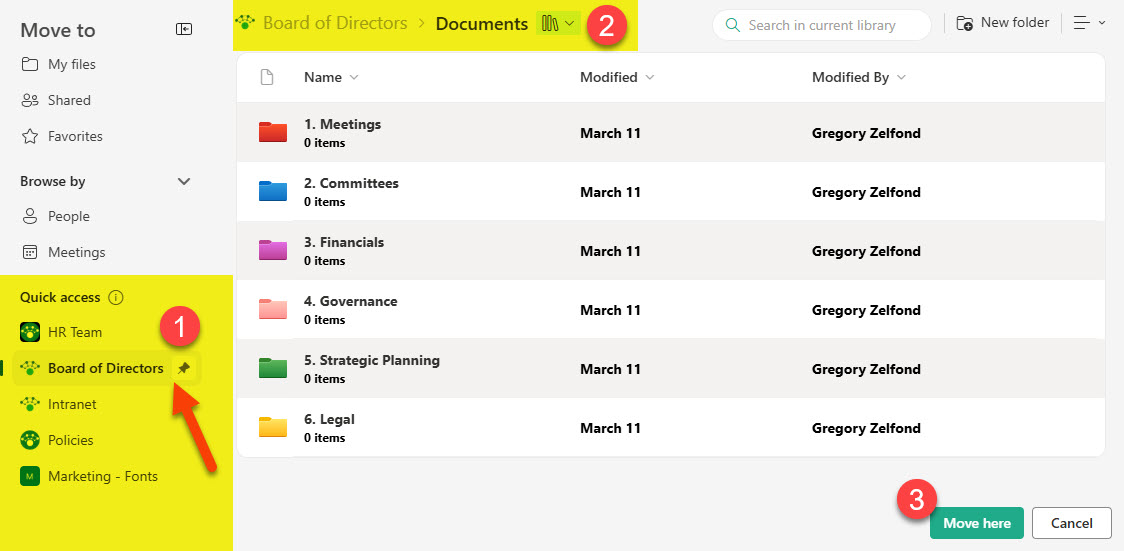
Quick access panel with bookmarked document libraries within the Move or Copy dialog box
3. Save Office Documents to SharePoint
This has got to be the most significant advantage of the Pin to Quick access feature. Say, you started a document in Word and need to save it directly to SharePoint. When you click Save As, it will display the same Quick access panel with bookmarked document libraries! This way, you do not need to save the document to the desktop first or browse through hundreds of sites before finding the right library to save to. This capability applies to all the Office Apps (Word, Excel, PowerPoint, etc).
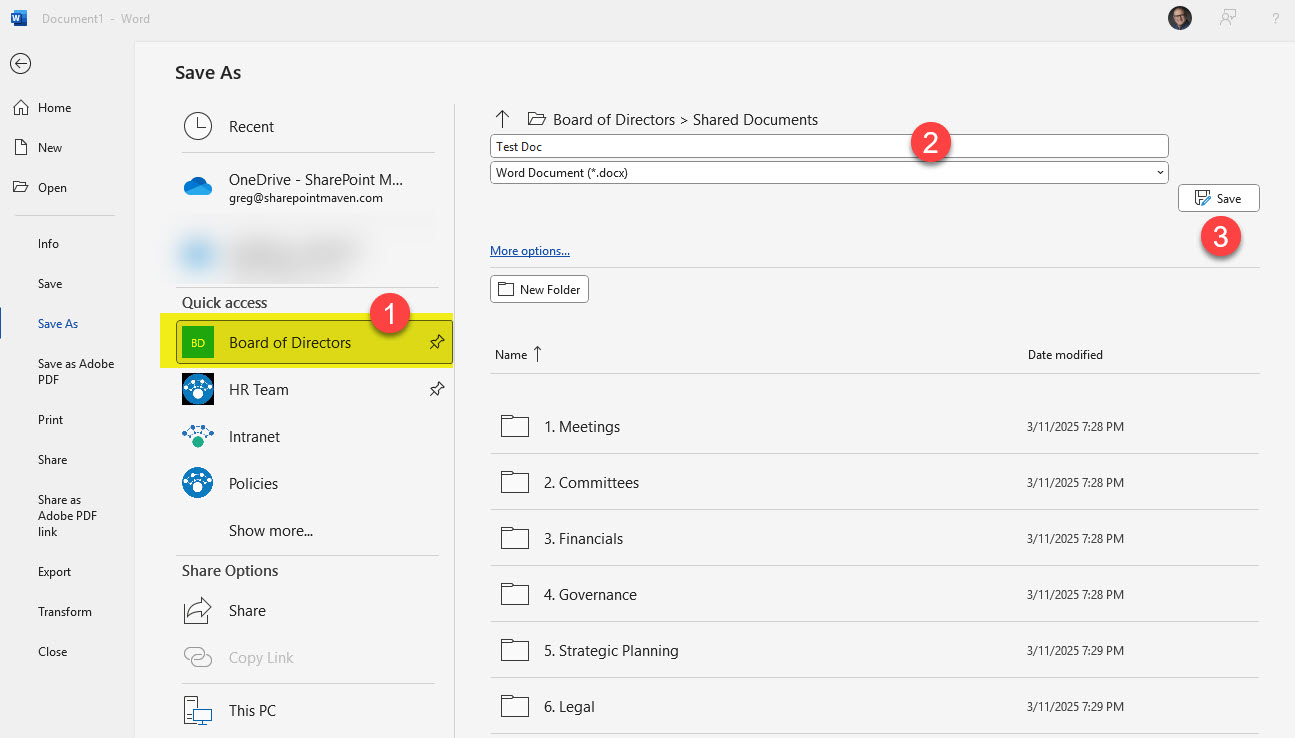
Save As within Office Apps displays the Quick access panel with bookmarked document libraries.
Nuances about Pin to Quick Access in SharePoint
- You can only pin document libraries, not sites or folders
- The Quick Access in SharePoint has nothing to do with the namesake feature in Windows Explorer. Libraries you pin in SharePoint only show up in SharePoint/OneDrive and won’t show up in Windows Explorer. The reverse is also true: folders you add to Quick Access in Windows do not appear in SharePoint.

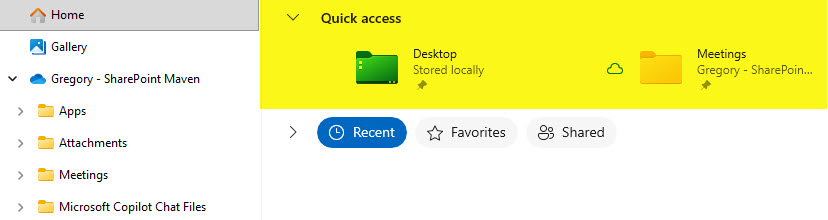
Quick access in Windows File Explorer (not related to SharePoint Quick access)

Share Article