How to schedule a live Event in Viva Engage Community
Historically, I have not devoted many articles to Viva Engage on my blog. Engage (formerly called Yammer) had a somewhat rough past, which contributed to its poor user adoption within organizations. Moreover, amid COVID and the work-from-home mentality, Teams was the preferred way to communicate within organizations. However, with recent improvements to its look, feel, and functionality, Viva Engage went from an awkward teenager to a polished, confident adult that everyone suddenly notices. Today, I want to describe one such functionality. Specifically, I want to talk about the ability to schedule live Events.
What is Viva Engage?
Viva Engage is a corporate social network built specifically for informal communications. You might be wondering how it differs from Teams. I actually outlined it all here. Unlike Teams, which is meant for project and department collaboration, Viva Engage is intended for more general conversations and social interactions, similar to Facebook groups. Just like Teams, Engage is also part of the Microsoft 365 ecosystem.
Below is an image of what a typical Viva Engage Community looks like. If you want to learn more about this and its capabilities, check out my portfolio.
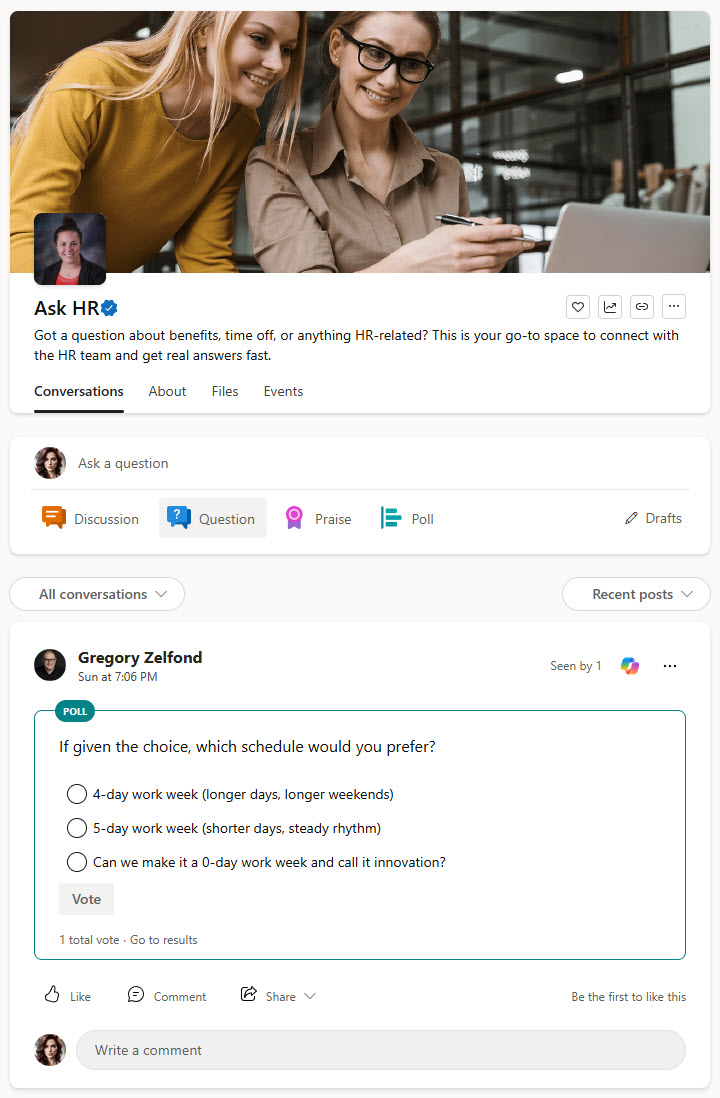
Example of a Viva Engage Community
What are Live Events?
Live Events are events that occur at a designated date and time via the Teams Townhall feature. Unlike regular Teams meetings, Live Events include specific webinar controls, such as Q&A and presenter modes.
How to schedule Engage Live Events
- Once you navigate to Viva Engage Community, click on the Events tab and click the Create event button

- Click on Town hall (it is a new name for Teams Live Events, which is being discontinued)
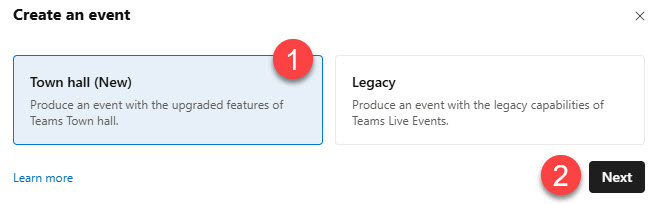
- On the next screen, fill out the details of the future meeting/event
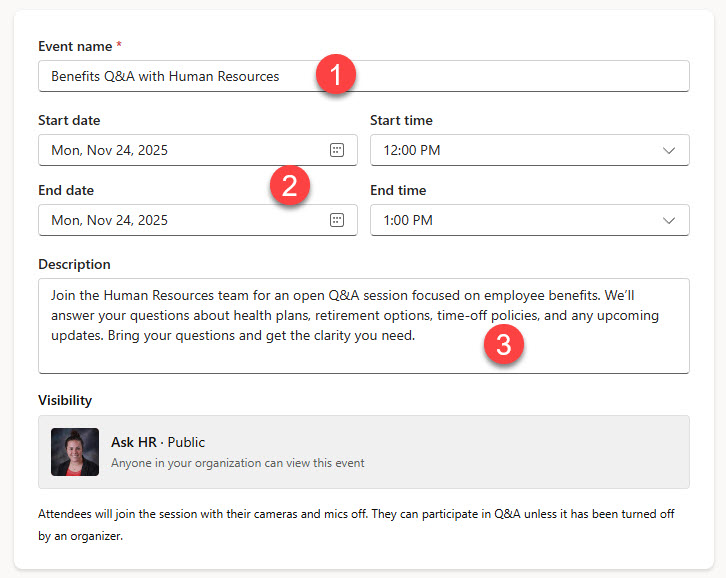
- Next, specify Co-organizers and Presenters

- Finally, enable or disable the Q&A toggle (if you turn it on, attendees can send questions to organizers and presenters during the event/broadcast). Those questions are moderated.

- Once you click the Create button, this will add the events to the Events tab + send out an invite to all the members of the Engage community

How to Join Viva Engage Live Events
There are 2 ways users can join and enjoy live events from 2 places:
- They can watch/join the event from the Viva Engage Community itself, by clicking on the event there.

- Alternatively, users can join the event from their Teams app (just like they join any other Teams meeting)


Share Article