How to create a Suggestion Box in SharePoint
When I build Intranet Portals for my clients, I am often asked to add some sort of suggestion box and have it available on the Intranet Landing page. Typically, the clients would want to have an intake form/survey of some sort and a list where all the responses would be aggregated and could later be sorted, evaluated, and organized. In the past, this request required the creation of an intake form in MS Forms, the creation of the List/Table in the Lists App, and the development and testing of a custom Power Automate workflow to Form and List. With the recent improvements to Lists in SharePoint, this became a pretty straightforward and seamless exercise. So today, I would like to share a pretty elegant solution I often deploy to my clients when they ask me to create a Suggestion Box in SharePoint.
Step 1: Decide on List Columns
For this solution, we will rely on the newly released functionality that allows us to create Forms from the Lists application. The first step in the process is to create a list where all the information is aggregated. Some of the columns in a list would be the answers submitted by the employees. Some columns could be used to evaluate and sort the incoming suggestions. For the purpose of this article, I would like to have the following columns in our list:
Submitted by the User
- Brief Description (Single Line of Text)
- Long Description (Multiple Lines of Text)
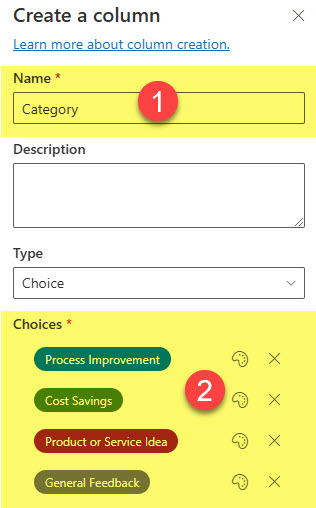
- Category (Process Improvement, Cost Savings, General Feedback, Product or Service Idea)
Managed by the List Owner
- Submitted By (View Only)
- Submitted On (View Only)
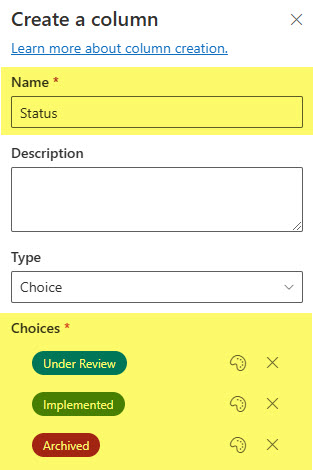
- Status (Under Review, Archived, Implemented)
Step 2: Create a List
First, we must create a list that will capture the employee responses.
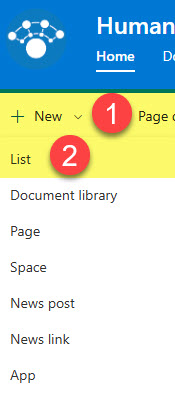
- From the site homepage, click New > List
- Create Blank list
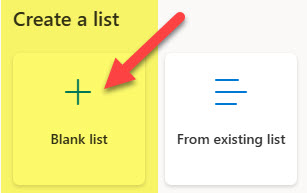
- Give it a name, click Create

Step 3: Create the necessary Columns
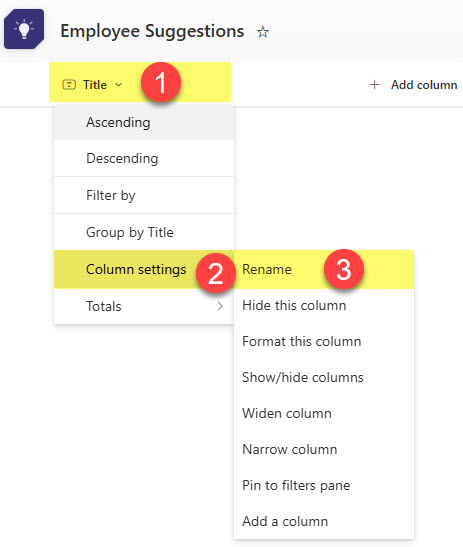
- Rename the default Title column to Brief Description
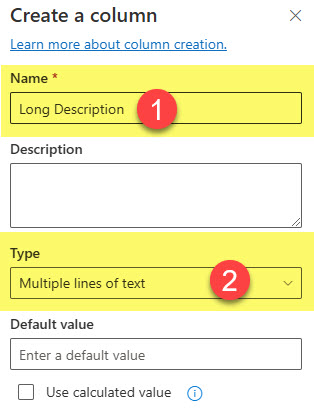
- Create a multi-text column called Long Description
- Create a Choice column for Category
- Create a Status Column
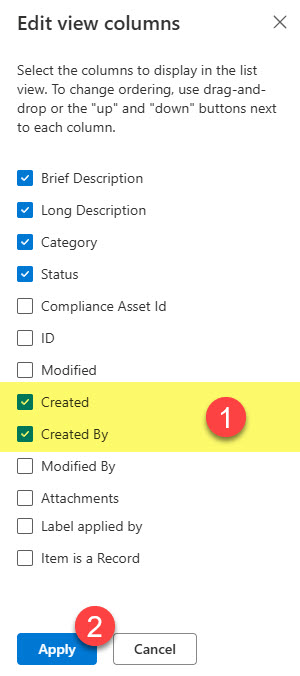
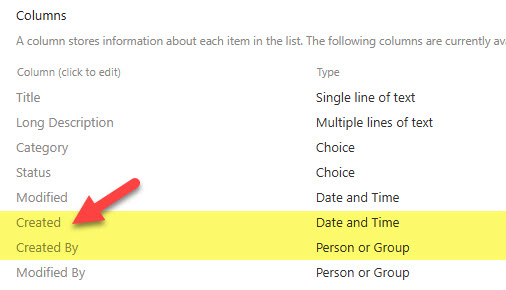
- Next, we need to track and display when and who submitted the suggestions. For this, we will use the built-in system columns: Created and Created By. Go ahead and display them in a list.
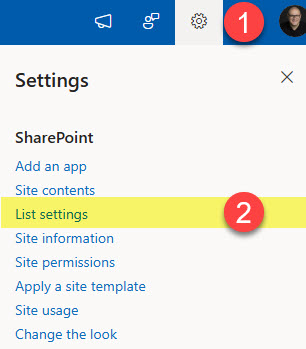
- Since it is not possible to rename them from the List interface, we need to go behind the scenes to do so. Click Gear Icon > List settings.
 Click on one of the columns…
 And give it a new name. Click OK.
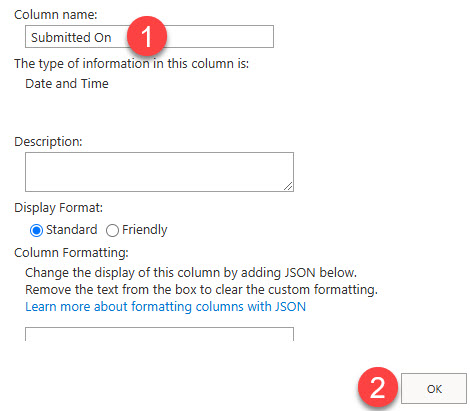 Repeat the same for the other column (Created By ==> Submitted By)
- When all is set and done, this is what the list will look like with its headings.

Step 4: Create a Form
Next, we will create a Form based off the list.
- For this, click on Forms
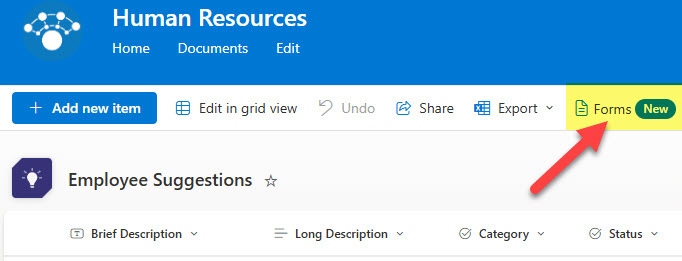
- Click on New form
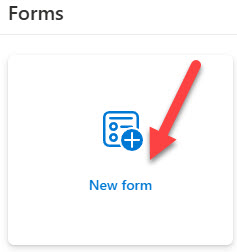
- On the Form screen, uncheck the Status column, (this will be the column adjusted at the list level after the submission)
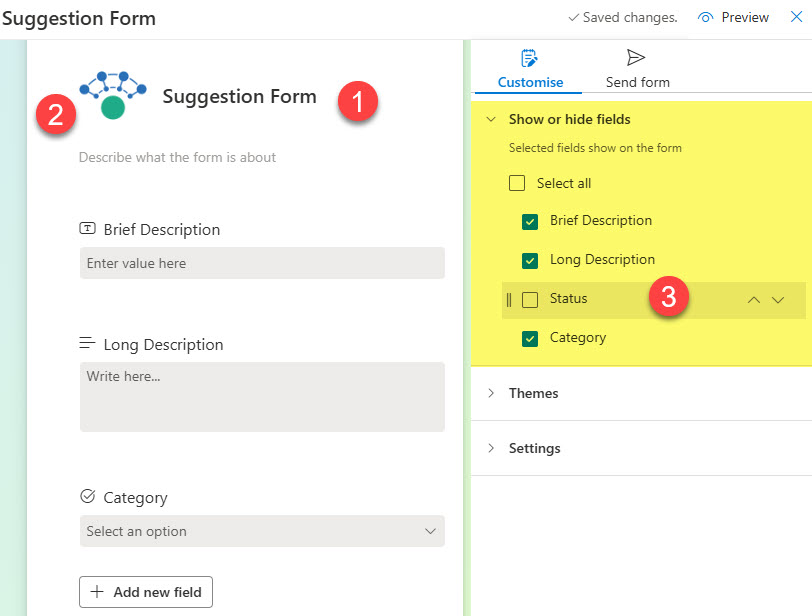
- You can also rename the fields for unique display on the Form and provide additional descriptions for the fields if you wish.
Step 5: Add the form to the SharePoint Page
The final step in the process is to add a link to the form from your Intranet page. You can link it from the Quick Links Web Part or my preferred method – utilize the Call to Action Web Part (CTA) for this.
- From the form, copy the Form Link
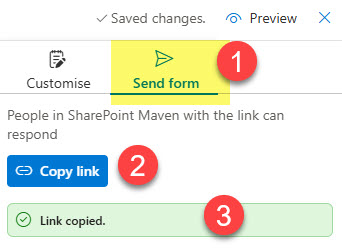
- Next, edit the SharePoint page, add the Call to Action Web Part, and paste the Form URL. Change the background image as necessary + add appropriate text/instructions.
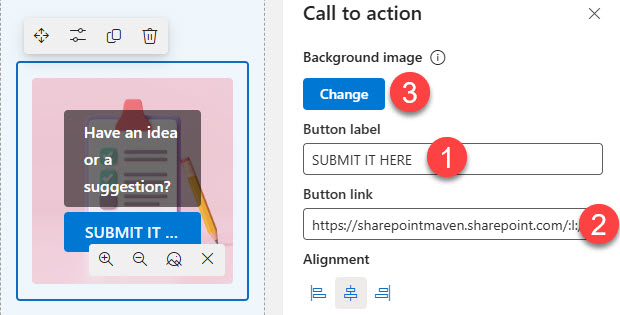
Step 6: How the Suggestion Box in SharePoint Works
And now, the most exciting piece! We are ready to test it out!
- Go ahead and complete the form
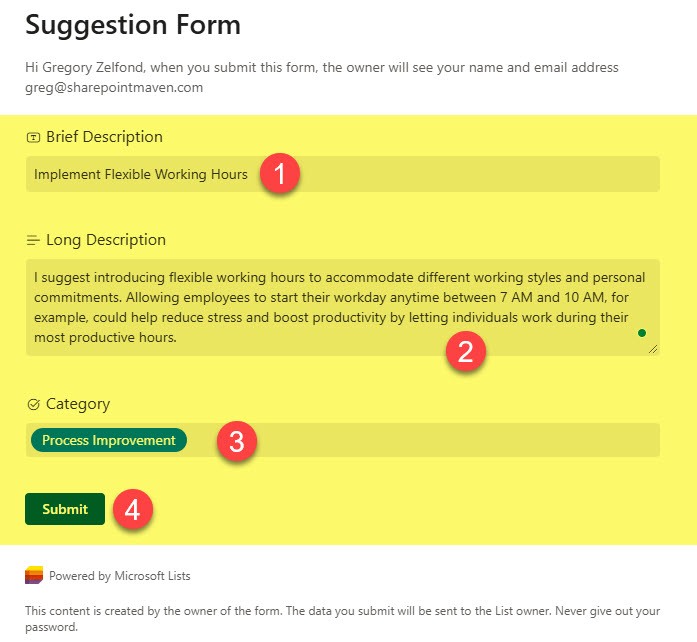
- Once submitted, the entry will be populated within the list. You can then adjust the Status as necessary to track the submissions.

Additional Settings/Nuances to Consider about the Suggestion Box in SharePoint
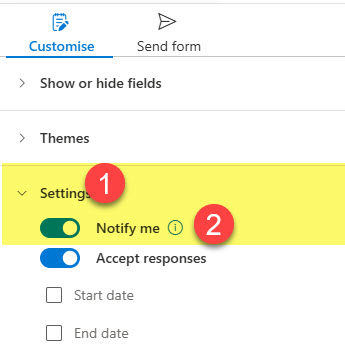
- If you want to be notified about the Form submissions, enable Notify me toggle.
- As of the wiring of this post, attachments are not allowed for the Form Submissions.
- Another thing I like to do with the Suggestion Form/List is enable the Ratings column. This will allow you or even the entire employee base to rate or like submitted entries so you get a sense of which suggestions are important to your employees. I explained how to enable the Average Rating column in this article.
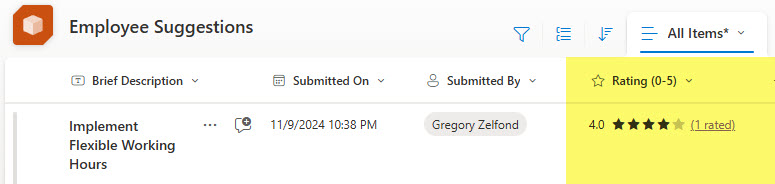
Here are some additional images and screenshots of a Suggestion Box form and a respective list.

Share Article