< All Articles
How to create a new list from a Gallery View Template
Gallery view in Microsoft Lists is one of my favorite views. Especially if it contains an image, it allows for a visually appealing presentation of a list. A use case could be a list of locations with images or an employee directory with photos. While you can first create a list (grid) and then a Gallery view off it, you can also create a Gallery View from scratch as well. Let me show you how.
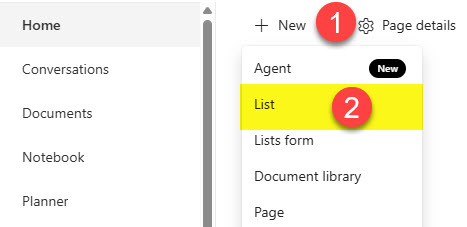
- From a site where you want to create a list, click New > List
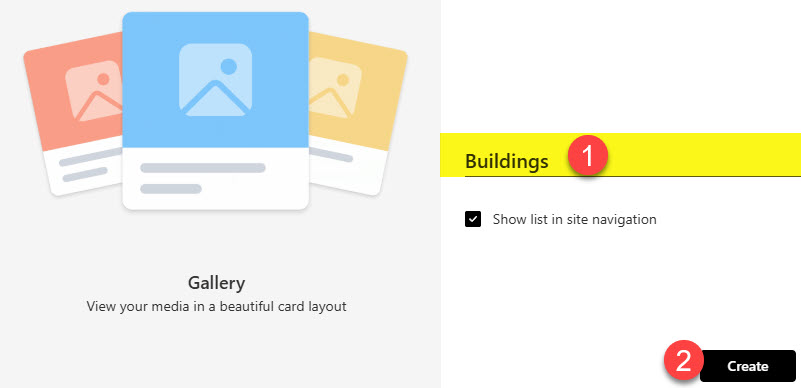
- From the various templates/options, choose Gallery

- Give your list a name and click Create
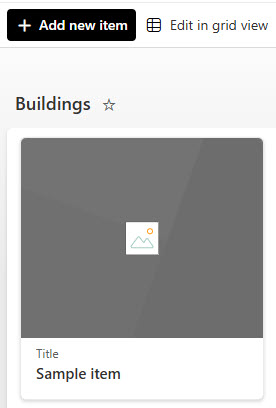
- The list with the default Gallery View will immediately be created. By default, it will have a Title column and an Image column created.
- To add additional columns/metadata fields, click on All Items View and then +Add Column.
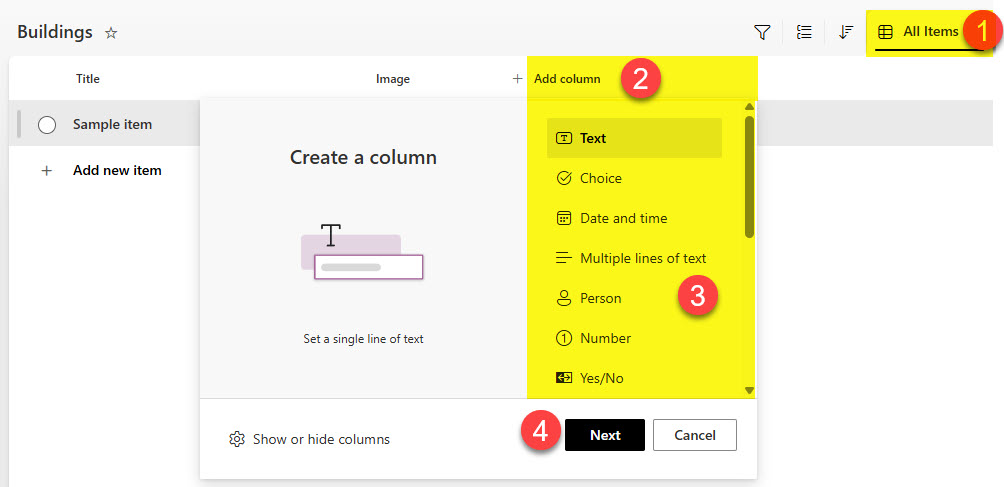
- For my List of Buildings, I am creating two columns: Building Manager (Person or Group) and Address (Single line of text). Please check out this article for a complete list of available column types.
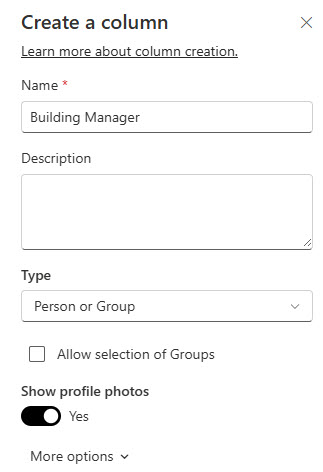
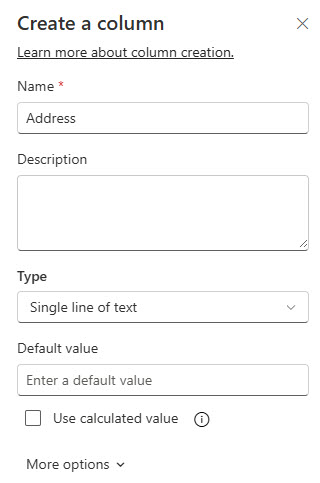
- Once created, this is what the list will look like

- Switch to the Gallery View. You will see the cards; however, they won’t have the new columns we just added
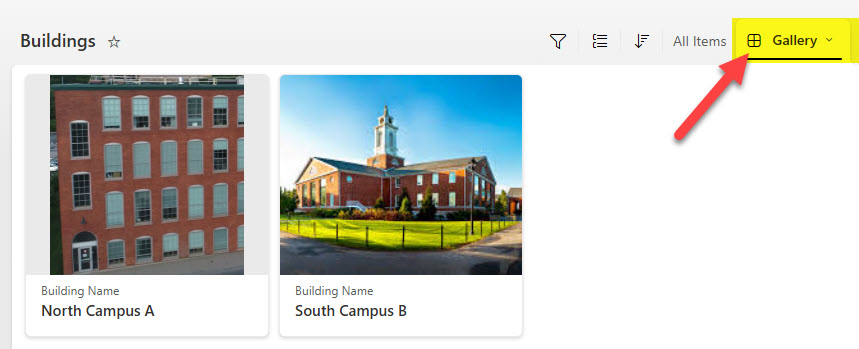
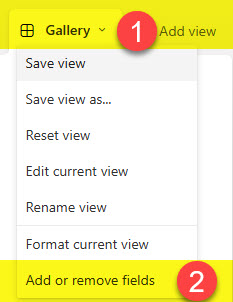
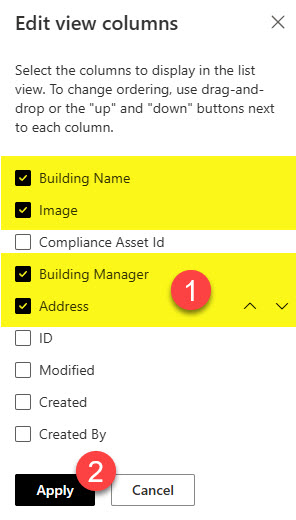
- Next, we need to configure the Gallery view itself. To do so, click on the Gallery View tab and choose Add or remove fields (this is necessary so we can add the two columns we created in the previous steps)
- Click the checkbox next to the columns you want to add and click Apply
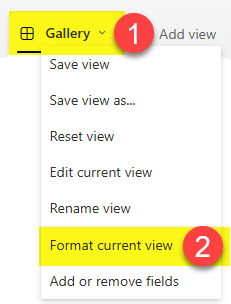
- Next, we can format the card’s look and feel. To do so, click on the Gallery drop-down and choose Format current view
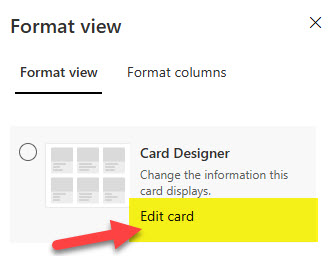
- Click Edit card
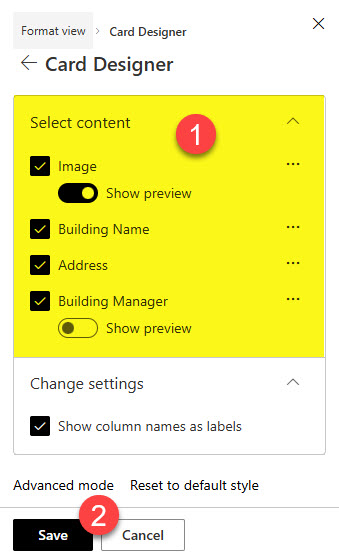
- On this last step, we can format the look and feel of the card – enable or disable columns to show, and change the order.
- Once all set and done, this is what the Gallery View will look like

Use Cases for the Gallery View on a List
Gallery view is perfect for any list with an image column (images), as it can be used as the header within each Gallery Card. However, you can also create a Gallery view anytime you want to display information in visually appealing cards. Here are a few examples/use cases.
- Employee Directory with photos of the employees (check out an example here)
- Properties List with photos of the properties (check out an example here)
- Client List with logos of the clients/companies (check out an example here)
- Asset Management Tracker with images of the hardware (check out the example here)
- Office Directory (check out an example here)

Share Article