< All Articles
How to Quickly Fill Out a SharePoint List Using Edit in Grid View
One common complaint about lists and libraries that use metadata is that the metadata entry process is awkward, not intuitive, and time-consuming. Today, I want to introduce you to the magic feature of Edit in Grid View, which lets you tag multiple files in a library or rows in a list, just like filling out an Excel document. I will also show you how to save that view for easy access.
Edit in Grid View
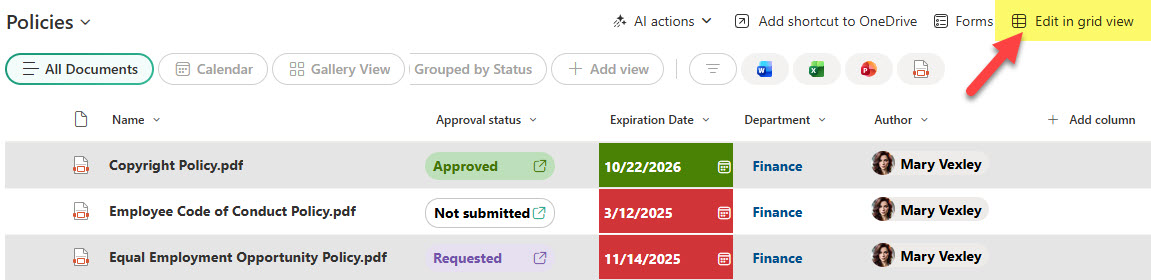
- Once in a list or a library, click Edit in Grid view

- At this point, the list or library will become editable, just like an Excel table. You can easily make changes to the table. Once done, click Exit grid View to exit the editable view.
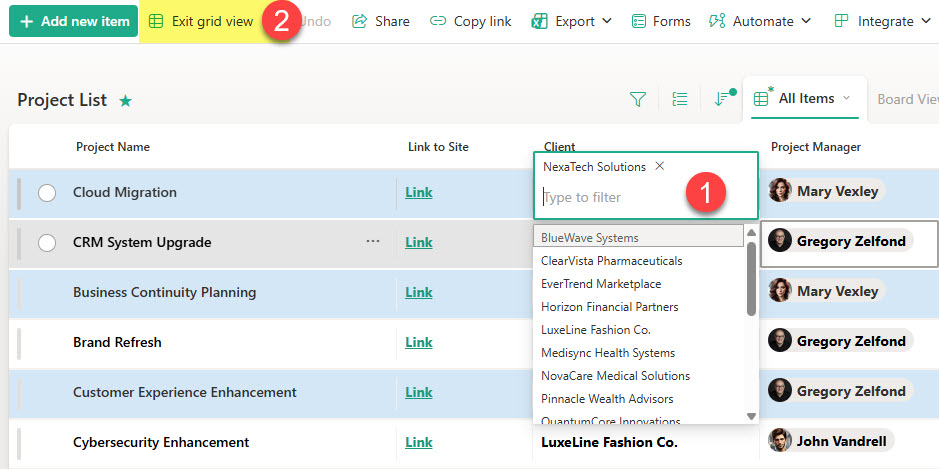
Save an editable view as a New View
One thing I also recommend is creating a dedicated view for such edits, so you don’t need to click Edit in Grid View every time. For this:
- Once you click Edit in Grid View, choose Save view as from the All Items drop-down
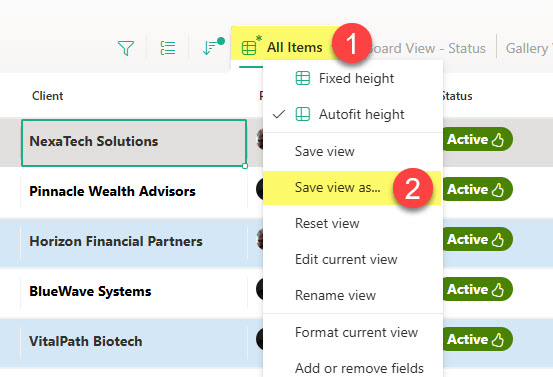
- Give the view a name and click Save
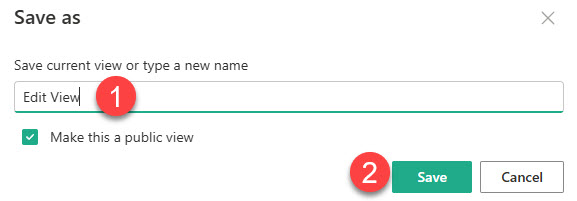
- Next time you are ready to make quick edits, just click that view and start making the changes!
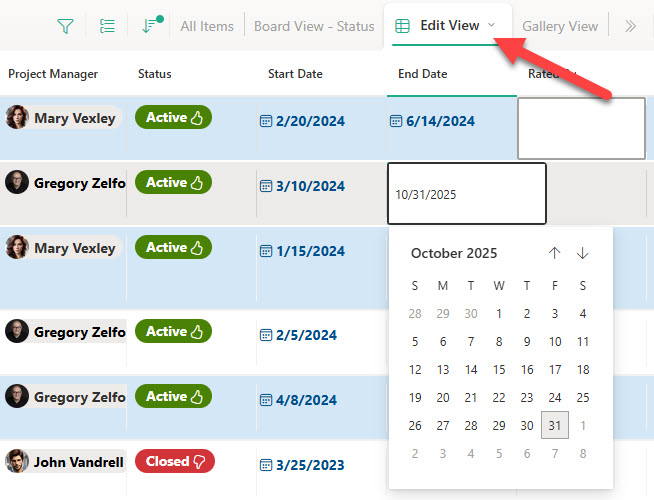
Nuances
- When making changes in Edit in Grid View mode, it is easy to make a mistake and overwrite data. Luckily, there is an Undo button you can use to undo the changes, one by one.
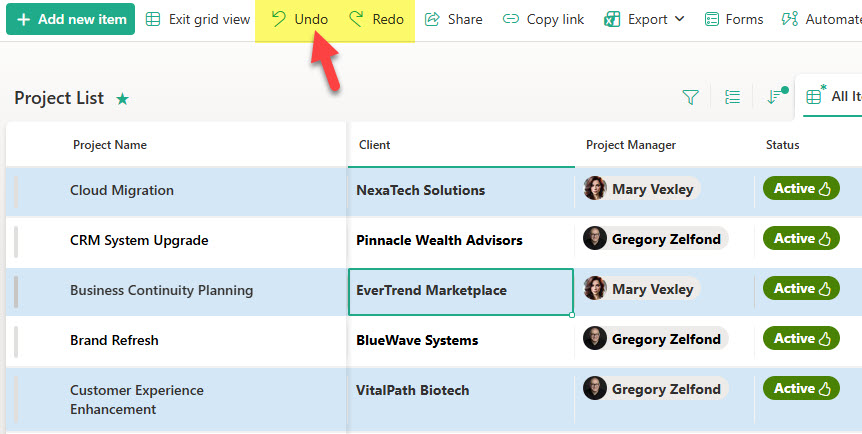
- The same functionality shown here in a list also exists in a document library.

Share Article


