< All Articles
How to create SharePoint Pages and News Posts with Copilot AI
I kind of feel weird manually typing up this article on my laptop. I never use AI to write my blog posts and prefer to rely on my experience and knowledge instead. That said, this post is about Copilot AI helping you author news posts and pages in SharePoint, so I find this a bit ironic 😊. Nevertheless, let me explain how this works and how AI can help you generate content while I create content for you without AI 😊.
Create SharePoint Pages with Copilot AI
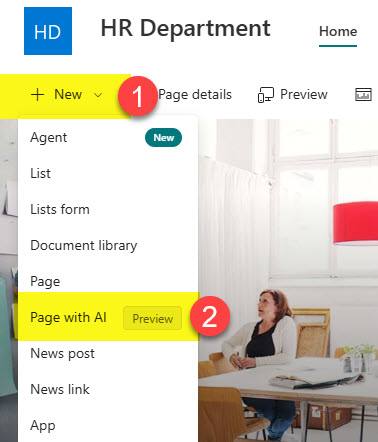
- From the SharePoint Site Homepage, click the New drop-down and choose Page with AI
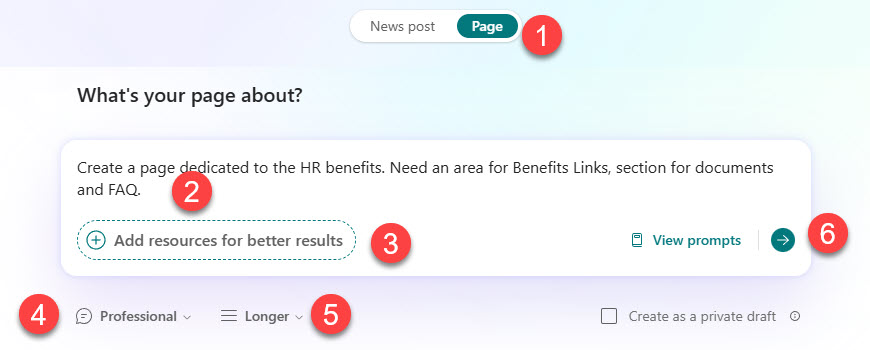
- You will then see the screen below. Choose between a News Post or a Page. In this example, I am creating a new page.

- Next, describe what you are trying to create. You can also specify the tone and length. Click the arrow to create the content.
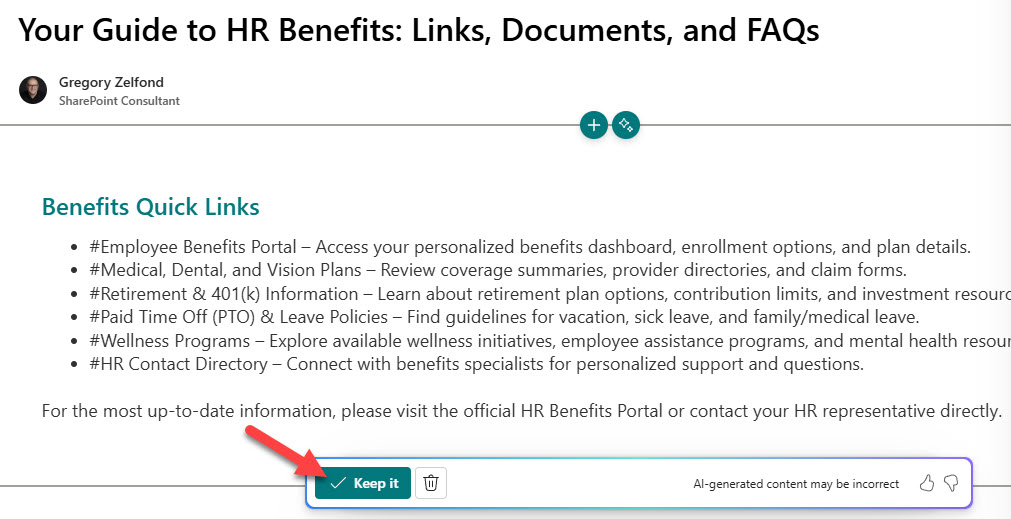
- Below is an example of the page created with the help of AI. You can discard it or keep it.
Create SharePoint News Posts with Copilot AI
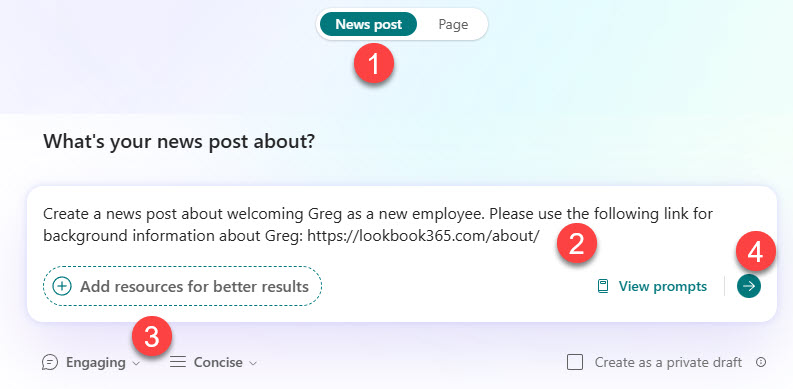
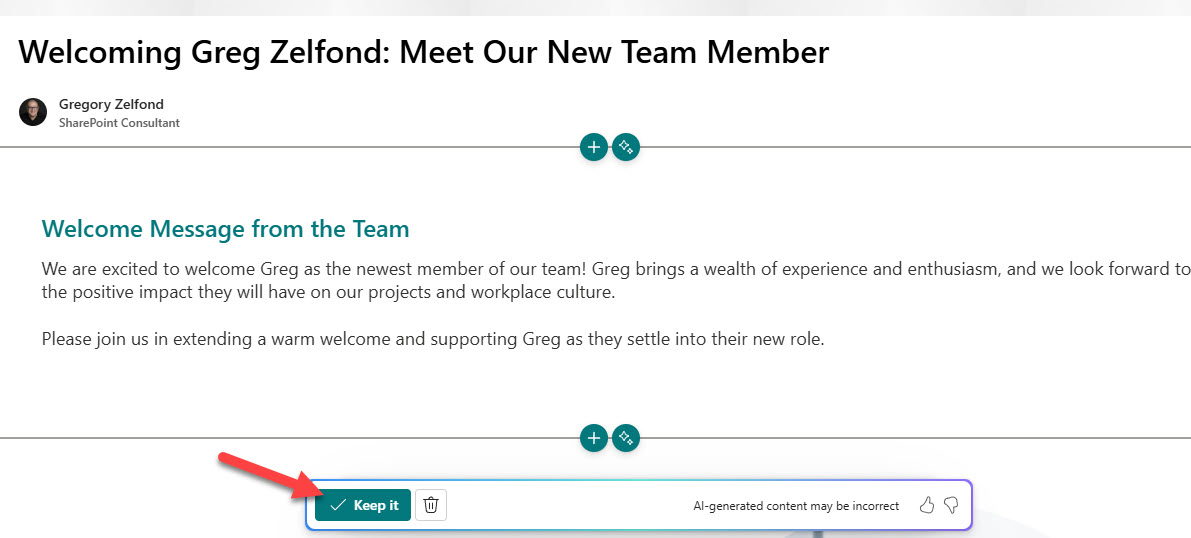
- Just like you can create pages with Copilot AI, you can also create News Posts using Copilot AI. In the example below, I am creating a Welcome new employee news post.
- Below is the result of the above prompt.
Create News Posts and Pages using Copilot prompt Templates
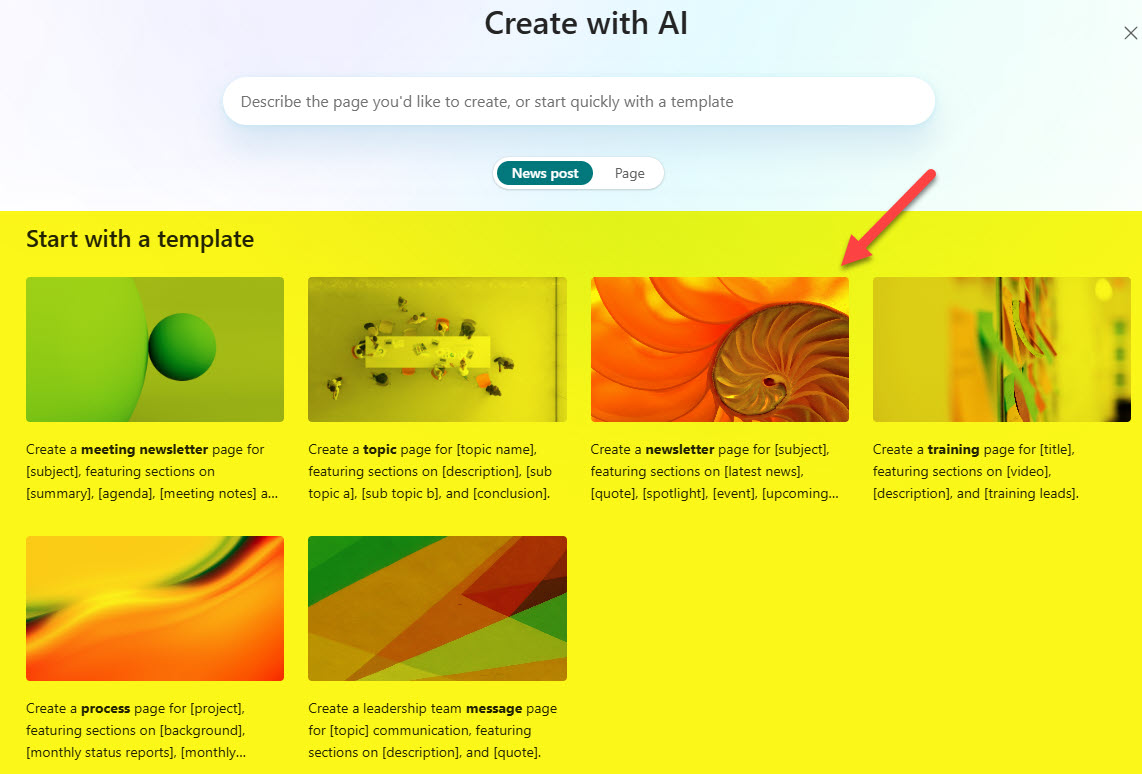
You can also create both news posts and pages using built-in Copilot Templates. They are a mix of Copilot prompts and a wizard you have to fill in.
- Just choose a template/script you would like to start with
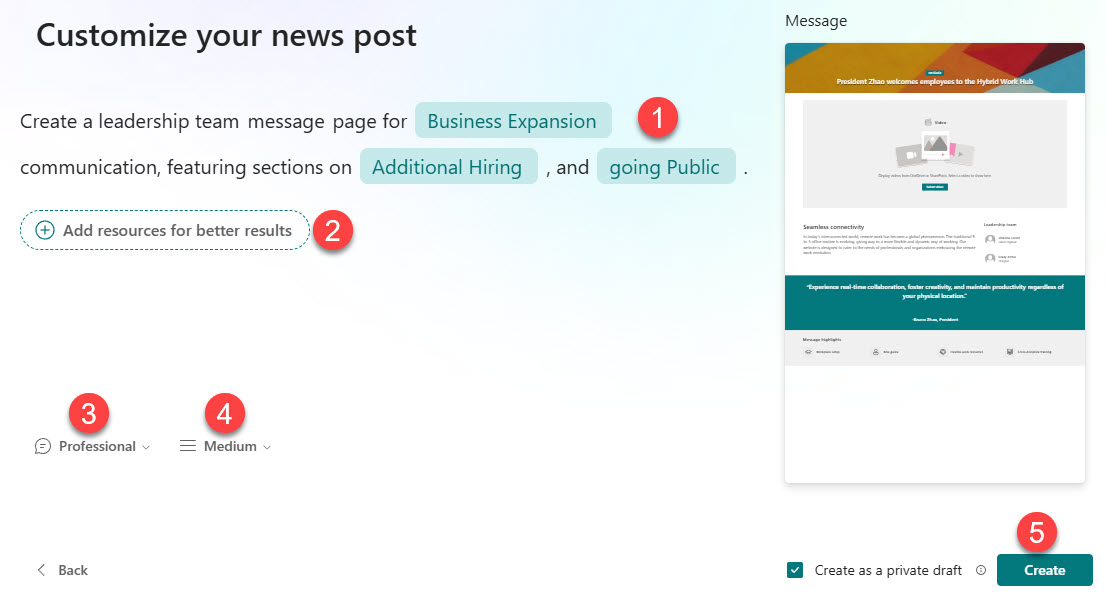
- Fill in the blanks within the template

- You can also customize the tone and length. Click Create.
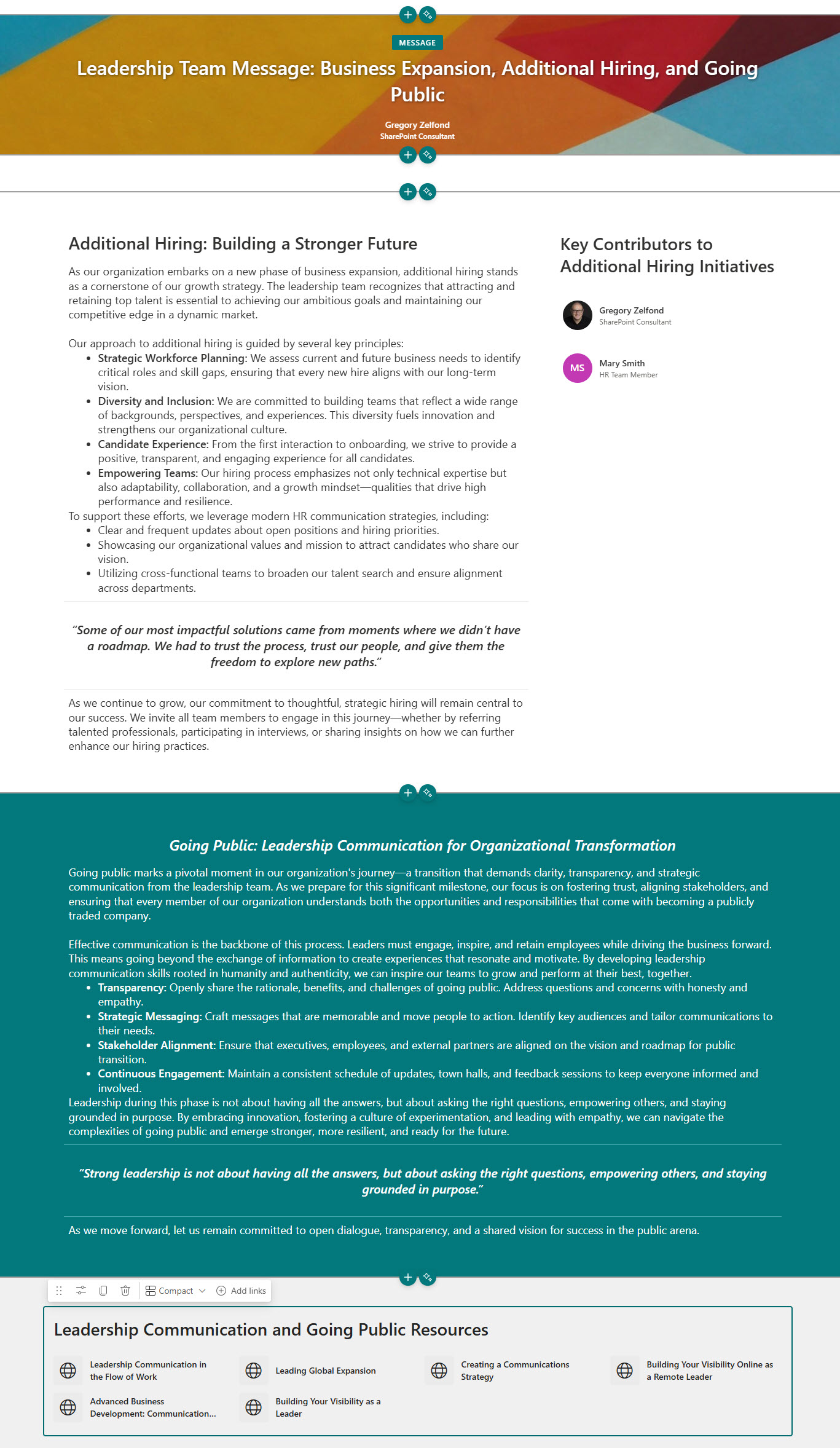
- Below is the result
Important Nuances
- Just as described above, you can use Copilot AI to create both SharePoint Pages as well as News Posts. Check out this article to understand the difference between the two.
- When you create News Posts and Pages using Copilot AI, it defaults to Private Draft, since you’ll most likely want to modify the content before making it available to other site members.


Share Article