< All Articles
How to use an Agent Link Web Part in SharePoint
In one of my recent articles, I introduced you to Copilot Agent capability. This is where you can set up the rules of engagement for Copilot on a given site by grounding it in specific content and defining its behavior. However, to access those agents, users must either go to the document library where the *.agent files reside or use the Copilot button on the Site top ribbon – not very intuitive. It is therefore natural that we now have an Agent Link Web Part, which allows us to embed an Agent Call-to-Action (CTA) directly on the SharePoint page. In this article, I would like to explain how the Agent Link Web Part works.
- Edit the SharePoint Page
- Click the “+” sign, then select Agent Link Web Part

- The above step will add the Agent Web Part to the page. Click on the Set up your agent link button to configure it further.

- On the next screen, you can configure the size of the CTA button (Small, Medium, Large), and pick the agent from the list of available agents, then choose whether or not you want to display the Title on the CTA button

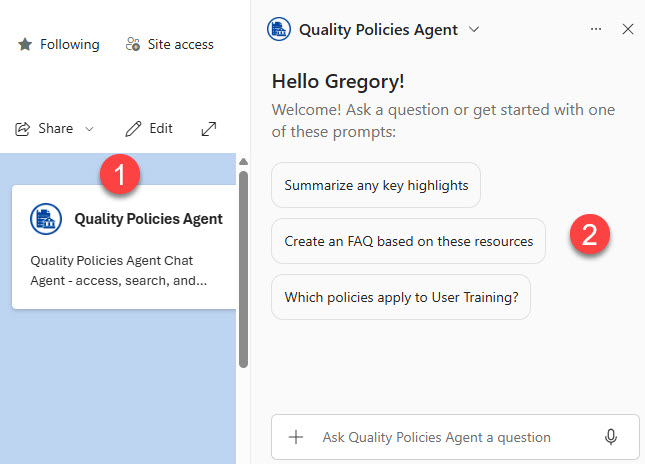
- This will add the Agent CTA to the page. Once users click on it, they will see the Copilot Chat window appear on the right, where they can interact/chat with the agent.
Nuances about Agent Link Web Part
- As of the writing of this post, you can only link custom Copilot Agents, not the Site’s default ones.
- You can only add one (1) Agent per Agent Link Web Part/CTA. If you need to add extra ones, just add more Agent Link Web Parts to the page
- The Copilot Agent does not need to be approved by the Site Owner at the site level to be available within the Agent Link Web Part.
- You can add Custom Copilot Agents to the Agent Link Web Part from other SharePoint sites. In other words, the Copilot Agents do not need to physically reside on the same site where you are adding a web part.
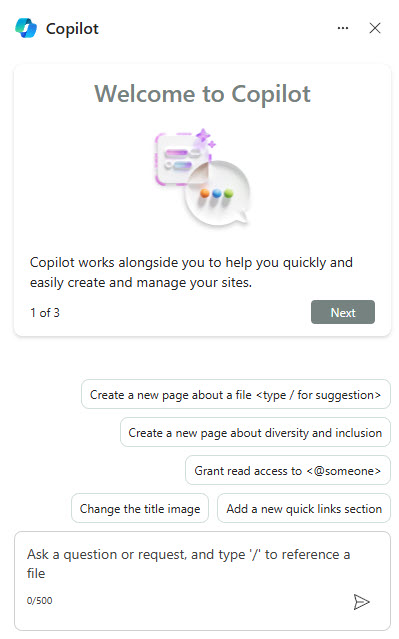
- A Microsoft 365 Copilot License is required for the Agent Link Web Part to function. If the user accessing the SharePoint page where the web part was added does not have the necessary license, they will see the Call to Action buttons. However, once they click on them, the generic Copilot chat window will appear on the side panel, rather than the customized chatbot you created.
- Just like with generic SharePoint search, Agent Link Web Part honors security trimming. In other words, users must have access to the content that the selected agent is grounded in.
Check out some additional examples of the Agent Link Web part being integrated into Intranet Sites/Pages.

Share Article