How to create a Gallery View on a List
I have become a huge fan of the Lists app lately. I have used them since the classic SharePoint days, but they were a bit boring back then. But ever since Microsoft upgraded Lists’ functionality and modernized them a few years ago, Lists have become sexy again. I published lots and lots of topics on their wonderful features. One of the new features we now have in a list is to create a Gallery View – a card-type presentation of the list items. So in this post, I would like to share with you the instructions on how to do just that.
Default View
By default, of course, a list is represented as a list – a boring list of rows and columns.
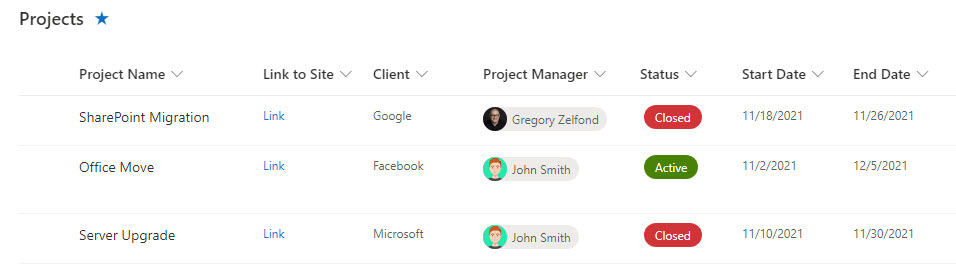
We can spice things up by formatting it, but it will still appear as a list.
How to create a Gallery View on a List
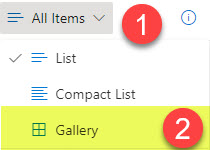
We now have another view we can create, called Gallery View. It allows for a card-type representation of the information. Gallery View on a list already exists out of the box. You can get to it by clicking on All Items > Gallery from the Views drop-down.
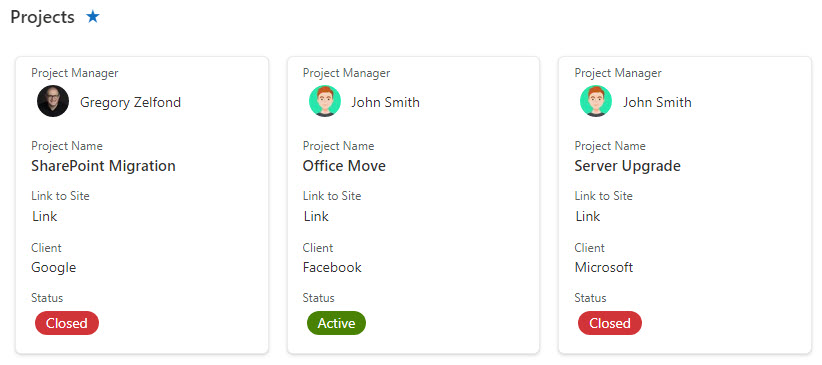
However, this view is just for a quick view of a list in a Gallery Format. If you want to create a Gallery View and have your own name for that view, you must create one manually using the instructions below.
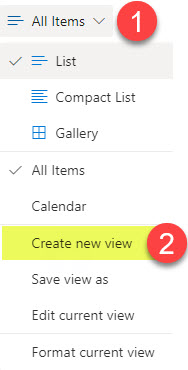
- From the All Items Views Drop-down, click Create new view
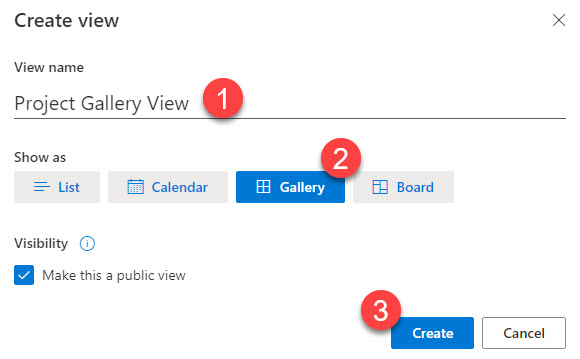
- On the next pop-up screen, give your view a name, choose Gallery, then click Create
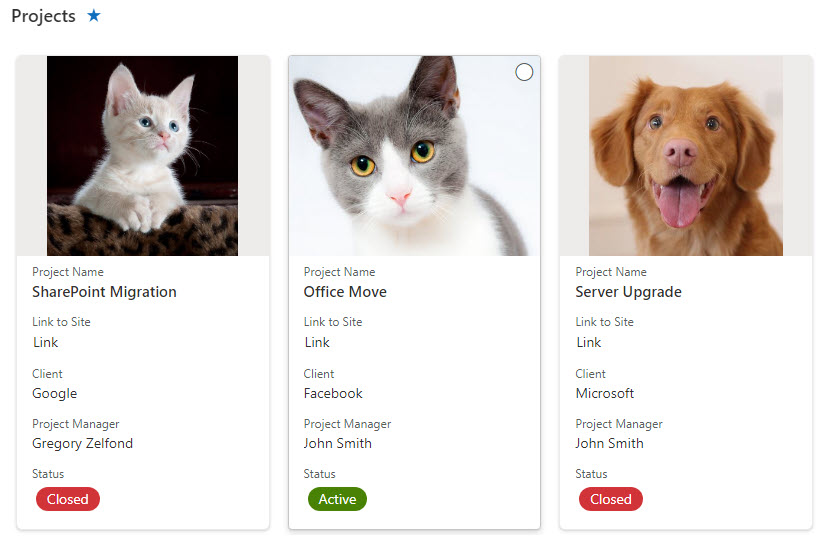
- Your View is now created
How to format the Gallery View on a List
Not only that, but you can also reorder the info in Gallery View to make it more attractive/relevant. By default, SharePoint arranges fields in a specific order, giving Column with Image a priority and putting it on top, as in the image above. You can change it, though.
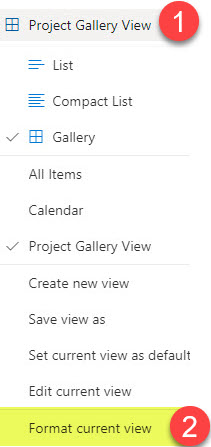
- In the View drop-down, click Format current view
- Next, click Edit card
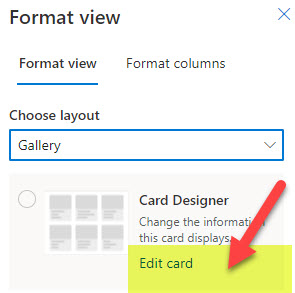
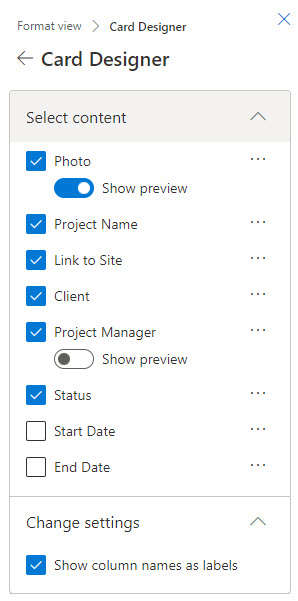
- This is where you can customize the layout of the card by showing/hiding fields or changing their order
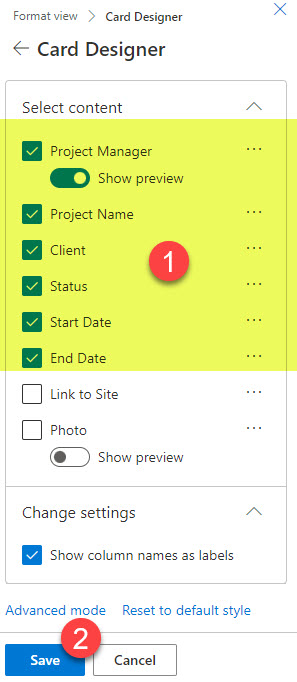
- In my case, I changed the fields to this (don’t forget to click Save once changes are made)
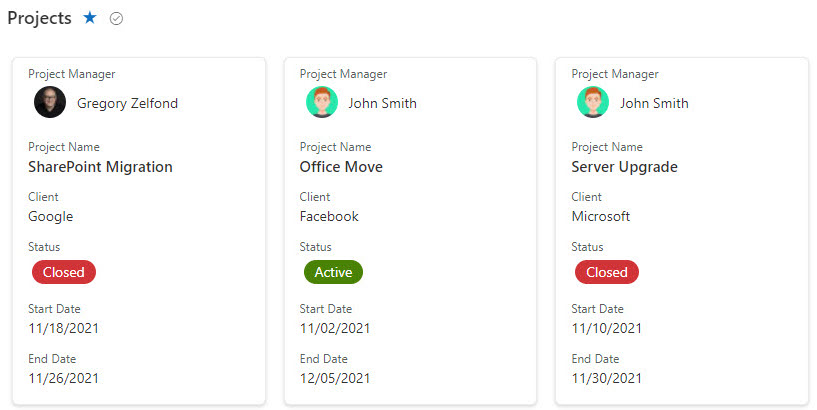
- Which in turn, changed the style of my cards to this

Share Article