6 ways to add a Microsoft Form to SharePoint Site
When I create intranet portals for my clients, I often get a request to embed or add an intake form to the main intranet page or department site. An example could be a Suggestion Box Form or some sort of survey/poll that Human Resources runs. So, in this post, I decided to summarize all the available options for you to add a Microsoft Form to a SharePoint Site.
Option 1: Embed using the Forms Web Part
The most elegant option is to embed the Form on the SharePoint page using the Forms Web Part. This allows you to have the form front and center when using within the page. They also respond to the form questions right within SharePoint as well, making it a pretty seamless experience with just a single click.

MS Forms Web Part

Settings available within MS Forms Web Part
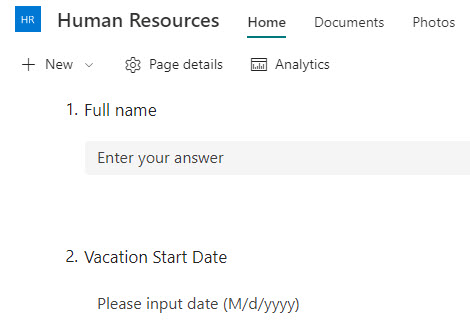
Example of an MS Form embedded on a SharePoint page

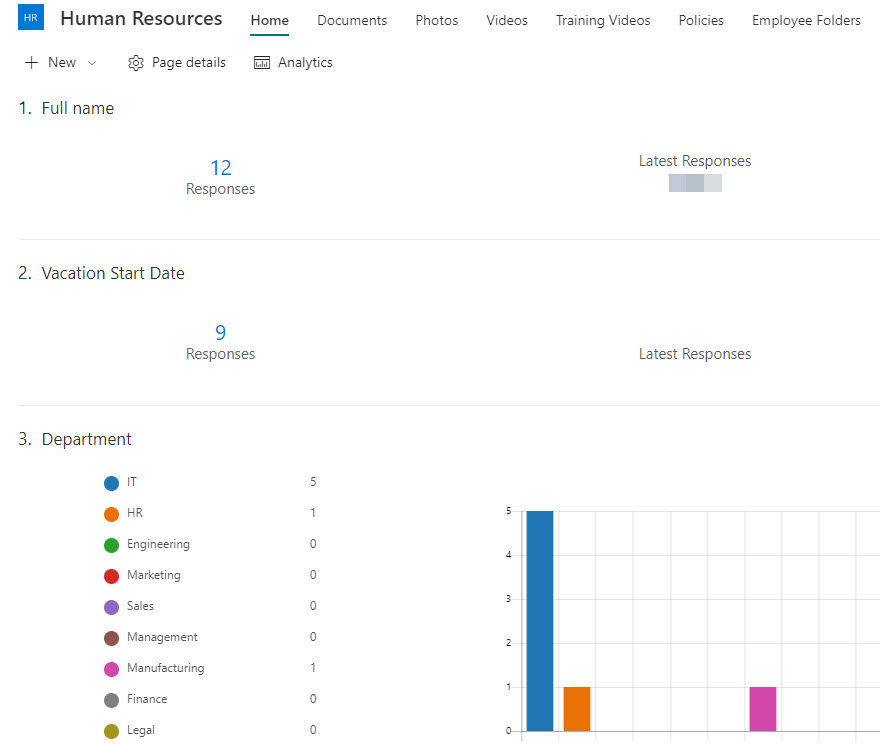
Example of a SharePoint Page with the submitted MS Form
Pros
- Allows users to submit the form without leaving the SharePoint page
- A simple and elegant solution
- Easy to implement
- The same Web Part can be used to display survey results on a SharePoint page

Cons
- It only works well for short surveys/forms as the form takes lots of real estate from a page.
Option 2: Add a link using Quick Links
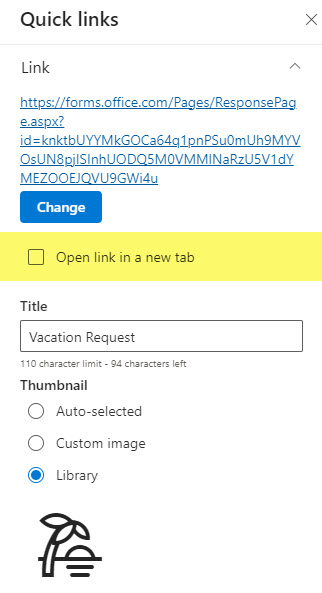
When you have a long form or many forms you want to make available to users, I suggest simply linking them from the Quick Links Web Part. Clicking on a link will open another window/tab where users can fill out the surveys.

Pros
- Great for linking several forms
- The form always opens in a new tab (even if you do not check Open link in a new tab checkbox); Thus, the original SharePoint page is still visible/open
Cons
- None. It is not all negative, you know.
Option 3: Add a link using the Call to Action Web Part
If you have a form you would like to highlight and make sure your users don’t miss it, then use the Call to Action Web Part. It will allow you to add a link to the form and catchy graphics/background and text.


Pros
- Great option to highlight users’ attention
- Unlike the Quick Links, it allows for a bit of catchy customizations, like background image, Button text, and the Call to Action overlay text
Cons
- It takes a bit of real estate on the page, so this option only works for a small number of forms to link to.
Option 4: Embed using Inline Text Link
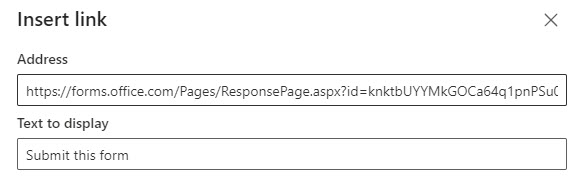
You can always create a good old text link and hyperlink any text to your form. This will guarantee that the link will take the least amount of real estate on your screen, making your form almost unnoticeable to the users 😊

Pros
- Takes the least real estate on the page
Cons
- Not a very attractive option
- The link (and form, respectively) might become almost unnoticeable on the screen.
Option 5: Add a link using Site Navigation
You can also link the Form(s) from the site navigation. The beauty of this approach is that the navigation is visible on all the pages within a site.

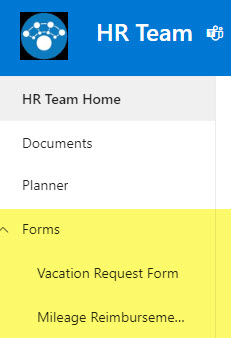
Pros
- If you have multiple forms, they can be organized into sublevels using sublink functionality
Cons
- None I can think of
Option 6: Embed inside of the Video
There is another way to add a Microsoft Form to a SharePoint Site. This is a unique use case if you store and display videos in SharePoint. Did you know you could also embed the form inside a Stream video? I explained it in this post. This option only makes sense if you have some sort of quick quiz/survey or are gathering feedback from the video users are watching.


Pros
- It is an elegant option if you are collecting feedback/doing quizzes from the video itself.
Cons
- None I can think of

Share Article