5 Image Hacks to Instantly Elevate Your SharePoint Pages
SharePoint is becoming increasingly similar to WordPress, with impressive capabilities for text and image editing. And that is a good thing as it allows us to create rich experiences for the employees. In this article, I aim to share some tricks that I often use when building intranet portals for my clients.
Image Hack # 1: Image Shapes
The first feature that stands out in terms of Image editing is the ability to transform a boring square image into a different shape (circle, pebble, teardrop, etc). Combined with the Flexible sections on SharePoint pages, it can really elevate your design.


Example of a Pebble shape on a square image
Image Hack # 2: Prevent Image pop-up
When you embed an image on a SharePoint page, as soon as users click on that image, it opens in a large window (Gallery mode). To prevent an image from popping up in SharePoint, you need to mark it as decorative.

Image Hack # 3: Text Overlay
The next trick – you can add text overlay over an image. Not only that, but you have lots of customization options for that text, from its color, background, size, opacity, and transparency.

Image Hack # 4: Alignment within the Text Web Part
This next trick is only relevant when you embed an image on the page inside the Text Web part. By default, when you insert an image, it splits the text; however, you can also change the image alignment so that the text wraps around the image carefully.
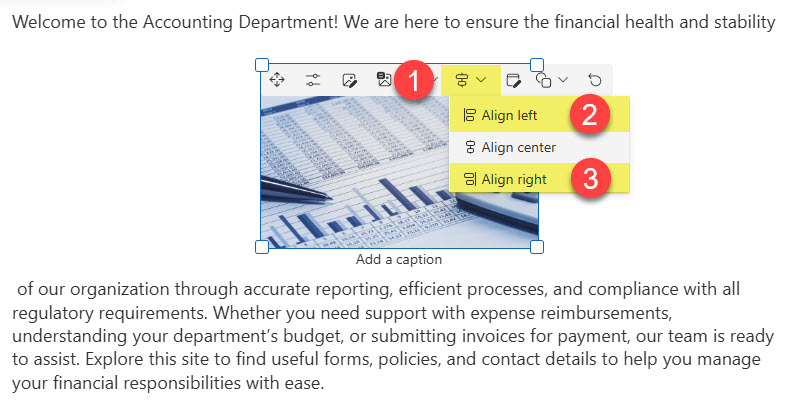
The default behavior of an image once inserted inside the Text Web Part

The alignment of an image inside the Text Web Part
Image Hack # 5: Advanced Editing
Finally, we have Advanced Editing options for each image you embed inside the SharePoint page. You can adjust contrast, brightness, filters, saturation, and other properties of an image you would usually adjust in a graphic design tool.



Share Article