The 6 Security Groups in SharePoint Admin Center explained
I always joke with my clients that to understand how SharePoint security works, you either need to have a PhD in SharePoint or be able to consume large amounts of alcohol. In my case, I fall into both categories 😊. No wonder I devoted a large share of my posts to the topic of security and permissions. Specifically, this article explains how to properly manage SharePoint site security, either by utilizing SharePoint security groups or Microsoft 365 Groups, depending on the type of site you have. If you are a regular SharePoint Site Member or Owner, I highly recommend reading that article to learn how SharePoint site security works from a user perspective and how to properly set it up from the site interface.
In this article, however, I want to cover the topic of setting up security from the SharePoint Admin Center. The interface in there is different, and you will see some additional choices you typically do not get to see at the site level. So if you are a SharePoint Administrator, this is a must-read to keep sanity!
SharePoint Site Security vs. Group Security
Before I explain the settings in SharePoint Admin Center, I believe it is beneficial to remind ourselves how to manage security on SharePoint sites. As explained in this article (link), the way we set up permissions depends on the type of site we have:
Communication Sites and Team Sites without a Group
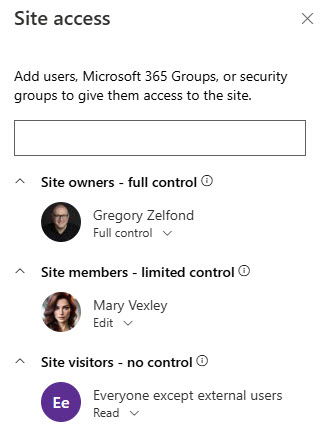
If we just deal with regular SharePoint sites, like Communication Sites (link) or Team Sites without a Group (link), then we have a simple concept of 3 SharePoint security groups:
- Visitors (read only)
- Members (add/edit/delete content)
- Owners (full control of all settings and permissions on a site)
Team Sites with a group attached
On the other hand, if we have a Team Site connected to a Microsoft 365 Group (simply called a Team Site), the site’s security is managed by the Microsoft 365 Group.
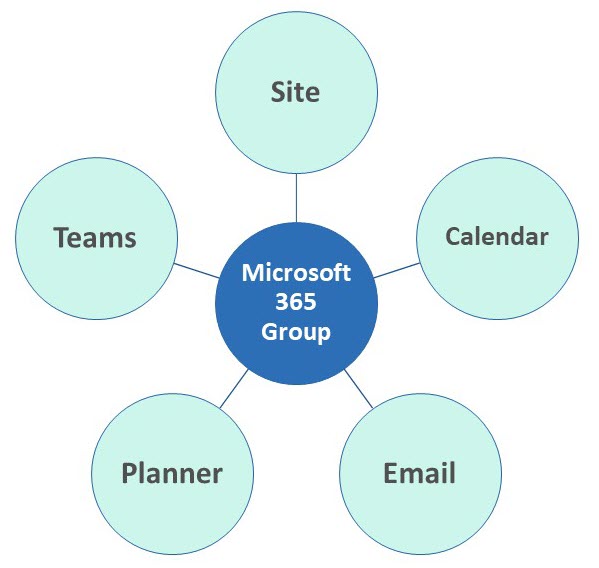
With that arrangement, we have 2 levels only:
- Group Members (add/edit/delete)
- Group Owners (full control of all settings and permissions for the Site and connected assets like Planner, Teams, etc.)

How to manage Permissions from the SharePoint Admin Center
Just as the experience differs when you set up permissions for Team sites and Communication from the site interface, it is also different when you do the same from the SharePoint Admin Center. So I am going to explain it for 2 different types of sites:
Communication Sites and Team Sites without a Group
- From the SharePoint Admin Center, from the list of Active Sites, click the checkbox next to a site, then Membership

- You will then see the same security groups you see at the site level (Site owners, Site members, Site visitors)
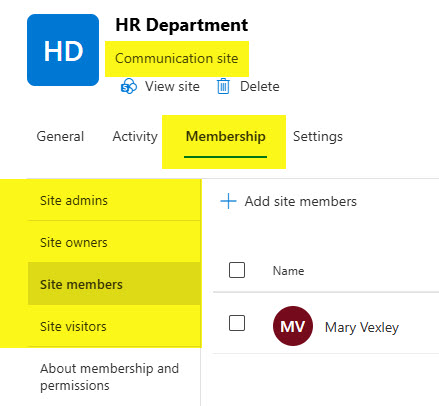
The diagram below shows the correlation between the groups you see in the SharePoint Admin Center and the Site itself.

You will notice that in addition to the three SharePoint security groups I explained above, we also have the SharePoint Admins group. It always confuses the hell out of everyone. You see, in the Classic version of SharePoint, we had the concept of Site collections. A site collection would house many subsites. And while each subsite could have its own Owner, there could also be Site Collection Owners (Admins) that essentially controlled the settings and had access to all the subsites within the site collection. However, in the modern version of SharePoint, we no longer have a concept of subsites. What we used to call a site collection is now simply a site. So in a way, the Owner of the top-level site would be the Site Collection Owner as well. However, since the Site Collection Admin group still exists as a separate entity, it still remains as an extra option.
There are rare occasions when you need to grant someone Site Collection Admin privileges; however, for most use cases, being a Site Owner is more than enough. So I usually never use the Site Collection Admin group at all. Since this group is not visible in the Site Permissions view on a site, adding users to it could be misleading to someone looking at the Site Permissions screen.
Team Site with the Group attached
If you choose Membership on a Team Site connected to a Microsoft 365 Group, you will see 6 Security groups in total! This is because, in addition to the 4 SharePoint security groups explained above, we also have a Microsoft 365 Group with its Owners and members. The diagram below explains this as well.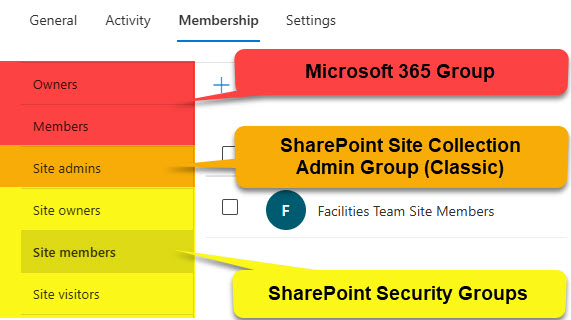
The image below shows the correlation between the groups you see in the Admin Center and those you see on a site. You can tell I created it myself, without the help of ChatGPT 🤣

Best Practices & Nuances
- Manage permissions on Group-connected sites via Microsoft 365 Group membership. Do not utilize (unless there are reasons/requirements) SharePoint security groups.
- Manage permissions on regular SharePoint sites via the three (3) SharePoint security groups
- Limit the number of Site Owners for each site – I provided some guidance in this article.
- If at all possible, avoid assigning users directly to a SharePoint site when the site is connected to a Microsoft 365 Group. Manage via Group membership instead.
- If you want to add Everyone except the external users group to a site, you must do so from the SharePoint site itself. You cannot add it from the SharePoint Admin Center.

Share Article