How to Send Praise to Colleagues Using Viva Insights
As I build Intranet portals for my clients, one common request is to create a solution that allows employees to send praise or appreciation to their colleagues. While there is no out-of-the-box functionality in SharePoint to achieve this, such functionality is part of the Viva Insights platform. So today, I want to explain how it works.
It is essential to note that for this feature to function, you must purchase Viva Insights licenses for your organization. There are three ways to send praise.
Option 1: Viva Insights Application
One way to send praise to your colleagues is via the Viva Insights application itself. To do so:
- From the Microsoft 365 App splash page, click Apps (on the left-hand side panel), then All Apps, then Insights from the list of all the available apps.

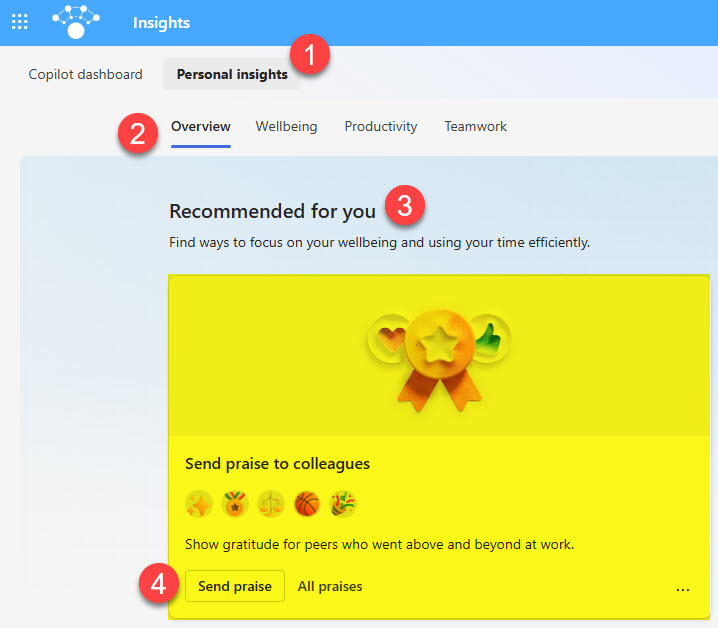
- Once Viva Insights opens up, click on the Personal insights tab, then the Overview tab, then under Recommended for you, click Send praise.
- It is pretty straightforward from there. Simply type in the user’s name, specify where you want the praise to appear (either in a personal chat or a group chat in Channels), add your personal message, and click Send.

- This is how praise will appear in the designated channels once sent.

Option 2: Teams
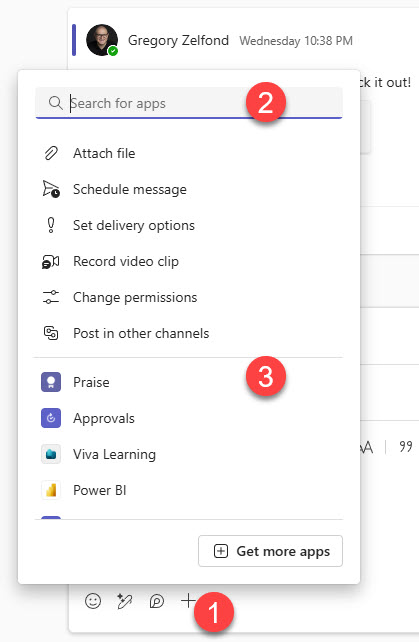
The second and most natural option for you to send praise would be from Teams. You can do so from 1:1 chat or the Teams Channel chat. Within the thread, just click “+”. If Praise does not appear in the list, just type its name in the search field. Once you click on it, you will then be presented with an entry screen, as shown in Option 1.
Option 3: Dashboard Praise Card
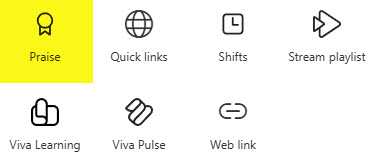
The third option for sending praise would be via a Praise Card, available in the Viva Connections Dashboard. This essentially opens a link from Viva Insights. To learn more about adding cards for the Dashboard, check out this article.

I have additional images/examples of the praise for a colleague’s capability on my LookBook 365 portfolio site.

Share Article