< All Articles
How to Enable Live Captions in Microsoft Teams to Improve Engagement and Accessibility
I recently had an interesting query from one of my clients. I was slated to deliver live SharePoint training to their staff via Microsoft Teams. They had employees across the USA, including some in Puerto Rico. So they asked about options for Spanish-speaking attendees. While I, of course, deliver my training in English, I found a way to “translate” my session into Spanish via Live Teams Captions. Let me explain how this works.
How to enable Live Captions in Teams
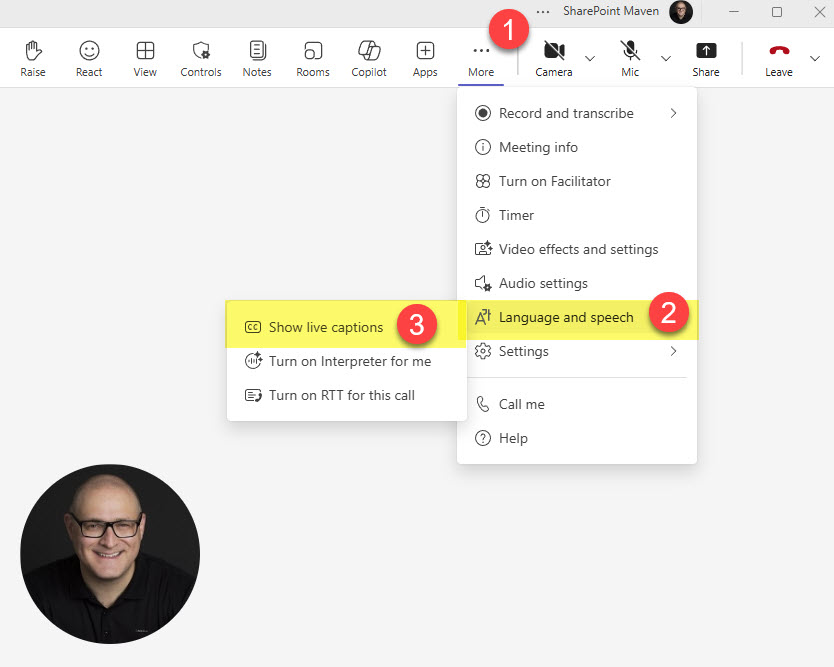
- Once you start the meeting, click 3 dots > Language and speech > Show live captions
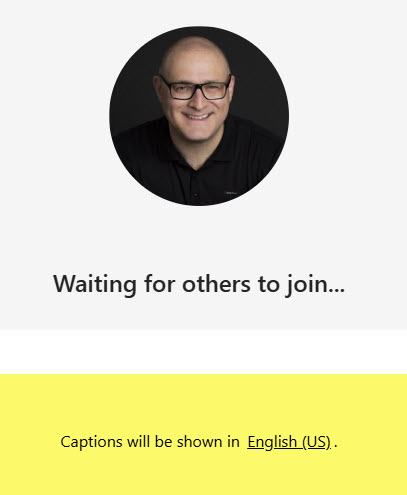
- It will inform you now that Captions will be generated and shown in the area below the screen.
- You can adjust the Language settings as well by clicking Language settings under the Gear icon.
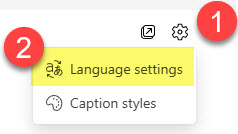
- Make sure to select the Spoken language. You can also (and that is optional) choose to translate/display the live captions into another language.

- Below is a snapshot of how live captions will render during the Teams meeting
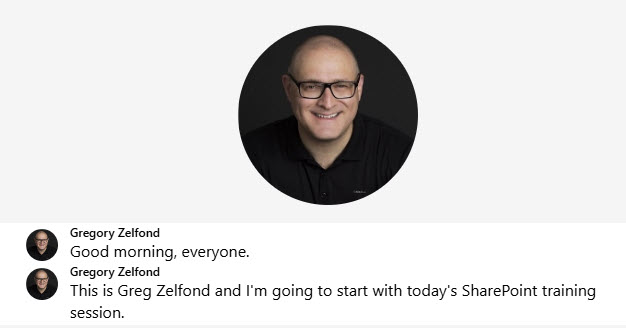
- In case you choose to translate the live captions, they will be displayed in the chosen language.


Share Article